How Do I Change the WordPress Login URL?
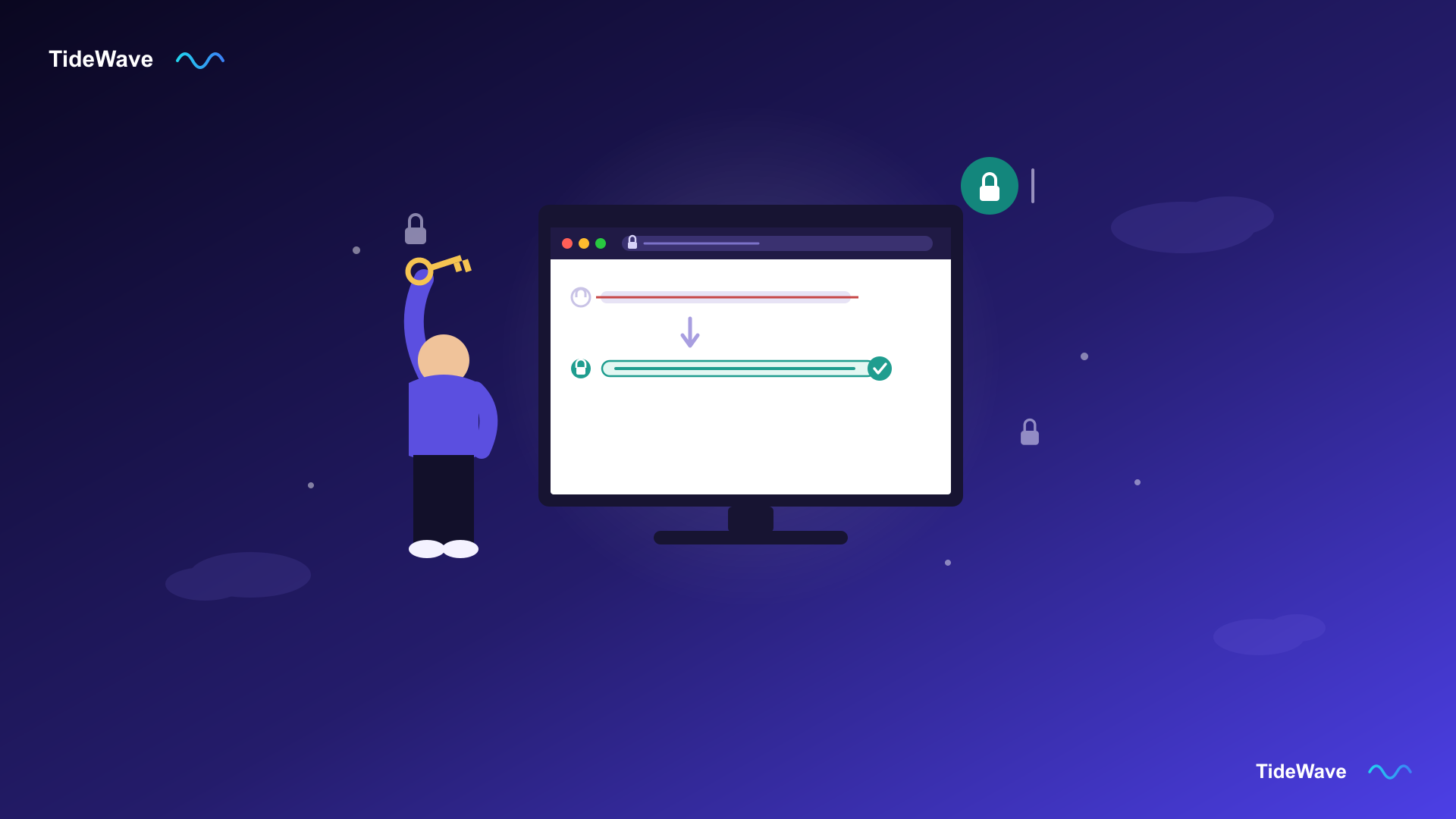
By default, every WordPress site's login page lives at the same predictable address: yoursite.com/wp-login.php (which also happens to redirect from yoursite.com/wp-admin). That consistency is great for you when you're trying to remember it, but it's just as great for the bots that scan the entire internet looking for exactly that URL so they can throw brute-force login attempts at it around the clock.
Changing your WordPress login URL to something only you know doesn't make your site unhackable, but it does knock out the vast majority of automated attacks in one move, since most bots never bother guessing custom slugs. In this guide, you'll learn why this matters, the safest way to do it with a dedicated plugin, and how to do it manually with your own code if you'd rather not add another plugin to your stack.
Why Change Your WordPress Login URL?
This technique is a form of "security through obscurity," and it's worth being upfront about what that means: it's not a replacement for strong passwords, two-factor authentication, or keeping WordPress updated. What it does very effectively is reduce noise, and that noise adds up:
- Fewer brute-force attempts. Automated scripts that hammer
/wp-login.phpthousands of times a day simply get a 404 instead, since they don't know your custom URL. - Lower server load. Every blocked login attempt is a request your server didn't have to process, which matters more than you'd think on shared or budget hosting.
- Cleaner security logs. With bot traffic to the default login page gone, it's much easier to spot real, targeted attempts against your site.
- A meaningful head start. Combined with a login attempt limiter and strong passwords, this closes off the laziest and most common attack vector entirely.
The one thing this method can't do is stop a targeted attacker who's already found your custom URL some other way (for example, through a misconfigured cache or a careless link), so pair it with the other basics rather than relying on it alone.
Option 1: Use a Plugin (Recommended for Most Sites)
For almost every site, a dedicated plugin is the safer and easier choice, because it's built to handle every edge case that a login page touches: password resets, logout links, registration, and admin-ajax requests. The most popular, actively maintained option is WPS Hide Login.
Install and Configure WPS Hide Login
- In your WordPress dashboard, go to Plugins → Add New.
- Search for WPS Hide Login, then click Install Now and Activate.
- Go to Settings → WPS Hide Login.
- In the Login URL field, enter your custom slug, for example
secure-access. - Click Save Changes.
That's it — your login page is now available at yoursite.com/secure-access, and both /wp-login.php and /wp-admin will return a 404 to anyone who isn't logged in. The plugin handles this by intercepting requests before WordPress core ever processes them, so no .htaccess rewrites or database changes are needed, and disabling the plugin instantly restores the default URL.
If you'd rather do this without touching the dashboard, WP-CLI can install, activate, and configure it in three commands:
wp plugin install wps-hide-login --activate
wp option update whl_page "secure-access"
wp cache flush
Other Well-Maintained Options
If your site already uses a broader security suite, you likely don't need a dedicated plugin at all:
- Solid Security (formerly iThemes Security) includes a "Hide Backend" feature that does the same job as part of its larger toolkit.
- Hide My WP Ghost goes further and also hides plugin/theme paths, not just the login page.
Whichever plugin you choose, avoid running two login-hiding plugins at once — they intercept the same requests and will conflict with each other, often locking you out entirely.
Option 2: Change It Manually With Code (No Plugin)
If you'd rather not add another plugin, you can rename the login page yourself with a small snippet. This approach is more fragile than a dedicated plugin because it has to correctly handle every request WordPress normally sends to wp-login.php, but it works well if you follow it carefully and test thoroughly.
Step 1: Add the Snippet as a Must-Use Plugin
Rather than editing your theme's functions.php (which loses this logic if you ever switch themes, and runs too late in some cases), create a must-use plugin, which WordPress loads automatically and unconditionally before themes are even processed.
Connect to your site via FTP or your host's file manager, and create this file:
wp-content/mu-plugins/custom-login-url.php
If the mu-plugins folder doesn't exist yet, create it — WordPress will pick it up automatically.
Step 2: Add the Rewrite Logic
Paste the following into custom-login-url.php:
<?php
/**
 * Plugin Name: Custom Login URL
 */

// Change this to your own secret slug.
define( 'CUSTOM_LOGIN_SLUG', 'secure-access' );

add_action( 'init', function () {
    $request_uri = strtok( $_SERVER['REQUEST_URI'], '?' );

    // Block direct access to wp-login.php and wp-admin for logged-out users.
    $is_login_request = ( strpos( $request_uri, 'wp-login.php' ) !== false );
    $is_admin_request = ( strpos( $request_uri, 'wp-admin' ) !== false
        && strpos( $request_uri, 'admin-ajax.php' ) === false );

    if ( ! is_user_logged_in() && ( $is_login_request || $is_admin_request ) ) {
        // Allow the custom slug itself, and any legitimate wp-login.php action
        // (like password resets) that WordPress needs to keep working.
        $is_custom_slug = ( trim( $request_uri, '/' ) === CUSTOM_LOGIN_SLUG );

        if ( ! $is_custom_slug ) {
            wp_safe_redirect( home_url( '/404-not-found' ), 302 );
            exit;
        }
    }
} );

add_action( 'parse_request', function ( $wp ) {
    if ( isset( $wp->request ) && trim( $wp->request, '/' ) === CUSTOM_LOGIN_SLUG ) {
        // Serve the real login page without exposing wp-login.php in the URL.
        require ABSPATH . 'wp-login.php';
        exit;
    }
} );

// Rewrite the login/logout URLs WordPress generates so they point to the new slug.
add_filter( 'site_url', function ( $url, $path ) {
    if ( strpos( $path, 'wp-login.php' ) === 0 ) {
        $url = str_replace( 'wp-login.php', CUSTOM_LOGIN_SLUG, $url );
    }
    return $url;
}, 10, 2 );
Here's what each part is doing:
- The
inithook checks every incoming request and quietly redirects anyone hitting the realwp-login.phpor/wp-admin(unless they're already logged in) to a 404, unless they're using your custom slug. - The
parse_requesthook is what actually makes/secure-accesswork: when it matches your slug, it loads the realwp-login.phpfile directly, without ever exposing that filename in the browser. - The
site_urlfilter rewrites the login and logout links WordPress generates internally (in menus, redirects, and the admin bar) so they point at your new slug instead of the old one.
Change CUSTOM_LOGIN_SLUG to something unique to your site, save the file, and clear any caching plugin or CDN cache. Test in a private/incognito browser window before logging out of your existing session, so you don't get locked out if there's a typo.
Step 3: Watch Out for These Edge Cases
The manual approach breaks in a few situations that a dedicated plugin already accounts for:
- Password reset emails contain links back to
wp-login.php?action=rp, so if your rewrite logic is too aggressive, users can get locked out of resetting their password. The snippet above allowswp-login.phprequests through as long as the user isn't targeting the bare login form. - WooCommerce and membership plugins sometimes hardcode links to
wp-login.phpfor account pages. Test any e-commerce or membership functionality after making this change. - Full-page caching can serve a cached version of the old login redirect to logged-out visitors. Always purge your cache immediately after changing the slug.
If any of this feels like more risk than it's worth, that's a completely reasonable reason to go with Option 1 instead.
Testing Your New Login URL
Once you've made the change, confirm both sides are working before you consider it done:
# Old URL should now return a 404
curl -s -o /dev/null -w "%{http_code}\n" https://yoursite.com/wp-login.php

# New URL should return a 200
curl -s -o /dev/null -w "%{http_code}\n" https://yoursite.com/secure-access
You should see 404 from the first command and 200 from the second. If the new URL isn't loading, clear your caching plugin, any server-level cache, and your CDN before troubleshooting further, since a stale cached response is the most common cause.
What to Do If You Get Locked Out
Because this technique touches the one page you need to fix almost every other WordPress problem, it's worth knowing the recovery path in advance:
- If you used a plugin, connect via FTP and rename its folder in
wp-content/plugins(for example,wps-hide-logintowps-hide-login-disabled). WordPress will deactivate it automatically, restoring the default/wp-login.phpURL. - If you used the manual method, delete or rename
wp-content/mu-plugins/custom-login-url.phpover FTP. Since must-use plugins load automatically, removing the file removes the redirect immediately, with no dashboard access required.
Either way, keep a note of your custom login URL somewhere safe (a password manager is ideal), the same way you'd store any other credential.
Frequently Asked Questions (FAQ) About Changing the WordPress Login URL
No. It significantly reduces automated brute-force traffic against the default login page, but it doesn't replace strong, unique passwords, two-factor authentication, or keeping WordPress core, themes, and plugins updated. Think of it as removing one easy target, not a complete security strategy on its own.
It can, if the app or an integration hardcodes a request to wp-login.php with your username and password rather than using the REST API or an application password. Test any connected apps or integrations after making the change, and if something breaks, check whether it supports application passwords instead, which don't rely on the login page URL at all.
If it was ever indexed, it may briefly still appear in search results, but visiting it will now return a 404 (or your custom 404 page), so there's nothing for a bot or visitor to exploit there. You can also add wp-login.php to your robots.txt as an extra precaution, though this isn't required for the redirect itself to work.
No. Both the plugin-based method and the mu-plugin approach above work independently of WordPress core updates, since they intercept requests rather than modifying any core files. Your custom login URL will keep working through every future update.
Only one should ever be active. Two plugins intercepting the same wp-login.php and wp-admin requests will conflict, and depending on which one runs first, you can end up locked out entirely. Standardize on a single plugin (or the manual method) per site.
It's safer to use a different slug per site. If one site's custom URL is ever exposed, for example through a misconfigured cache, a screenshot, or a shared support ticket, reusing that same slug elsewhere means every one of your sites is exposed at once.
Conclusion
Changing your WordPress login URL is one of the highest-return, lowest-effort security changes you can make: it takes a few minutes, requires no ongoing maintenance, and eliminates the automated login attempts that otherwise run against your site nonstop. For most sites, a maintained plugin like WPS Hide Login is the safer route, since it already accounts for password resets, logout links, and the other edge cases the login page touches. If you'd rather avoid another plugin, the mu-plugin snippet above gives you the same result with full control over the code, as long as you test it thoroughly before logging out of your current session.
Whichever route you take, pair it with the fundamentals — strong unique passwords, two-factor authentication, and staying current on updates — and you'll have closed off the most common way WordPress sites get compromised.
Here are a few additional resources if you want to go deeper:
- WPS Hide Login on WordPress.org — the plugin referenced above, including its full changelog and support forum.
- WordPress Codex: Must Use Plugins — the official reference for how
mu-pluginsare loaded and why they run before regular plugins. - WordPress Application Passwords — the recommended way to let external apps and integrations authenticate without ever touching the login page URL.