Scheduling and Automating Tasks with Python Scripts
Writing a script that cleans up old files, pulls a report, or backs up a database is the easy part. Getting it to run every night at 2 a.m., reliably, without you remembering to start it, is where people get stuck. Then the first time it fails silently at 2 a.m., you find out how much "it works when I run it" depends on your terminal, your current directory, and your environment variables.
There are two broad ways to schedule Python code. You can let the operating system run your script on a schedule (cron, systemd timers, Windows Task Scheduler), or you can run a long-lived Python process that schedules work internally (the schedule library, APScheduler). This post covers both, and, just as importantly, how to write a script that behaves well when nobody is watching.
Step One: Make the Script Safe to Run Unattended
Before scheduling anything, make the script itself robust. A scheduled job runs with a different working directory, a minimal environment, and no one to read its output. Here's a cleanup job that handles all of that:
# cleanup_downloads.py
import fcntl
import logging
import sys
import time
from pathlib import Path

BASE_DIR = Path(__file__).resolve().parent
TARGET_DIR = BASE_DIR / "downloads"
LOG_FILE = BASE_DIR / "cleanup.log"
LOCK_FILE = BASE_DIR / "cleanup.lock"
MAX_AGE_DAYS = 30

logging.basicConfig(
    level=logging.INFO,
    format="%(asctime)s %(levelname)s %(message)s",
    handlers=[logging.FileHandler(LOG_FILE), logging.StreamHandler()],
)
log = logging.getLogger("cleanup")


def remove_old_files(directory: Path, max_age_days: int) -> int:
    cutoff = time.time() - max_age_days * 86_400
    removed = 0
    for path in directory.glob("*"):
        if path.is_file() and path.stat().st_mtime < cutoff:
            path.unlink()
            removed += 1
    return removed


def main() -> int:
    with open(LOCK_FILE, "w") as lock:
        try:
            fcntl.flock(lock, fcntl.LOCK_EX | fcntl.LOCK_NB)
        except BlockingIOError:
            log.warning("Previous run still in progress, skipping")
            return 0

        if not TARGET_DIR.is_dir():
            log.error("Directory not found: %s", TARGET_DIR)
            return 1

        removed = remove_old_files(TARGET_DIR, MAX_AGE_DAYS)
        log.info("Removed %d file(s) older than %d days", removed, MAX_AGE_DAYS)
        return 0


if __name__ == "__main__":
    try:
        sys.exit(main())
    except Exception:
        log.exception("Cleanup failed")
        sys.exit(1)
Running it from any directory:
2026-10-03 21:14:13,658 INFO Removed 2 file(s) older than 30 days
Each part of this script solves a specific scheduled-job problem:
- Absolute paths.
Path(__file__).resolve().parentanchors every path to the script's own folder. Schedulers usually start your script in your home directory or/, so a relative path like"downloads"would point somewhere else entirely. - Logging to a file. There's no terminal, so
print()output disappears (or goes to an email you never read). Logging with timestamps gives you a history to check when something goes wrong.log.exception()records the full traceback. - Exit codes.
sys.exit(main())returns 0 for success and 1 for failure. Schedulers and monitoring tools use the exit code to decide whether the run failed. systemd, for example, marks the unit as failed on a non-zero exit. - A lock. If a run takes longer than the interval between runs, a second copy can start while the first is still going.
fcntl.flockwithLOCK_NBtakes an exclusive lock or fails immediately, so overlapping runs skip instead of colliding. The OS releases the lock automatically when the process exits, even if it crashes.
fcntl is Unix-only. On Windows, the third-party filelock package gives you a cross-platform equivalent, and Task Scheduler has its own "do not start a new instance" setting.
For more on the logging setup, see logging in Python.
Use the Right Python
A scheduler doesn't activate your virtual environment. Point it directly at the venv's interpreter, which picks up the venv's installed packages without activation:
/home/maria/jobs/.venv/bin/python /home/maria/jobs/cleanup_downloads.py
On Windows the interpreter is .venv\Scripts\python.exe. Never rely on python resolving to the right thing through PATH; scheduled jobs often get a much shorter PATH than your shell.
Alternatively, if you use uv, a single-file script can declare its own dependencies with inline script metadata (PEP 723), and uv run creates a cached environment for it:
# /// script
# requires-python = ">=3.13"
# dependencies = ["httpx"]
# ///
import httpx

print(httpx.get("https://httpbin.org/get", timeout=10).status_code)
/home/maria/.local/bin/uv run --script /home/maria/jobs/fetch_status.py
Secrets and Configuration
Your shell's exported environment variables are not available to cron. Load configuration explicitly: from a .env file read by the script, an EnvironmentFile= in a systemd unit, or a secrets manager. Avoid writing secrets directly into a crontab, which is readable by anyone who can run crontab -l as that user.
Option 1: cron (Linux and macOS)
cron is the classic Unix scheduler. Edit your user's schedule with:
crontab -e
Each line is five time fields followed by a command:
# ┌─ minute (0-59)
# │ ┌─ hour (0-23)
# │ │ ┌─ day of month (1-31)
# │ │ │ ┌─ month (1-12)
# │ │ │ │ ┌─ day of week (0-6, Sunday = 0)
# │ │ │ │ │
  0 2 * * * /home/maria/jobs/.venv/bin/python /home/maria/jobs/cleanup_downloads.py >> /home/maria/jobs/cron.log 2>&1
That runs the cleanup every day at 02:00. Some common patterns:
| Schedule | Expression |
|---|---|
| Every 15 minutes | */15 * * * * |
| Every hour, on the hour | 0 * * * * |
| Weekdays at 07:30 | 30 7 * * 1-5 |
| First day of the month at midnight | 0 0 1 * * |
| Sundays at 03:00 | 0 3 * * 0 |
crontab.guru is a handy way to check an expression before you trust it.
The >> cron.log 2>&1 part appends both stdout and stderr to a file, which captures anything that fails before your logging is configured, such as an ImportError from the wrong interpreter.
cron gotchas worth knowing:
- Minimal environment.
PATHis short, your shell profile isn't loaded, and environment variables you exported aren't there. Use absolute paths everywhere. - Time zone. Jobs run in the system's time zone. Servers are often set to UTC.
- Missed runs are skipped. If the machine is asleep or off at 02:00, the job doesn't run until the next scheduled time. Laptops in particular miss jobs this way.
%is special. In a crontab line,%means newline, so escape it as\%(this bites people usingdate +%Fin commands).
On macOS, cron still works, but launchd is the native scheduler, and newer macOS versions may require granting cron Full Disk Access to touch protected folders.
Option 2: systemd Timers (Modern Linux)
On Linux distributions using systemd, timers are a more capable replacement for cron. You write two small files: a service describing what to run, and a timer describing when.
# ~/.config/systemd/user/cleanup.service
[Unit]
Description=Remove old files from downloads

[Service]
Type=oneshot
WorkingDirectory=/home/maria/jobs
ExecStart=/home/maria/jobs/.venv/bin/python /home/maria/jobs/cleanup_downloads.py
EnvironmentFile=-/home/maria/jobs/.env
# ~/.config/systemd/user/cleanup.timer
[Unit]
Description=Run cleanup daily at 02:00

[Timer]
OnCalendar=*-*-* 02:00:00
Persistent=true
RandomizedDelaySec=5min

[Install]
WantedBy=timers.target
Enable and inspect it:
systemctl --user daemon-reload
systemctl --user enable --now cleanup.timer
systemctl --user list-timers
journalctl --user -u cleanup.service -n 50
What you gain over cron:
Persistent=trueruns a missed job at the next boot if the machine was off at the scheduled time.- Logs in the journal. Everything the script writes to stdout and stderr is captured by
journalctl, with timestamps, no redirection needed. - Failure tracking. A non-zero exit marks the service as failed, visible in
systemctl --user status cleanup.service, and you can trigger alerts withOnFailure=. - No overlapping runs. A timer won't start a service that's still running.
systemctl --user start cleanup.serviceruns the job immediately for testing, in exactly the same environment the timer uses.
User timers normally run only while you're logged in. On a server, run loginctl enable-linger maria so they keep running, or install the units system-wide under /etc/systemd/system/ with a User= line.
Option 3: Windows Task Scheduler
On Windows, Task Scheduler is the built-in option. You can create tasks in the GUI (taskschd.msc) or from the command line with schtasks:
schtasks /Create /SC DAILY /ST 02:00 /TN "Cleanup Downloads" /TR "C:\jobs\.venv\Scripts\python.exe C:\jobs\cleanup_downloads.py"
/SC sets the schedule type (MINUTE, HOURLY, DAILY, WEEKLY, MONTHLY, ONLOGON), /ST the start time, /TN the task name, and /TR the command to run. Use schtasks /Run /TN "Cleanup Downloads" to test it and schtasks /Query /TN "Cleanup Downloads" /V to see the last result.
In the GUI, a few settings are worth changing from their defaults: "Run whether user is logged on or not" for background jobs, "Run task as soon as possible after a scheduled start is missed", and the "If the task is already running" rule. Use pythonw.exe instead of python.exe if you don't want a console window to flash up.
Option 4: Scheduling Inside Python with schedule
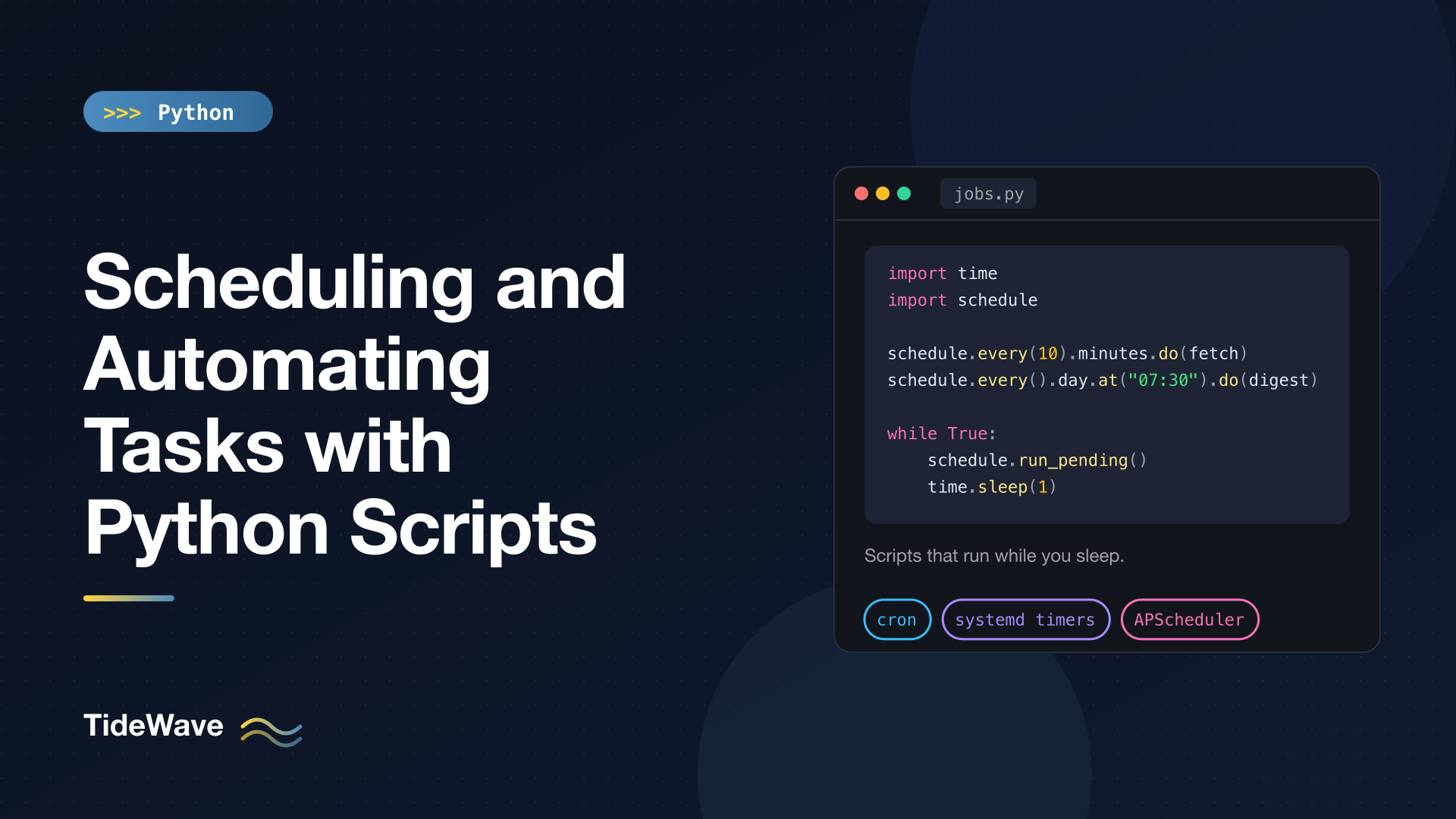
Sometimes you'd rather keep scheduling inside your code: a small bot, a container that should just run forever, or a job list that's easier to express in Python. The schedule library offers a readable API for that:
python -m pip install schedule
# jobs.py
import time

import schedule


def fetch_rates() -> None:
    print("Fetching exchange rates...")


def send_digest() -> None:
    print("Sending daily digest...")


schedule.every(10).minutes.do(fetch_rates)
schedule.every().day.at("07:30").do(send_digest)
schedule.every().monday.at("09:00").do(send_digest)
schedule.every().hour.at(":15").do(fetch_rates)

while True:
    schedule.run_pending()
    time.sleep(1)
schedule doesn't run anything by itself. The while loop calls run_pending(), which runs any job whose time has come. A job can cancel itself by returning schedule.CancelJob, and schedule.get_jobs() lists what's registered.
It's deliberately simple, which comes with limits:
- Everything runs in one thread, in order. A slow job delays every other job.
- Nothing persists. If the process restarts, the schedule starts from scratch and missed runs are gone.
- Exceptions stop the loop unless you catch them inside your job functions.
- Time zones in
.at("09:00", "Europe/London")require thepytzpackage to be installed; without a time zone, times are in the machine's local time.
It's a good fit for a lightweight, always-on process in a container or on a small VM. For critical jobs, an OS-level scheduler is usually more reliable, because something outside your process restarts it.
Option 5: APScheduler for Larger Apps
APScheduler (Advanced Python Scheduler) is the heavier-duty in-process option, often embedded in web apps and services. It supports cron-style schedules, intervals, one-off dates, thread pools, and persistent job stores in a database. The examples use the stable 3.x series:
python -m pip install "apscheduler<4"
# scheduler.py
from apscheduler.schedulers.blocking import BlockingScheduler


def build_report() -> None:
    print("Building report...")


def sync_inventory() -> None:
    print("Syncing inventory...")


scheduler = BlockingScheduler(timezone="UTC")

scheduler.add_job(
    build_report,
    "cron",
    day_of_week="mon-fri",
    hour=7,
    minute=30,
    id="daily_report",
    misfire_grace_time=300,
    coalesce=True,
    max_instances=1,
)
scheduler.add_job(sync_inventory, "interval", minutes=15, id="inventory")

scheduler.start()
The key options:
"cron"and"interval"are triggers."date"runs a job once at a specific datetime.misfire_grace_time=300still runs a job that was due up to five minutes ago (for example, after a brief pause), instead of skipping it.coalesce=Truecollapses several missed runs into one.max_instances=1prevents overlapping runs of the same job.BlockingSchedulertakes over the main thread, which suits a dedicated scheduler process.BackgroundSchedulerruns in a background thread so your app (a Flask or Django process, for example) keeps going.
Use names for weekdays. APScheduler 3.x numbers days of the week from Monday = 0, unlike cron's Sunday = 0, so a cron-style day_of_week="1-5" means Tuesday through Saturday. That also applies to CronTrigger.from_crontab("30 7 * * 1-5"), which in my testing fired Tuesday to Saturday. "mon-fri" is unambiguous.
One caution for web apps: if your server runs several worker processes, each one starts its own BackgroundScheduler, and every job runs once per worker. Run the scheduler in a single dedicated process instead.
Choosing an Approach
| Approach | Best for | Survives reboot | Missed runs |
|---|---|---|---|
| cron | Simple jobs on Linux/macOS servers | Yes | Skipped |
| systemd timers | Linux servers, anything important | Yes | Caught up with Persistent=true |
| Task Scheduler | Windows machines | Yes | Optional catch-up setting |
schedule | Small always-on scripts and containers | Only if the process is restarted | Lost |
| APScheduler | Jobs embedded in an app, many jobs | With a persistent job store | Configurable |
If you're deploying to the cloud, also consider the platform's scheduler: Kubernetes CronJobs, GitHub Actions schedule workflows, or a cloud provider's scheduled functions. They all follow the same pattern as cron (run a command on a schedule), so a script written with the rules above moves between them easily.
Testing Before You Schedule
A quick checklist before trusting a job to the scheduler:
- Run the exact command the scheduler will run, with the full interpreter path, from a different directory such as
/. - Run it with a stripped environment to catch missing variables:
env -i /path/to/.venv/bin/python /path/to/script.py. - Check the exit code with
echo $?for both a success and a forced failure. - Schedule it every few minutes at first, watch the logs, then move it to the real schedule.
Conclusion
Scheduling is half script design and half picking a scheduler. Make the script self-contained first: absolute paths, the venv's interpreter, logging to a file, meaningful exit codes, and a lock against overlapping runs. Then pick the scheduler that fits where it runs: cron for simple Unix jobs, systemd timers when you want catch-up runs and proper logs, Task Scheduler on Windows, and schedule or APScheduler when the schedule belongs inside a long-running Python process.
Pair this with tasks like generating Excel reports with openpyxl and a lot of repetitive work quietly disappears from your week.