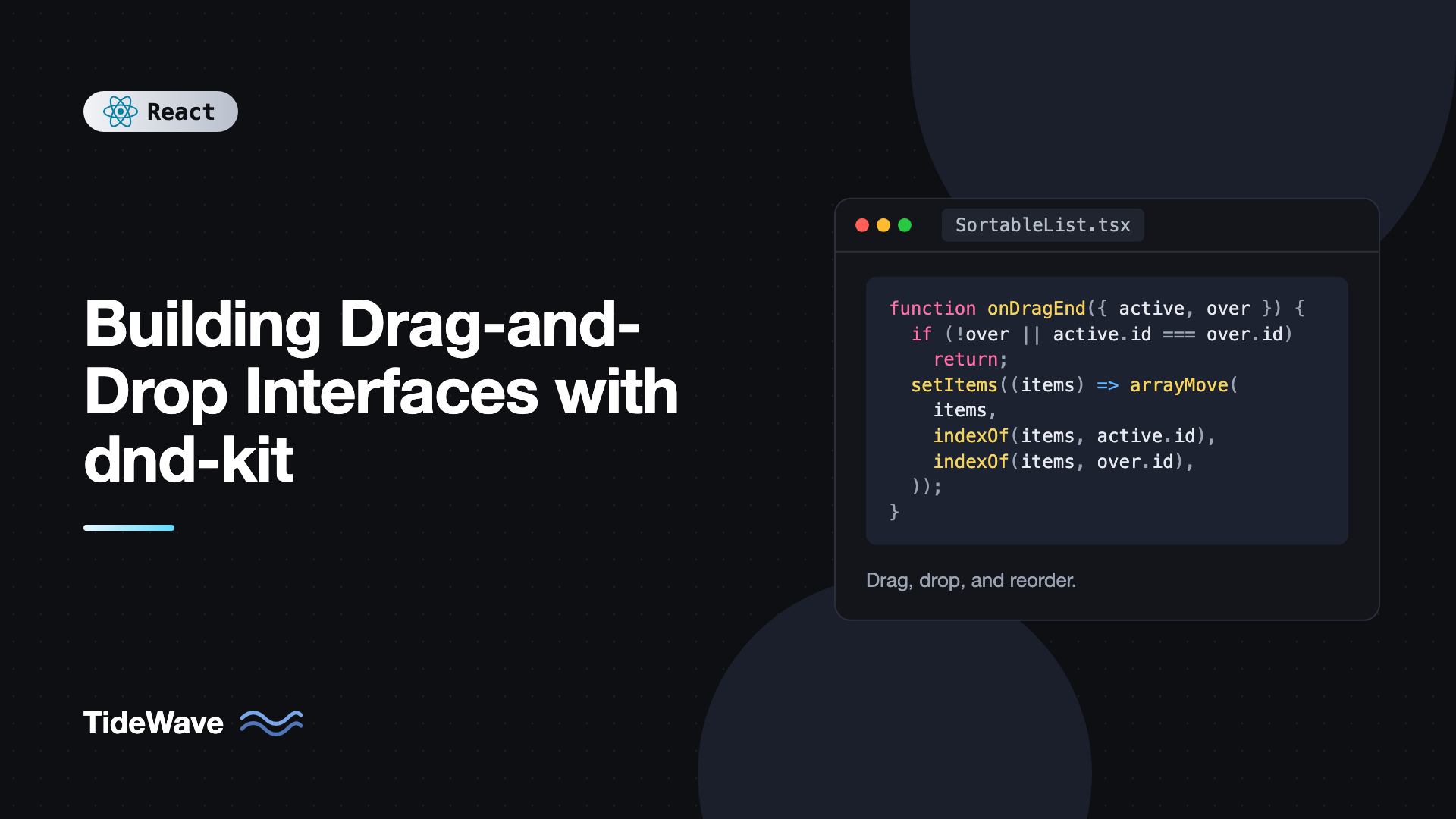
Building Drag-and-Drop Interfaces with dnd-kit
Drag and drop looks simple until you build it. The native HTML5 drag-and-drop API doesn't work on touch devices, gives you almost no control over the drag preview, and offers nothing for keyboard users. Libraries that wrapped it, like the once-popular react-beautiful-dnd, are now deprecated. You need something that handles pointer, touch, and keyboard input, plays well with React state, and stays fast with long lists.
dnd-kit is the modern answer. It's a lightweight, modular toolkit for React that doesn't use the HTML5 drag-and-drop API at all. Instead, it builds dragging from pointer and keyboard events, which gives you full control over behavior, consistent touch support, and built-in accessibility features like screen reader announcements.
This guide builds up from the basics: a single draggable and drop zone, sensors and activation constraints, a sortable list, a multi-column Kanban board, drag overlays, and the accessibility and performance details that make drag and drop production-ready.
Installing dnd-kit
dnd-kit is split into packages so you only install what you use:
npm install @dnd-kit/core @dnd-kit/sortable @dnd-kit/utilities
@dnd-kit/coreprovides the drag-and-drop engine:DndContext,useDraggable,useDroppable, sensors, andDragOverlay.@dnd-kit/sortableadds a preset for reorderable lists and grids.@dnd-kit/utilitiescontains helpers, most importantly for converting transforms to CSS.
There's also an optional @dnd-kit/modifiers package for constraining movement, such as locking to one axis. The project is also developing a newer @dnd-kit/react package with a different API. This guide uses the established core and sortable packages, which are what most production apps run today.
The Core Concepts
Every dnd-kit interface has three parts:
DndContextwraps the area where dragging happens. It tracks the active item and fires events likeonDragStart,onDragOver, andonDragEnd.- Draggables are elements you can pick up, created with
useDraggable. - Droppables are areas you can drop onto, created with
useDroppable.
dnd-kit never moves your DOM nodes or changes your state for you. During a drag, it gives each draggable a transform (an x and y offset) to apply visually. When the drag ends, it tells you what was dropped where, and you update your own state. That's what makes it fit naturally into React.
A Basic Draggable and Drop Zone
Here's the smallest useful example: a card that can be dropped into one of two zones.
import { useState, type ReactNode } from "react";
import { DndContext, useDraggable, useDroppable, type DragEndEvent } from "@dnd-kit/core";
import { CSS } from "@dnd-kit/utilities";

function DraggableCard() {
  const { attributes, listeners, setNodeRef, transform, isDragging } = useDraggable({
    id: "card",
  });

  const style = {
    transform: CSS.Translate.toString(transform),
    opacity: isDragging ? 0.8 : 1,
  };

  return (
    <div ref={setNodeRef} style={style} className="card" {...listeners} {...attributes}>
      Drag me
    </div>
  );
}

function DropZone({ id, children }: { id: string; children?: ReactNode }) {
  const { isOver, setNodeRef } = useDroppable({ id });

  return (
    <div ref={setNodeRef} className="zone" style={{ background: isOver ? "#e0f2fe" : "#f8fafc" }}>
      <p>{id}</p>
      {children}
    </div>
  );
}

export function BasicDragDrop() {
  const [zone, setZone] = useState<string | null>(null);

  function handleDragEnd(event: DragEndEvent) {
    setZone(event.over ? String(event.over.id) : null);
  }

  return (
    <DndContext onDragEnd={handleDragEnd}>
      {zone === null && <DraggableCard />}
      <div className="zones">
        {["Zone A", "Zone B"].map((id) => (
          <DropZone key={id} id={id}>
            {zone === id && <DraggableCard />}
          </DropZone>
        ))}
      </div>
    </DndContext>
  );
}
The pieces to notice:
setNodeRefconnects the hook to the DOM element so dnd-kit can measure it.listenersare the pointer and keyboard handlers that start a drag. Spread them on the element (or on a drag handle, covered later).attributesadd accessibility props such asrole="button",tabIndex, andaria-describedby.transformis applied withCSS.Translate.toString, which produces atranslate3dstring, so the card follows the pointer.event.overinonDragEndis the droppable under the item when it was released, ornullif it was dropped outside every zone.
Sensors and Activation Constraints
By default, DndContext uses pointer and keyboard sensors. One common problem is that a click on a draggable element starts a drag immediately, so buttons or links inside a draggable card stop working. Activation constraints fix this by requiring the pointer to move a few pixels, or to be held for a moment, before a drag starts.
import {
  DndContext,
  KeyboardSensor,
  PointerSensor,
  TouchSensor,
  useSensor,
  useSensors,
} from "@dnd-kit/core";
import { sortableKeyboardCoordinates } from "@dnd-kit/sortable";

export function useDndSensors() {
  return useSensors(
    useSensor(PointerSensor, {
      activationConstraint: { distance: 8 },
    }),
    useSensor(TouchSensor, {
      activationConstraint: { delay: 200, tolerance: 5 },
    }),
    useSensor(KeyboardSensor, {
      coordinateGetter: sortableKeyboardCoordinates,
    }),
  );
}

// Usage: <DndContext sensors={useDndSensors()} ...>
distance: 8means the pointer must move 8 pixels before dragging starts, so clicks pass through normally.delay: 200withtolerance: 5on touch means the user must press and hold for 200 milliseconds, moving no more than 5 pixels. This keeps normal scrolling working on phones.sortableKeyboardCoordinatesmakes arrow keys move items between sortable positions rather than by a fixed number of pixels.
Also add touch-action: none (or manipulation when using a delay) in CSS on draggable elements or drag handles, so the browser doesn't hijack touch moves for scrolling.
Building a Sortable List
Reordering a list is the most common drag-and-drop use case, and @dnd-kit/sortable makes it short. Wrap the items in SortableContext, use useSortable for each item, and reorder with arrayMove when the drag ends.
import { useState } from "react";
import { DndContext, closestCenter, type DragEndEvent } from "@dnd-kit/core";
import {
  SortableContext,
  arrayMove,
  useSortable,
  verticalListSortingStrategy,
} from "@dnd-kit/sortable";
import { CSS } from "@dnd-kit/utilities";
import { useDndSensors } from "./useDndSensors";

type Task = { id: string; title: string };

function SortableTask({ task }: { task: Task }) {
  const { attributes, listeners, setNodeRef, transform, transition, isDragging } = useSortable({
    id: task.id,
  });

  const style = {
    transform: CSS.Transform.toString(transform),
    transition,
    opacity: isDragging ? 0.5 : 1,
  };

  return (
    <li ref={setNodeRef} style={style} className="task" {...attributes} {...listeners}>
      {task.title}
    </li>
  );
}

export function SortableTaskList() {
  const [tasks, setTasks] = useState<Task[]>([
    { id: "1", title: "Write the spec" },
    { id: "2", title: "Design the API" },
    { id: "3", title: "Build the UI" },
    { id: "4", title: "Ship it" },
  ]);
  const sensors = useDndSensors();

  function handleDragEnd({ active, over }: DragEndEvent) {
    if (!over || active.id === over.id) return;
    setTasks((items) => {
      const oldIndex = items.findIndex((t) => t.id === active.id);
      const newIndex = items.findIndex((t) => t.id === over.id);
      return arrayMove(items, oldIndex, newIndex);
    });
  }

  return (
    <DndContext sensors={sensors} collisionDetection={closestCenter} onDragEnd={handleDragEnd}>
      <SortableContext items={tasks} strategy={verticalListSortingStrategy}>
        <ul className="task-list">
          {tasks.map((task) => (
            <SortableTask key={task.id} task={task} />
          ))}
        </ul>
      </SortableContext>
    </DndContext>
  );
}
A few details are important:
itemsmust be in the same order as the rendered list. It accepts an array of IDs or objects with anidfield.transitionfromuseSortableanimates the other items as they shift out of the way.CSS.Transform.toString(rather thanTranslate) is used for sortable items because it also handles scale when items differ in size.closestCentercollision detection picks the item whose center is closest to the dragged item's center, which feels natural for lists.- Strategies control how items shift:
verticalListSortingStrategyfor lists,horizontalListSortingStrategyfor rows, andrectSortingStrategyfor grids.
To persist the new order, call your API inside handleDragEnd after updating local state. If you use TanStack Query, this is a natural place for an optimistic update.
Adding a Drag Handle
Making the whole row draggable can conflict with text selection, inputs, and buttons inside it. A drag handle limits the drag start to one small element. Use setActivatorNodeRef so keyboard focus returns to the handle after the drag.
import { useSortable } from "@dnd-kit/sortable";
import { CSS } from "@dnd-kit/utilities";

type Task = { id: string; title: string };

export function SortableRow({ task }: { task: Task }) {
  const {
    attributes,
    listeners,
    setNodeRef,
    setActivatorNodeRef,
    transform,
    transition,
  } = useSortable({ id: task.id });

  return (
    <li
      ref={setNodeRef}
      style={{ transform: CSS.Transform.toString(transform), transition }}
      className="row"
    >
      <button
        ref={setActivatorNodeRef}
        className="handle"
        aria-label={`Reorder ${task.title}`}
        {...attributes}
        {...listeners}
      >
        ⠿
      </button>
      <input defaultValue={task.title} />
    </li>
  );
}
The row is still the sortable node that moves, but only the handle starts a drag. The input inside works normally.
Drag Overlays for a Polished Feel
When you drag a sortable item, the original element moves with the pointer. That works, but it has limits. The item can be clipped by a parent with overflow: hidden, it can't move between scroll containers smoothly, and you can't easily style it differently while dragging.
DragOverlay renders a separate copy of the item, positioned relative to the viewport, that follows the pointer, while the original stays in place as a placeholder. This example reuses SortableTask and the Task type from the sortable list, moved into their own file and exported.
import { useState } from "react";
import {
  DndContext,
  DragOverlay,
  closestCenter,
  type DragEndEvent,
  type DragStartEvent,
} from "@dnd-kit/core";
import { SortableContext, arrayMove, verticalListSortingStrategy } from "@dnd-kit/sortable";
import { SortableTask, type Task } from "./SortableTask";

export function SortableWithOverlay({ initial }: { initial: Task[] }) {
  const [tasks, setTasks] = useState(initial);
  const [activeId, setActiveId] = useState<string | null>(null);
  const activeTask = tasks.find((t) => t.id === activeId);

  function handleDragStart({ active }: DragStartEvent) {
    setActiveId(String(active.id));
  }

  function handleDragEnd({ active, over }: DragEndEvent) {
    setActiveId(null);
    if (!over || active.id === over.id) return;
    setTasks((items) =>
      arrayMove(
        items,
        items.findIndex((t) => t.id === active.id),
        items.findIndex((t) => t.id === over.id),
      ),
    );
  }

  return (
    <DndContext
      collisionDetection={closestCenter}
      onDragStart={handleDragStart}
      onDragEnd={handleDragEnd}
      onDragCancel={() => setActiveId(null)}
    >
      <SortableContext items={tasks} strategy={verticalListSortingStrategy}>
        <ul>
          {tasks.map((task) => (
            <SortableTask key={task.id} task={task} />
          ))}
        </ul>
      </SortableContext>
      <DragOverlay>
        {activeTask ? <div className="task task--lifted">{activeTask.title}</div> : null}
      </DragOverlay>
    </DndContext>
  );
}
Render a plain presentational component inside DragOverlay, not another component that calls useSortable with the same ID. Combined with the opacity: 0.5 placeholder style in SortableTask, users see a lifted card following the pointer and a ghost showing where it will land. Keep DragOverlay mounted at all times and only change its children, so the drop animation can play.
Building a Kanban Board
A Kanban board means sorting within columns and moving items between them. The key is to keep state as a map of column IDs to item IDs, and to move items between columns in onDragOver so the destination column shows a live preview.
import { useState } from "react";
import {
  DndContext,
  DragOverlay,
  closestCorners,
  useDroppable,
  type DragEndEvent,
  type DragOverEvent,
  type DragStartEvent,
  type UniqueIdentifier,
} from "@dnd-kit/core";
import {
  SortableContext,
  arrayMove,
  useSortable,
  verticalListSortingStrategy,
} from "@dnd-kit/sortable";
import { CSS } from "@dnd-kit/utilities";
import { useDndSensors } from "./useDndSensors";

type Columns = Record<string, string[]>;

function Card({ id }: { id: string }) {
  const { attributes, listeners, setNodeRef, transform, transition, isDragging } = useSortable({
    id,
  });
  return (
    <li
      ref={setNodeRef}
      style={{ transform: CSS.Transform.toString(transform), transition, opacity: isDragging ? 0.4 : 1 }}
      className="kanban-card"
      {...attributes}
      {...listeners}
    >
      {id}
    </li>
  );
}

function Column({ id, items }: { id: string; items: string[] }) {
  const { setNodeRef } = useDroppable({ id });
  return (
    <section className="kanban-column">
      <h2>{id}</h2>
      <SortableContext id={id} items={items} strategy={verticalListSortingStrategy}>
        <ul ref={setNodeRef} className="kanban-list">
          {items.map((itemId) => (
            <Card key={itemId} id={itemId} />
          ))}
        </ul>
      </SortableContext>
    </section>
  );
}

export function KanbanBoard() {
  const [columns, setColumns] = useState<Columns>({
    Todo: ["Task 1", "Task 2", "Task 3"],
    Doing: ["Task 4"],
    Done: [],
  });
  const [activeId, setActiveId] = useState<string | null>(null);
  const sensors = useDndSensors();

  function findColumn(id: UniqueIdentifier): string | undefined {
    const key = String(id);
    if (key in columns) return key;
    return Object.keys(columns).find((col) => columns[col].includes(key));
  }

  function handleDragStart({ active }: DragStartEvent) {
    setActiveId(String(active.id));
  }

  function handleDragOver({ active, over }: DragOverEvent) {
    if (!over) return;
    const from = findColumn(active.id);
    const to = findColumn(over.id);
    if (!from || !to || from === to) return;

    setColumns((prev) => {
      const overIndex = prev[to].indexOf(String(over.id));
      const insertAt = overIndex >= 0 ? overIndex : prev[to].length;
      return {
        ...prev,
        [from]: prev[from].filter((item) => item !== active.id),
        [to]: [...prev[to].slice(0, insertAt), String(active.id), ...prev[to].slice(insertAt)],
      };
    });
  }

  function handleDragEnd({ active, over }: DragEndEvent) {
    setActiveId(null);
    if (!over) return;
    const from = findColumn(active.id);
    const to = findColumn(over.id);
    if (!from || from !== to) return;

    const oldIndex = columns[from].indexOf(String(active.id));
    const newIndex = columns[to].indexOf(String(over.id));
    if (oldIndex !== newIndex && newIndex >= 0) {
      setColumns((prev) => ({ ...prev, [from]: arrayMove(prev[from], oldIndex, newIndex) }));
    }
  }

  return (
    <DndContext
      sensors={sensors}
      collisionDetection={closestCorners}
      onDragStart={handleDragStart}
      onDragOver={handleDragOver}
      onDragEnd={handleDragEnd}
      onDragCancel={() => setActiveId(null)}
    >
      <div className="kanban">
        {Object.entries(columns).map(([id, items]) => (
          <Column key={id} id={id} items={items} />
        ))}
      </div>
      <DragOverlay>{activeId ? <div className="kanban-card">{activeId}</div> : null}</DragOverlay>
    </DndContext>
  );
}
How the pieces fit:
- Each column is both a
SortableContextand a droppable. The droppable matters for empty columns, which have no sortable items to collide with. Dropping on the column itself puts the item at the end. findColumnresolves an ID to its column, whether the ID is a column or a card.onDragOvermoves the card into the new column as soon as it crosses over, so the destination column makes room in real time.onDragEndonly needs to handle reordering within the final column, since the cross-column move already happened.closestCornersworks better thanclosestCenterfor stacked containers, because it considers the corners of each droppable rather than only centers.
If the user cancels with Escape after crossing columns, the card stays in the new column. To support true cancellation, save a snapshot of columns in onDragStart and restore it in onDragCancel.
Accessibility
dnd-kit takes accessibility seriously, but you need to wire up a few things. Draggable elements receive role="button", tabIndex={0}, and aria-describedby instructions from attributes. With the KeyboardSensor, users press Space or Enter to pick up an item, arrow keys to move it, Space or Enter again to drop it, and Escape to cancel.
DndContext also includes a live region that announces drag events to screen readers. The default messages use raw IDs, which aren't meaningful to users. Customize them:
import type { Announcements } from "@dnd-kit/core";

export const announcements: Announcements = {
  onDragStart: ({ active }) => `Picked up ${active.id}.`,
  onDragOver: ({ active, over }) =>
    over ? `${active.id} is over ${over.id}.` : `${active.id} is no longer over a drop area.`,
  onDragEnd: ({ active, over }) =>
    over ? `${active.id} was dropped on ${over.id}.` : `${active.id} was dropped.`,
  onDragCancel: ({ active }) => `Dragging was cancelled. ${active.id} was returned.`,
};

// <DndContext accessibility={{ announcements }} ...>
In a real app, look up readable titles and positions, such as "Moved Write the spec to position 3 of 4 in Doing." The accessibility best practices for React developers guide covers live regions and keyboard patterns more broadly. It's also good practice to offer a non-drag alternative, such as a "Move to" menu, for users who find dragging difficult.
Performance Tips
- Memoize item components. During a drag, sortable items re-render as positions change. Wrapping the presentational part of a card in
memokeeps renders cheap. See preventing unnecessary re-renders with React.memo. - Use
DragOverlayfor long lists. It avoids re-rendering the original item on every pointer move. - Keep
itemsstable. Pass ID arrays derived withuseMemoif they're computed from larger objects. - Persist after the drop, not during it. Save to the server in
onDragEnd, never inonDragOver, which fires constantly. - Virtualized lists need care. Items that scroll out of the virtual window unmount, so combine virtualization with sortable carefully and test it thoroughly.
Common Mistakes With dnd-kit
- Forgetting to update state on drop. dnd-kit only reports what happened. If you don't reorder your array in
onDragEnd, items snap back. - Mismatched
itemsorder. Theitemspassed toSortableContextmust match the rendered order, or animations jump around. - Clicks that never fire. Without an activation constraint, every click starts a drag. Add a
distanceconstraint or use a drag handle. - Broken scrolling on mobile. Use a touch delay constraint and appropriate
touch-actionCSS. - Empty columns that can't accept drops. Make each column a droppable, not just a sortable context.
- Calling
useSortableinside the overlay. Render a plain presentational component inDragOverlay. - Unreadable announcements. Replace the default ID-based messages with human-readable text.
Frequently Asked Questions (FAQ) About dnd-kit
The native API doesn't work on touch devices, gives little control over the drag preview, and has no keyboard support. dnd-kit builds dragging from pointer and keyboard events, so it works consistently across mouse, touch, and keyboard, and lets you fully control rendering and animation.
Yes, for most use cases. react-beautiful-dnd is deprecated and no longer maintained. dnd-kit covers sortable lists, multiple containers, and Kanban boards, and adds support for grids, custom sensors, and collision strategies. Atlassian's Pragmatic drag and drop is another option if you prefer the native API underneath.
Use a drag handle. Spread listeners and attributes on the handle element instead of the whole item, and pass setActivatorNodeRef to the handle so focus is managed correctly. The item still moves as a whole, but only the handle starts a drag.
Yes. With the keyboard sensor, users pick up items with Space or Enter, move them with arrow keys, and drop or cancel with Space, Enter, or Escape. A built-in live region announces drag events, and you can customize the announcements to use readable item names.
Update local state in onDragEnd, then send the new order or the moved item's new position to your API. For a smooth experience, treat it as an optimistic update and roll back if the request fails. Avoid saving in onDragOver, which fires many times per drag.
Use closestCenter for simple sortable lists and grids, closestCorners for multiple stacked containers like Kanban columns, and pointerWithin or rectIntersection when drop zones are large, distinct areas. You can also combine them in a custom function.
Conclusion
dnd-kit gives you drag and drop that works the same with a mouse, a finger, or a keyboard, without fighting the HTML5 API. The model is simple: DndContext tracks the drag, draggables and droppables register themselves, dnd-kit provides transforms for visual movement, and you update your own state when the drag ends. The sortable preset turns reorderable lists into a few dozen lines.
From there, add sensors with activation constraints so clicks still work, drag handles for rows with interactive content, DragOverlay for a polished lifted card, and onDragOver handling for moving items between columns. Finish with readable screen reader announcements and memoized items, and you have a drag-and-drop interface that's fast, accessible, and ready for production.