Fixing Hydration Mismatch Errors in Next.js
"Hydration failed because the server rendered HTML didn't match the client." If you've built anything non-trivial with Next.js, you've probably seen this error, often for code that looks perfectly innocent: a formatted date, a check for window, a random ID. It's one of the most common errors in React apps that render on the server, and the message alone rarely tells you how to fix it.
The good news is that hydration mismatches come from a short list of causes, and each has a well-understood fix. This post explains what hydration is and why mismatches happen, how to read the error to find the culprit, and then goes through the common causes one by one with code you can use. I'll also cover suppressHydrationWarning, when it's the right tool, and when it's hiding a real bug.
What Hydration Is
When a user requests a page, Next.js renders your components on the server and sends HTML. The browser shows that HTML right away, so users see content before any JavaScript runs. Then React loads in the browser and renders the same components again. Instead of creating new DOM nodes, it walks the existing HTML and attaches event handlers and state to it. That process is hydration.
For hydration to work, React expects the browser render to produce exactly the same output as the server render. When it doesn't, React can't safely reuse the HTML. It reports a hydration error and recovers by throwing away the server HTML up to the nearest Suspense boundary (or the root) and rendering that part from scratch on the client.
That recovery has real costs:
- The page visibly flashes or jumps as content is replaced.
- The work of server rendering is wasted for that subtree.
- Corrections made by inline scripts inside that boundary are lost.
- Any state the user created in that subtree before recovery (focus, typed text) can be reset.
So even though the page usually "works" after the error, it's worth fixing every mismatch.
Hydration only applies to Client Components. Server Components render once on the server and never re-render in the browser, so they can't cause a mismatch through their own logic. But any component marked with "use client", and everything it imports, renders twice: once on the server, once in the browser.
Reading the Error
In development, Next.js shows the error in its overlay with a diff of what the server rendered versus what the client expected. It looks something like this:
Hydration failed because the server rendered text didn't match the client.

  <Page>
    <main>
      <OrderSummary>
        <p>
+         Placed on 10/2/2026
-         Placed on 2/10/2026
Lines with + are what the client rendered; lines with - are what was in the server HTML. The component path above the diff tells you exactly where to look. In this example, OrderSummary formats a date differently on the server and in the browser.
For attribute mismatches, React reports something like "A tree hydrated but some attributes of the server rendered HTML didn't match the client properties," again with a diff showing which attribute differs.
Two tips for finding the cause quickly:
- Look at the first differing value, not the whole tree. Text that includes a date, a number, a random string, or a user-specific value is almost always the culprit.
- Check whether it reproduces in a private window. If it doesn't, a browser extension is likely modifying the page (covered below).
Cause 1: Dates, Times, and Locale Formatting
This is the most frequent cause by far. Consider a Client Component that formats a timestamp:
// components/order-date.tsx
"use client";

export function OrderDate({ iso }: { iso: string }) {
  return <p>Placed on {new Date(iso).toLocaleDateString()}</p>;
}
On the server, toLocaleDateString() uses the server's locale and time zone, often en-US and UTC. In the browser, it uses the user's settings. A user in Germany sees 2.10.2026 in the client render while the HTML says 10/2/2026. A user in Tokyo might even get a different calendar day near midnight.
The same applies to relative times ("3 minutes ago"), which change between the server render and the client render simply because time has passed, and to anything using Date.now() or new Date() during render.
Fix A: Format with an Explicit Locale and Time Zone
If you can choose one format for everyone, pin both settings so the server and browser agree:
// components/order-date.tsx
"use client";

const formatter = new Intl.DateTimeFormat("en-US", {
  dateStyle: "medium",
  timeZone: "UTC",
});

export function OrderDate({ iso }: { iso: string }) {
  return (
    <p>
      Placed on <time dateTime={iso}>{formatter.format(new Date(iso))}</time>
    </p>
  );
}
With a fixed locale and time zone, Intl.DateTimeFormat gives the same string in Node.js and the browser. Even better, if the component doesn't need interactivity, drop "use client" and render it as a Server Component. Then there's only one render and nothing to mismatch.
Fix B: Show the User's Local Time After Hydration
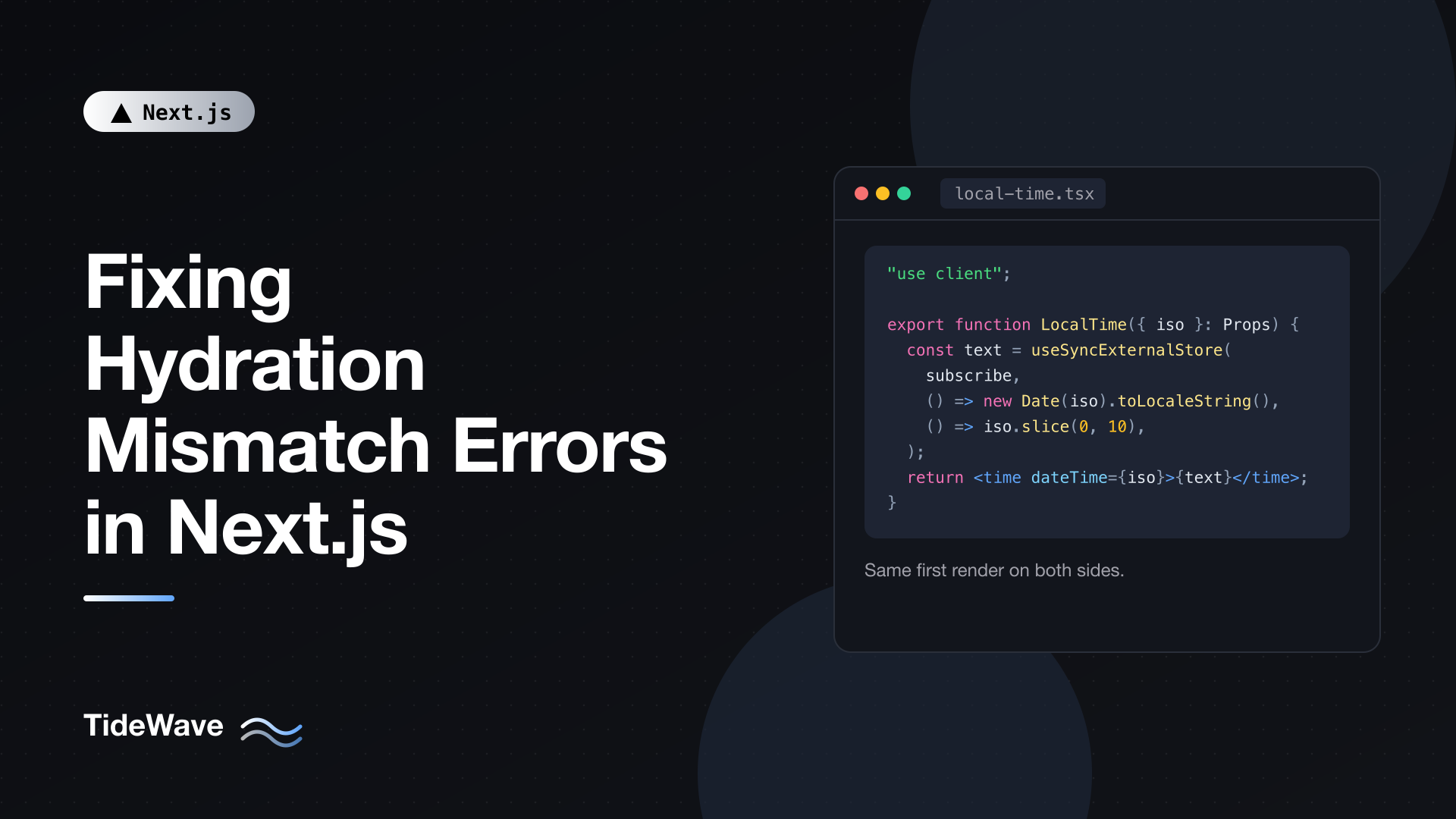
If the date must be in the user's own locale and time zone, render a stable value first and swap it after hydration. The useSyncExternalStore hook does this cleanly: during hydration React uses the server snapshot, then immediately re-renders with the client snapshot, without reporting an error.
// components/local-time.tsx
"use client";

import { useSyncExternalStore } from "react";

const subscribe = () => () => {};

export function LocalTime({ iso }: { iso: string }) {
  const text = useSyncExternalStore(
    subscribe,
    () => new Date(iso).toLocaleString(), // client snapshot
    () => new Date(iso).toISOString().slice(0, 10), // server snapshot
  );

  return <time dateTime={iso}>{text}</time>;
}
The server and the hydrating client both render the ISO date, then the client switches to the localized string. There's a brief change of text, but no error and no discarded subtree.
Fix C: Correct It Before Paint with an Inline Script
If even a brief flash is unacceptable, the Next.js docs describe a technique using a tiny inline script placed right after the element. It runs while the browser parses the HTML, before first paint, and rewrites the text to the local format. suppressHydrationWarning on the element then tells React to keep the DOM's version. The preventing flash before hydration guide has a complete reusable component for this. It's more involved than the other fixes, so reserve it for prominent dates where the flash is noticeable.
A useful habit from that guide: run your dev server with a different time zone and locale than your browser, so these bugs show up on your machine instead of in production:
TZ=UTC LANG=ja_JP.UTF-8 npm run dev
Cause 2: Browser-Only APIs During Render
Code like this is a classic mistake:
// components/welcome.tsx  (broken)
"use client";

export function Welcome() {
  const name =
    typeof window !== "undefined" ? localStorage.getItem("name") : null;
  return <p>{name ? `Welcome back, ${name}` : "Welcome"}</p>;
}
It avoids crashing on the server, but guarantees a mismatch: the server renders "Welcome", the browser renders "Welcome back, Maria". The typeof window check is exactly what makes the two renders differ.
The same problem applies to window.innerWidth, navigator.userAgent, matchMedia, document.cookie, and anything else that only exists in the browser.
Fix: Read Browser Values After Hydration
Use useEffect (which never runs on the server) to read the value after the first render:
// components/welcome.tsx
"use client";

import { useEffect, useState } from "react";

export function Welcome() {
  const [name, setName] = useState<string | null>(null);

  useEffect(() => {
    try {
      setName(localStorage.getItem("name"));
    } catch {
      // Storage can be unavailable (privacy settings, quotas)
    }
  }, []);

  return <p>{name ? `Welcome back, ${name}` : "Welcome"}</p>;
}
Both renders produce "Welcome", hydration succeeds, and the effect then updates the text.
For values that can change over time, like a media query, useSyncExternalStore with a server snapshot is a better fit, because it also subscribes to updates:
// hooks/use-media-query.ts
"use client";

import { useCallback, useSyncExternalStore } from "react";

export function useMediaQuery(query: string, serverValue = false) {
  const subscribe = useCallback(
    (onChange: () => void) => {
      const mql = window.matchMedia(query);
      mql.addEventListener("change", onChange);
      return () => mql.removeEventListener("change", onChange);
    },
    [query],
  );

  return useSyncExternalStore(
    subscribe,
    () => window.matchMedia(query).matches,
    () => serverValue,
  );
}
serverValue is what the server and the hydrating client render. Pick the value that matches your most common case (for a mobile-first site, false for a desktop query) to minimize visible changes.
Where possible, though, prefer CSS for layout differences. A media query in CSS has no hydration problem at all, while choosing different JSX trees for mobile and desktop does.
Fix: Skip Server Rendering for a Component
For components that are entirely browser-dependent (a map widget, a chart library that touches window at import time, a rich text editor), skip server rendering with next/dynamic:
// components/map-section.tsx
"use client";

import dynamic from "next/dynamic";

const Map = dynamic(() => import("./map"), {
  ssr: false,
  loading: () => <div style={{ height: 400 }}>Loading map...</div>,
});

export function MapSection() {
  return <Map />;
}
ssr: false is only allowed inside Client Components, which is why the dynamic call lives in a file with "use client". The server renders the loading placeholder, the client renders the same placeholder during hydration, then loads and renders the real component. Give the placeholder the same dimensions as the final content to avoid layout shift. For more on this API, see lazy loading components with next/dynamic.
Cause 3: Random Values and Generated IDs
// components/field.tsx  (broken)
"use client";

export function Field({ label }: { label: string }) {
  const id = `field-${Math.random().toString(36).slice(2)}`;
  return (
    <>
      <label htmlFor={id}>{label}</label>
      <input id={id} />
    </>
  );
}
The server and the browser generate different random strings, so id and htmlFor mismatch. Incrementing a module-level counter has the same problem, since the counts differ between environments.
Fix: useId
React's useId generates IDs that are stable across server and client renders:
// components/field.tsx
"use client";

import { useId } from "react";

export function Field({ label }: { label: string }) {
  const id = useId();
  return (
    <>
      <label htmlFor={id}>{label}</label>
      <input id={id} />
    </>
  );
}
For other random values (a shuffled list, a random tip of the day), generate them once on the server and pass them as props, or generate them in an effect on the client.
Cause 4: Invalid HTML Nesting
Browsers repair invalid HTML while parsing it. If your component produces markup that isn't allowed, the DOM the browser builds from the server HTML differs from the tree React expects, and hydration fails. React usually reports these explicitly, for example "In HTML, div cannot be a descendant of p. This will cause a hydration error."
Common offenders:
| Invalid nesting | Why it breaks |
|---|---|
div (or any block element) inside p | The parser closes the p before the div |
p inside p | Same automatic closing |
a inside a | Nested links are not allowed |
button inside button | Nested interactive content is not allowed |
tr directly inside table | The browser inserts a tbody |
li outside ul/ol | Invalid structure gets rearranged |
A sneaky version comes from components that render block elements. If Card renders a div and you use it inside a p, you've created invalid nesting without writing a div yourself:
// Broken: Card renders a <div>, which can't live inside <p>
<p>
  Status: <Card status="active" />
</p>
Fix: Use Valid Elements
Change the outer p to a div, or make the inner component render inline elements like span. For tables, always include tbody explicitly. For cards that should be fully clickable, wrap the card in one link and avoid nested links inside, or use the "stretched link" CSS pattern.
Cause 5: Browser Extensions
Extensions like password managers, grammar checkers, translators, and dark-mode tools modify the DOM before React hydrates. They add attributes to html or body (for example data-gr-ext-installed or cz-shortcut-listen), inject elements, or rewrite text.
Clues that an extension is responsible:
- The diff shows attributes or elements you never wrote.
- The error disappears in a private window or a fresh browser profile.
- Only some team members see it.
You can't fix someone's extensions, but you can stop the noise. Mismatched attributes on html and body are the most common case, and suppressHydrationWarning on those elements silences them:
// app/layout.tsx
import type { ReactNode } from "react";

export default function RootLayout({ children }: { children: ReactNode }) {
  return (
    <html lang="en" suppressHydrationWarning>
      <body suppressHydrationWarning>{children}</body>
    </html>
  );
}
This only suppresses warnings for those elements' own attributes and text, one level deep. Children are still checked, so it won't hide real bugs in your components.
Cause 6: Theme and User Preferences
Rendering a different theme class, icon, or label based on a saved preference is another common source. The server doesn't know the user's preference (unless it's in a cookie you read on the server), so it renders the default, and the client renders the saved theme.
The standard fix is an inline script in the root layout that sets a data-theme attribute on html before paint, combined with suppressHydrationWarning on html, and theme-dependent UI that reads the resolved theme only after mount. The dark mode without a flash guide covers this pattern in full.
Cause 7: Different Data on Server and Client
Sometimes the component is deterministic, but its inputs aren't. Examples:
- A Client Component fetches data on mount in one place but receives it as a prop in another.
- The client reads from a store (Zustand, Redux) whose initial state differs from what was used on the server.
- Server data includes a value computed per request (like
Date.now()) that's recomputed on the client.
Make sure the client's first render uses exactly the data the server used. Pass server data down as props from a Server Component, initialize client stores from those props, and load anything client-only after mount.
Using suppressHydrationWarning Correctly
suppressHydrationWarning is a React prop that tells React not to report a mismatch on that element's text content or attributes. It's an escape hatch with sharp limits:
- It works one level deep: only the element's own attributes and direct text, not its children.
- It doesn't make the server and client agree. React keeps whatever is in the DOM (the server value), so the client value isn't shown until something triggers a re-render.
- It's meant for unavoidable differences, like a timestamp corrected by an inline script, or attributes injected by extensions on
htmlandbody.
If you find yourself adding it to a component to make an error go away, stop and check the causes above. In most cases, there's a fix that makes the two renders agree, which is better than hiding the symptom.
A Quick Diagnostic Checklist
When you hit a hydration error:
- Read the diff in the dev overlay and identify the component and value.
- Is it a date, time, number format, or random value? Pin the format, use
useId, or move it to the server. - Does the component read
window,localStorage,navigator, ormatchMediaduring render? Move it touseEffectoruseSyncExternalStore. - Is there invalid nesting? Check for block elements inside
p, nested links or buttons, and tables withouttbody. - Does it disappear in a private window? It's an extension; suppress on
htmlandbodyonly. - Does the client start with different data or store state? Initialize it from server props.
Conclusion
A hydration mismatch means a Client Component produced different output in the browser than on the server. The cause is almost always one of a few things: locale-dependent formatting, browser-only APIs in render, random values, invalid HTML, extensions, or inconsistent initial data. Make the first client render match the server exactly, then update with browser-specific values after hydration using useEffect or useSyncExternalStore. Use useId for IDs, valid HTML for structure, next/dynamic with ssr: false for components that can't render on the server, and keep suppressHydrationWarning for the few cases where a difference is truly unavoidable.