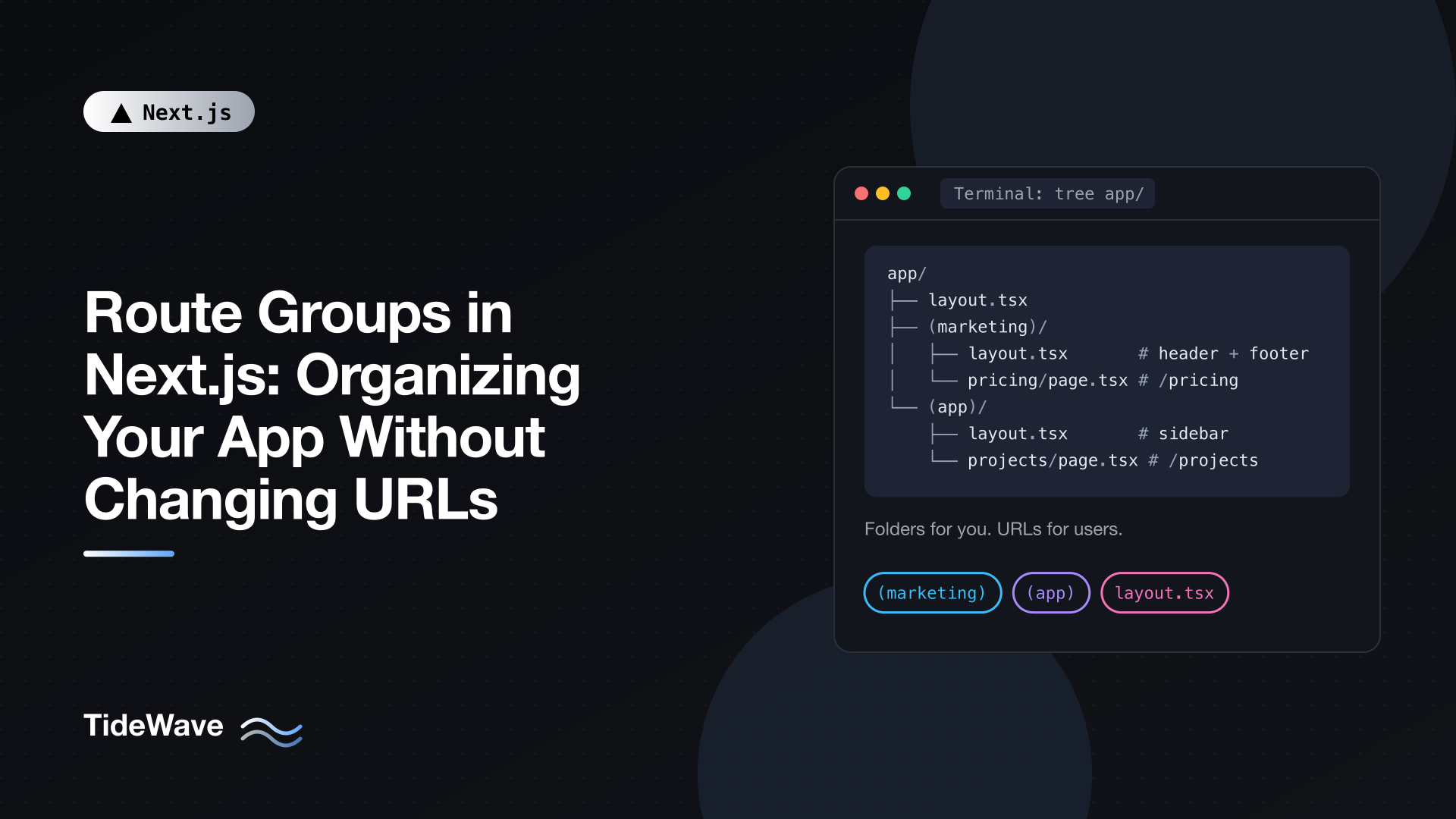
Route Groups in Next.js: Organizing Your App Without Changing URLs
In the App Router, folders are URLs. app/dashboard/settings/page.tsx becomes /dashboard/settings, and every layout.tsx along the way wraps the pages below it. That's a clean model until your folder structure and your URL structure want different things. Your marketing pages and your app pages both live at the top level (/pricing, /login, /projects), but they need completely different layouts. Or you want a loading skeleton on one page without it leaking into its siblings.
Route groups solve this. Wrapping a folder name in parentheses, like (marketing), tells Next.js to use the folder for organization and layouts but leave it out of the URL. It's a small feature that ends up shaping how most non-trivial App Router projects are structured.
This post covers the syntax, the main patterns (separate layouts per section, opting a subset of routes into a layout, multiple root layouts, scoped loading UI), how route groups combine with private folders, and the caveats that catch people out.
The Syntax
A route group is any folder whose name is wrapped in parentheses:
app/
├── (marketing)/
│   ├── about/
│   │   └── page.tsx      # /about
│   └── pricing/
│       └── page.tsx      # /pricing
└── (app)/
    └── projects/
        └── page.tsx      # /projects
(marketing) and (app) don't appear in any URL. /about, /pricing, and /projects are all top-level routes, exactly as if the group folders weren't there.
The name inside the parentheses is only for you. Next.js doesn't use it for anything except to identify the folder as a group. Choose names that describe the section: (marketing), (shop), (auth), (dashboard), (legal).
Route groups can contain every App Router file convention: layout.tsx, loading.tsx, error.tsx, not-found.tsx, template.tsx, and nested route folders. That's where their usefulness comes from.
Pattern 1: A Different Layout per Section
This is the most common reason to reach for route groups. Say your site has a public marketing side and a logged-in app side:
- Marketing pages need a big header with navigation, a footer with links, and a newsletter signup.
- App pages need a sidebar, a user menu, and no footer.
Both live at the top level of the URL. Without route groups, you'd have one root layout and a lot of conditional rendering based on the pathname. With groups, each section gets its own layout:
app/
├── layout.tsx                # root layout: html, body, fonts, providers
├── (marketing)/
│   ├── layout.tsx            # marketing header + footer
│   ├── page.tsx              # /
│   ├── pricing/page.tsx      # /pricing
│   └── blog/page.tsx         # /blog
└── (app)/
    ├── layout.tsx            # sidebar + user menu
    ├── projects/page.tsx     # /projects
    └── settings/page.tsx     # /settings
The root layout stays minimal:
// app/layout.tsx
import type { Metadata } from "next";
import "./globals.css";

export const metadata: Metadata = {
  title: { default: "Acme", template: "%s | Acme" },
};

export default function RootLayout({
  children,
}: {
  children: React.ReactNode;
}) {
  return (
    <html lang="en">
      <body className="min-h-screen bg-white text-slate-900">{children}</body>
    </html>
  );
}
The marketing layout adds the public chrome:
// app/(marketing)/layout.tsx
import Link from "next/link";

export default function MarketingLayout({
  children,
}: {
  children: React.ReactNode;
}) {
  return (
    <>
      <header className="flex items-center justify-between px-8 py-6">
        <Link href="/" className="text-xl font-bold">
          Acme
        </Link>
        <nav className="flex gap-6">
          <Link href="/pricing">Pricing</Link>
          <Link href="/blog">Blog</Link>
          <Link href="/projects">Open app</Link>
        </nav>
      </header>
      <main className="mx-auto max-w-5xl px-8">{children}</main>
      <footer className="mt-24 border-t px-8 py-10 text-sm text-slate-500">
        © {new Date().getFullYear()} Acme Inc.
      </footer>
    </>
  );
}
And the app layout adds a sidebar:
// app/(app)/layout.tsx
import Link from "next/link";

const links = [
  { href: "/projects", label: "Projects" },
  { href: "/settings", label: "Settings" },
];

export default function AppLayout({ children }: { children: React.ReactNode }) {
  return (
    <div className="grid min-h-screen grid-cols-[240px_1fr]">
      <aside className="border-r bg-slate-50 p-4">
        <nav className="flex flex-col gap-1">
          {links.map((link) => (
            <Link
              key={link.href}
              href={link.href}
              className="rounded px-3 py-2 hover:bg-slate-200"
            >
              {link.label}
            </Link>
          ))}
        </nav>
      </aside>
      <main className="p-8">{children}</main>
    </div>
  );
}
Both group layouts nest inside the root layout. Navigating between /pricing and /blog keeps the marketing layout mounted; navigating between /projects and /settings keeps the sidebar mounted. Moving from /pricing to /projects swaps one group layout for the other while the root layout stays.
No pathname checks, no conditional rendering. The folder structure says which layout applies.
Pattern 2: Opting a Subset of Routes into a Layout
Sometimes you want a layout for most routes at a level, but not all of them. A classic example is a store where the cart and account pages share a layout with a category navigation bar, but checkout should be distraction-free:
app/
├── (shop)/
│   ├── layout.tsx            # category nav + mini cart
│   ├── account/page.tsx      # /account
│   └── cart/page.tsx         # /cart
└── checkout/
    ├── layout.tsx            # minimal: logo + secure badge
    └── page.tsx              # /checkout
/account and /cart get the shop layout. /checkout sits outside the group, so it only gets the root layout plus its own minimal one. The URLs are unaffected.
This also works further down the tree. Inside app/dashboard/, you can group some pages under (with-filters) with a layout that renders a filter bar, while other dashboard pages stay outside it.
Pattern 3: Scoping loading.tsx to a Single Route
A loading.tsx file applies to its own segment and every segment below it. Put one in app/dashboard/ and it shows for /dashboard, /dashboard/invoices, /dashboard/customers, and so on. That's often not what you want: the overview page needs a chart skeleton, but the invoices page needs a table skeleton.
A route group lets you scope it:
app/
└── dashboard/
    ├── layout.tsx
    ├── (overview)/
    │   ├── loading.tsx       # only applies to /dashboard
    │   └── page.tsx          # /dashboard
    ├── invoices/
    │   ├── loading.tsx       # table skeleton for /dashboard/invoices
    │   └── page.tsx
    └── customers/
        └── page.tsx          # no loading UI inherited from the overview
// app/dashboard/(overview)/loading.tsx
export default function OverviewLoading() {
  return (
    <div className="grid gap-6 md:grid-cols-3">
      {Array.from({ length: 3 }).map((_, i) => (
        <div key={i} className="h-32 animate-pulse rounded-lg bg-slate-200" />
      ))}
    </div>
  );
}
Moving page.tsx into (overview) doesn't change its URL. It's still /dashboard. But the loading.tsx beside it no longer wraps the sibling routes. The same trick works for error.tsx and not-found.tsx when you want them to cover only some pages at a level.
Pattern 4: Multiple Root Layouts
The root layout is the one that renders html and body. Normally there's exactly one, at app/layout.tsx. If you remove it and put a layout with html and body in each group instead, every group becomes its own root:
app/
├── (site)/
│   ├── layout.tsx            # root layout for the public site
│   ├── page.tsx              # /
│   └── about/page.tsx        # /about
└── (admin)/
    ├── layout.tsx            # root layout for the admin area
    └── admin/
        ├── page.tsx          # /admin
        └── users/page.tsx    # /admin/users
// app/(admin)/layout.tsx
import type { Metadata } from "next";
import "./admin.css";

export const metadata: Metadata = {
  title: "Admin",
  robots: { index: false, follow: false },
};

export default function AdminRootLayout({
  children,
}: {
  children: React.ReactNode;
}) {
  return (
    <html lang="en" className="dark">
      <body className="bg-slate-950 text-slate-100">{children}</body>
    </html>
  );
}
Each root layout can load different global CSS, fonts, providers, analytics, and html attributes. The admin area above has its own stylesheet, a dark class on html, and a robots rule that keeps it out of search results, none of which leaks into the public site.
This is the right tool when two parts of your app are basically separate products that happen to share a codebase and deployment. It comes with trade-offs, covered in the caveats below.
Note that admin/ is a real folder inside (admin), so the URLs are /admin and /admin/users. The group name never shows up; if you want the word in the URL, you need a normal folder for it.
Combining Route Groups with Private Folders
Route groups organize routes. Private folders, whose names start with an underscore, organize everything else. A private folder and all its subfolders are excluded from routing, which makes them a good home for components and helpers that belong to one section:
app/
└── (app)/
    ├── _components/
    │   ├── project-card.tsx
    │   └── sidebar.tsx
    ├── _lib/
    │   └── queries.ts
    ├── layout.tsx
    └── projects/
        └── page.tsx
Strictly speaking, you don't need underscores for colocation. Only page.tsx and route.ts make a folder publicly routable, so app/(app)/components/sidebar.tsx wouldn't become a page anyway. Private folders make the intent explicit and guarantee a future file convention can't collide with your file names.
Together, the two conventions let a team own a section completely: app/(billing)/ can contain its routes, layouts, components, and data helpers, and nothing in it changes a URL outside that section.
Caveats
Two Groups Can't Produce the Same URL
Because groups don't appear in URLs, it's possible to define the same path twice:
app/
├── (marketing)/about/page.tsx    # /about
└── (shop)/about/page.tsx         # /about  -- conflict
Next.js reports an error for this. Every URL must resolve to exactly one page.
Navigating Between Root Layouts Is a Full Page Load
When you use multiple root layouts, client-side navigation only works within a single root. Going from /about (under (site)) to /admin (under (admin)) triggers a full page load, because the html and body elements themselves have to change. Client state is lost and everything is downloaded again.
This is fine for sections users rarely cross, like a public site and an admin panel. It's a poor choice for sections people move between constantly. In that case, use one root layout with nested group layouts (pattern 1) instead.
The Home Page Needs a Home
If you remove app/layout.tsx to create multiple root layouts, there's no layout at the top level. Your home route must then live inside one of the groups, for example app/(site)/page.tsx. A bare app/page.tsx would have no root layout to render into.
A Global 404 with Multiple Root Layouts
A not-found.tsx at the top level of app normally renders inside the root layout. With several root layouts there's no single layout to compose it from. Next.js has an experimental global-not-found.tsx file for this case, enabled with experimental.globalNotFound in next.config.ts. It renders its own html and body and is used when a URL doesn't match any route.
Groups Don't Exist at Request Time
Since group names aren't part of the URL, anything that works on URLs can't see them. proxy.ts matchers, redirects in next.config.ts, usePathname(), and analytics all see /projects, not /(app)/projects. If you need to apply logic to everything in (app), match on the URLs those routes share, or do the work in the group's layout or pages.
Don't Rely on Group Layouts as Your Only Auth Check
It's tempting to put an auth check in app/(app)/layout.tsx and consider every page in the group protected. A layout check is a reasonable first gate for redirecting anonymous users, but layouts don't re-render on every navigation within the group, and Server Actions and Route Handlers inside the group don't run through the layout at all. Check authorization close to the data as well, in the pages, actions, and handlers that read or change it. The authentication guide goes into more detail.
Route Groups and TypeScript
Typed helpers like PageProps and LayoutProps take the URL route as their argument, so group names are left out there as well:
// app/(app)/projects/[id]/page.tsx
export default async function ProjectPage({
  params,
}: PageProps<"/projects/[id]">) {
  const { id } = await params;
  return <h1>Project {id}</h1>;
}
Layouts inside a group are typed by the URL of the segment they cover. A layout file directly inside a group covers the same URL as the group's parent.
When Not to Use Route Groups
Route groups are cheap, but they add indirection: someone reading the tree has to know that (app) isn't a URL segment. Skip them when:
- A normal URL segment would do. If all the admin pages live under
/adminanyway,app/admin/layout.tsxis simpler than a group. - You'd only be grouping for tidiness and no layout, loading state, or error boundary depends on it. Private folders or a well-organized
components/directory may be enough. - You're creating multiple root layouts for sections users switch between often. The full page loads will be noticeable.
Conclusion
Route groups separate two things the App Router otherwise ties together: how your files are organized and what your URLs look like. Wrap a folder name in parentheses and you can give a section its own layout, opt only some routes into shared UI, scope a loading.tsx or error.tsx to a single page, or split the app into multiple root layouts, all without changing a single URL.
Use them where a layout or boundary really differs between sections, pair them with private folders for section-specific code, and keep the caveats in mind: no duplicate URLs, full reloads across root layouts, and no visibility at request time. If you're still getting comfortable with how layouts nest in the first place, the post on nested layouts is a good companion to this one.