Virtualizing Long Lists with TanStack Virtual
Render 10,000 rows with .map() and React creates 10,000 components, the browser creates tens of thousands of DOM nodes, and the first paint takes seconds. Scrolling stutters, memory climbs, and every state change that touches the list re-renders all of it. Memoization helps a bit, but you're still paying for DOM nodes the user can't see.
Virtualization (also called windowing) fixes this by rendering only the rows inside the visible area plus a small buffer. As the user scrolls, rows that leave the viewport are removed and new ones are rendered. The list looks and scrolls like it has 10,000 rows, but the DOM only ever holds a few dozen.
TanStack Virtual is a headless library for this. It does the math (which items are visible, where each one goes, how tall the whole list is) and leaves all the markup and styling to you. This post covers fixed-size lists, dynamic heights, window scrolling, grids, scrolling to an item, and infinite loading with TanStack Query.
Installing TanStack Virtual
npm install @tanstack/react-virtual
The React adapter exports two hooks: useVirtualizer for a scrollable container element and useWindowVirtualizer for lists that scroll with the page.
How Virtualization Works
Every virtualized list has the same three-layer structure:
- A scroll container with a fixed height and
overflow: auto. This is the element that actually scrolls. - An inner spacer with the full height of all items combined. It gives the scrollbar the right size and range.
- The visible items, absolutely positioned (or translated) inside the spacer at the offset where they'd be if every item were rendered.
The virtualizer watches the container's scroll position and size, and returns the list of items that should be on screen right now. You render only those.
A Basic Fixed-Size List
Here's a list of 10,000 rows, each 36 pixels tall:
import { useRef } from "react";
import { useVirtualizer } from "@tanstack/react-virtual";

const rows = Array.from({ length: 10_000 }, (_, i) => `Row ${i + 1}`);

export function VirtualList() {
  const parentRef = useRef<HTMLDivElement>(null);

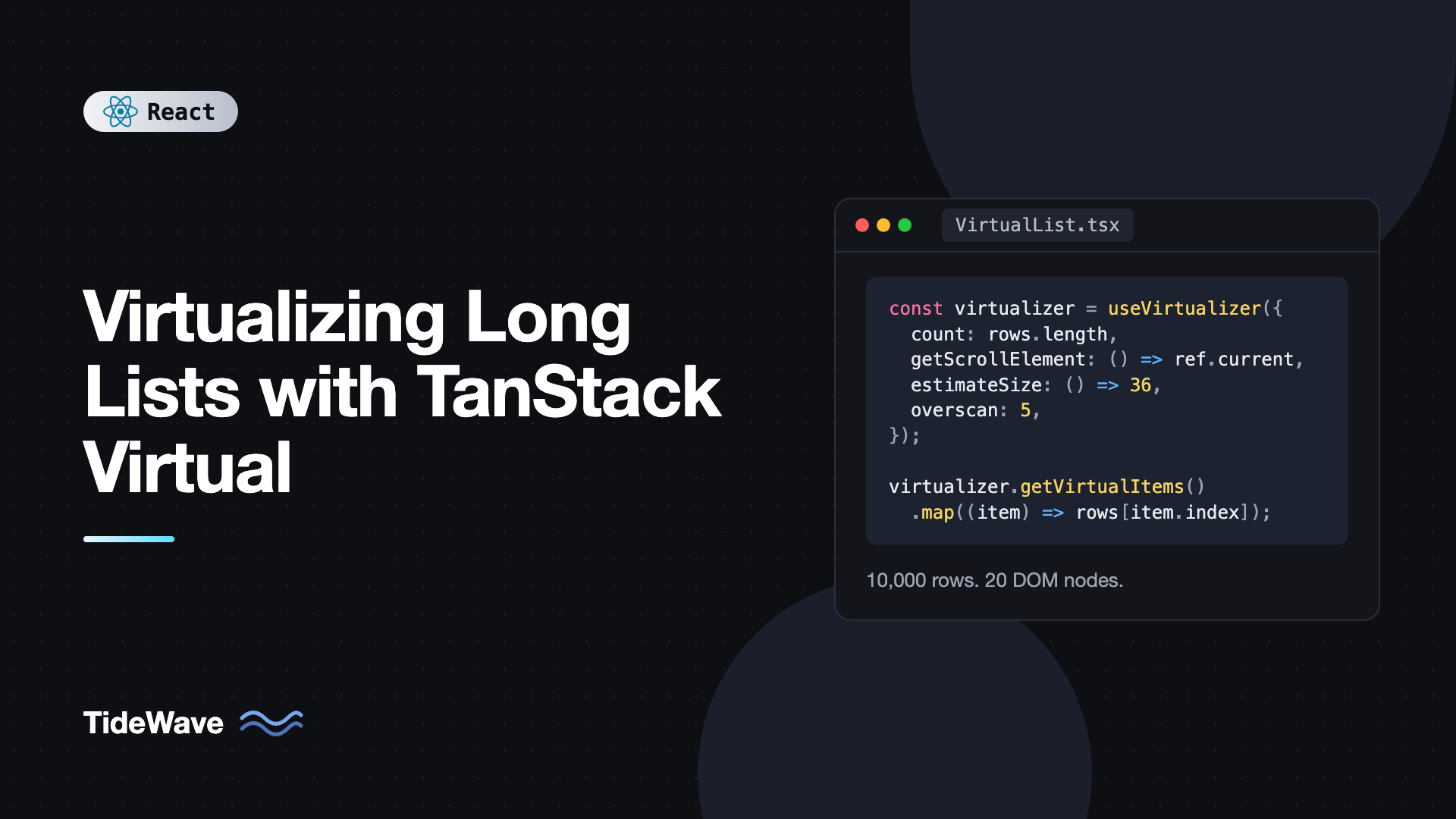
  const virtualizer = useVirtualizer({
    count: rows.length,
    getScrollElement: () => parentRef.current,
    estimateSize: () => 36,
    overscan: 5,
  });

  return (
    <div
      ref={parentRef}
      style={{ height: 400, overflowY: "auto", border: "1px solid #ddd" }}
    >
      <div
        style={{
          height: virtualizer.getTotalSize(),
          width: "100%",
          position: "relative",
        }}
      >
        {virtualizer.getVirtualItems().map((item) => (
          <div
            key={item.key}
            style={{
              position: "absolute",
              top: 0,
              left: 0,
              width: "100%",
              height: item.size,
              transform: `translateY(${item.start}px)`,
            }}
          >
            {rows[item.index]}
          </div>
        ))}
      </div>
    </div>
  );
}
The options you'll use on almost every list:
count: the total number of items.getScrollElement: a function returning the scrolling element. It's a function because the ref isnullduring the first render.estimateSize: the size of an item by index, in pixels. For fixed-size rows, return the exact size.overscan: how many extra items to render above and below the visible range. A few extra rows prevent blank flashes during fast scrolling.
Each virtual item gives you an index (which data item it is), a key (stable key for React), start (pixel offset), and size. Using transform: translateY is generally smoother than setting top, because the browser can move the element without recalculating layout.
Open DevTools and inspect the list while scrolling. You'll see around 20 row elements, no matter how far down you go.
Dynamic Row Heights
Real content is rarely uniform. Comments, chat messages, and product cards have different heights depending on their text. TanStack Virtual handles this by measuring each item after it renders.
Pass virtualizer.measureElement as a ref on each item and set data-index so the virtualizer knows which item was measured:
import { useRef } from "react";
import { useVirtualizer } from "@tanstack/react-virtual";

type Comment = { id: number; author: string; body: string };

export function CommentList({ comments }: { comments: Comment[] }) {
  const parentRef = useRef<HTMLDivElement>(null);

  const virtualizer = useVirtualizer({
    count: comments.length,
    getScrollElement: () => parentRef.current,
    estimateSize: () => 80,
    overscan: 5,
  });

  const items = virtualizer.getVirtualItems();

  return (
    <div ref={parentRef} style={{ height: 600, overflowY: "auto" }}>
      <div
        style={{
          height: virtualizer.getTotalSize(),
          width: "100%",
          position: "relative",
        }}
      >
        <div
          style={{
            position: "absolute",
            top: 0,
            left: 0,
            width: "100%",
            transform: `translateY(${items[0]?.start ?? 0}px)`,
          }}
        >
          {items.map((item) => {
            const comment = comments[item.index];
            return (
              <article
                key={item.key}
                data-index={item.index}
                ref={virtualizer.measureElement}
                style={{ padding: "12px 16px", borderBottom: "1px solid #eee" }}
              >
                <strong>{comment.author}</strong>
                <p style={{ margin: "4px 0 0" }}>{comment.body}</p>
              </article>
            );
          })}
        </div>
      </div>
    </div>
  );
}
This version uses a slightly different layout. Instead of absolutely positioning every item, it translates one wrapper to the first visible item's offset and lets the items flow normally inside it. Because the items are in normal flow, their natural height is what gets measured.
Tips for dynamic sizing:
- Make
estimateSizeclose to the average. A good estimate means less scrollbar jumping as real measurements replace estimates. - Don't set a fixed height on measured items. The measurement would just return your fixed value.
- Watch out for images. An image without dimensions changes the row height after it loads. Set
widthandheightattributes, or useaspect-ratio, so the row's height is stable on first paint. TanStack Virtual uses aResizeObserverand will re-measure, but stable sizes avoid visible jumps.
Scrolling with the Window
Sometimes the list is the page, like a feed or search results, and you don't want a nested scroll box. Use useWindowVirtualizer, which listens to the window's scroll position:
import { useLayoutEffect, useRef, useState } from "react";
import { useWindowVirtualizer } from "@tanstack/react-virtual";

export function WindowList({ items }: { items: string[] }) {
  const listRef = useRef<HTMLDivElement>(null);
  const [offset, setOffset] = useState(0);

  useLayoutEffect(() => {
    setOffset(listRef.current?.offsetTop ?? 0);
  }, []);

  const virtualizer = useWindowVirtualizer({
    count: items.length,
    estimateSize: () => 48,
    overscan: 8,
    scrollMargin: offset,
  });

  return (
    <div ref={listRef}>
      <div
        style={{
          height: virtualizer.getTotalSize(),
          width: "100%",
          position: "relative",
        }}
      >
        {virtualizer.getVirtualItems().map((item) => (
          <div
            key={item.key}
            style={{
              position: "absolute",
              top: 0,
              left: 0,
              width: "100%",
              height: item.size,
              transform: `translateY(${item.start - virtualizer.options.scrollMargin}px)`,
            }}
          >
            {items[item.index]}
          </div>
        ))}
      </div>
    </div>
  );
}
scrollMargin tells the virtualizer how far down the page the list starts, for example below a header. Item start values include that margin, so you subtract it when positioning items inside the list.
Horizontal Lists and Grids
Set horizontal: true to virtualize columns instead of rows. Sizes then refer to widths, and you position items with translateX.
For a grid, like a spreadsheet, combine two virtualizers that share the same scroll element:
import { useRef } from "react";
import { useVirtualizer } from "@tanstack/react-virtual";

const ROWS = 10_000;
const COLS = 200;

export function Grid() {
  const parentRef = useRef<HTMLDivElement>(null);

  const rowVirtualizer = useVirtualizer({
    count: ROWS,
    getScrollElement: () => parentRef.current,
    estimateSize: () => 32,
    overscan: 5,
  });

  const colVirtualizer = useVirtualizer({
    horizontal: true,
    count: COLS,
    getScrollElement: () => parentRef.current,
    estimateSize: () => 120,
    overscan: 3,
  });

  return (
    <div ref={parentRef} style={{ height: 500, width: 800, overflow: "auto" }}>
      <div
        style={{
          height: rowVirtualizer.getTotalSize(),
          width: colVirtualizer.getTotalSize(),
          position: "relative",
        }}
      >
        {rowVirtualizer.getVirtualItems().map((row) =>
          colVirtualizer.getVirtualItems().map((col) => (
            <div
              key={`${row.key}-${col.key}`}
              style={{
                position: "absolute",
                top: 0,
                left: 0,
                width: col.size,
                height: row.size,
                transform: `translate(${col.start}px, ${row.start}px)`,
                borderRight: "1px solid #f0f0f0",
                borderBottom: "1px solid #f0f0f0",
                fontSize: 13,
                padding: "6px 8px",
                boxSizing: "border-box",
              }}
            >
              R{row.index + 1}C{col.index + 1}
            </div>
          ))
        )}
      </div>
    </div>
  );
}
That's two million cells, and the DOM holds a couple of hundred at a time.
Scrolling to an Item
The virtualizer can scroll to any index, even one that has never been rendered:
<button onClick={() => virtualizer.scrollToIndex(4999, { align: "center" })}>
  Jump to row 5,000
</button>
align can be "start", "center", "end", or "auto" (scroll only as much as needed to bring it into view). This is useful for "jump to message," restoring a selection, or keyboard navigation. There's also scrollToOffset for scrolling to an exact pixel position.
With dynamic heights, rows that haven't been measured use their estimate, so the virtualizer corrects the position as real measurements come in. Expect the final position to settle after a frame or two on very long jumps.
Infinite Loading with TanStack Query
Virtualization pairs naturally with infinite scroll. The idea: add one extra "loader" row at the end, and when it becomes visible, fetch the next page. With TanStack Query's useInfiniteQuery:
import { useEffect, useRef } from "react";
import { useInfiniteQuery } from "@tanstack/react-query";
import { useVirtualizer } from "@tanstack/react-virtual";

type Page = { items: { id: number; title: string }[]; nextCursor: number | null };

async function fetchPage(cursor: number): Promise<Page> {
  const res = await fetch(`/api/posts?cursor=${cursor}`);
  if (!res.ok) throw new Error("Failed to load posts");
  return res.json();
}

export function InfinitePosts() {
  const parentRef = useRef<HTMLDivElement>(null);

  const { data, fetchNextPage, hasNextPage, isFetchingNextPage, status } =
    useInfiniteQuery({
      queryKey: ["posts"],
      queryFn: ({ pageParam }) => fetchPage(pageParam),
      initialPageParam: 0,
      getNextPageParam: (lastPage) => lastPage.nextCursor,
    });

  const posts = data?.pages.flatMap((p) => p.items) ?? [];

  const virtualizer = useVirtualizer({
    count: hasNextPage ? posts.length + 1 : posts.length,
    getScrollElement: () => parentRef.current,
    estimateSize: () => 56,
    overscan: 5,
  });

  const virtualItems = virtualizer.getVirtualItems();
  const lastItem = virtualItems[virtualItems.length - 1];

  useEffect(() => {
    if (!lastItem) return;
    if (lastItem.index >= posts.length - 1 && hasNextPage && !isFetchingNextPage) {
      fetchNextPage();
    }
  }, [lastItem, posts.length, hasNextPage, isFetchingNextPage, fetchNextPage]);

  if (status === "pending") return <p>Loading...</p>;
  if (status === "error") return <p>Could not load posts.</p>;

  return (
    <div ref={parentRef} style={{ height: 600, overflowY: "auto" }}>
      <div
        style={{
          height: virtualizer.getTotalSize(),
          position: "relative",
          width: "100%",
        }}
      >
        {virtualItems.map((item) => {
          const isLoader = item.index > posts.length - 1;
          return (
            <div
              key={item.key}
              style={{
                position: "absolute",
                top: 0,
                left: 0,
                width: "100%",
                height: item.size,
                transform: `translateY(${item.start}px)`,
              }}
            >
              {isLoader ? "Loading more..." : posts[item.index].title}
            </div>
          );
        })}
      </div>
    </div>
  );
}
The count includes the loader row while there are more pages. When the last rendered item reaches the end of the loaded data, the effect calls fetchNextPage. The isFetchingNextPage check prevents duplicate requests. For more on the query side, see Managing Server State with TanStack Query.
Accessibility Considerations
Virtualization removes off-screen items from the DOM, which has consequences:
- Browser find (Ctrl+F) only searches rendered rows. If users need to search the list, provide a search or filter input.
- Screen readers only see rendered items. Add
role="list"androle="listitem"(or a table role structure), and usearia-setsizeandaria-posinseton items so assistive tech can announce "item 512 of 10,000." - Keyboard focus can be lost when a focused row scrolls out and unmounts. For keyboard navigation, track the active index in state and call
scrollToIndexbefore focusing.
<div
  role="listitem"
  aria-setsize={rows.length}
  aria-posinset={item.index + 1}
>
  {rows[item.index]}
</div>
Common Mistakes with TanStack Virtual
- Forgetting the container height. The scroll element needs a fixed height (or a flex parent that constrains it) and
overflow: auto. Without it, the container grows to fit the spacer and nothing is virtualized. - Using the array index as the React key. Use
item.key, which is stable, or providegetItemKeywhen your items have IDs and the list can reorder. - Setting fixed heights on dynamically measured rows.
measureElementreads the rendered size. Let content determine the height. - Missing
data-indexwithmeasureElement. The virtualizer can't map the measurement to an item without it. - Virtualizing short lists. For a few hundred simple rows, plain rendering is fine and simpler. Virtualize when you have thousands of items or heavy rows.
- Images without dimensions. Rows that change height after an image loads cause jumping. Reserve space with width, height, or
aspect-ratio.
Frequently Asked Questions (FAQ) About TanStack Virtual
When rendering the full list causes noticeable lag on first paint, during scrolling, or when the list re-renders. In practice that's usually somewhere above one or two thousand simple rows, or a few hundred complex rows with images and interactive elements. Profile before and after to confirm the gain.
Both render only visible items. react-window ships ready-made list and grid components with fixed props. TanStack Virtual is headless: it gives you the positions and sizes and you write the markup, which makes dynamic heights, custom layouts, sticky rows, and window scrolling easier to build.
Yes. Provide an estimateSize close to the average, attach virtualizer.measureElement as the ref on each item, and add a data-index attribute. The virtualizer measures each row after it renders and updates positions and the total size.
Yes. Virtualize the table body rows and keep the header outside the virtualized area. Because tbody rows can't be absolutely positioned easily, a common approach is to render spacer rows above and below the visible rows with heights taken from the first item's start and the remaining total size.
Usually the scroll container has no fixed height, so it expands to fit everything and the virtualizer thinks all items are visible, or it has zero height and nothing is visible. Give the container an explicit height or put it in a flex layout that constrains it, and set overflow: auto.
It can, because only visible items are in the HTML. For content that should be indexed, render the first page of items normally on the server and provide paginated URLs. Virtualization is best for app-like interfaces such as dashboards, logs, chats, and admin tables.
Conclusion
TanStack Virtual renders only the items the user can see, which turns lists of tens of thousands of rows into a few dozen DOM nodes. You provide a scroll container, a spacer sized by getTotalSize(), and the items from getVirtualItems() positioned at their start offsets. Add measureElement for dynamic heights, useWindowVirtualizer for page-level scrolling, two virtualizers for grids, and a loader row with useInfiniteQuery for endless feeds.
Start with the slowest list in your app, confirm the problem with the Profiler, and replace the plain .map() with the basic fixed-size example. Once that works, add dynamic measurement or infinite loading as needed, and don't forget the accessibility attributes that let every user know how long the list really is.