Handling Loading and Error States Elegantly in React
Most React screens are designed for the happy path: the data has arrived, the list has items, and nothing went wrong. Real users see the other states far more often than designers expect. A spinner flashes for 80 milliseconds and makes the page jump. A failed request shows "Something went wrong" with no way to retry. An empty list looks exactly like a broken one. A refetch wipes the table while the user is reading it.
Handling these states well is less about any single library and more about a few consistent decisions: how you model state so impossible combinations can't happen, where loading and error boundaries sit in the tree, what users see while waiting, and how they recover from failure.
This guide walks through those decisions with practical code: discriminated unions for request state, delayed spinners and skeletons, Suspense and error boundaries, retry and reset patterns, empty states, keeping stale data visible during refetches, and making it all accessible.
Model State So Impossible States Can't Exist
A common starting point is three separate pieces of state:
const [data, setData] = useState<User[] | null>(null);
const [loading, setLoading] = useState(false);
const [error, setError] = useState<Error | null>(null);
That allows eight combinations, and several make no sense: loading with an error, or no data, no error, and not loading. Each extra combination is a rendering branch you either handle or forget. A discriminated union reduces it to exactly the states that can happen:
export type AsyncState<T> =
  | { status: "idle" }
  | { status: "loading" }
  | { status: "success"; data: T }
  | { status: "error"; error: Error };
TypeScript now prevents you from reading data unless you've checked status === "success". A small component can render the right branch for any async state:
import type { ReactNode } from "react";
import type { AsyncState } from "./types";

type AsyncViewProps<T> = {
  state: AsyncState<T>;
  loading: ReactNode;
  error: (error: Error) => ReactNode;
  children: (data: T) => ReactNode;
};

export function AsyncView<T>({ state, loading, error, children }: AsyncViewProps<T>) {
  switch (state.status) {
    case "idle":
      return null;
    case "loading":
      return <>{loading}</>;
    case "error":
      return <>{error(state.error)}</>;
    case "success":
      return <>{children(state.data)}</>;
  }
}
If you use TanStack Query, you already get this model: status is "pending", "error", or "success", and the returned object narrows correctly when you check isPending or isError. The idea of making illegal states unrepresentable is covered further in discriminated unions for type-safe React props.
Loading States That Don't Feel Janky
Delay the Spinner
Fast requests are the most common case, and they create the worst flicker. A spinner that appears for 100ms and disappears feels like a glitch. A better rule: show nothing for a short moment, then show the indicator if the request is still running.
import { useEffect, useState } from "react";

export function DelayedSpinner({ delay = 300, label = "Loading" }: { delay?: number; label?: string }) {
  const [visible, setVisible] = useState(false);

  useEffect(() => {
    const id = setTimeout(() => setVisible(true), delay);
    return () => clearTimeout(id);
  }, [delay]);

  if (!visible) return null;

  return (
    <div role="status" className="spinner-wrapper">
      <span className="spinner" aria-hidden="true" />
      <span className="sr-only">{label}…</span>
    </div>
  );
}
Requests that finish within 300ms never show a spinner at all. Slow ones show it after a short pause that users don't notice.
Prefer Skeletons for Content Areas
For lists, cards, and tables, a skeleton that matches the final layout is better than a centered spinner. It tells users what's coming and prevents layout shift when content arrives:
export function UserListSkeleton({ rows = 5 }: { rows?: number }) {
  return (
    <ul aria-hidden="true" className="space-y-3">
      {Array.from({ length: rows }, (_, i) => (
        <li key={i} className="flex items-center gap-3">
          <div className="size-10 animate-pulse rounded-full bg-gray-200" />
          <div className="h-4 w-48 animate-pulse rounded bg-gray-200" />
        </li>
      ))}
    </ul>
  );
}
Mark skeletons with aria-hidden, and announce loading separately, so screen readers don't read a list of empty items. Keep the skeleton's dimensions close to the real content. A skeleton with three rows that turns into a list of twenty still shifts the page.
Use Different Indicators for Different Actions
Not every wait deserves a full-screen loader:
- Initial page load: skeletons for the main content area.
- Button actions (save, delete): a spinner or "Saving…" label inside the button, and disable it to prevent double submits.
- Background refetch: a subtle indicator, like a thin progress bar or a dimmed table, while the old data stays visible.
- Navigation: a top progress bar, keeping the current page interactive.
Suspense Boundaries: Choosing Where Loading Happens
With Suspense, components that are waiting for data suspend, and the nearest boundary above them shows its fallback. This moves the loading decision out of each component and into the tree structure:
import { Suspense } from "react";

export function Dashboard() {
  return (
    <div className="grid grid-cols-3 gap-6">
      <Suspense fallback={<StatsSkeleton />}>
        <Stats />
      </Suspense>
      <Suspense fallback={<ChartSkeleton />}>
        <RevenueChart />
      </Suspense>
      <Suspense fallback={<ActivitySkeleton />}>
        <RecentActivity />
      </Suspense>
    </div>
  );
}
Each panel shows its own skeleton and appears as soon as its data is ready. If you wrapped all three in one boundary, the whole dashboard would wait for the slowest panel. Neither choice is always right:
- One boundary avoids content popping in at different times, which suits small, related pieces of UI.
- Several boundaries show useful content sooner, which suits independent panels.
Components can suspend with useSuspenseQuery from TanStack Query, the use hook reading a cached promise, or React.lazy for code. Suspense for data fetching under the hood explains what happens when a component suspends.
Avoid Replacing Visible Content With a Fallback
When something already on screen suspends again, for example after switching tabs or changing a filter, React would normally swap it for the fallback. That's jarring. Wrapping the update in a transition tells React to keep showing the old UI until the new one is ready:
import { Suspense, useState, useTransition } from "react";

export function ProjectTabs() {
  const [tab, setTab] = useState<"overview" | "issues">("overview");
  const [isPending, startTransition] = useTransition();

  function selectTab(next: typeof tab) {
    startTransition(() => setTab(next));
  }

  return (
    <>
      <div role="tablist">
        <button role="tab" aria-selected={tab === "overview"} onClick={() => selectTab("overview")}>
          Overview
        </button>
        <button role="tab" aria-selected={tab === "issues"} onClick={() => selectTab("issues")}>
          Issues
        </button>
      </div>
      <div className={isPending ? "opacity-60 transition-opacity" : ""}>
        <Suspense fallback={<PanelSkeleton />}>
          {tab === "overview" ? <Overview /> : <Issues />}
        </Suspense>
      </div>
    </>
  );
}
The skeleton appears only on the very first load. Later tab switches dim the current panel until the next one is ready.
Error Boundaries and Recovery
Errors thrown during rendering, including errors from suspended data fetches, propagate to the nearest error boundary. Error boundaries still have to be class components in React, so most apps use the react-error-boundary package:
npm install react-error-boundary
// src/components/Panel.tsx
import { Suspense, type ReactNode } from "react";
import { ErrorBoundary, type FallbackProps } from "react-error-boundary";
import { getErrorMessage } from "../lib/getErrorMessage";
import { PanelSkeleton } from "./PanelSkeleton";

export function PanelError({ error, resetErrorBoundary }: FallbackProps) {
  return (
    <div role="alert" className="rounded border border-red-300 p-4">
      <p className="font-medium">This section couldn't load.</p>
      <p className="text-sm text-gray-600">{getErrorMessage(error)}</p>
      <button type="button" onClick={resetErrorBoundary}>
        Try again
      </button>
    </div>
  );
}

export function Panel({ children }: { children: ReactNode }) {
  return (
    <ErrorBoundary FallbackComponent={PanelError}>
      <Suspense fallback={<PanelSkeleton />}>{children}</Suspense>
    </ErrorBoundary>
  );
}
Put the error boundary outside the Suspense boundary, so it catches errors from the suspended content. Pairing them in one wrapper component gives every panel consistent loading and error behavior.
resetErrorBoundary clears the error and renders the children again. If the failing data came from a cache, the retry would hit the same cached error, so reset the cache too. With TanStack Query, QueryErrorResetBoundary does that:
import { Suspense, type ReactNode } from "react";
import { QueryErrorResetBoundary } from "@tanstack/react-query";
import { ErrorBoundary } from "react-error-boundary";
import { PanelError } from "./Panel";
import { PanelSkeleton } from "./PanelSkeleton";

export function QueryPanel({ children }: { children: ReactNode }) {
  return (
    <QueryErrorResetBoundary>
      {({ reset }) => (
        <ErrorBoundary onReset={reset} FallbackComponent={PanelError}>
          <Suspense fallback={<PanelSkeleton />}>{children}</Suspense>
        </ErrorBoundary>
      )}
    </QueryErrorResetBoundary>
  );
}
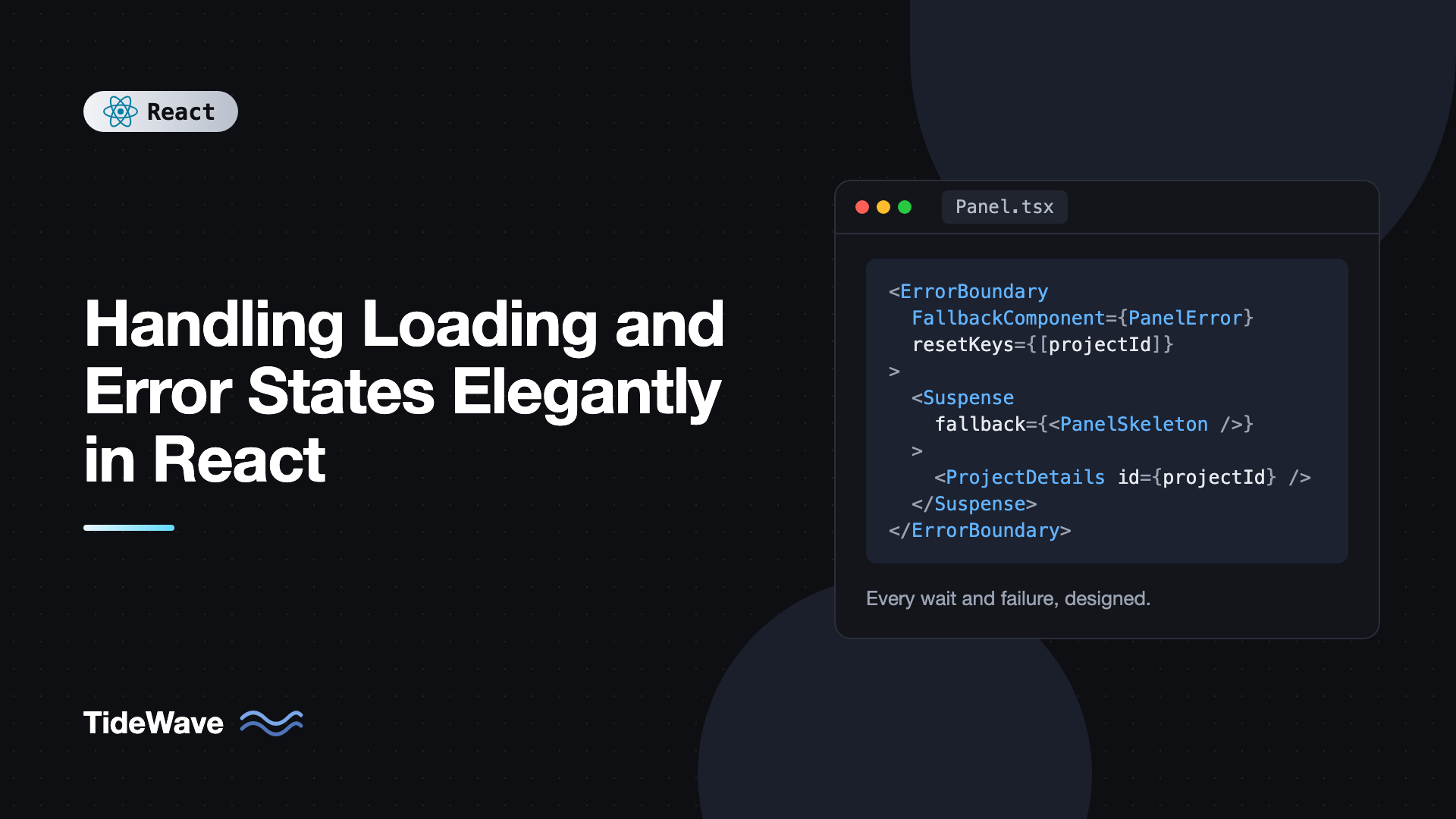
You can also reset automatically when something changes, such as the route or a selected ID, with resetKeys:
<ErrorBoundary FallbackComponent={PanelError} resetKeys={[projectId]}>
  <ProjectDetails id={projectId} />
</ErrorBoundary>
Remember that error boundaries only catch errors during rendering. Errors in event handlers and mutations need to be caught where they happen. For a full treatment, see error boundaries for gracefully handling crashes.
Writing Error Messages People Can Act On
A good error UI answers three questions: what happened, whether it's the user's fault, and what they can do next. Map technical errors to helpful messages in one place:
// src/lib/getErrorMessage.ts
import { ApiError } from "./api";

export function getErrorMessage(error: unknown): string {
  if (error instanceof ApiError) {
    switch (error.status) {
      case 401:
        return "Your session has expired. Please sign in again.";
      case 403:
        return "You don't have permission to view this.";
      case 404:
        return "We couldn't find what you were looking for.";
      case 429:
        return "Too many requests. Please wait a moment and try again.";
      default:
        if (error.status >= 500) return "Our server had a problem. Please try again shortly.";
    }
  }
  if (error instanceof TypeError) {
    return "Network error. Check your connection and try again.";
  }
  return "Something unexpected happened. Please try again.";
}
Here ApiError is a custom error class carrying the HTTP status, like the one built in fetching data in React with fetch and Axios. Scope errors to where they occurred, too. If one dashboard panel fails, the other panels should keep working. Reserve full-page error screens for failures that make the whole page useless, like a missing project.
Mutation Errors
Errors from user actions, like saving a form, belong next to the action, not in an error boundary that replaces the screen. With TanStack Query mutations:
import { useMutation } from "@tanstack/react-query";
import { getErrorMessage } from "../lib/getErrorMessage";

export function RenameProject({ id, name }: { id: string; name: string }) {
  const rename = useMutation({
    mutationFn: (newName: string) =>
      fetch(`/api/projects/${id}`, {
        method: "PATCH",
        headers: { "Content-Type": "application/json" },
        body: JSON.stringify({ name: newName }),
      }).then((res) => {
        if (!res.ok) throw new Error(`HTTP ${res.status}`);
      }),
  });

  return (
    <form
      onSubmit={(e) => {
        e.preventDefault();
        const value = new FormData(e.currentTarget).get("name");
        rename.mutate(String(value));
      }}
    >
      <label htmlFor="project-name">Project name</label>
      <input id="project-name" name="name" defaultValue={name} />
      <button type="submit" disabled={rename.isPending}>
        {rename.isPending ? "Saving…" : "Save"}
      </button>
      {rename.isError && <p role="alert">{getErrorMessage(rename.error)}</p>}
      {rename.isSuccess && <p role="status">Saved.</p>}
    </form>
  );
}
The user's input stays in place when saving fails, so they can retry without retyping. That detail matters more than any error styling.
Empty States Are Not Errors
An empty list is a successful response with no items. Show something that explains the situation and offers a next step:
function ProjectList({ projects }: { projects: Project[] }) {
  if (projects.length === 0) {
    return (
      <div className="empty-state">
        <h2>No projects yet</h2>
        <p>Projects group your tasks and files. Create one to get started.</p>
        <a href="/projects/new" className="button">
          New project
        </a>
      </div>
    );
  }

  return (
    <ul>
      {projects.map((p) => (
        <li key={p.id}>{p.name}</li>
      ))}
    </ul>
  );
}
Distinguish between "you have nothing yet" and "your filters matched nothing". The second should offer to clear the filters, not to create a new item.
Keep Stale Data Visible During Refetches
When data refreshes in the background or a paginated query moves to the next page, blanking the content and showing a skeleton is disruptive. TanStack Query separates first load (isPending) from any fetch in progress (isFetching), and placeholderData can keep the previous result on screen while the next one loads:
import { keepPreviousData, useQuery } from "@tanstack/react-query";

export function UsersTable({ page }: { page: number }) {
  const { data, isPending, isError, error, isFetching, isPlaceholderData } = useQuery({
    queryKey: ["users", page],
    queryFn: () => fetchUsers(page),
    placeholderData: keepPreviousData,
  });

  if (isPending) return <UserListSkeleton />;
  if (isError) return <p role="alert">{getErrorMessage(error)}</p>;

  return (
    <div aria-busy={isFetching} className={isPlaceholderData ? "opacity-60" : ""}>
      {isFetching && <div className="top-progress-bar" aria-hidden="true" />}
      <UsersTableRows users={data.users} />
    </div>
  );
}
Users keep reading the current page while the next one loads, and a subtle indicator tells them something is happening. If a background refetch fails while you already have data, consider showing a small warning banner instead of throwing away the data you have.
Accessibility for Loading and Errors
Visual spinners and red text mean nothing to a screen reader user unless they're announced:
- Use
role="status"for loading and success messages. They're announced politely when the text changes. - Use
role="alert"for errors that need immediate attention. - Set
aria-busy="true"on a region while it updates, and hide decorative skeletons witharia-hidden. - After a retry or route-level error, move focus to the error heading or the retry button so keyboard users aren't stranded.
- Respect
prefers-reduced-motionfor spinners and pulsing skeletons.
The live region rules are covered in more depth in accessibility best practices for React developers.
Best Practices for Loading and Error States
- Model request state as a union. Make impossible combinations unrepresentable.
- Delay spinners. Don't show an indicator for requests that finish in a few hundred milliseconds.
- Match skeletons to real layout. They should reduce layout shift, not cause it.
- Place boundaries deliberately. Group related content in one Suspense boundary, and separate independent sections.
- Always offer recovery. Every error state needs a retry, a reset, or a clear next step.
- Scope errors to where they happened. One failed panel shouldn't take down the page.
- Keep previous data during refetches. Show a subtle indicator instead of blanking content.
- Treat empty as its own state. Explain it and offer an action.
Frequently Asked Questions (FAQ) About Loading and Error States
Use skeletons for content areas like lists, cards, and tables, because they preview the layout and prevent content from jumping when data arrives. Use small spinners for actions inside buttons or compact widgets where a skeleton doesn't make sense. In both cases, delay the indicator slightly to avoid flicker on fast requests.
Only if the error is thrown during rendering. Suspense-based data hooks like useSuspenseQuery and the use hook throw errors during render, so boundaries catch them. Errors from fetches in effects or event handlers aren't caught, so you store them in state and render the error UI yourself.
Put them around sections of the page that can load and fail independently, such as dashboard panels, sidebars, or the main content area. Keep one app-level error boundary as a last resort, and place each error boundary outside its matching Suspense boundary so it can catch errors from suspended children.
Call resetErrorBoundary from the fallback to render the children again. If the data comes from a cache like TanStack Query, also reset the cached error, for example with QueryErrorResetBoundary, otherwise the retry immediately sees the same failure.
Reserve space for the content before it arrives. Skeletons with realistic dimensions, fixed heights on cards and charts, and image width and height attributes all help. Keeping previous data visible during refetches also avoids the collapse and expansion that happens when content is swapped for a loader.
Not by default. Show a short, human message and a recovery action, and log the full error to a monitoring service. For internal tools or developer audiences, an expandable details section with the status code or request ID can help support teams diagnose issues.
Conclusion
Loading and error states are where an app's quality becomes visible. Model request state as a discriminated union so every branch is explicit, delay spinners to avoid flicker, and use skeletons that match the final layout. Use Suspense and error boundaries to decide where loading and failure happen in the tree, pair them with reset mechanisms so users can recover, and keep previous data on screen during refetches. Treat empty results as their own state, and announce changes with status and alert roles.
Pick the most-used screen in your app and throttle your network to "Slow 4G" in DevTools, then block its API request entirely. Watch what users see in each case. The gaps you find, a flash of spinner, a dead end with no retry, an empty table with no explanation, are the best places to apply the patterns from this guide.