Building a Search Feature with Debounced API Calls in React
A search box that calls the API on every keystroke looks fine in a demo and falls apart in production. Typing "wireless headphones" fires nineteen requests. The server does nineteen times the work, and because responses can arrive out of order, the results for "wire" sometimes land after the results for "wireless headphones" and overwrite them.
The fix has three parts. Debounce the input so you only search after the user pauses. Cancel or ignore requests that are no longer relevant. And cache results so going back to a previous query is instant.
This guide builds a search feature step by step: a reusable useDebounce hook, a fetch layer with AbortController, a TanStack Query version with caching, URL syncing so searches are shareable, and the loading and empty states that make it feel polished.
What Debouncing Does
Debouncing delays an action until a burst of events has stopped for a set amount of time. Each new keystroke resets the timer. Only when the user stops typing for, say, 300 milliseconds does the search run.
Compare the two approaches for typing "react" at a normal speed:
- No debounce: requests for
r,re,rea,reac,react. Five requests. - 300ms debounce: one request for
react.
Debouncing is different from throttling, which runs at most once per interval while events keep coming. For search, debouncing is almost always what you want, because the intermediate queries are useless. The debouncing and throttling guide covers the difference in more detail.
A Reusable useDebounce Hook
The cleanest way to debounce in React is to debounce a value, not a function. You keep the input fully responsive with normal state, and derive a second, delayed copy that drives the search.
// useDebounce.ts
import { useEffect, useState } from "react";

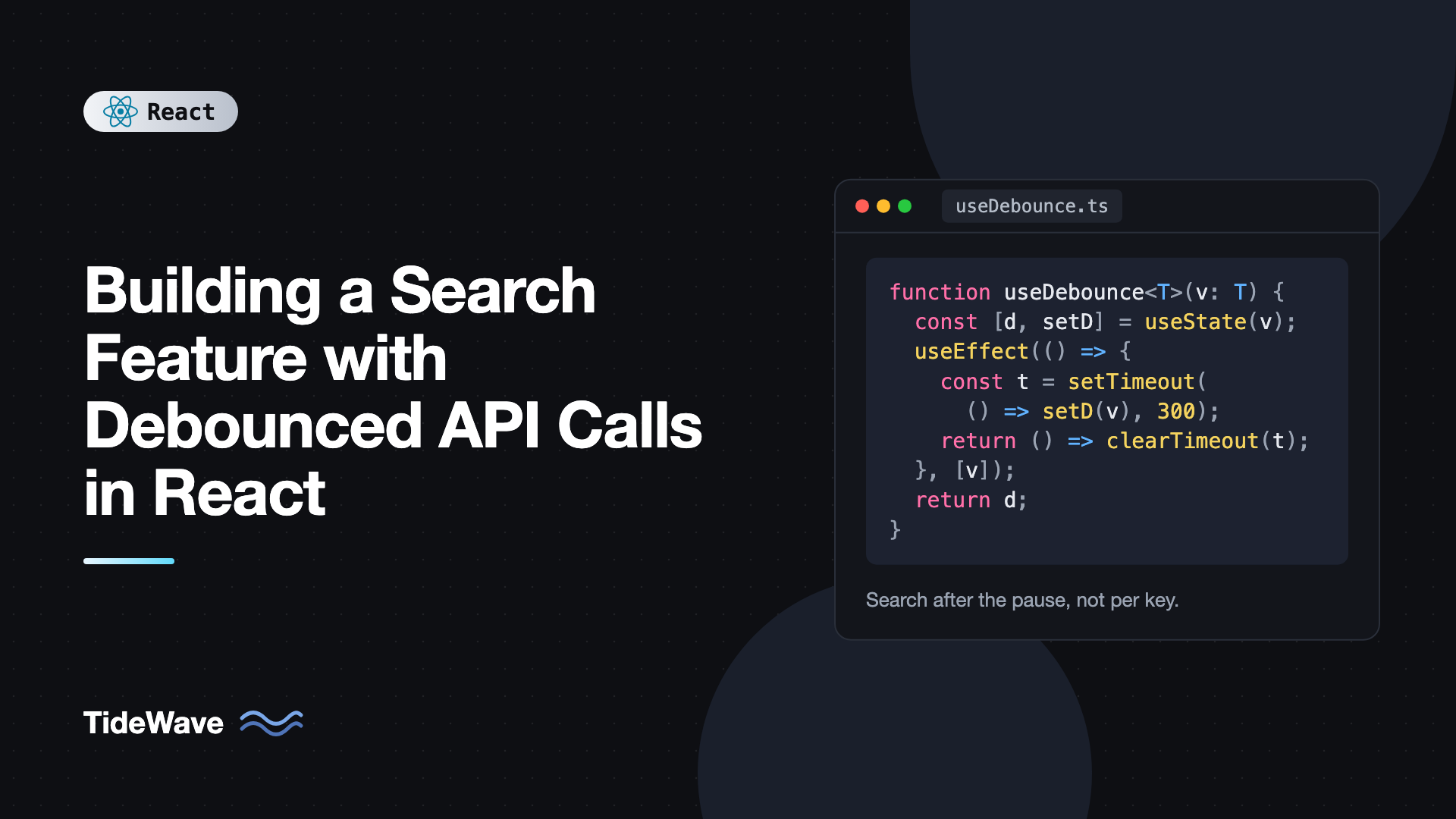
export function useDebounce<T>(value: T, delay = 300): T {
  const [debounced, setDebounced] = useState(value);

  useEffect(() => {
    const timer = setTimeout(() => setDebounced(value), delay);
    return () => clearTimeout(timer);
  }, [value, delay]);

  return debounced;
}
Every time value changes, the effect's cleanup clears the previous timer and a new one starts. The debounced value only updates once the input has been stable for delay milliseconds.
Using it looks like this:
import { useState } from "react";
import { useDebounce } from "./useDebounce";

export function SearchBox() {
  const [query, setQuery] = useState("");
  const debouncedQuery = useDebounce(query, 300);

  return (
    <div>
      <input
        type="search"
        value={query}
        onChange={(e) => setQuery(e.target.value)}
        placeholder="Search products"
      />
      <p>Searching for: {debouncedQuery}</p>
    </div>
  );
}
The input updates instantly because query is ordinary state. Only debouncedQuery lags behind, which is exactly what you want to feed into the API call.
Fetching Results With useEffect
With a debounced value, the first working version uses useEffect to fetch whenever it changes.
import { useEffect, useState } from "react";
import { useDebounce } from "./useDebounce";

type Product = { id: number; title: string; price: number };

export function ProductSearch() {
  const [query, setQuery] = useState("");
  const debouncedQuery = useDebounce(query.trim(), 300);
  const [results, setResults] = useState<Product[]>([]);
  const [status, setStatus] = useState<"idle" | "loading" | "error">("idle");

  useEffect(() => {
    if (debouncedQuery.length < 2) {
      setResults([]);
      setStatus("idle");
      return;
    }

    const controller = new AbortController();
    setStatus("loading");

    fetch(
      `https://dummyjson.com/products/search?q=${encodeURIComponent(debouncedQuery)}`,
      {
        signal: controller.signal,
      },
    )
      .then((res) => {
        if (!res.ok) throw new Error(`HTTP ${res.status}`);
        return res.json();
      })
      .then((data: { products: Product[] }) => {
        setResults(data.products);
        setStatus("idle");
      })
      .catch((err) => {
        if (err.name === "AbortError") return;
        setStatus("error");
      });

    return () => controller.abort();
  }, [debouncedQuery]);

  return (
    <div>
      <input
        type="search"
        value={query}
        onChange={(e) => setQuery(e.target.value)}
        placeholder="Search products"
        aria-label="Search products"
      />
      {status === "loading" && <p>Searching...</p>}
      {status === "error" && (
        <p role="alert">Something went wrong. Try again.</p>
      )}
      <ul>
        {results.map((p) => (
          <li key={p.id}>
            {p.title} - ${p.price}
          </li>
        ))}
      </ul>
    </div>
  );
}
A few decisions are worth calling out.
Minimum Query Length
Searching for a single character usually returns noise and hits the database hardest. Requiring at least two or three characters cuts load and improves result quality. Adjust it to your data: product codes might need one character, full-text search might need three.
Encoding the Query
encodeURIComponent is not optional. Without it, a query like cats & dogs becomes q=cats & dogs, and the server reads q=cats plus a stray dogs parameter. Even better, build the URL with URLSearchParams, which encodes for you.
Cancelling Stale Requests
Debouncing reduces requests but doesn't eliminate races. If the user types "phone," pauses, then types "phone case," two requests are in flight. If the first one is slow, it can resolve after the second and overwrite the correct results.
The AbortController solves this. Each effect run creates a controller, passes its signal to fetch, and aborts it in cleanup. When debouncedQuery changes, React runs the cleanup first, which cancels the previous request. The aborted fetch rejects with an AbortError, which you ignore. The browser also stops downloading the response, saving bandwidth.
A Cleaner Version With TanStack Query
The useEffect version works, but it's a lot of manual state: results, status, errors, cancellation. It also forgets everything when the component unmounts, and searching for "phone" a second time refetches.
TanStack Query handles all of that. Each debounced query becomes a cache key, results are cached, and the signal it passes to your query function is aborted automatically when the query becomes unused.
// searchProducts.ts
export type Product = {
  id: number;
  title: string;
  price: number;
  thumbnail: string;
};

export async function searchProducts(
  query: string,
  signal: AbortSignal,
): Promise<Product[]> {
  const params = new URLSearchParams({ q: query, limit: "20" });
  const res = await fetch(`https://dummyjson.com/products/search?${params}`, {
    signal,
  });
  if (!res.ok) throw new Error(`Search failed: ${res.status}`);
  const data: { products: Product[] } = await res.json();
  return data.products;
}
import { useState } from "react";
import { keepPreviousData, useQuery } from "@tanstack/react-query";
import { useDebounce } from "./useDebounce";
import { searchProducts } from "./searchProducts";

export function ProductSearch() {
  const [query, setQuery] = useState("");
  const debouncedQuery = useDebounce(query.trim(), 300);
  const enabled = debouncedQuery.length >= 2;

  const { data, isFetching, isError, isPlaceholderData } = useQuery({
    queryKey: ["products", "search", debouncedQuery],
    queryFn: ({ signal }) => searchProducts(debouncedQuery, signal),
    enabled,
    staleTime: 60_000,
    placeholderData: keepPreviousData,
  });

  return (
    <div>
      <input
        type="search"
        value={query}
        onChange={(e) => setQuery(e.target.value)}
        placeholder="Search products"
        aria-label="Search products"
      />
      {isFetching && <span aria-live="polite">Searching...</span>}
      {isError && <p role="alert">Search failed. Please try again.</p>}
      {enabled && data && (
        <ul style={{ opacity: isPlaceholderData ? 0.6 : 1 }}>
          {data.map((p) => (
            <li key={p.id}>{p.title}</li>
          ))}
        </ul>
      )}
    </div>
  );
}
Here's what each option buys you:
queryKeyincludes the debounced query, so every distinct search is cached separately. Typing "phone," changing to "laptop," and going back to "phone" shows cached results instantly.enabledstops the query from running for short or empty input.staleTimeof one minute means repeated searches inside that window don't refetch at all.placeholderData: keepPreviousDatakeeps the old results on screen while new ones load, instead of flashing an empty list. Dimming them withisPlaceholderDatasignals that they're about to change.signalis wired tofetch, so if the user moves on before a request finishes, TanStack Query cancels it.
Keeping the Search in the URL
Users expect to share a search link, refresh the page, or press Back and land on the same results. That means the query should live in the URL, not just in component state.
With React Router v7, useSearchParams reads and writes the query string. The pattern is to keep the input as local state for responsiveness, and write the debounced value to the URL.
import { useEffect, useRef, useState } from "react";
import { useSearchParams } from "react-router";
import { useDebounce } from "./useDebounce";

export function useUrlSearch(param = "q") {
  const [searchParams, setSearchParams] = useSearchParams();
  const urlQuery = searchParams.get(param) ?? "";
  const [input, setInput] = useState(urlQuery);
  const debounced = useDebounce(input.trim(), 300);
  const lastWritten = useRef(debounced);

  // If the URL changes from outside (a link or the Back button), sync the input
  const [prevUrlQuery, setPrevUrlQuery] = useState(urlQuery);
  if (urlQuery !== prevUrlQuery) {
    setPrevUrlQuery(urlQuery);
    if (urlQuery !== input.trim()) setInput(urlQuery);
  }

  // Write the debounced input to the URL, only when the input changed
  useEffect(() => {
    if (debounced === lastWritten.current) return;
    lastWritten.current = debounced;
    if (debounced === urlQuery) return;

    setSearchParams(
      (prev) => {
        const next = new URLSearchParams(prev);
        if (debounced) next.set(param, debounced);
        else next.delete(param);
        return next;
      },
      { replace: true },
    );
  }, [debounced, urlQuery, param, setSearchParams]);

  return { input, setInput, query: urlQuery };
}
Two details keep this from fighting the browser. The lastWritten ref makes the effect write only when the debounced input actually changes, so a link click or Back navigation that changes the URL isn't immediately overwritten by the old input. And the render-time check copies an external URL change back into the input, using the "adjust state during render" pattern instead of another effect.
The replace: true option matters too. Without it, every debounced update adds a history entry, and pressing Back steps through "pho," "phon," and "phone" one at a time. Replacing keeps the history clean.
Your search component then reads query from the hook and passes it to useQuery. Because the URL is the source of truth for the active search, a shared link like /search?q=headphones loads the right results on first render.
Handling Loading, Empty, and Error States
A search feature has more states than most components. Getting each one right is what separates a polished search from a frustrating one.
type Props = {
  query: string;
  isLoading: boolean;
  isError: boolean;
  results: { id: number; title: string }[] | undefined;
};

export function SearchResults({ query, isLoading, isError, results }: Props) {
  if (query.length < 2) {
    return <p className="hint">Type at least two characters to search.</p>;
  }

  if (isLoading) {
    return <p aria-live="polite">Searching for "{query}"...</p>;
  }

  if (isError) {
    return (
      <p role="alert">
        We couldn't load results. Check your connection and try again.
      </p>
    );
  }

  if (!results || results.length === 0) {
    return <p>No results for "{query}". Try a different keyword.</p>;
  }

  return (
    <ul aria-label={`Results for ${query}`}>
      {results.map((r) => (
        <li key={r.id}>{r.title}</li>
      ))}
    </ul>
  );
}
Use TanStack Query's isLoading for the first load of a key (no cached data yet) and isFetching for background refreshes. Showing a full loading state only when there's nothing to display, and a subtle indicator otherwise, prevents the layout from jumping on every keystroke. For more patterns, see handling loading and error states elegantly in React.
Highlighting Matches
Highlighting the matched text in each result helps users scan quickly. You can do it safely without dangerouslySetInnerHTML by splitting the string and wrapping matches in <mark>.
function escapeRegExp(text: string) {
  return text.replace(/[.*+?^${}()|[\]\\]/g, "\\$&");
}

export function Highlight({ text, query }: { text: string; query: string }) {
  if (!query) return <>{text}</>;
  const parts = text.split(new RegExp(`(${escapeRegExp(query)})`, "gi"));

  return (
    <>
      {parts.map((part, i) =>
        part.toLowerCase() === query.toLowerCase() ? (
          <mark key={i}>{part}</mark>
        ) : (
          part
        ),
      )}
    </>
  );
}
Escaping the query is essential. A user typing c++ or ( would otherwise produce an invalid regular expression and crash the component.
Making It Accessible
A search box with live results should work for keyboard and screen reader users:
- Use
type="search"and a visible label oraria-label. - Announce result counts with an
aria-live="polite"region, such as "12 results for headphones," so screen reader users know something happened. - If results appear as a dropdown suggestion list, follow the WAI-ARIA combobox pattern:
role="combobox"on the input,role="listbox"on the list, and arrow-key navigation witharia-activedescendant. Headless libraries like Downshift or the Radix and React Aria components implement this correctly. - Don't steal focus when results load. The user is still typing.
Choosing the Right Debounce Delay
There's no universal number, but these ranges work well:
- 150 to 250ms for fast, cheap endpoints such as local filtering or a search service like Algolia or Meilisearch.
- 300 to 400ms for typical REST APIs backed by a database.
- 500ms or more for expensive operations, such as searches that hit an external paid API.
Too short and you barely save requests. Too long and the UI feels sluggish. Test with real users typing real queries, and remember that cached results from TanStack Query appear instantly regardless of the delay.
If you're filtering data that's already loaded in the browser, you may not need debouncing at all. useDeferredValue lets React render the input immediately and render the expensive filtered list at lower priority, without any fixed delay.
Common Mistakes When Building Search
- Debouncing the
onChangehandler instead of the value. It makes the input itself laggy, or forces you to use an uncontrolled input. Debounce the derived value instead. - Creating the debounced function inside the component body. A
debounce(fn)call inside render creates a new timer every render and never actually debounces. If you use a function-based debounce, memoize it withuseMemooruseRef. - Ignoring out-of-order responses. Without
AbortControlleror a library that handles it, slow old responses overwrite new results. - Not encoding the query. Special characters like
&,#, and+break the URL. - Pushing every keystroke to browser history. Use
replace: truewhen syncing the query to the URL. - Clearing results while loading. Flashing an empty list on every search is jarring. Keep previous results visible until new ones arrive.
Frequently Asked Questions (FAQ) About Debounced Search in React
Around 300 milliseconds works well for most REST APIs. Use 150 to 250 milliseconds for very fast search services and 500 milliseconds or more for expensive or rate-limited APIs. The goal is to wait for a natural pause in typing without making the interface feel slow.
Debouncing the value with a small useDebounce hook is usually simpler in React. The input stays responsive, the delayed value feeds your query, and the effect cleanup handles timers for you. Debouncing a function works too, but you have to keep the debounced function stable across renders.
No. It reduces the number of requests, but two requests can still overlap when the user pauses twice. Cancel the previous request with AbortController, or use a library like TanStack Query that ties each response to its query key so a stale response can't overwrite newer results.
It caches results by query, cancels unused requests, deduplicates identical searches, and provides loading and error states without manual bookkeeping. With keepPreviousData, old results stay visible while new ones load, which avoids flicker.
Use useDeferredValue when filtering data that's already in memory, because the work is CPU-bound rather than network-bound. React renders the input immediately and processes the expensive list at lower priority. For network requests, debouncing is still the right tool, since it actually reduces how many requests you send.
Store the active query in the URL with useSearchParams from React Router. Keep the input as local state, write the debounced value to the URL with replace: true, and read the query from the URL when fetching. Refreshing or sharing the link then restores the same search.
Conclusion
A good search feature in React is built from a few small pieces. A useDebounce hook turns fast keystrokes into a stable query. AbortController or TanStack Query makes sure only the latest response wins. A query cache makes repeated searches instant, and syncing with the URL makes results shareable and survive a refresh.
Start with the debounced value and a cancellable fetch, then move to TanStack Query once you want caching and less manual state. Finish with clear empty, loading, and error states, safe match highlighting, and accessible labels. If your search eventually needs typo tolerance or ranking, put a dedicated search engine behind the same API, and the React side stays exactly the same.