Debouncing and Throttling User Input in React
Some events fire far more often than you need to respond to them. A user typing "react hooks" into a search box fires eleven onChange events. Scrolling a page fires dozens of scroll events per second. Resizing a window, dragging a slider, or moving the mouse across a canvas can fire hundreds. If each event triggers an API request, a heavy calculation, or a state update that re-renders a big tree, your app does a lot of work nobody asked for.
Debouncing and throttling are two techniques for limiting how often a function runs. They sound similar and are often confused, but they solve different problems. Picking the right one, and implementing it correctly in React, takes a bit of care because of how components re-render.
In this post you'll learn the difference between the two, write plain JavaScript versions of both, then build reusable React hooks: useDebouncedValue, useDebouncedCallback, and useThrottledCallback. Along the way you'll see the bugs that most hand-rolled versions have and how to avoid them.
Debounce vs Throttle
Debouncing waits until events stop. Every new event resets a timer, and the function only runs once the timer finishes without interruption. If the user types continuously for two seconds with a 300 ms debounce, the function runs once, 300 ms after the last keystroke.
Throttling runs at a steady maximum rate. The function runs at most once per interval, no matter how many events arrive. With a 100 ms throttle, a two-second scroll triggers about 20 calls, evenly spaced.
Use debounce when you care about the final value:
- Search-as-you-type requests
- Auto-saving a form draft
- Validating a username for availability
- Recalculating layout after a window resize ends
Use throttle when you need regular updates during the activity:
- Updating a scroll progress bar or sticky header
- Tracking mouse or pointer position
- Sending typing indicators in a chat
- Infinite scroll checks while scrolling
Plain JavaScript Implementations
Before adding React into the mix, here are minimal, typed versions of both:
// timing.ts
export function debounce<A extends unknown[]>(
  fn: (...args: A) => void,
  delay: number
) {
  let timer: ReturnType<typeof setTimeout> | undefined;

  const debounced = (...args: A) => {
    clearTimeout(timer);
    timer = setTimeout(() => fn(...args), delay);
  };

  debounced.cancel = () => clearTimeout(timer);
  return debounced;
}

export function throttle<A extends unknown[]>(
  fn: (...args: A) => void,
  interval: number
) {
  let last = 0;
  let timer: ReturnType<typeof setTimeout> | undefined;
  let pendingArgs: A | null = null;

  const throttled = (...args: A) => {
    const now = Date.now();
    const remaining = interval - (now - last);

    if (remaining <= 0) {
      clearTimeout(timer);
      timer = undefined;
      last = now;
      fn(...args);
    } else {
      // Remember the latest call and run it at the end of the interval
      pendingArgs = args;
      if (!timer) {
        timer = setTimeout(() => {
          last = Date.now();
          timer = undefined;
          if (pendingArgs) fn(...pendingArgs);
          pendingArgs = null;
        }, remaining);
      }
    }
  };

  throttled.cancel = () => {
    clearTimeout(timer);
    timer = undefined;
    pendingArgs = null;
  };
  return throttled;
}
The throttle runs immediately on the first call (the leading edge) and also once more with the latest arguments when the interval ends (the trailing edge). The trailing call matters: without it, the final scroll position or the last pointer location can be dropped.
Why the Naive React Version Breaks
The obvious way to use debounce in a component doesn't work:
import { useState } from "react";
import { debounce } from "./timing";

export function BrokenSearch() {
  const [query, setQuery] = useState("");

  // Bug: a new debounced function is created on every render
  const search = debounce((q: string) => {
    console.log("searching for", q);
  }, 300);

  return (
    <input
      value={query}
      onChange={(e) => {
        setQuery(e.target.value);
        search(e.target.value);
      }}
    />
  );
}
Each keystroke calls setQuery, which re-renders the component, which creates a brand-new search function with its own fresh timer. The previous timer is never cleared, so you get one "searching" log per keystroke, just delayed by 300 ms. The debounce does nothing.
The function needs to survive re-renders. And it needs to be cleaned up when the component unmounts, or a pending timer can fire after the component is gone.
useDebouncedValue: Debounce a Value
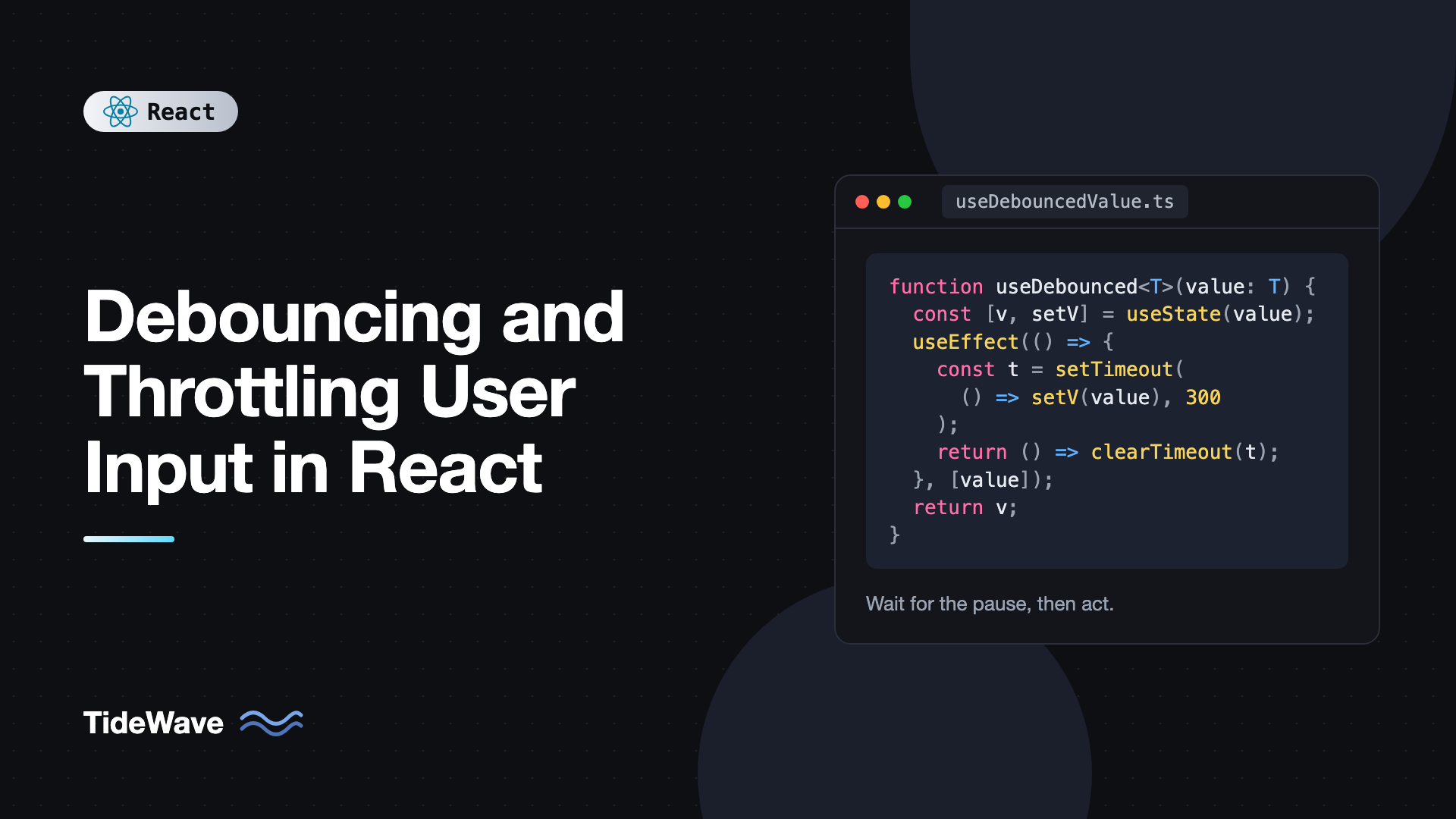
The simplest and often best approach is to debounce the value rather than the function. Keep the input fully responsive with normal state, and derive a debounced copy that updates only after the user pauses:
// useDebouncedValue.ts
import { useEffect, useState } from "react";

export function useDebouncedValue<T>(value: T, delay = 300): T {
  const [debounced, setDebounced] = useState(value);

  useEffect(() => {
    const timer = setTimeout(() => setDebounced(value), delay);
    return () => clearTimeout(timer);
  }, [value, delay]);

  return debounced;
}
Each time value changes, the effect's cleanup clears the previous timer and a new one starts. Only when value stays the same for delay milliseconds does debounced catch up. Cleanup on unmount comes for free.
Using it for a search box with TanStack Query:
import { useState } from "react";
import { useQuery } from "@tanstack/react-query";
import { useDebouncedValue } from "./useDebouncedValue";

type Result = { id: number; title: string };

async function searchArticles(q: string, signal: AbortSignal): Promise<Result[]> {
  const res = await fetch(`/api/search?q=${encodeURIComponent(q)}`, { signal });
  if (!res.ok) throw new Error("Search failed");
  return res.json();
}

export function ArticleSearch() {
  const [query, setQuery] = useState("");
  const debouncedQuery = useDebouncedValue(query.trim(), 300);

  const { data = [], isFetching } = useQuery({
    queryKey: ["search", debouncedQuery],
    queryFn: ({ signal }) => searchArticles(debouncedQuery, signal),
    enabled: debouncedQuery.length >= 2,
    staleTime: 60_000,
  });

  return (
    <div>
      <input
        type="search"
        value={query}
        onChange={(e) => setQuery(e.target.value)}
        placeholder="Search articles"
        aria-label="Search articles"
      />
      {isFetching && <p>Searching...</p>}
      <ul>
        {data.map((r) => (
          <li key={r.id}>{r.title}</li>
        ))}
      </ul>
    </div>
  );
}
The input updates on every keystroke. The query key only changes after a 300 ms pause, so TanStack Query fetches once per pause. Results are cached per query, and the signal cancels outdated requests. For a complete search UI with highlighting and empty states, see Building a Search Feature with Debounced API Calls in React.
useDebouncedCallback: Debounce a Function
Sometimes you want to debounce an action, not a value, such as auto-saving a form. For that, you need a debounced function that:
- Has a stable identity across renders.
- Always calls the latest version of your callback, so it sees current props and state.
- Cancels its timer on unmount.
// useDebouncedCallback.ts
import { useEffect, useMemo, useRef } from "react";

export function useDebouncedCallback<A extends unknown[]>(
  callback: (...args: A) => void,
  delay = 300
) {
  const callbackRef = useRef(callback);
  const timerRef = useRef<ReturnType<typeof setTimeout>>(undefined);
  const argsRef = useRef<A | null>(null);

  // Keep the latest callback without changing the debounced function
  useEffect(() => {
    callbackRef.current = callback;
  });

  const debounced = useMemo(() => {
    const fn = (...args: A) => {
      argsRef.current = args;
      clearTimeout(timerRef.current);
      timerRef.current = setTimeout(() => {
        argsRef.current = null;
        callbackRef.current(...args);
      }, delay);
    };
    fn.cancel = () => {
      clearTimeout(timerRef.current);
      argsRef.current = null;
    };
    fn.flush = () => {
      clearTimeout(timerRef.current);
      const args = argsRef.current;
      argsRef.current = null;
      if (args) callbackRef.current(...args);
    };
    return fn;
  }, [delay]);

  useEffect(() => () => debounced.cancel(), [debounced]);

  return debounced;
}
The ref holds the newest callback, so the debounced function never calls a stale closure, but the function itself only changes when delay changes. The flush method runs the pending call right away, which is handy when the user navigates away or clicks Save.
Here it is powering a draft auto-save:
import { useState } from "react";
import { useDebouncedCallback } from "./useDebouncedCallback";

async function saveDraft(id: string, body: string) {
  await fetch(`/api/drafts/${id}`, {
    method: "PUT",
    headers: { "Content-Type": "application/json" },
    body: JSON.stringify({ body }),
  });
}

export function DraftEditor({ draftId }: { draftId: string }) {
  const [body, setBody] = useState("");
  const [status, setStatus] = useState<"idle" | "saving" | "saved">("idle");

  const autoSave = useDebouncedCallback(async (text: string) => {
    setStatus("saving");
    await saveDraft(draftId, text);
    setStatus("saved");
  }, 1000);

  return (
    <div>
      <textarea
        value={body}
        onChange={(e) => {
          setBody(e.target.value);
          setStatus("idle");
          autoSave(e.target.value);
        }}
        onBlur={() => autoSave.flush()}
        rows={8}
      />
      <p aria-live="polite">
        {status === "saving" ? "Saving..." : status === "saved" ? "Saved" : ""}
      </p>
    </div>
  );
}
Because the callback is read from a ref, it always uses the current draftId, even if the prop changes while a save is pending. If you're curious why the ref pattern works, Mastering useRef covers it in depth.
useThrottledCallback: Throttle a Function
The throttled version follows the same structure, using the throttle helper's logic inside a stable function:
// useThrottledCallback.ts
import { useEffect, useMemo, useRef } from "react";
import { throttle } from "./timing";

export function useThrottledCallback<A extends unknown[]>(
  callback: (...args: A) => void,
  interval = 100
) {
  const callbackRef = useRef(callback);

  useEffect(() => {
    callbackRef.current = callback;
  });

  const throttled = useMemo(
    () => throttle((...args: A) => callbackRef.current(...args), interval),
    [interval]
  );

  useEffect(() => () => throttled.cancel(), [throttled]);

  return throttled;
}
A scroll progress bar is a typical use:
import { useEffect, useState } from "react";
import { useThrottledCallback } from "./useThrottledCallback";

export function ReadingProgress() {
  const [progress, setProgress] = useState(0);

  const update = useThrottledCallback(() => {
    const { scrollTop, scrollHeight, clientHeight } = document.documentElement;
    const max = scrollHeight - clientHeight;
    setProgress(max > 0 ? scrollTop / max : 0);
  }, 100);

  useEffect(() => {
    window.addEventListener("scroll", update, { passive: true });
    return () => window.removeEventListener("scroll", update);
  }, [update]);

  return (
    <div
      role="progressbar"
      aria-valuemin={0}
      aria-valuemax={100}
      aria-valuenow={Math.round(progress * 100)}
      style={{
        position: "fixed",
        top: 0,
        left: 0,
        height: 4,
        width: `${progress * 100}%`,
        background: "royalblue",
      }}
    />
  );
}
Because update is stable, the effect adds the listener once. The progress bar updates at most ten times a second, and the trailing call ensures it lands on the exact final position when scrolling stops.
Throttling to Animation Frames
For visual updates tied to scrolling or pointer movement, a frame-based throttle is often better than a fixed interval. requestAnimationFrame runs right before the browser paints, so you never update more than once per frame:
export function rafThrottle<A extends unknown[]>(fn: (...args: A) => void) {
  let frame = 0;
  let lastArgs: A;

  const throttled = (...args: A) => {
    lastArgs = args;
    if (!frame) {
      frame = requestAnimationFrame(() => {
        frame = 0;
        fn(...lastArgs);
      });
    }
  };

  throttled.cancel = () => {
    cancelAnimationFrame(frame);
    frame = 0;
  };
  return throttled;
}
Debouncing vs useDeferredValue
React's useDeferredValue sounds like it does the same thing, but it doesn't. It keeps the UI responsive by rendering expensive updates in the background, but it doesn't wait for typing to stop and it doesn't reduce the number of network requests.
- Use
useDeferredValuewhen the slow part is rendering, like filtering a large list already in memory. - Use debounce when the slow or costly part is a side effect, like an API call or an analytics event.
You can combine them. See useTransition and useDeferredValue for Smoother UIs for how deferred rendering works.
Common Mistakes with Debouncing and Throttling
- Creating the debounced function in the render body. It's recreated on every render and never actually debounces. Keep it stable with
useMemoor a ref. - Debouncing the input's own state. The input then lags behind typing. Keep the input state immediate and debounce a derived value or the side effect.
- Stale closures. A debounced function memoized with an empty dependency array captures the first render's props and state. Store the latest callback in a ref.
- No cleanup on unmount. A pending timer can call
setStateor send a request after the component is gone. Cancel in an effect cleanup. - Dropping the trailing call when throttling. Without it, the last scroll position or input value can be lost.
- Choosing the wrong one. Debounce for "do it when they're done," throttle for "do it regularly while they're busy."
- Assuming debounce prevents race conditions. Two requests can still overlap if the user pauses twice. Cancel previous requests with
AbortControlleror let a data library handle it.
Frequently Asked Questions (FAQ) About Debouncing and Throttling in React
Between 200 and 400 milliseconds works for most search boxes. Shorter delays feel more responsive but send more requests, and longer ones feel sluggish. For expensive operations like auto-saving, 1 to 2 seconds is common.
You can, as long as you keep the debounced function stable across renders with useMemo or useRef and cancel it on unmount. Lodash adds options like leading, trailing, and maxWait. If you only need basic behavior, a small custom hook avoids the dependency.
Debounce runs the function once after events stop for a set time, so it only cares about the final event. Throttle runs the function at most once per interval while events keep coming, so it produces regular updates during the activity.
Most likely it's being recreated on every render, so each keystroke gets a new function with its own timer. Wrap it in useMemo or use a hook like useDebouncedCallback so the same function instance is reused between renders.
Not the value bound to the input, because the field would ignore keystrokes until the delay passes. Keep the input value in normal state so it updates instantly, and debounce a separate derived value or the function that performs the side effect.
No. useDeferredValue lets React render an expensive update in the background without blocking typing, but it still processes every value and doesn't delay side effects. Use debouncing to reduce network calls and other side effects.
Conclusion
Debouncing waits until activity stops and then runs once. Throttling runs at a steady maximum rate while activity continues. In React, the hard part is keeping the limited function stable across re-renders, always calling the latest callback, and cleaning up timers on unmount. useDebouncedValue covers most search cases with almost no code, while useDebouncedCallback and useThrottledCallback handle actions like auto-save and scroll tracking.
Drop these hooks into a hooks folder, replace any inline debounce calls in your components, and check the network tab while typing to confirm requests now fire once per pause. If you build more hooks like these, Building Your Own Custom Hooks in React covers naming, testing, and sharing them across a codebase.