What Are Optical Sizes and How Do They Improve Type at Every Size?
- Maria
- Typography
- 23 Oct, 2026
Take an elegant, high-contrast serif that looks stunning in a 72px headline and use it for 12px captions. The fine hairlines nearly disappear, the tight spacing makes letters bump into each other, and the small counters fill in. Now go the other way: take a sturdy text face designed for 16px paragraphs and blow it up to 96px. It looks clunky and loose, with heavy hairlines and gaps between letters that seem much too wide.
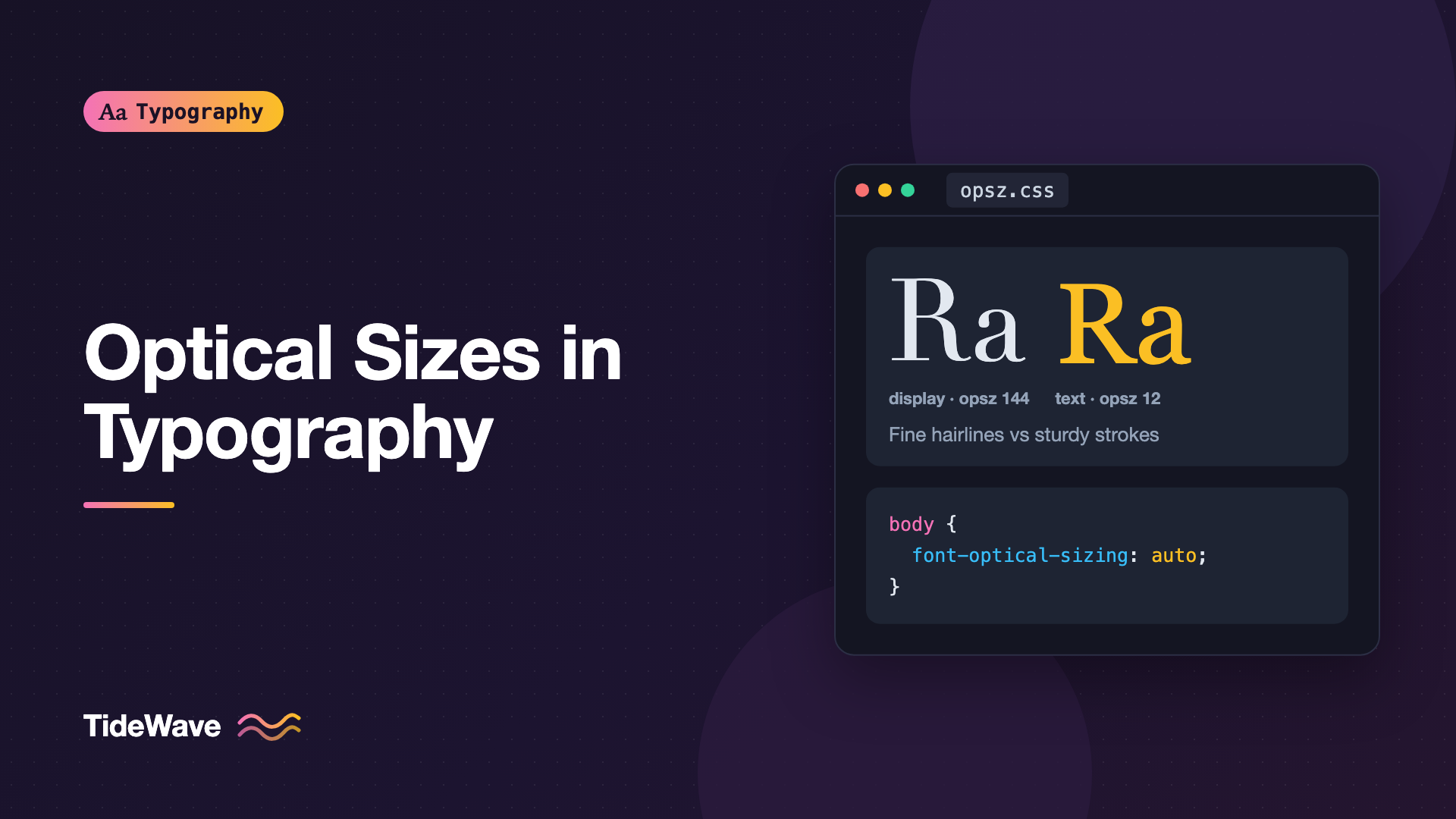
That's the problem optical sizes solve. An optical size is a version of a typeface designed for a particular range of sizes, with its proportions, contrast, and spacing tuned so it reads well there. Instead of scaling one design up and down, you use small-size forms for small text and display forms for large text.
Optical sizing used to mean buying separate fonts named "Caption" and "Display." With variable fonts, it can happen automatically: CSS tells the font what size it's being set at, and the letterforms adjust. This post covers what changes between optical sizes, how to use them in CSS, and when they're worth the effort.
A Short History of Sizing Type
In metal type, every size was a separate set of physical letters. A punchcutter cutting 6pt type made different decisions from one cutting 36pt, because the tiny letters had to survive ink spread, rough paper, and the limits of the reader's eye. Small sizes were cut with sturdier strokes, larger proportions, and looser spacing. Large sizes could afford delicate details.
When type went digital, most fonts were drawn once and scaled mathematically to any size. That was a huge practical gain, but it lost the size-specific adjustments. A single master can only be optimized for one range, usually text sizes, so it looks a little off everywhere else.
Some type families kept the tradition alive with separate optical styles, typically labeled something like Caption, Text, Subhead, and Display. Apple's system font has long had separate "Text" and "Display" designs for small and large sizes. Variable fonts added an opsz axis to the OpenType format, so a single file can contain the whole range and interpolate between the extremes.
What Changes Across Optical Sizes
The differences are subtle on a single letter but obvious in a paragraph. Here's what typically changes as the design moves from small sizes to large ones:
| Feature | Small optical size (captions, UI) | Large optical size (display) |
|---|---|---|
| Stroke contrast | Low, with sturdy hairlines | High, with fine hairlines |
| x-height | Larger relative to caps | Smaller, more classical |
| Letter spacing | Looser | Tighter |
| Counters, apertures | Wider and more open | Narrower |
| Letter width | Slightly wider | Slightly narrower |
| Details | Simplified, robust serifs | Sharper, more refined detail |
Each change exists because the eye behaves differently at different sizes. At small sizes, you need more space inside and between letters so they don't blur together, and you need strokes thick enough to render cleanly on screen. At large sizes, those same generous proportions look clumsy, and the extra space between letters becomes a visible gap. The post on x-height and readability explains why a larger x-height helps small text in particular.
The opsz Axis
In a variable font, optical size is one of the five registered axes, with the tag opsz. Its values are meant to correspond to the point size the text is set at. A font might support an opsz range like 8 to 144: the 8 end is designed for very small text, and the 144 end for large display sizes.
Not every variable font has this axis. A few that do, all available on Google Fonts:
- Roboto Flex, a sans serif with an
opszrange of 8 to 144 and many other axes - Fraunces, a soft, expressive serif whose display end is dramatically different from its text end
- Literata and Newsreader, serifs designed for reading, with optical sizes for text and display
- Source Serif 4, a sturdy text serif with optical sizes built in
To check whether a font has an opsz axis and what its range is, look at the axes listed on its Google Fonts page or inspect the file with a tool like Wakamai Fondue.
Optical Sizing in CSS
Automatic: font-optical-sizing
When a font has an opsz axis, browsers apply it automatically. The property that controls this is font-optical-sizing, and its default is already auto:
body {
  font-optical-sizing: auto; /* the default */
}
With auto, the browser sets the opsz axis based on the element's font-size. A 14px caption gets small-size forms, and a 64px headline gets display forms, with no extra work from you. This is one of the few typography improvements you get for free just by choosing the right font.
To turn it off, perhaps because you want a consistent look across sizes for a logo-like heading, set it to none:
.wordmark {
  font-optical-sizing: none;
}
Loading a Font with opsz
The main step is making sure the axis is actually in the font file you serve. With Google Fonts, you need to request the opsz range explicitly. Axes go in alphabetical order:
<link
  href="https://fonts.googleapis.com/css2?family=Fraunces:opsz,[email protected],300..800&display=swap"
  rel="stylesheet"
/>
If you request only wght, you'll get a file without the optical size axis, and font-optical-sizing will have nothing to work with.
For self-hosted fonts, a standard @font-face rule is enough. You don't declare the opsz range there:
@font-face {
  font-family: "Fraunces";
  src: url("/fonts/Fraunces-VariableFont.woff2") format("woff2");
  font-weight: 100 900;
  font-style: normal;
  font-display: swap;
}

h1 {
  font-family: "Fraunces", Georgia, serif;
  font-size: clamp(2.5rem, 6vw, 5rem);
}

.caption {
  font-family: "Fraunces", Georgia, serif;
  font-size: 0.8125rem;
}
Both elements use the same file, but the heading renders with refined display forms and the caption with sturdier text forms.
Manual Control with font-variation-settings
Sometimes the automatic value isn't what you want. Text set on a dark background, at a long viewing distance, or in a low-resolution context might benefit from a smaller optical size than its pixel size suggests. You can override the axis directly:
.hero-title {
  font-size: 4.5rem;
  font-variation-settings: "opsz" 48;
}

.dark .body-copy {
  font-variation-settings: "opsz" 12;
}
Setting opsz lower than the actual size gives sturdier, more open letters. Setting it higher gives more refined ones, which can be useful for an elegant pull quote at a modest size.
Be careful: font-variation-settings replaces the entire list of axis values, so if you also set other custom axes, include them all in the same declaration. Using custom properties helps, as described in variable fonts in CSS.
Info
Browsers map font-size to the opsz axis in CSS pixels. Type designers have traditionally thought in points, and implementations have not always agreed on the conversion, so the automatic value may differ slightly between browsers. If precise control matters for a specific element, set opsz explicitly.
Static Optical Sizes
If your chosen family ships optical sizes as separate static fonts instead of a variable axis, you can still use them. Register each optical style as its own family and apply them by role:
@font-face {
  font-family: "Serif Text";
  src: url("/fonts/Serif-Text-Regular.woff2") format("woff2");
  font-weight: 400;
  font-display: swap;
}

@font-face {
  font-family: "Serif Display";
  src: url("/fonts/Serif-Display-Regular.woff2") format("woff2");
  font-weight: 400;
  font-display: swap;
}

body {
  font-family: "Serif Text", Georgia, serif;
}

h1,
h2,
.pull-quote {
  font-family: "Serif Display", Georgia, serif;
}
This is manual: you decide where the switch happens, rather than the browser interpolating. It works well with a clear type scale, where headings are reliably large and body text is reliably small. It gets tricky with fluid typography, where a heading might be 28px on a phone and 64px on a desktop. A display cut that looks great at 64px may be too delicate at 28px. One option is to switch families at a breakpoint:
h2 {
  font-family: "Serif Text", Georgia, serif;
  font-size: clamp(1.75rem, 1.2rem + 2.5vw, 3rem);
}

@media (min-width: 64rem) {
  h2 {
    font-family: "Serif Display", Georgia, serif;
  }
}
A variable font with opsz handles this smoothly without any breakpoints, which is one of its biggest advantages for responsive design. For more on scaling type across viewports, see how to build fluid typography.
When Optical Sizes Are Worth It
Optical sizing makes the biggest difference in a few situations:
- High-contrast serifs. Didone and modern editorial serifs have hairlines that vanish at small sizes. Optical sizes are almost essential if you use them for both headlines and body text.
- A single family for everything. If one typeface handles headlines, body, captions, and UI labels, optical sizes keep it looking right across a wide size range.
- Very small text. Footnotes, legal text, and dense UI benefit from the open forms of a small optical size.
- Very large display text. Hero headings look tighter and more polished with display forms.
It matters less when you use different typefaces for headings and body, since each one was chosen for its role, or when your type sizes cluster in a narrow range. A low-contrast sans serif at 14px to 24px will look nearly the same with or without optical sizing.
Testing Optical Sizes
The effect is easy to miss until you compare directly. A simple test page helps:
<div class="opsz-test">
  <p style="font-size: 12px">Handgloves 12px</p>
  <p style="font-size: 12px; font-optical-sizing: none">
    Handgloves 12px, no opsz
  </p>
  <p style="font-size: 72px">Handgloves</p>
  <p style="font-size: 72px; font-optical-sizing: none">Handgloves</p>
</div>
Enlarge a screenshot of the small samples and compare spacing and stroke thickness. At the large size, look at the hairlines and the space between letters. In browser DevTools, the Fonts panel in Firefox shows the current value of each variation axis, which is a quick way to confirm the opsz axis is active.
Common Mistakes
- Loading a font without the opsz axis. Google Fonts only includes axes you request in the URL. Check that
opszis listed. - Using a display cut for body text. Static "Display" styles look fragile and cramped at reading sizes. Use the Text or Caption cut.
- Overriding opsz globally. Setting a single
"opsz"value onbodyfreezes every element at one optical size and defeats the point. - Losing other axes in font-variation-settings. Setting only
"opsz"resets any other custom axes you had set on that element. - Expecting a big change in every font. Some fonts have a subtle
opszrange. Compare before and after so you know what you're getting.
Conclusion
Optical sizes bring back an idea from metal type: letters should be designed for the size they're read at. Small optical sizes are sturdier, wider, and more loosely spaced; large ones are finer, tighter, and higher in contrast. Variable fonts with an opsz axis apply this automatically through font-optical-sizing: auto, so you mostly just need to choose a font that supports it and load the axis.
If you use one family across a wide range of sizes, especially a high-contrast serif, look for one with optical sizes. Load the opsz axis, let the browser handle the default, and reach for font-variation-settings only when a specific element needs a different look.


