Accessible Typography: Font Size, Contrast, and Spacing Guidelines
- Maria
- Typography
- 23 Oct, 2026
Most accessibility work on a website involves text. Navigation labels, form instructions, error messages, article bodies, button captions: if people can't read them, nothing else about the interface matters. Yet typography decisions are often made purely on looks. Light gray text on white feels elegant in a mockup, a 13px body size looks tidy on a 27-inch monitor, and tight line spacing makes a layout feel compact. Each of those choices can lock out a real group of readers.
Accessible typography means text that people with low vision, color vision deficiencies, dyslexia, cognitive disabilities, or simply a phone in bright sunlight can read and adapt to their needs. This guide covers the Web Content Accessibility Guidelines (WCAG) requirements that apply to text, explains what each one actually asks for, and gives practical defaults for size, contrast, spacing, and line length.
What WCAG Says About Text
WCAG doesn't prescribe a font or a minimum font size. Instead, it sets requirements on contrast, resizing, spacing, and presentation. These are the success criteria that matter most for typography:
| Criterion | Level | What it requires |
|---|---|---|
| 1.4.3 Contrast (Minimum) | AA | 4.5:1 for normal text, 3:1 for large text |
| 1.4.4 Resize Text | AA | Text can be resized up to 200% without loss of content or functionality |
| 1.4.5 Images of Text | AA | Use real text instead of images of text, with limited exceptions |
| 1.4.6 Contrast (Enhanced) | AAA | 7:1 for normal text, 4.5:1 for large text |
| 1.4.8 Visual Presentation | AAA | Controls over blocks of text: line width, alignment, spacing, colors, resizing |
| 1.4.10 Reflow | AA | Content works at 320 CSS pixels wide without horizontal scrolling for vertical-scrolling content |
| 1.4.11 Non-text Contrast | AA | 3:1 for UI component boundaries and meaningful graphics |
| 1.4.12 Text Spacing | AA | No loss of content when users increase line, paragraph, letter, and word spacing |
Most organizations target Level AA, which is also the level referenced by many accessibility laws and procurement standards. The AAA criteria are still worth knowing, because they describe what genuinely comfortable reading looks like. You can read the full text of each criterion in the WCAG 2.2 specification.
Contrast
Contrast is the most frequently failed typography requirement on the web, and it's also the easiest to measure.
The Ratios
WCAG measures contrast as a ratio between the relative luminance of the text color and the background color, from 1:1 (no contrast) to 21:1 (black on white).
- Normal text needs at least 4.5:1 for AA, and 7:1 for AAA.
- Large text needs at least 3:1 for AA, and 4.5:1 for AAA.
"Large" has a specific definition: at least 18 point, or at least 14 point if bold. WCAG notes that these point sizes correspond roughly to 24px and 18.66px respectively in CSS. So a 20px heading at normal weight isn't large text by this definition, and needs the full 4.5:1.
Common Failures
The most common contrast failures are design trends:
- Light gray body text like
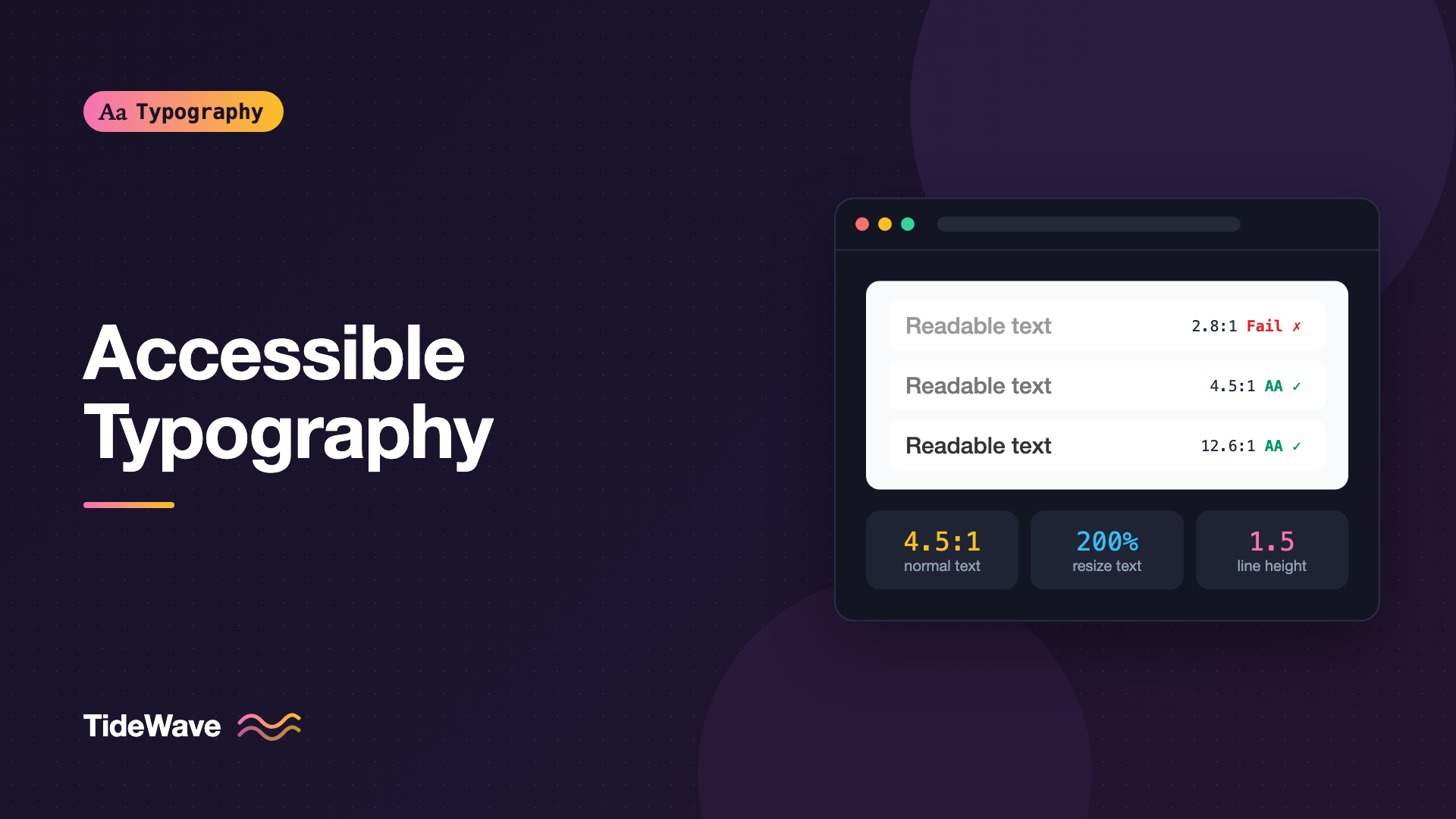
#999999on white, which is about 2.8:1. - Placeholder text in form fields, which browsers render faintly by default and designers often lighten further.
- Text on images, where contrast changes across the image.
- Brand colors used for links or buttons without checking contrast against the background.
- Disabled-looking text that isn't disabled, such as secondary metadata styled at low opacity.
For reference, here are a few grays on a white background:
| Text color | Approx. ratio on #ffffff | Passes AA normal text? |
|---|---|---|
#999999 | 2.8:1 | No |
#767676 | 4.5:1 | Yes, just barely |
#595959 | 7.0:1 | Yes, and AAA |
#333333 | 12.6:1 | Yes |
#767676 is a widely used value because it's about the lightest gray that passes 4.5:1 on white. If your design system's "muted" text color is lighter than that, it's failing.
Defining Accessible Color Tokens
Bake contrast into your tokens so individual components can't drift:
:root {
  --color-bg: #ffffff;
  --color-text: #1e293b;
  --color-text-muted: #475569;
  --color-link: #0369a1;
  --color-border-input: #64748b;
}

body {
  background: var(--color-bg);
  color: var(--color-text);
}

.meta {
  color: var(--color-text-muted);
}

input,
select,
textarea {
  border: 1px solid var(--color-border-input);
}

::placeholder {
  color: #64748b;
  opacity: 1;
}
The opacity: 1 on ::placeholder is a safeguard: some browsers have applied reduced opacity to placeholders by default, which lowers the effective contrast of whatever color you choose.
Input borders fall under 1.4.11 Non-text Contrast, which requires 3:1 for the visual boundary of a control. A very light border on a white input can fail even when the text inside passes.
Remember to check every theme. Dark mode has its own failure patterns, especially pure white text on pure black, which some readers find causes halation. See typography in dark mode for adjustments beyond color.
Font Size
WCAG has no minimum font size. What it does require is that users can enlarge text: 1.4.4 says text must be resizable up to 200% without assistive technology and without loss of content or functionality. In practice that means:
- Use relative units like
remfor font sizes so they respect the user's default font size setting. - Avoid fixed-height containers that clip enlarged text.
- Don't disable zoom on mobile with
maximum-scale=1oruser-scalable=noin the viewport meta tag.
<!-- Good -->
<meta name="viewport" content="width=device-width, initial-scale=1" />

<!-- Bad: blocks pinch-zoom -->
<meta
  name="viewport"
  content="width=device-width, initial-scale=1, maximum-scale=1, user-scalable=no"
/>
Why px font sizes cause trouble for users who change their browser's default size is covered in detail in respecting user font size preferences.
Practical Size Defaults
Even without a WCAG minimum, there are sensible defaults:
- Body text: at least
1rem(16px at default settings). Many reading-focused sites use 17 to 20px. - Secondary text like captions and metadata: avoid going below
0.875rem(14px), and make sure it still meets 4.5:1 contrast. - Form inputs: at least
1rem. On iOS Safari, inputs with a font size under 16px trigger an automatic zoom when focused, which is disorienting. - Legal and fine print: small text is still text that people need to read. Don't drop it below 12px, and keep the contrast high.
html {
  font-size: 100%;
}

body {
  font-size: 1.0625rem;
  line-height: 1.6;
}

small,
.caption {
  font-size: 0.875rem;
}

input,
select,
textarea,
button {
  font: inherit;
  font-size: max(1rem, 1em);
}
The font: inherit line fixes a long-standing browser default where form controls use a smaller system font instead of the page's font.
Spacing
Line Height
WCAG 1.4.8 (AAA) asks for line spacing of at least space-and-a-half within paragraphs, which in CSS terms is a line-height of about 1.5. That's a good default for body text even if you're targeting AA. Headings can be tighter, because they're short and set larger:
body {
  line-height: 1.6;
}

h1,
h2 {
  line-height: 1.15;
}

h3,
h4 {
  line-height: 1.3;
}
Always use unitless line heights. A value like 24px doesn't scale when the text grows, which leads to overlapping lines at 200% text size. For more detail, see how to choose the right line height for body text.
Letter and Word Spacing
You rarely need to add letter spacing to body text, but you must make sure your layout survives if users do. WCAG 1.4.12 Text Spacing (AA) requires that no content or functionality is lost when users set:
- Line height to at least 1.5 times the font size
- Spacing after paragraphs to at least 2 times the font size
- Letter spacing to at least 0.12 times the font size
- Word spacing to at least 0.16 times the font size
This doesn't mean you have to use those values. It means your components must not clip, overlap, or hide text when a user applies them with a bookmarklet, browser extension, or user stylesheet. The most common culprits are fixed heights and overflow: hidden. The full testing process is in meeting WCAG text spacing requirements.
Paragraph Spacing
Clear gaps between paragraphs help everyone find their place, and WCAG 1.4.8 suggests paragraph spacing at least 1.5 times the line spacing. A bottom margin of around 1em to 1.5em on paragraphs is typical.
Line Length and Alignment
WCAG 1.4.8 (AAA) recommends lines no wider than 80 characters (40 for Chinese, Japanese, and Korean) and text that isn't justified. Both recommendations reduce the effort of tracking from the end of one line to the start of the next.
.article-body {
  max-inline-size: 70ch;
}

.article-body p {
  text-align: start;
}
Justified text creates uneven gaps between words, sometimes forming "rivers" of white space that are especially hard for readers with dyslexia. Left-aligned (or start-aligned) text with a ragged right edge keeps word spacing consistent.
Font Choice and Style
WCAG doesn't require any particular typeface, but some choices clearly help:
- Distinguishable letterforms. Look for fonts where uppercase
I, lowercasel, and the digit1look different, and where0andOare distinct. This matters for codes, passwords, and reference numbers. - A generous x-height. Fonts with taller lowercase letters stay legible at smaller sizes. What is x-height explains why.
- Real text, not images of text. Images can't be resized cleanly, recolored, or reflowed. 1.4.5 asks you to use real text except where a particular presentation is essential, like a logo.
- Restraint with italics, all caps, and underlines. Long passages of italic or uppercase text are harder to read. Use bold or a heading for emphasis, and keep underlines for links.
- Readable weights. Very thin weights (100 to 300) can disappear at small sizes, especially on low-resolution screens or with reduced contrast.
Supporting User Preferences
Accessible typography also means letting users' own settings win:
@media (prefers-contrast: more) {
  :root {
    --color-text-muted: #1e293b;
    --color-border-input: #1e293b;
  }
}

@media (forced-colors: active) {
  .badge {
    border: 1px solid CanvasText;
  }
}
prefers-contrast: more lets you tighten up muted colors for people who've asked their operating system for more contrast. forced-colors: active detects modes like Windows Contrast Themes, where the browser replaces your colors with a user-chosen palette. In those modes, backgrounds disappear, so anything that relied on a background color to look like a badge or button needs a border.
Readers with dyslexia often benefit from specific adjustments too; designing text for users with dyslexia covers those.
Common Mistakes
- Using a gray lighter than about
#767676on white for body text, metadata, or placeholders. - Treating 20px as "large text" for contrast purposes. Large means roughly 24px regular or 18.66px bold.
- Setting font sizes in
px, which ignores the user's default font size. - Blocking zoom with
user-scalable=noormaximum-scale=1. - Fixed line heights in
px, which cause lines to overlap when text is enlarged. - Fixed-height containers with
overflow: hidden, which clip text when users increase spacing or size. - Checking contrast only in the light theme, or only on solid backgrounds when text sits over images or gradients.
- Justified body text in narrow columns, creating uneven word spacing.
Conclusion
Accessible typography comes down to a handful of measurable rules: 4.5:1 contrast for normal text and 3:1 for large text, text that resizes to 200% without breaking, layouts that survive increased spacing, and readable defaults for size, line height, and line length. WCAG sets the floor, and comfortable reading usually sits a little above it.
Start by encoding the rules in your design tokens: accessible text colors, rem-based sizes, unitless line heights, and a ch-based measure. Then test with real settings: zoom to 200%, change the browser's default font size, and apply a text spacing bookmarklet. Those three checks catch most typography accessibility problems before your users do.