Typography in Dark Mode: Adjusting Weight, Contrast, and Spacing
- Maria
- Typography
- 23 Oct, 2026
Most dark themes start the same way: swap the background to near-black, swap the text to white, and ship. Then someone reads a long article in it and notices the text seems to buzz. Letters look bolder than they did in light mode, thin strokes shimmer, and after a few paragraphs the page feels harder on the eyes than the light version it was supposed to improve on.
That's not your imagination. Light text on a dark background is perceived differently from dark text on a light one, and typography that was tuned for one doesn't automatically work for the other. Dark mode typography needs its own small set of adjustments: slightly lighter weights, softer text colors, careful contrast, and sometimes a touch more spacing.
This post explains why the same type looks different in dark mode and walks through the CSS to adjust weight, color, contrast, and spacing without maintaining two separate type systems.
Why Text Looks Different on Dark Backgrounds
Two effects work together.
The first is irradiation, a long-known perceptual effect where bright areas on a dark field appear to spread into their surroundings. White letters on black look slightly larger and bolder than the same black letters on white. The strokes haven't changed; your perception of them has.
The second is rendering. Antialiasing blends glyph edges with the background. On a light background the partially-covered pixels lighten the stroke edges; on a dark background they brighten the surroundings. The net effect again is that light-on-dark text tends to look heavier. How strong this is varies by operating system, screen, and font smoothing setting, which is one reason dark mode can look fine on one machine and chunky on another. Text Rendering and Font Smoothing: What Actually Works Across Browsers covers the rendering side in more depth.
The result is consistent enough to design for: in dark mode, text appears heavier, brighter, and slightly tighter than in light mode.
Set Up Theme Tokens First
Before tuning anything, put the typographic values that differ between themes into custom properties. Then each adjustment is a token override, not a rewrite.
:root {
  color-scheme: light dark;

  --bg: #ffffff;
  --text: #1f2328;
  --text-muted: #59636e;
  --heading: #0d1117;

  --body-weight: 400;
  --heading-weight: 700;
  --body-tracking: 0;
}

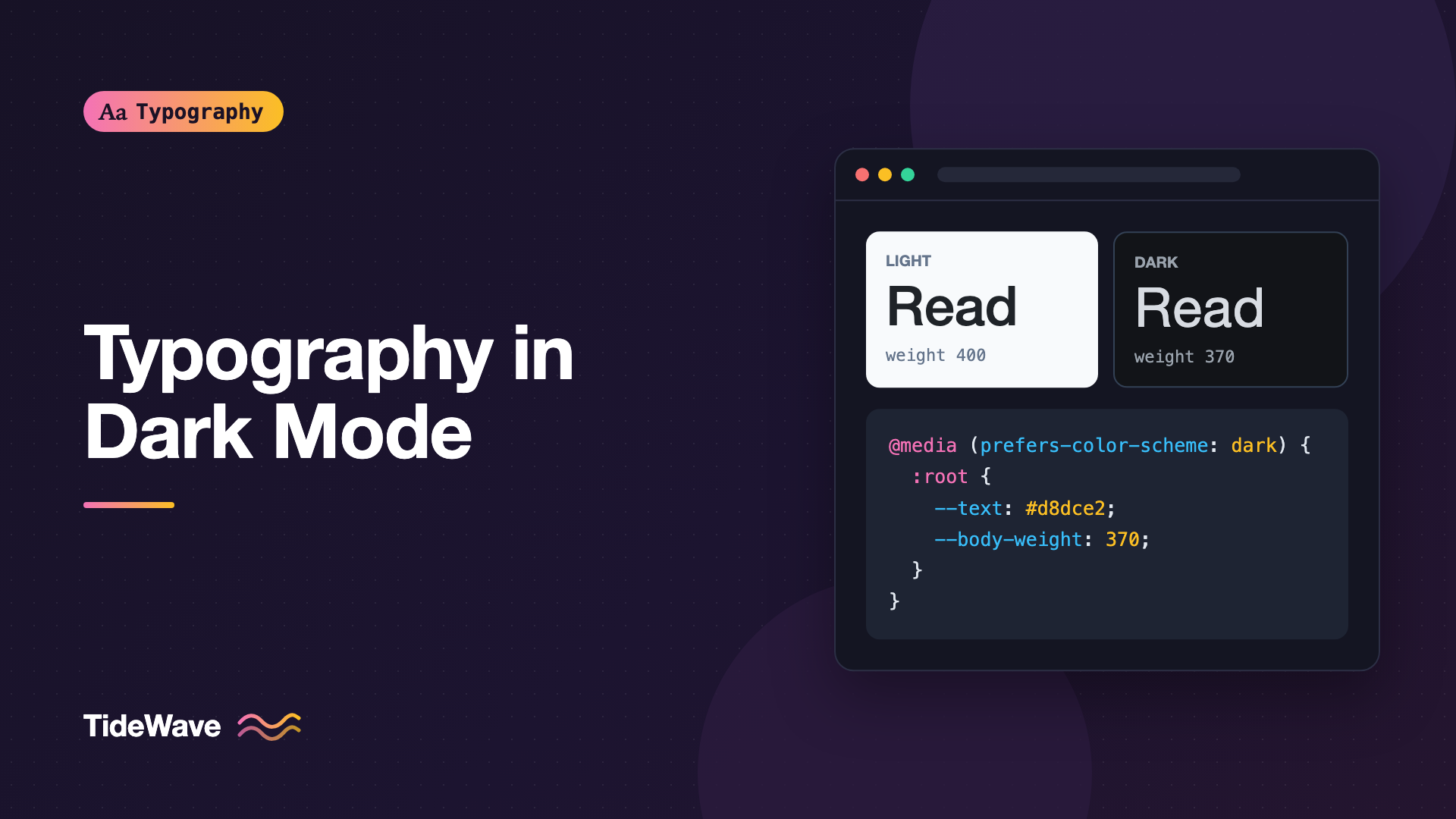
@media (prefers-color-scheme: dark) {
  :root {
    --bg: #121418;
    --text: #d8dce2;
    --text-muted: #9aa3ad;
    --heading: #eef1f4;

    --body-weight: 370;
    --heading-weight: 650;
    --body-tracking: 0.01em;
  }
}

body {
  background: var(--bg);
  color: var(--text);
  font-weight: var(--body-weight);
  letter-spacing: var(--body-tracking);
}

h1,
h2,
h3 {
  color: var(--heading);
  font-weight: var(--heading-weight);
}
If your site has a manual theme toggle, apply the same overrides under an attribute selector like [data-theme="dark"] as well as the media query. The values in this example are starting points; you'll tune them for your font.
Adjusting Font Weight
Because light-on-dark text reads heavier, reducing weight slightly restores the intended color of the text block.
With a Variable Font
A variable font makes this easy, because you can pick any weight, not just the next named step down:
@media (prefers-color-scheme: dark) {
  :root {
    --body-weight: 370;
    --heading-weight: 650;
  }
}
The right amount is small: often 20 to 50 units on body text. Drop much further and thin strokes start to break up, especially on low-resolution screens. Compare the two themes side by side at your real body size and adjust until paragraphs look like the same "gray" in both. Variable Fonts in CSS: One File, Endless Styles covers loading and ranges.
With Grade
Some variable fonts include a grade axis (GRAD). Grade changes stroke thickness without changing character widths, so text doesn't reflow when the theme switches. That's the ideal tool for dark mode, if your font has it:
body {
  font-variation-settings: "GRAD" var(--grade, 0);
}

@media (prefers-color-scheme: dark) {
  :root {
    --grade: -25;
  }
}
The available range varies per font, so check the font's documentation. Roboto Flex is one well-known family with a grade axis.
With Static Fonts
If you only have static weights, you can't make fine adjustments. Options:
- Keep the same weight and rely on color and spacing instead.
- Step headings down one weight, for example from Bold to Semibold, where the difference is easy to see.
- Avoid Light and Thin weights for body text in dark mode entirely. Thin strokes on dark backgrounds are where readability suffers most.
Choosing Text Colors
Pure white on pure black (#ffffff on #000000) has a contrast ratio of 21:1, the maximum possible. More contrast is not always more comfortable. Many readers find maximum contrast in dark mode glary, and it exaggerates the irradiation effect.
Most well-designed dark themes soften both ends:
- Background: a very dark gray, sometimes slightly tinted, instead of pure black. Something in the
#101215to#1c1f24range is typical. - Body text: an off-white, slightly gray, such as
#d8dce2. - Headings: a bit brighter than body text, since they're short and benefit from emphasis.
- Muted text: a mid-gray that still clears contrast requirements.
Contrast Requirements Still Apply
Softening contrast is fine. Dropping below accessibility minimums is not. WCAG 2.x Success Criterion 1.4.3 (Contrast Minimum, level AA) requires:
| Text type | Minimum contrast (AA) | Enhanced (AAA, SC 1.4.6) |
|---|---|---|
| Normal text | 4.5:1 | 7:1 |
| Large text (at least 18pt, or 14pt bold) | 3:1 | 4.5:1 |
In CSS pixels, 18pt is 24px and 14pt is roughly 18.66px. These rules apply equally in light and dark themes, so check both. Muted secondary text is where dark themes most often fail: a gray that looked subtle in the mockup can easily land below 4.5:1 against a dark gray background.
Here's a palette with roles. Verify the exact ratios with a contrast checker for your colors; small changes in the background shift every ratio.
@media (prefers-color-scheme: dark) {
  :root {
    --bg: #121418;
    --surface: #1b1e24;
    --heading: #eef1f4;
    --text: #d8dce2;
    --text-muted: #9aa3ad;
    --link: #8ab4ff;
  }
}
Notice the --surface color. Cards and panels in dark mode are usually lighter than the page background, which lowers contrast for text on them. Check text against the surface it actually sits on, not just the page background. Accessible Typography: Font Size, Contrast, and Spacing Guidelines goes further into contrast checking.
Respect Users Who Want More Contrast
Some users set an operating-system preference for higher contrast. The prefers-contrast media query lets you respond:
@media (prefers-color-scheme: dark) and (prefers-contrast: more) {
  :root {
    --text: #f2f4f7;
    --text-muted: #c4cbd3;
    --body-weight: 400;
  }
}
That brings text closer to white and restores the regular weight for people who've explicitly asked for stronger text.
Adjusting Spacing
Because light text on dark appears to bloom outward, letters can look slightly crowded. Small spacing increases help, especially for body text and small sizes.
Letter-Spacing
A tiny increase in tracking, around 0.01em for body text, can open up the texture. Don't apply it to large headings that you've deliberately tightened; their negative letter-spacing usually still looks right in dark mode.
@media (prefers-color-scheme: dark) {
  p,
  li,
  dd {
    letter-spacing: 0.01em;
  }
}
Line Height
Some designers also add a little line height in dark mode, for example from 1.6 to 1.65, to give the brighter lines more room. This is subtle and optional. If you do it, it changes the page height, so make sure it doesn't break layouts that depend on fixed heights. For choosing the base value, see How to Choose the Right Line Height for Body Text.
Tip
Make dark-mode spacing changes small enough that switching themes doesn't visibly reflow the page. If text jumps to different line breaks when the theme changes, your adjustments are too large.
Images, Code, and Other Text Elements
Typography in dark mode isn't only paragraphs and headings.
Links
Saturated blues that work on white can look dim or vibrate on dark backgrounds. Use a lighter, slightly desaturated link color and keep an underline, so links don't rely on color alone:
a {
  color: var(--link);
  text-decoration-thickness: 1px;
  text-underline-offset: 0.18em;
}
Code Blocks
Syntax themes designed for dark backgrounds often use thin, bright colors. Monospace fonts at small sizes are especially prone to looking heavy, so the same weight reduction can help, if your code font is variable.
Text Over Images
Hero text over photography needs a scrim or overlay in both themes. Don't assume the dark theme handles it; a dark photo with light text may be fine, but a bright one won't be.
Selection and Placeholder Colors
::selection and ::placeholder styles are easy to forget. A default highlight color designed for light mode may make selected text unreadable in dark mode:
@media (prefers-color-scheme: dark) {
  ::selection {
    background: #2f4f86;
    color: #ffffff;
  }

  ::placeholder {
    color: #7d8590;
  }
}
Check placeholder contrast too. Placeholder text isn't exempt from contrast requirements just because it's temporary.
Font Smoothing in Dark Mode
You'll often see -webkit-font-smoothing: antialiased recommended for dark backgrounds. It only affects macOS, where it switches to grayscale antialiasing and makes text look thinner. Modern macOS versions already render text much like this by default, so the visible effect is often small. It has no effect on Windows or Linux. Treat it as an optional macOS refinement, not a fix for dark-mode heaviness:
@media (prefers-color-scheme: dark) {
  body {
    -webkit-font-smoothing: antialiased;
    -moz-osx-font-smoothing: grayscale;
  }
}
Testing Your Dark Mode Typography
A checklist for each change:
- Compare side by side. Put the light and dark versions next to each other at real reading sizes and look at whole paragraphs, not single words.
- Read for a while. Glare problems show up after a few minutes, not a few seconds.
- Test on different screens. A high-density laptop display and an older external monitor can render the same CSS very differently.
- Measure contrast for every text color against every background it appears on.
- Check with high-contrast settings enabled to see your
prefers-contraststyles.
Common Mistakes
- Pure white text on pure black. Maximum contrast tends to glare and exaggerates the bolding effect.
- Reducing contrast too far. Soft gray-on-gray looks elegant in a mockup and fails WCAG in production.
- Using thin weights in dark mode. Light and Thin weights break up on dark backgrounds, especially on lower-resolution screens.
- Big weight changes that cause reflow. If the theme switch moves line breaks, use a smaller adjustment or a grade axis.
- Forgetting surfaces. Text on dark cards has less contrast than text on the page background.
- Treating
-webkit-font-smoothingas a universal fix. It only affects macOS.
Conclusion
Dark mode changes how type is perceived: light-on-dark text looks heavier, brighter, and a little tighter. The fix is a small set of token overrides rather than a second type system. Reduce body and heading weight slightly (or use a grade axis), soften pure white and pure black, keep every text color above WCAG contrast minimums, and add a touch of letter-spacing to body text.
Set those values as theme-aware custom properties, compare both themes side by side at real reading sizes, and adjust until paragraphs look like the same texture in both. When dark mode reads as comfortably as light mode, you've got it right.


