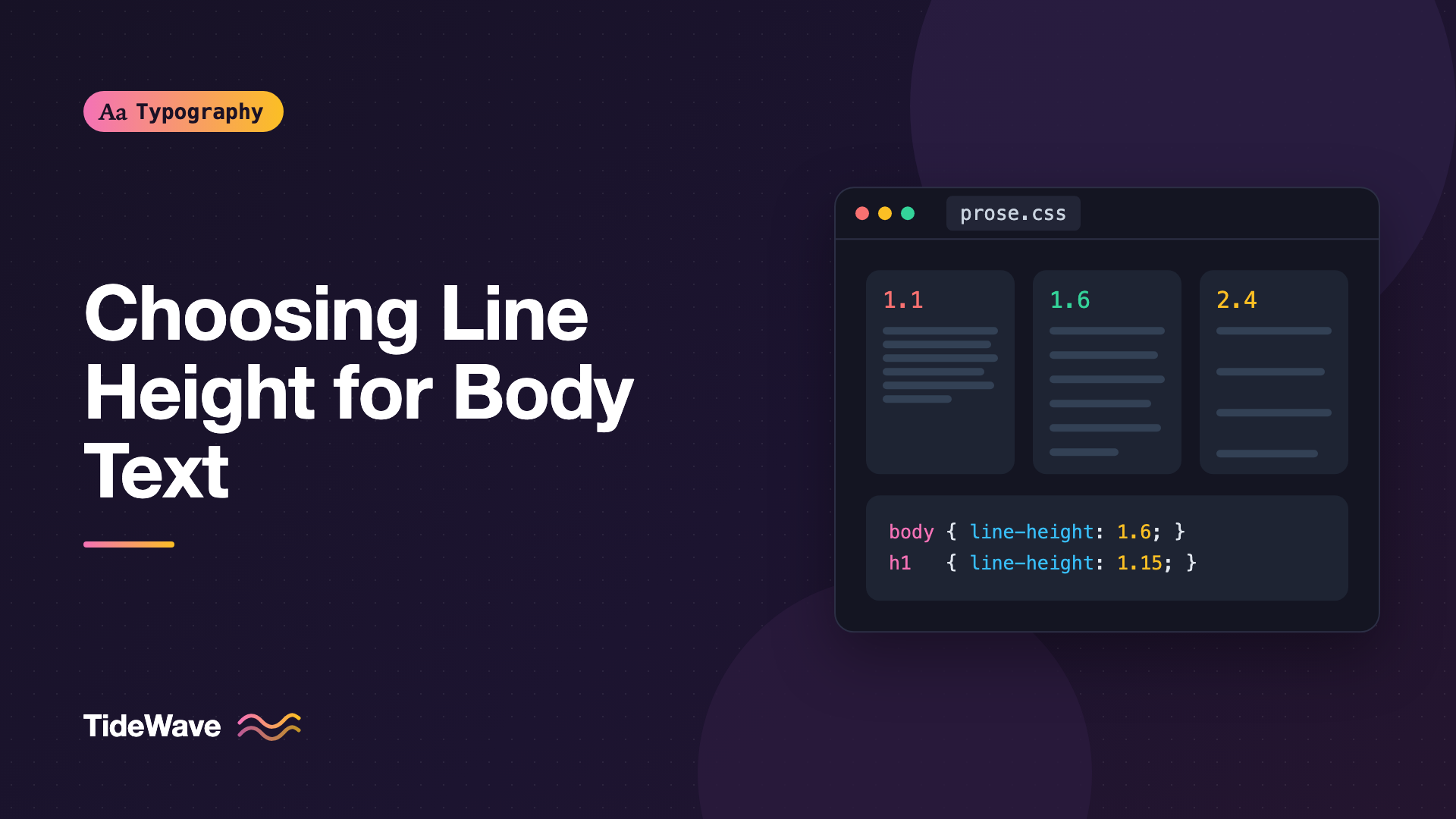
How to Choose the Right Line Height for Body Text
- Maria
- Typography
- 23 Oct, 2026
Most stylesheets have a line like line-height: 1.5 on the body, and most of the time nobody touches it again. Then you switch to a font with a tall x-height and the paragraphs feel cramped. Or you widen the content column and readers start losing their place at the end of each line. Or you set a 20px intro paragraph and it looks oddly spread out. The same line height doesn't work for every font, size, and layout.
Line height is the vertical distance from one line of text to the next. In print it's called leading. It's one of the most important settings for readable body text, because it controls how easily the eye can travel back to the start of the next line and how comfortably lines sit together as a paragraph.
This guide covers the factors that determine a good line height, a practical process for choosing one, how to set it correctly in CSS, and how to adjust it as text size and line length change.
What Line Height Does
When you finish reading a line, your eye makes a long jump back to the left to find the start of the next one. Line height gives that jump a clear target. With too little space, adjacent lines blur together, and it's easy to land on the wrong line or reread the same one. Ascenders and descenders from neighboring lines can also crowd each other.
With too much space, the opposite happens. Lines stop looking like a paragraph and start looking like separate items in a list. The text loses its texture, and the reader has to work harder to connect one line to the next.
Good body line height sits between those two failure modes. For most Latin-script fonts at typical reading sizes on screen, that's somewhere between 1.4 and 1.8, and very often around 1.5 to 1.65. The rest of this post is about finding where your text falls in that range.
The Factors That Change the Ideal Value
x-Height
The single biggest factor is the font's x-height, the height of lowercase letters relative to the font size. A font with a tall x-height, like many modern sans serifs designed for screens, fills more of each line with ink. The visible gap between lines is smaller even at the same line-height, so it needs more.
A font with a small x-height, like many classical book serifs, has more natural white space built in. It can work with tighter leading.
| Font characteristic | Line height tendency |
|---|---|
| Tall x-height | Looser (1.6 to 1.8) |
| Small x-height | Tighter (1.4 to 1.55) |
| Long ascenders/descenders | Can be tighter, since letters already reach into the gap |
| Heavy weight | Looser |
| Light weight | Slightly tighter |
The post on x-height and readability explains why this proportion varies so much between typefaces.
Line Length
Longer lines need more line height. On a long line, the return jump is longer and the eye is more likely to land on the wrong line. Extra vertical space makes each line easier to find. Short lines, like those in a narrow sidebar or a mobile column, can use less.
A rough guide:
- Narrow columns (around 40 to 50 characters): 1.4 to 1.5
- Comfortable measure (around 55 to 70 characters): 1.5 to 1.65
- Long lines (75+ characters): 1.65 to 1.8, though you should probably shorten the lines instead
The best fix for a long measure is to reduce it, not to compensate with extra leading. See the ideal line length for why 45 to 75 characters works and how to set it.
Font Size
As text gets larger, it needs proportionally less line height. A 16px paragraph at 1.6 has 25.6px from baseline to baseline. A 24px lede paragraph at 1.6 has 38.4px, which usually looks too airy. Larger body text often looks better at 1.4 to 1.5, and headings tighter still.
Small text, like captions and footnotes, sometimes benefits from a slightly higher ratio than the body, because its letters are harder to track at small sizes.
Language and Script
Scripts with stacked diacritics or tall vowel marks, such as Vietnamese, Thai, and Devanagari, need more line height so marks above and below the line don't collide. If your site supports several languages, consider adjusting line height per language with the :lang() selector:
:lang(vi),
:lang(th),
:lang(hi) {
  line-height: 1.8;
}
Color and Contrast
Light text on a dark background tends to look bolder and to spread visually. A little extra line height, along with slightly lighter weight, often helps dark-mode body text feel less dense.
A Process for Choosing Line Height
Rules of thumb get you close. Testing gets you the rest of the way. Here's a process that works.
1. Set Up Realistic Content
Use real paragraphs, not a single line of placeholder text. You need several paragraphs of at least five or six lines each, set at your actual body size, font, and column width. Line height problems only show up across many lines.
2. Start at 1.5
Set your body text to line-height: 1.5. It's the minimum WCAG's AAA guidance asks for in paragraphs, and a sensible midpoint for most fonts.
3. Compare Side by Side
Duplicate the paragraph block and try values in steps of 0.05 or 0.1. A small test harness makes this easy:
<div class="lh-test">
  <article style="line-height: 1.4">...</article>
  <article style="line-height: 1.5">...</article>
  <article style="line-height: 1.6">...</article>
  <article style="line-height: 1.7">...</article>
</div>
.lh-test {
  display: grid;
  grid-template-columns: repeat(auto-fit, minmax(18rem, 1fr));
  gap: 2rem;
  font-family: "Source Serif 4", Georgia, serif;
  font-size: 1.125rem;
}

.lh-test article {
  max-width: 65ch;
}
4. Read, Don't Just Look
Actually read a few paragraphs at each setting. Pay attention to how easy it is to find the start of the next line, whether lines feel connected as a paragraph, and whether ascenders and descenders touch. Squint at the block too: good body text has an even gray texture without obvious horizontal stripes.
5. Check the Extremes
Test on a narrow phone and on your widest layout. A value that's perfect at 60 characters might feel tight at 80. If the line length varies a lot across breakpoints, you may want different line heights at each.
Setting Line Height in CSS
Use a Unitless Number
Always prefer a unitless line-height for text:
body {
  font-size: 1.0625rem;
  line-height: 1.6;
}
A unitless number is inherited as a ratio. Each descendant multiplies it by its own font size. A value with a unit is calculated once and inherited as a fixed length:
/* Problem: children inherit a fixed 25.6px */
.article {
  font-size: 1rem;
  line-height: 1.6em;
}

.article h2 {
  font-size: 2rem; /* 32px text on 25.6px lines: overlapping */
}
With line-height: 1.6, the h2 would get 51.2px lines instead, which is too loose but at least readable. You'd still want to set a separate, tighter ratio for headings.
Set Headings Separately
Body line height is almost always too loose for headings. Multi-line headings at 1.6 look like separate lines rather than a single title. Override them:
h1,
h2,
h3 {
  line-height: 1.15;
}

h4,
h5,
h6 {
  line-height: 1.3;
}
Let Line Height Shrink as Size Grows
If your type scale is fluid, a fixed ratio will be slightly off at both ends. One technique is to define line height as a font-relative length plus a fixed amount, so the ratio decreases as text gets larger:
p,
li {
  line-height: calc(1em + 0.5rem);
}
At 16px this gives 24px (a ratio of 1.5). At 24px it gives 32px (about 1.33). At 32px it gives 40px (1.25). That works well for elements whose size changes across breakpoints, like ledes and headings.
The tradeoff is that this produces a length, not a ratio, so nested elements inherit the computed value. Apply it to the text elements themselves, not to a container whose children have different sizes.
Use the lh Unit for Related Spacing
The lh unit equals the element's computed line height. It's handy for spacing that should relate to the text's rhythm:
.prose p + p {
  margin-block-start: 1lh;
}

.prose ul {
  padding-inline-start: 1.5em;
  margin-block: 1lh;
}
Check browser support for lh if you need to support older browsers. If you're aiming for a strict baseline grid, the techniques are covered in vertical rhythm in web design.
Line Height and Accessibility
Two WCAG success criteria relate to line height:
- 1.4.8 Visual Presentation (Level AAA) asks, among other things, that line spacing within paragraphs be at least space-and-a-half (1.5), and that paragraph spacing be at least 1.5 times larger than the line spacing.
- 1.4.12 Text Spacing (Level AA) requires that no content or functionality is lost when users override text spacing to line height of at least 1.5 times the font size, paragraph spacing of at least 2 times, letter spacing of at least 0.12 times, and word spacing of at least 0.16 times.
The AA criterion doesn't require you to use 1.5. It requires your layout to survive if a user applies it. The main way to fail is fixed heights on elements that contain text, which cause clipping or overlap when the text grows. Let containers size to their content. The sibling post on meeting WCAG text spacing requirements shows how to test this.
Starting Values by Context
| Context | Suggested line-height |
|---|---|
| Article body, 16 to 20px | 1.55 to 1.7 |
| Lede or intro paragraph, 20 to 24px | 1.4 to 1.5 |
| Captions and footnotes | 1.4 to 1.5 |
| UI text in dense interfaces | 1.4 to 1.5 |
| Single-line buttons and labels | 1.2 to 1.3 |
| Headings | 1.05 to 1.3 |
| Code blocks | 1.5 to 1.7 |
These are starting points, not answers. Your font and measure decide where in each range you land.
Common Mistakes
- Using one value for everything. A body line height applied to headings, buttons, and captions will be wrong for most of them.
- Adding units.
line-height: 1.5emor24pxinherits as a fixed length and breaks nested text at different sizes. - Compensating for long lines. Extra leading helps a little, but shortening the measure helps much more.
- Ignoring the font. A value copied from another project may be too tight for a font with a taller x-height.
- Testing with a single line. You can't judge line height without several lines of real text.
- Fixed-height text boxes. Cards and buttons with a set
heightclip text when users increase spacing.
Conclusion
The right body line height depends on the font's x-height, the line length, the font size, and the script. For most Latin text on screen, it falls between 1.4 and 1.8, and often near 1.6. Taller x-heights, longer lines, heavier weights, and light-on-dark text all push it up. Larger sizes and narrower columns pull it down.
Start at 1.5, test real paragraphs at your actual size and measure, and adjust in small steps. Set it as a unitless number, give headings their own tighter value, and make sure your layout doesn't break if users increase spacing. That small amount of care makes long-form text noticeably easier to read.


