The Ideal Line Length: Why 45 to 75 Characters Works
- Maria
- Typography
- 23 Oct, 2026
Open an old blog theme on a wide monitor and you'll often see paragraphs that stretch the full width of the screen: 150 or more characters per line. Reading them is tiring. By the time you reach the end of a line, finding the start of the next one takes real effort, and it's easy to skip a line or read the same one twice. Now shrink the window to a narrow column of 25 characters, and reading becomes choppy in a different way, with your eye jumping back every few words.
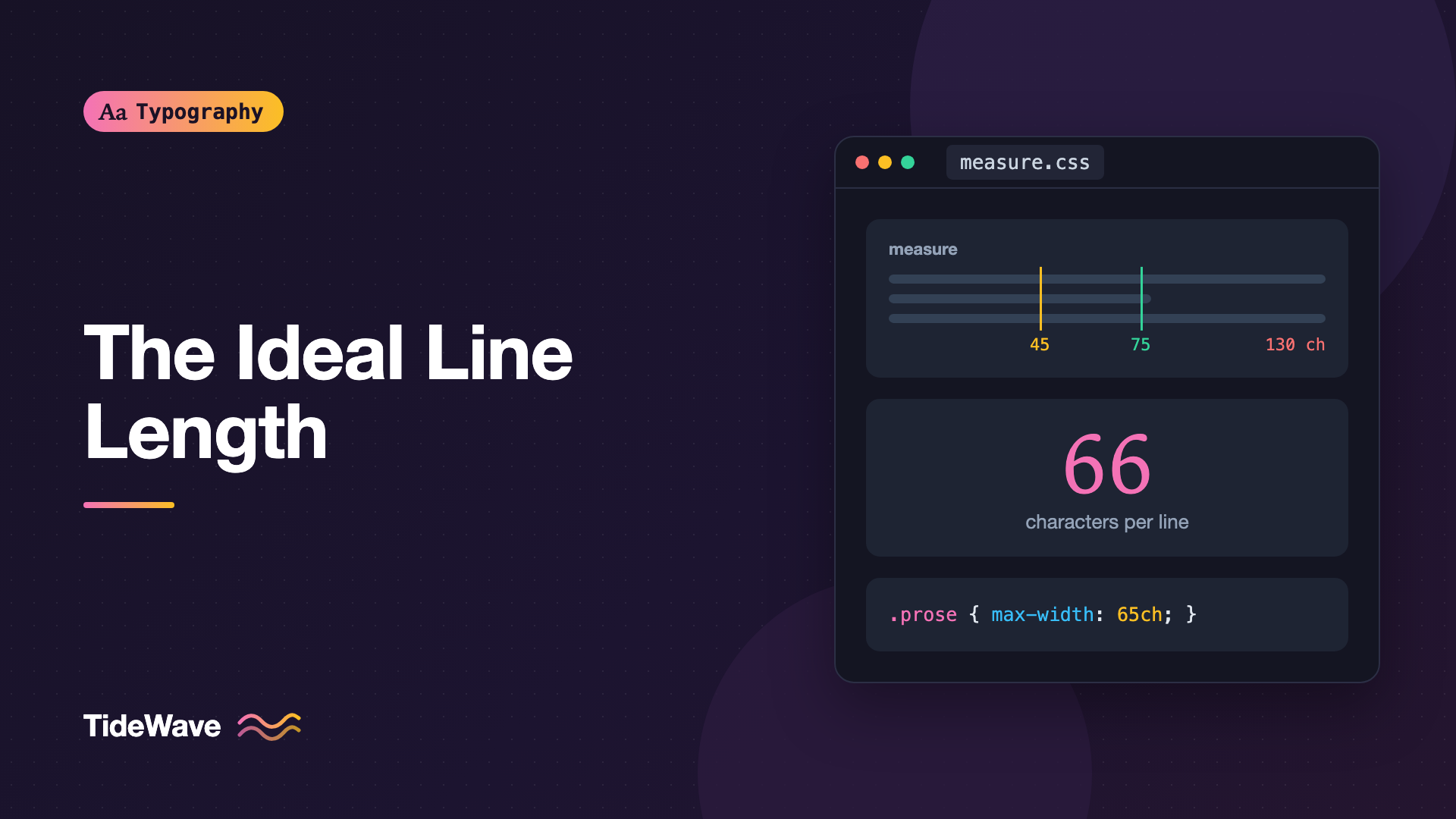
The length of a line of text is called the measure. For a single column of body text, typographers have long recommended a measure of roughly 45 to 75 characters, including spaces and punctuation, with around 66 often cited as ideal. That guidance comes from print typography, most famously Robert Bringhurst's The Elements of Typographic Style, and it holds up remarkably well on screens.
This post explains why that range works, where the exceptions are, and how to set and maintain a comfortable measure in CSS across screen sizes.
Why Line Length Matters
Reading isn't a smooth glide along each line. Your eyes move in short jumps called saccades, pausing briefly on words, then make a long return sweep to the start of the next line. Line length affects both parts.
Lines That Are Too Long
On a long line, the return sweep is long, and the target is harder to hit. The farther your eye travels, the less precisely it lands, so you're more likely to drop onto the wrong line. Long lines also make it harder to keep your place within the line, because the edges of the text block fall outside your comfortable field of view. Readers compensate by slowing down or by skimming the beginnings of lines.
Lines That Are Too Short
Short lines cause a different problem. The eye has to return to the left margin every few words, which breaks the rhythm of reading. Short measures also produce more awkward breaks: more hyphenation, more ragged right edges, and more lines that end with a single short word. In justified text, short lines create large, uneven gaps between words.
The Comfortable Middle
Between the two is a range where the return sweep is easy and each line holds enough words to sustain a rhythm. That's the 45 to 75 character range. It isn't a precise scientific limit, and you'll find studies that show readers can read longer lines quickly in some conditions. But readers consistently find moderate lengths comfortable, and the range has been working practice in typography for a long time. As a default for body text, it's very hard to beat.
How the Range Varies
The 45 to 75 range is a guideline for a single column of continuous body text. Context shifts it.
| Context | Comfortable measure |
|---|---|
| Long-form article, single column | 55 to 75 characters |
| Multi-column layout | 40 to 50 characters |
| Mobile body text | Around 35 to 50 characters |
| Captions, sidebars, cards | 30 to 50 characters |
| Large lede or intro paragraph | 45 to 60 characters |
| Headings | Shorter, set by the design |
| Code blocks | Up to 80 to 100 characters |
Line height interacts with measure. Longer lines need more line height to help the eye find the next line. If you're near the top of the range, a line height around 1.6 or more helps. In narrower columns, you can tighten it. For more on that relationship, see how to choose the right line height for body text.
Font size and typeface matter too. A typeface with a large x-height or wide letters reads as "bigger," and its comfortable measure in characters may be a bit shorter. A condensed face fits more characters into the same width.
What WCAG Says
WCAG success criterion 1.4.8 Visual Presentation (Level AAA) includes a requirement that the width of a block of text is no more than 80 characters or glyphs, or 40 if the text is CJK. It's an AAA criterion, so most sites aren't required to meet it, but it's a useful upper bound, and it lines up with typographic practice. Long lines are a particular problem for people with some reading and cognitive disabilities.
A measure capped somewhere in the 60s or low 70s keeps you comfortably inside that limit while leaving room for variation between fonts.
Setting the Measure in CSS
Use max-width with ch
The simplest and most robust approach is to set a max-width on the text container using the ch unit:
.prose {
  max-width: 68ch;
  margin-inline: auto;
}
1ch is the width of the "0" glyph in the element's font. In most proportional fonts, the average character in running text is a bit narrower than a zero, so 68ch usually fits somewhat more than 68 characters per line, often in the low-to-mid 70s. If you want to aim for about 66 characters, a value between 60ch and 66ch is a good starting point. Measure the result with your actual font rather than trusting the unit exactly.
Because ch is based on the element's own font, the measure scales automatically when the font size changes. A max-width in pixels doesn't: bump the font size from 16px to 20px and a 640px container drops from about 80 characters to about 64.
For more on ch and its relatives, see using rem, em, and ch units for typography.
Constrain the Text, Not the Layout
A common pattern is to give the whole page a wide container, then limit only the text inside it. That lets images, code blocks, and tables use more width while paragraphs stay readable:
.article {
  display: grid;
  grid-template-columns:
    [full-start] minmax(1rem, 1fr)
    [content-start] min(68ch, 100% - 2rem)
    [content-end] minmax(1rem, 1fr)
    [full-end];
}

.article > * {
  grid-column: content;
}

.article > .wide,
.article > figure,
.article > pre {
  grid-column: full;
}
Paragraphs sit in the content column, capped at 68 characters wide. Figures and wide code samples can break out to the full width.
Measure in Characters, Not Pixels
Set the measure on the element whose font determines it. If your container has font-size: 1rem but the paragraphs inside it are 1.125rem, a 68ch on the container is measured with the container's smaller font. Either put the max-width on the paragraphs or make sure the container has the same font size as its text.
.prose {
  font-size: 1.125rem;
  max-width: 66ch; /* measured in the 1.125rem font */
}

.prose p {
  /* inherits the font size, so the measure matches */
}
Line Length on Small Screens
On a phone, the screen width often limits line length before your max-width does. At a body size of 16px, a typical phone in portrait orientation shows roughly 35 to 45 characters per line. That's below the classic range, but it's still readable, and it's a reasonable trade-off for a small device.
Don't shrink the font to fit more characters on a line. Small body text on a phone is harder to read than a slightly short measure. Keep body text at 16px or larger and accept the shorter lines. What you can control is the side padding: keep it modest, around 1rem to 1.25rem, so you don't waste precious width. The sibling post on mobile typography covers the rest of the small-screen picture.
Fluid Type and Measure Together
If you use fluid type that grows with the viewport, a ch-based max-width keeps the measure stable as the font scales:
.prose {
  font-size: clamp(1rem, 0.9rem + 0.4vw, 1.25rem);
  max-width: 65ch;
  margin-inline: auto;
  padding-inline: 1rem;
}
On narrow screens, the viewport limits the width. On wide screens, the measure caps at 65 characters of whatever size the font has reached. See fluid typography that scales across every screen for more on building the font-size side of this.
Measuring Your Actual Line Length
To check real character counts, you can measure them in the browser. This snippet estimates average characters per line for a paragraph using its rendered width and its actual text:
function charsPerLine(el) {
  const style = getComputedStyle(el);
  const canvas = document.createElement("canvas");
  const ctx = canvas.getContext("2d");
  ctx.font = `${style.fontWeight} ${style.fontSize} ${style.fontFamily}`;

  const text = el.textContent.replace(/\s+/g, " ").trim();
  const avgCharWidth = ctx.measureText(text).width / text.length;
  return Math.round(el.clientWidth / avgCharWidth);
}

document.querySelectorAll(".prose p").forEach((p) => {
  console.log(charsPerLine(p), p.textContent.slice(0, 40));
});
It's an approximation, since it ignores padding and letter-spacing, but it's much closer than counting zeros. For a quick manual check, copy a typical line from the middle of a paragraph into a character counter.
Exceptions and Edge Cases
Headings
Headings are short by nature and don't need the same measure. A heading that spans the full width of the column is fine, but very long headings benefit from their own max-width and text-wrap: balance so that line breaks look deliberate. See text-wrap: balance and pretty.
Lists and Short Items
Bulleted lists, navigation, and UI text don't need a comfortable reading measure, because people scan them rather than read continuously. Let them be as wide as the layout requires.
Code
Code is read differently from prose. Lines that wrap break the structure, so code blocks are usually allowed to be wider than body text and scroll horizontally when they overflow. Many style guides cap source lines at 80 to 100 characters for this reason.
Justified Text
If you justify text, a narrow measure causes wide, uneven word spacing. Justified text needs a longer measure and hyphenation to look good. If you can't give it both, left-align instead.
Common Mistakes
- Letting text span the full viewport. A
width: 100%paragraph on a 1440px screen can exceed 150 characters per line. - Setting max-width in pixels. A pixel width gives a different character count every time the font size changes. Use
ch. - Treating ch as an exact count. It's the width of "0." Check the real number of characters with your font.
- Setting the measure on a container with a different font size. The
chunit uses the font of the element it's declared on. - Shrinking text on mobile to fit more per line. Keep body text readable and accept a slightly shorter measure.
- Constraining everything to the text measure. Images, tables, and code often need more room. Constrain paragraphs, not the whole page.
Conclusion
A measure of about 45 to 75 characters gives the eye an easy return sweep and enough words per line to sustain a reading rhythm. Lines that are much longer lose the reader. Lines that are much shorter break the rhythm and create awkward breaks. Multi-column and mobile layouts can go shorter, and WCAG's AAA guidance puts an upper limit at 80 characters.
In CSS, set a max-width in ch on the element that holds your body text, aim for around 60 to 70 ch depending on the font, and let wider content like images and code break out of it. Then measure the real character count once with your actual font, and your paragraphs will be comfortable to read on every screen.


