Using rem, em, and ch Units for Typography in CSS
- Maria
- Typography
- 23 Oct, 2026
Most of us learned CSS sizing in pixels. A heading is 32px, body text is 16px, the margin under a paragraph is 24px. It's predictable and easy to match against a design file. The trouble starts when a user has set a larger default font size in their browser, or when you want a button's padding to grow with its label, or when you need a paragraph to stay a comfortable reading width at every size.
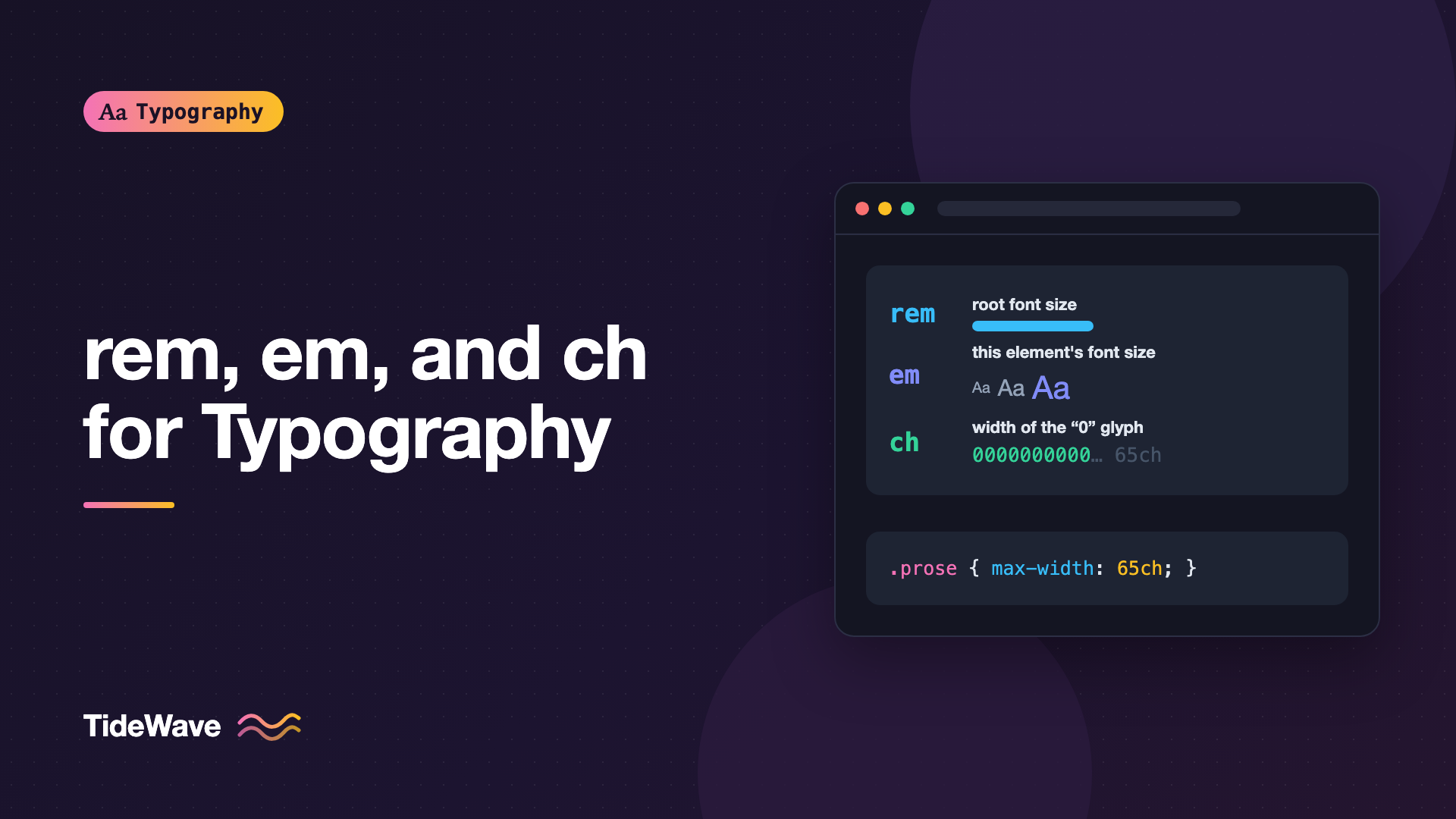
That's where relative units come in. Three of them do most of the work in typography: rem for sizes tied to the user's base font size, em for values that scale with the current element's text, and ch for widths measured in characters. Each one solves a different problem, and using the wrong one in the wrong place is behind a lot of confusing CSS.
This guide explains how each unit is calculated, where it fits best, the traps to avoid, and a practical system for combining them.
Why Relative Units Matter for Type
Browsers let people change the default font size. Someone with low vision might set it to 20px or 24px instead of the usual 16px. When your CSS sets font-size in pixels, that preference is ignored. Browser zoom still works, but the user's chosen base size doesn't.
Relative units respect that setting. If your body text is 1rem and the user's default is 20px, your body text renders at 20px, and everything sized in rem scales proportionally. The sibling post on respecting user font size preferences goes deeper into why this matters and how to test it.
Relative units also make components more flexible. A button whose padding is set in em stays balanced whether its text is small or large, without separate rules for each size.
The rem Unit
rem stands for "root em". One rem equals the computed font-size of the root element, the <html> element. If you never set a font size on <html>, that's the browser's default, which is 16px unless the user has changed it.
body {
  font-size: 1rem; /* 16px by default */
}

h1 {
  font-size: 2.5rem; /* 40px by default */
}

h2 {
  font-size: 1.75rem; /* 28px by default */
}

.small-print {
  font-size: 0.875rem; /* 14px by default */
}
Because every rem value refers to the same root size, they're predictable. A 2rem heading is the same size whether it's in the page body, a sidebar, or a deeply nested card. That makes rem the best default for font sizes in a type scale.
Don't Set the Root Font Size in Pixels
A common old trick was to set html { font-size: 62.5%; } so that 1rem equaled 10px and the math was easy. A percentage is fine, because it still scales with the user's setting. What breaks things is a pixel value:
/* Avoid: locks the root size and ignores user preferences */
html {
  font-size: 16px;
}

/* Fine: leave it alone, or use a percentage */
html {
  font-size: 100%;
}
The 62.5% trick has its own drawback: every element that doesn't set a size inherits 10px text, so you have to restore a readable size on body. Most teams today simply leave the root at 100% and think in multiples of 16.
rem for Spacing
rem is also a good unit for layout spacing tied to your type, such as margins between sections, gaps in grids, and page padding. If a user increases their base size, spacing scales up with the text, keeping proportions intact.
.section {
  padding-block: 4rem;
}

.stack > * + * {
  margin-block-start: 1.5rem;
}
The em Unit
em is relative to the current element's font size. There's one important exception: when you use em in the font-size property itself, it refers to the parent's font size, since the element's own size is what you're calculating.
.card {
  font-size: 1.25rem; /* 20px */
  padding: 1em; /* 20px, based on the card's own font size */
}

.card__meta {
  font-size: 0.8em; /* 16px, 0.8 x the parent's 20px */
  margin-block-start: 0.5em; /* 8px, based on this element's 16px */
}
This makes em ideal for values that should scale with the text they're attached to.
Good Uses for em
Component padding and gaps. A button sized in em stays proportional at any font size:
.button {
  font-size: 1rem;
  padding: 0.625em 1.25em;
  border-radius: 0.375em;
  gap: 0.5em;
}

.button--large {
  font-size: 1.25rem; /* padding, radius, and gap all scale automatically */
}
Letter-spacing. Tracking should be relative to the font size, so em is the natural unit:
.eyebrow {
  font-size: 0.75rem;
  text-transform: uppercase;
  letter-spacing: 0.08em;
}
Icons inline with text. Sizing an icon at 1em makes it match the surrounding text size anywhere it appears:
.icon {
  width: 1em;
  height: 1em;
  vertical-align: -0.125em;
}
Underline thickness and offset, for the same reason: a heading link and a footnote link both get proportional lines.
The Compounding Problem
Using em for font-size gets messy when elements are nested, because each level multiplies the one above:
li {
  font-size: 0.9em;
}
<ul>
  <li>
    Level one (0.9 x 16 = 14.4px)
    <ul>
      <li>
        Level two (0.9 x 14.4 = 12.96px)
        <ul>
          <li>Level three (0.9 x 12.96 = 11.66px)</li>
        </ul>
      </li>
    </ul>
  </li>
</ul>
Each nested list gets smaller. That's rarely what you want. Use rem for font-size by default, and save em for font sizes only when you deliberately want something to scale relative to its parent, like a <sup> or a <small> that should be a bit smaller than whatever surrounds it.
sup,
sub {
  font-size: 0.75em;
}

small {
  font-size: 0.875em;
}
em and line-height
You can write line-height in em, but it's usually a mistake. An em line height is computed once on the element and then inherited as a fixed length. Children with larger text get the parent's line height, which can make headings overlap.
/* Avoid: children inherit a fixed 24px */
body {
  font-size: 1rem;
  line-height: 1.5em;
}

/* Prefer: children inherit the ratio and compute their own */
body {
  font-size: 1rem;
  line-height: 1.5;
}
Use a unitless number for line-height. Each element then multiplies its own font size by the ratio. The sibling post on choosing the right line height covers what ratio to pick.
The ch Unit
ch is the width of the "0" (zero) character in the element's current font. It's the closest thing CSS has to a "characters" unit, which makes it the natural choice for controlling line length.
.prose {
  max-width: 65ch;
}
Comfortable reading lines usually fall between roughly 45 and 75 characters. Setting max-width in ch keeps the measure in that range regardless of the font size: if the text gets larger, the container gets wider in pixels but still holds about the same number of characters. For the reasoning behind those numbers, read The Ideal Line Length.
ch Is an Approximation
ch measures one specific character, the zero. In a monospaced font, every character has that width, so 60ch fits exactly 60 characters. In a proportional font, lowercase letters are on average narrower than the zero, so a 65ch container typically holds more than 65 characters of real text.
That's fine for setting a comfortable measure, but adjust by eye. If 65ch looks too wide in your typeface, try 60ch. Different fonts can produce noticeably different results for the same ch value.
Other Uses for ch
Form fields sized to their expected input:
.input-zip {
  width: 7ch;
}

.input-year {
  width: 6ch;
}

.input-card-cvc {
  width: 5ch;
}
Leave a little extra room for padding and the cursor. Setting box-sizing: content-box on these inputs, or adding the padding to the width, keeps the calculation honest.
Headings with a tighter measure:
.hero__title {
  max-width: 18ch;
  text-wrap: balance;
}
Because ch is based on the element's own font, this 18ch uses the heading's large font size, not the body's.
Code blocks and tables of data, where monospaced fonts make ch exact.
Comparing the Units
| Unit | Relative to | Best for | Watch out for |
|---|---|---|---|
px | Nothing (fixed) | Borders, hairlines, tiny details | Ignores user font size preference |
rem | Root element's font size | Font sizes, global spacing, type scale | Pixel root size breaks it |
em | Element's font size (parent's for font-size) | Padding, letter-spacing, icons, nested scaling | Compounds when nested |
ch | Width of "0" in the element's font | Line length, input widths | Approximate in proportional fonts |
% | Parent's value for that property | Root font size, widths | Means different things per property |
Media Queries and Relative Units
In media queries, em and rem both refer to the browser's initial font size, not your root element's font size. That means a breakpoint like 48em is 768px at the default 16px, and grows if a user increases their default font size.
@media (min-width: 48em) {
  .layout {
    grid-template-columns: 1fr 18rem;
  }
}
This is a good thing. If a user has a 24px default, a 48em breakpoint triggers at 1152px instead of 768px, so they get the mobile layout sooner, with larger text that has room to fit. Pixel breakpoints can squeeze large text into multi-column layouts that are too narrow for it.
Newer Typographic Units
CSS has a few more font-relative units worth knowing about:
lhandrlhare the line height of the element and of the root element. They're useful for spacing on a rhythm, such asmargin-block: 1lh.exis the x-height of the font, andcapis the cap height. They're handy for aligning icons or small elements to letterforms.icis the width of the CJK water ideograph, the equivalent ofchfor Chinese and Japanese text.
Support for these varies, especially for the newer ones, so check caniuse or MDN before relying on them. lh in particular is useful for anyone trying to build a consistent vertical rhythm.
Combining Units with clamp()
Relative units work well with clamp() for fluid type. Using rem for the minimum and maximum keeps the user's font size preference in play at both ends:
h1 {
  font-size: clamp(2rem, 1.5rem + 2.5vw, 3.5rem);
}
Avoid using vw alone for font sizes. Viewport units don't respond to the user's font size setting or to text zoom in some browsers, so pure vw text can become impossible to enlarge. Adding a rem component, as above, fixes that. For a full approach, see How to Build Fluid Typography That Scales Across Every Screen.
A Practical System
Here's a set of rules that covers most projects:
html {
  font-size: 100%; /* respect the user's default */
}

body {
  font-size: 1rem;
  line-height: 1.6; /* unitless */
}

h1 {
  font-size: clamp(2rem, 1.5rem + 2.5vw, 3.5rem);
  line-height: 1.1;
  max-width: 20ch;
}

h2 {
  font-size: 1.75rem;
  line-height: 1.2;
}

.prose {
  max-width: 65ch;
}

.prose > * + * {
  margin-block-start: 1.25rem;
}

.button {
  font-size: 1rem;
  padding: 0.625em 1.25em;
  letter-spacing: 0.01em;
}

.eyebrow {
  font-size: 0.75rem;
  letter-spacing: 0.1em;
  text-transform: uppercase;
}

hr {
  border-top: 1px solid #d4d4d8; /* pixels are fine for hairlines */
}
In short: rem for font sizes and page-level spacing, em for things that belong to a piece of text, ch for measure, unitless numbers for line height, and pixels only for fine details like borders.
Common Mistakes
- Setting the root font size in pixels, which overrides the user's browser preference.
- Using
emfor font sizes everywhere, so nested elements shrink or grow unexpectedly. - Writing
line-heightinemorpx, which children inherit as a fixed value. - Expecting
chto equal exactly one character in a proportional font. - Using
vwalone for font sizes, which can stop text from scaling with user settings. - Mixing
pxandremfor the same kind of value, which makes the system hard to reason about.
Conclusion
Each relative unit has a clear job. rem ties font sizes and global spacing to the user's base size, so the whole page scales together. em ties padding, letter-spacing, and icons to the text they belong to, so components stay balanced. ch measures in characters, which makes it the right tool for line length and input widths.
If you're converting an existing stylesheet, start with font sizes: switch them from px to rem, then set your content width in ch and your line heights as unitless numbers. Those three changes alone make your typography more accessible and more resilient.


