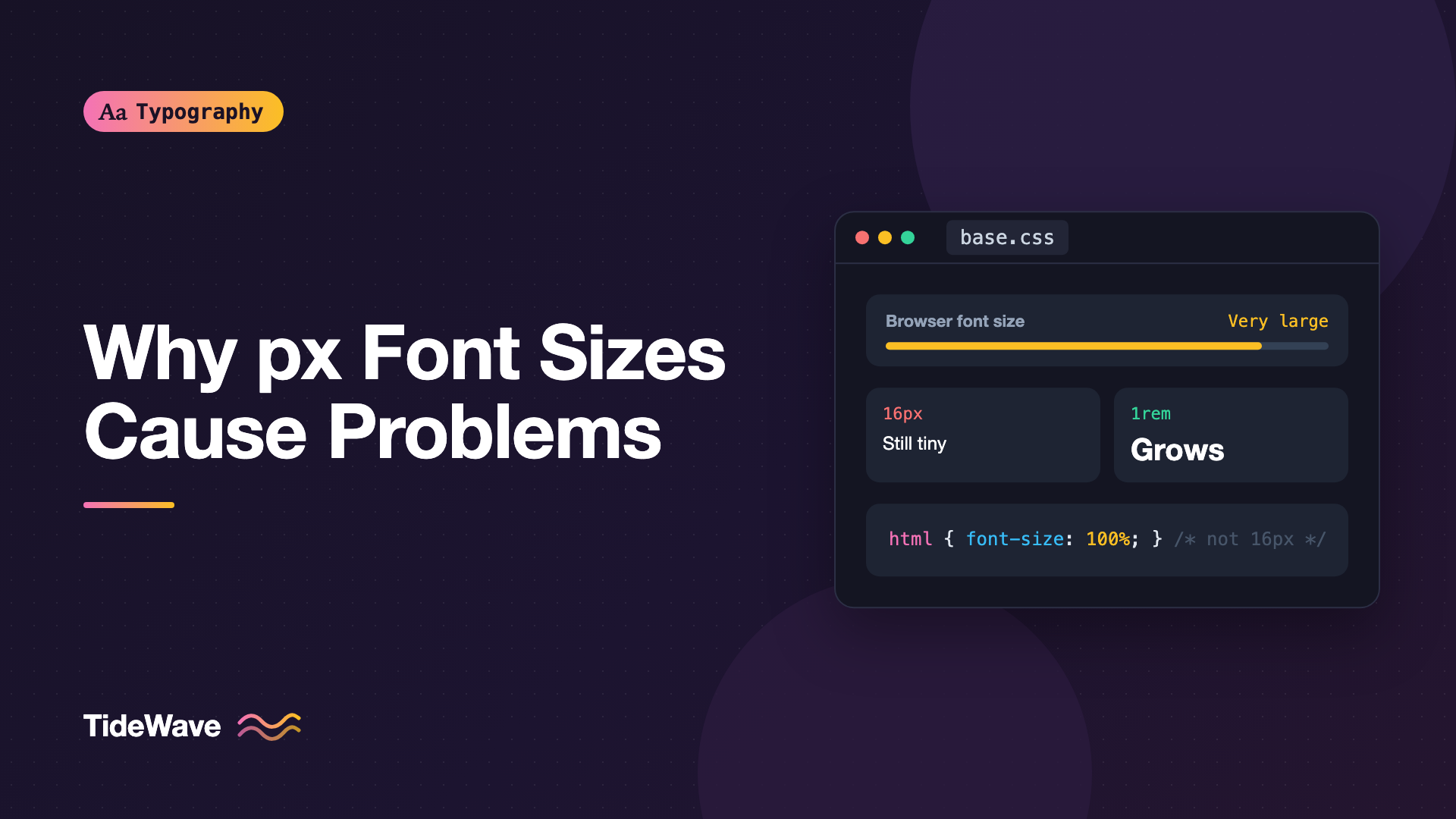
Respecting User Font Size Preferences: Why px Font Sizes Cause Problems
- Maria
- Typography
- 23 Oct, 2026
Open your browser's settings and look for the font size option. In Chrome it's under Appearance, in Firefox under Fonts. It's set to "Medium" or 16 by default, and most developers never touch it. But plenty of people do: readers with low vision, older users, people on high-resolution laptops where everything looks tiny. They raise the default once, and expect every website to honor it.
Many websites don't. If your stylesheet sets font-size: 16px on the html element, or sizes text throughout in px, the browser's default font size preference has no effect on your site. The user asked for bigger text, and your CSS overrode them. This guide explains how the setting interacts with CSS, why px font sizes cause the problem, how to switch to relative units without rewriting your design, and how to test the result.
Zoom vs Default Font Size
Browsers offer two different ways to make text bigger, and the difference is the root of this whole topic.
Page zoom (Ctrl or Cmd and plus) scales everything: text, images, layout widths, and borders. It works regardless of the units you use, because it changes the size of a CSS pixel. A 16px font at 200% zoom renders at twice the size.
Default font size changes only one value: the font size of the root element when the page doesn't set one. Everything sized relative to it, through rem, em, or percentages, scales up. Anything sized in absolute px doesn't.
| Method | Affects px text? | Affects rem/em text? | Affects layout widths in px? |
|---|---|---|---|
| Page zoom | Yes | Yes | Yes |
| Default font size | No | Yes | No |
| Minimum font size | Yes, below the minimum | Yes, below the minimum | No |
Many people prefer the default font size setting to zoom, because it enlarges text without making images and the rest of the layout huge, and it applies to every site automatically. If your CSS uses px for text, that preference is silently thrown away.
WCAG 1.4.4 Resize Text requires text to be resizable to 200%, and browser zoom technically satisfies it even with px. But meeting the letter of WCAG isn't the same as respecting your users, and the default font size setting is something real people rely on.
How px Overrides the Preference
Here's the most common pattern that breaks the preference:
html {
  font-size: 16px;
}

body {
  font-size: 1rem;
}
The body uses rem, which looks correct. But rem is relative to the root font size, and the root is now hard-coded to 16px. A user who set their default to 24px still gets 16px text everywhere.
The other common pattern is sizing every element in px:
body {
  font-size: 16px;
}

h1 {
  font-size: 40px;
}

.caption {
  font-size: 13px;
}
None of these values reference the user's preference at any point.
The 62.5% Trick
You may have seen this pattern:
html {
  font-size: 62.5%;
}

body {
  font-size: 1.6rem;
}
It sets the root to 62.5% of the default, which is 10px when the default is 16px, so 1.6rem equals 16px and the math is easy. Because it's a percentage, it does respect the user's setting: at a 20px default, 1.6rem becomes 20px.
It works, but it has downsides. Any third-party component that assumes 1rem is a normal reading size will render tiny. Text that doesn't get an explicit size, like content in an embed or a form control that inherits from the root, falls to 10px. Modern editors and CSS functions make rem math easy enough that the trick isn't really necessary.
The Fix: Leave the Root Alone
The simplest correct approach is to not set a px value on the root at all:
html {
  font-size: 100%;
}
100% is the same as leaving it unset. It's worth writing explicitly so a teammate doesn't "fix" it to 16px later. Then size everything else in rem:
body {
  font-size: 1.0625rem;
  line-height: 1.6;
}

h1 {
  font-size: 2.5rem;
  line-height: 1.1;
}

h2 {
  font-size: 1.875rem;
  line-height: 1.2;
}

.caption {
  font-size: 0.8125rem;
}
At the default 16px setting, this renders exactly like the px version: 17px body, 40px h1, 13px captions. At a 20px setting, every value scales by 1.25.
For a deeper comparison of rem, em, and ch, see using rem, em, and ch units for typography.
Converting px to rem
Divide by 16:
| px | rem |
|---|---|
| 12 | 0.75 |
| 13 | 0.8125 |
| 14 | 0.875 |
| 16 | 1 |
| 18 | 1.125 |
| 20 | 1.25 |
| 24 | 1.5 |
| 32 | 2 |
| 40 | 2.5 |
| 48 | 3 |
If you're migrating a large codebase, a PostCSS plugin like postcss-pxtorem can convert font sizes automatically during the build. Configure it to convert only font-related properties so borders and shadows stay in px.
What Should Still Be px
Relative units aren't right for everything. Some values should stay fixed when the user enlarges text:
- Borders and outlines. A
1pxborder doesn't need to grow with text. - Box shadows and small decorative offsets.
- Some icon and image sizes, though icons that sit inline with text often look better in
emso they match the text.
And some values should scale with text but aren't font sizes:
- Line height. Use unitless values like
1.6, which multiply the element's font size. - Spacing around text, like paragraph margins and button padding.
emorremkeeps proportions when text grows. - Line length. Use
chorremformax-widthon text blocks, so the measure stays the same number of characters.
.button {
  padding: 0.625em 1.25em;
  border: 1px solid currentColor;
  border-radius: 0.5rem;
  font-size: 1rem;
  line-height: 1.25;
}

.article {
  max-width: 68ch;
}
When a user doubles the default font size, this button's padding grows with its label and the article stays at 68 characters per line. With px padding and a px max-width, the label would crowd the edges of the button, and the article would shrink to around 34 characters per line.
Media Queries Need Relative Units Too
Breakpoints are often overlooked. Consider a layout that switches to two columns at 768px. A user with a 32px default font size has text twice as large, but the layout still switches to two columns at the same viewport width. The columns are now far too narrow for their large text.
Use em in media queries instead:
@media (min-width: 48em) {
  .layout {
    display: grid;
    grid-template-columns: 1fr 20rem;
    gap: 2rem;
  }
}
In media queries, em and rem are both based on the browser's initial font size, not on anything you set in CSS. At the default 16px, 48em is 768px. At a 32px default, it's 1536px, so the two-column layout only appears when there's genuinely room for it. This is one place where relative units do something px can't.
Fluid Type and the Preference
Fluid sizes built with clamp() need a relative component, or they break the preference in a subtler way:
/* Ignores the default font size between the bounds */
h1 {
  font-size: clamp(2rem, 5vw, 3.5rem);
}

/* Respects it everywhere */
h1 {
  font-size: clamp(2rem, 1.25rem + 2.5vw, 3.5rem);
}
In the first version, the bounds are in rem, but the preferred value is pure vw, so across most viewport widths the size depends only on the viewport. In the second, the rem term means a larger default font size always produces a larger heading. The full approach is in how to build fluid typography that scales across every screen.
Frameworks and Design Tokens
Most modern tools already default to rem. Tailwind's font-size utilities use rem, and if you configure a custom type scale in Tailwind, keep using rem there too. Design tools are the usual source of px values: Figma reports sizes in pixels, and they get copied straight into code.
Set the rule at the token level. If your design tokens define font-size-body: 17px, convert them to rem when you generate CSS:
{
  "font": {
    "size": {
      "body": { "value": "1.0625rem" },
      "small": { "value": "0.875rem" },
      "h1": { "value": "2.5rem" }
    }
  }
}
Keep the px values in documentation for designers if that helps communication, but ship rem.
Testing the Preference
Testing takes a minute:
- Chrome or Edge: open Settings, go to Appearance, and change Font size to "Very large."
- Firefox: open Settings, find Fonts under General, and increase the Size value.
- Reload your site and check that body text, headings, buttons, form inputs, and navigation all grow.
Look for:
- Text that stayed the same size, which means a
pxvalue somewhere - Text that overflows or gets clipped by fixed-height containers
- Buttons where the label crowds or escapes the padding
- Navigation that wraps awkwardly or overlaps
- Layouts that switch to multiple columns too early, which means
pxmedia queries
You can also check in DevTools: select the html element and look at the computed font-size. If it's 16px while your browser is set to a larger size, something is overriding it.
Common Mistakes
- Setting
html { font-size: 16px; }in a reset or base stylesheet. It's the single most common cause of this problem. - Using
remeverywhere but anchoring the root inpx, which looks right in code review and still ignores the preference. - Leaving media queries in
px, so large text gets squeezed into narrow columns. - Pure
vwpreferred values inclamp(), which ignore the preference across the fluid range. - Line heights in
px, which cause overlapping lines when text grows. - Fixed-height components such as cards, buttons, and nav bars that clip larger text.
- Converting borders to
rem, which makes them unexpectedly thick for users with large defaults.
Conclusion
The browser's default font size is one of the oldest accessibility settings on the web, and px font sizes quietly break it. Zoom still works, but people who chose larger text as their default get your designer's preferred size instead of their own.
The fix is mostly mechanical. Leave the root font size at 100%, size text in rem, use unitless line heights, set spacing and line length in relative units, and write media queries in em. Then change your own browser's default font size for a day. You'll quickly see which sites respect it, and you'll want yours to be one of them.


