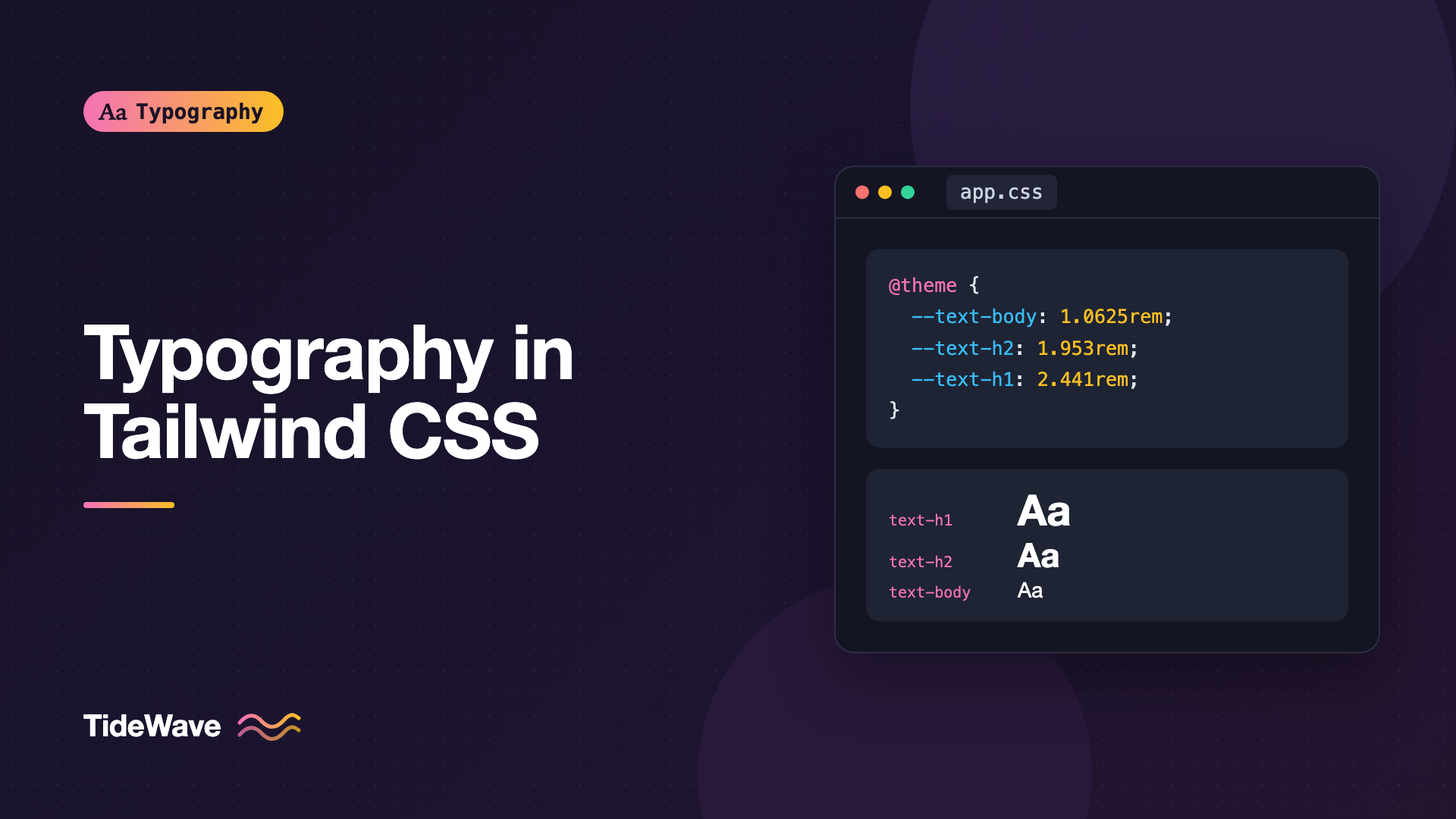
Typography in Tailwind CSS: Configuring a Custom Type Scale
- Maria
- Typography
- 23 Oct, 2026
Tailwind ships with a sensible set of font sizes, from text-xs to text-9xl, and for a prototype they're all you need. Then a designer hands you a Figma file with a heading scale built on a 1.25 ratio, body text at 17px, and a display size that doesn't match anything in the defaults. You start sprinkling arbitrary values like text-[2.441rem] through your markup, and six months later nobody remembers which of them were intentional.
The fix is to teach Tailwind your type scale: a named, limited set of font sizes, each paired with the line height, letter spacing, and weight that belong with it. This guide shows how to do that in Tailwind v4, where configuration lives in CSS, and in Tailwind v3, where it lives in tailwind.config.js. It also covers font families, fluid sizes, semantic naming, and the mistakes that make a custom scale hard to maintain.
Why Configure a Scale at All
Arbitrary values are handy for one-offs, but they don't scale as a system. A configured type scale gives you three things:
- Consistency. Every heading uses one of a few sizes, so the page has a clear hierarchy instead of fifteen slightly different sizes.
- Paired metrics. Large text needs tighter line height than small text. When the line height lives with the size, you never forget to adjust it.
- One place to change things. If the design team bumps body text from 16px to 17px, you edit one line instead of searching for every
text-base.
If you haven't designed the scale itself yet, start with how to build a modular type scale. This post assumes you already have the numbers and need to get them into Tailwind.
Tailwind v4: Defining Sizes with @theme
Tailwind v4 moved configuration into your stylesheet. Design tokens are CSS custom properties declared inside an @theme block, and Tailwind generates utilities from them based on their namespace. Font sizes use the --text-* namespace.
@import "tailwindcss";

@theme {
  --text-sm: 0.875rem;
  --text-base: 1.0625rem;
  --text-lg: 1.25rem;
  --text-xl: 1.5625rem;
  --text-2xl: 1.953rem;
  --text-3xl: 2.441rem;
  --text-4xl: 3.052rem;
}
Each variable produces a matching utility: --text-xl becomes text-xl, which sets font-size: var(--text-xl). Because these names already exist in the default theme, this example overrides them. Any default sizes you don't mention, like text-5xl, stay available.
Pairing Line Height, Tracking, and Weight
The real benefit comes from attaching related values to each size. Tailwind v4 reads extra variables with a double-dash suffix:
@theme {
  --text-base: 1.0625rem;
  --text-base--line-height: 1.65;

  --text-2xl: 1.953rem;
  --text-2xl--line-height: 1.25;
  --text-2xl--letter-spacing: -0.01em;

  --text-4xl: 3.052rem;
  --text-4xl--line-height: 1.1;
  --text-4xl--letter-spacing: -0.02em;
  --text-4xl--font-weight: 700;
}
Now text-4xl sets the size, the line height, the tracking, and the weight in one class. You can still override any of them per element, for example text-4xl font-semibold or text-4xl leading-tight, because the paired values are applied as defaults that more specific utilities replace.
Unitless line heights are the safer choice here. A value like 1.1 scales with the font size, so it keeps working if someone overrides the size or the user's browser enlarges text.
Replacing the Defaults Entirely
Overriding a few names leaves the rest of Tailwind's scale in place, which means someone can still reach for text-7xl even though your design has no such size. To start from a clean slate, reset the whole namespace with initial:
@theme {
  --text-*: initial;

  --text-caption: 0.8125rem;
  --text-caption--line-height: 1.4;

  --text-body: 1.0625rem;
  --text-body--line-height: 1.65;

  --text-lead: 1.25rem;
  --text-lead--line-height: 1.6;

  --text-h3: 1.5625rem;
  --text-h3--line-height: 1.3;

  --text-h2: 1.953rem;
  --text-h2--line-height: 1.2;

  --text-h1: 2.441rem;
  --text-h1--line-height: 1.1;
  --text-h1--letter-spacing: -0.015em;

  --text-display: 3.815rem;
  --text-display--line-height: 1.05;
  --text-display--letter-spacing: -0.025em;
}
After this, only text-caption, text-body, text-lead, text-h1 and the rest exist. Typos and off-scale sizes fail loudly in review because the class simply does nothing.
Tailwind v3: Configuring fontSize in JavaScript
If your project is still on Tailwind v3, the same ideas apply, but the scale lives in tailwind.config.js under theme.fontSize. Each entry can be a plain size or a tuple of size and options:
/** @type {import('tailwindcss').Config} */
module.exports = {
  content: ["./src/**/*.{html,js,jsx,ts,tsx,md,mdx}"],
  theme: {
    extend: {
      fontSize: {
        body: ["1.0625rem", { lineHeight: "1.65" }],
        lead: ["1.25rem", { lineHeight: "1.6" }],
        h2: ["1.953rem", { lineHeight: "1.2", letterSpacing: "-0.01em" }],
        h1: [
          "2.441rem",
          { lineHeight: "1.1", letterSpacing: "-0.015em", fontWeight: "700" },
        ],
      },
    },
  },
};
Putting the sizes under extend adds them alongside the defaults. Putting fontSize directly under theme replaces the defaults, the v3 equivalent of resetting the namespace in v4.
Choosing Names: T-Shirt Sizes or Semantic Roles
There are two common naming schemes, and both work.
| Approach | Example classes | Strengths | Weaknesses |
|---|---|---|---|
| T-shirt sizes | text-sm, text-lg, text-3xl | Familiar to anyone who knows Tailwind | Names say nothing about intent |
| Semantic roles | text-body, text-h2, text-lead | Markup explains itself; maps to design docs | Awkward when a size is reused for another role |
| Hybrid | text-body, plus text-step-3 | Roles for common cases, steps for the rest | Two systems to learn |
Semantic names shine when your designers already think in roles, and when the tokens come from a design system. If your team defines type tokens elsewhere, the post on typography tokens for design systems covers how to structure them so Tailwind can consume them directly.
T-shirt sizes are better when the same size genuinely serves many roles, such as a card title, a modal heading, and a pricing label all at text-lg.
Adding Font Families
Font families follow the same pattern with the --font-* namespace in v4:
@theme {
  --font-sans: "Inter", ui-sans-serif, system-ui, sans-serif;
  --font-serif: "Source Serif 4", ui-serif, Georgia, serif;
  --font-display: "Fraunces", "Source Serif 4", Georgia, serif;
  --font-mono: "JetBrains Mono", ui-monospace, "SF Mono", Menlo, monospace;
}
This gives you font-sans, font-serif, font-display, and font-mono. Tailwind applies --font-sans to the html element in its base styles, so overriding it changes the default font of the whole site.
Tailwind doesn't load the font files for you. You still need an @font-face rule, a Google Fonts link, or a framework helper. If you're on Next.js, next/font can expose a font as a CSS variable that you reference from @theme:
@theme inline {
  --font-sans: var(--font-inter), ui-sans-serif, system-ui, sans-serif;
}
The inline keyword tells Tailwind to use the variable's value directly in the generated utility instead of referencing the theme variable, which avoids resolution problems when the source variable is defined on a different element. See font optimization in Next.js with next/font for the loading side.
Line Height and Tracking Tokens
Sometimes you want line heights and letter spacing as standalone utilities rather than paired with a size. Tailwind v4 uses --leading-* and --tracking-*:
@theme {
  --leading-tight: 1.15;
  --leading-snug: 1.3;
  --leading-normal: 1.5;
  --leading-relaxed: 1.65;

  --tracking-tight: -0.015em;
  --tracking-wide: 0.04em;
  --tracking-caps: 0.08em;
}
The tracking-caps token is worth having on its own: uppercase labels almost always need positive letter spacing, and naming it makes that rule hard to forget.
Tailwind also supports a line-height shorthand on any font-size utility. text-lg/7 sets the text-lg size with leading-7, and text-lg/[1.4] uses an arbitrary line height. It's convenient for one-off adjustments, but if you find yourself writing the same pair repeatedly, move it into the scale.
Fluid Sizes with clamp()
Nothing stops a theme variable from holding a clamp() expression, so you can make the larger steps of your scale fluid:
@theme {
  --text-h2: clamp(1.5rem, 1.2rem + 1.2vw, 1.953rem);
  --text-h2--line-height: 1.2;

  --text-h1: clamp(1.875rem, 1.35rem + 2.1vw, 2.441rem);
  --text-h1--line-height: 1.1;

  --text-display: clamp(2.5rem, 1.6rem + 3.6vw, 3.815rem);
  --text-display--line-height: 1.05;
}
Keep a rem component in the preferred value, as above. A size made only of vw units won't grow when the user zooms or raises their default font size, which is an accessibility failure. The math for choosing the minimum, preferred, and maximum values is covered in fluid typography that scales across every screen.
Fluid sizes usually make sense only for headings and display text. Body text that changes size with the viewport is harder to read consistently, and a fixed text-body with a sensible line length works better.
Using the Scale in Components
With the scale in place, components read cleanly:
export function ArticleHeader({ eyebrow, title, summary }) {
  return (
    <header className="max-w-[65ch] space-y-4">
      <p className="text-caption font-semibold uppercase tracking-caps text-slate-500">
        {eyebrow}
      </p>
      <h1 className="font-display text-h1 text-balance text-slate-900">
        {title}
      </h1>
      <p className="text-lead text-slate-600">{summary}</p>
    </header>
  );
}
Each class maps to a decision in the design file. Nothing in this markup is a magic number except the line-length cap, which you could also tokenize.
Styling Plain HTML Elements
For Markdown or CMS content where you can't add classes, apply the scale to base elements with @layer base, referencing the theme variables:
@layer base {
  h1 {
    font-size: var(--text-h1);
    line-height: var(--text-h1--line-height);
    letter-spacing: var(--text-h1--letter-spacing);
  }

  h2 {
    font-size: var(--text-h2);
    line-height: var(--text-h2--line-height);
  }

  p {
    font-size: var(--text-body);
    line-height: var(--text-body--line-height);
  }
}
Because @theme variables are emitted as real custom properties on :root, they work anywhere in your CSS, not only in utilities. For long-form content, the Typography plugin is often a better fit; styling long-form content with the Tailwind Typography plugin explains how to make it respect your custom scale.
Responsive Steps Without clamp()
If you prefer stepped changes over fluid ones, use responsive variants:
<h1 class="text-h2 md:text-h1 lg:text-display">Quarterly Product Update</h1>
This is explicit and easy to reason about. The downside is repetition: every heading needs the same three classes. A common compromise is to make the large sizes fluid in the theme and keep the markup to a single class.
Common Mistakes
- Leaving the default scale in place alongside a custom one. Developers mix
text-2xlfrom the defaults withtext-h2from your scale, and the hierarchy drifts. Reset the namespace with--text-*: initialif the design has a defined scale. - Using px for sizes. A scale in
pxignores the user's preferred browser font size. Useremfor sizes and unitless numbers for line height. - Forgetting paired line heights. Without
--text-*--line-height, Tailwind falls back to whatever line height you set globally, and large headings end up with loose, gappy lines. - Too many steps. A scale with fourteen sizes isn't a scale. Most sites need six to nine.
- Pure viewport units in fluid sizes.
clamp(2rem, 5vw, 4rem)looks fine until someone zooms, then the middle value ignores them. Mix in aremterm. - Expecting
--font-*to load fonts. Theme variables only name the family. You still have to load the files.
Conclusion
A custom type scale in Tailwind is a short block of CSS in v4 or a fontSize object in v3. Define each size with rem, pair it with a unitless line height and any tracking or weight it needs, reset the defaults if you want a closed system, and add font families and fluid steps as variables in the same place.
The practical takeaway: put the scale in the theme before you write components. Once text-body and text-h1 exist, arbitrary sizes stand out as exceptions, your markup describes the design's intent, and a change to the scale is a one-line edit instead of a search-and-replace.


