Styling Long-Form Content with the Tailwind Typography Plugin
- Maria
- Typography
- 23 Oct, 2026
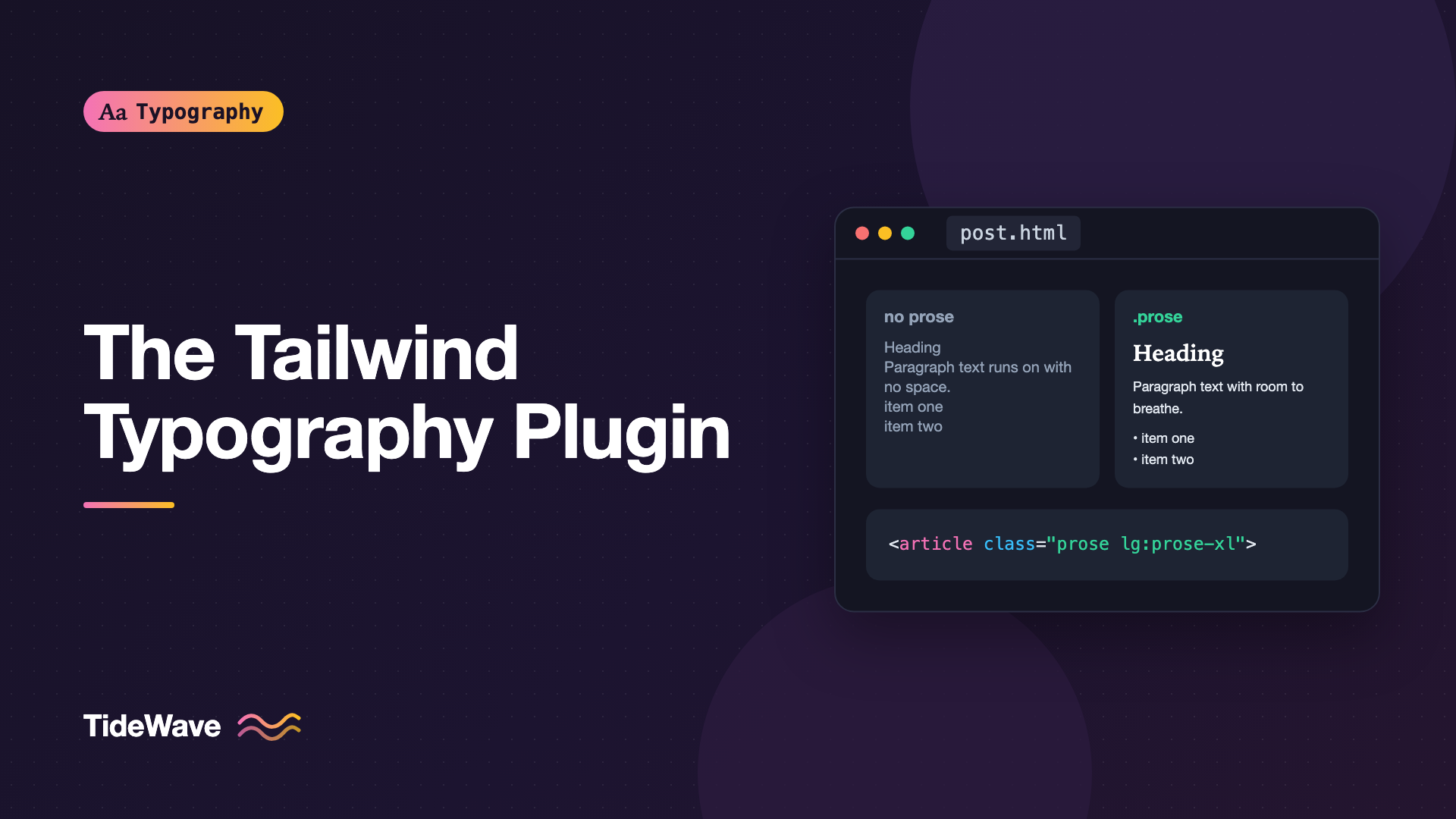
The first time you render a Markdown post in a Tailwind project, it looks broken. Headings are the same size as paragraphs, lists have no bullets, links aren't underlined, and there's no space between anything. That's Tailwind's base reset, Preflight, doing its job: it removes browser defaults so you can style components from scratch. But you can't add utility classes to HTML that comes out of a Markdown parser or a CMS.
The Tailwind Typography plugin (@tailwindcss/typography) solves this. It adds a prose class that styles every element inside it with carefully tuned typographic defaults: sizes, spacing, line heights, list markers, blockquotes, tables, and code. This guide covers installing it, choosing sizes and color themes, customizing individual elements, handling dark mode, and fitting it to your own design.
Installing the Plugin
Install the package as a dev dependency:
npm install -D @tailwindcss/typography
In Tailwind v4, register it in your main stylesheet with the @plugin directive:
@import "tailwindcss";
@plugin "@tailwindcss/typography";
In Tailwind v3, add it to the plugins array in tailwind.config.js:
module.exports = {
  content: ["./src/**/*.{js,jsx,ts,tsx,md,mdx}"],
  plugins: [require("@tailwindcss/typography")],
};
That's all the setup. The plugin doesn't change anything until you use the prose class.
The prose Class
Wrap your rendered content in an element with prose:
export default function PostBody({ html }) {
  return (
    <article
      className="prose mx-auto"
      dangerouslySetInnerHTML={{ __html: html }}
    />
  );
}
Everything inside now has styles: h1 through h4 get a size scale and weights, paragraphs get margins, ul and ol get markers and indentation, blockquote gets a border and italic text, table gets borders and padding, pre and code get a monospace treatment, and images and figures get spacing.
The plugin also sets a max-width of 65ch on the prose element itself. That's a deliberate choice: it keeps line length in the comfortable range for reading. If you're curious why, the ideal line length explains the reasoning behind numbers like this.
If your layout already controls width, remove the cap with max-w-none:
<article class="prose max-w-none">...</article>
Size Modifiers
prose defaults to a base size of 1rem. Size modifiers scale the entire system together, so headings, margins, and line heights stay in proportion:
| Class | Body size | Typical use |
|---|---|---|
prose-sm | 0.875rem | Sidebars, comments, dense documentation |
prose-base | 1rem | The default; resets a larger size at a breakpoint |
prose-lg | 1.125rem | Blog posts and articles on larger screens |
prose-xl | 1.25rem | Editorial features, landing page copy |
prose-2xl | 1.5rem | Short, large-format pieces |
They work with responsive variants, which is the most common pattern for articles:
<article class="prose md:prose-lg lg:prose-xl">...</article>
Because every element is scaled, you get more than a bigger font. The margin above an h2, the indentation of a list, and the padding in a code block all grow too. That's the main advantage over setting text-lg on a wrapper.
Gray Scale Themes
The plugin includes color themes based on Tailwind's gray palettes. Pick the one that matches the rest of your UI:
<article class="prose prose-slate">...</article>
The options are prose-gray (the default), prose-slate, prose-zinc, prose-neutral, and prose-stone. Each sets body text, headings, links, bold text, counters, bullets, rules, quotes, captions, code, and table borders to shades from that palette.
Dark Mode with prose-invert
For dark backgrounds, add prose-invert. It swaps the colors to a set designed for light text on dark surfaces:
<article class="prose prose-slate dark:prose-invert">...</article>
With the dark: variant, the inverted colors apply only when dark mode is active. Light text on dark backgrounds often benefits from small changes in weight and spacing as well as color; typography in dark mode covers what to adjust beyond the palette.
Element Modifiers
You'll often want to change one element without rewriting the whole theme. The plugin provides variants that target elements inside the prose container:
<article
  class="prose prose-slate lg:prose-lg
         prose-headings:font-display prose-headings:tracking-tight
         prose-a:text-sky-700 prose-a:underline-offset-2 hover:prose-a:text-sky-900
         prose-blockquote:border-l-sky-500
         prose-img:rounded-xl
         prose-code:before:content-none prose-code:after:content-none"
>
  ...
</article>
The most useful modifiers:
| Modifier | Targets |
|---|---|
prose-headings: | h1 to h6 together, plus th |
prose-h1: to prose-h4: | A single heading level |
prose-p: | Paragraphs |
prose-lead: | Elements with the lead class |
prose-a: | Links |
prose-strong: | Bold text |
prose-ul:, prose-ol:, prose-li: | Lists and list items |
prose-blockquote: | Blockquotes |
prose-code:, prose-pre: | Inline code and code blocks |
prose-img:, prose-figure:, prose-figcaption: | Images and figures |
prose-table:, prose-th:, prose-td: | Tables |
prose-hr: | Horizontal rules |
The last line of the example above deserves explanation. By default, the plugin wraps inline code in visible backtick characters using ::before and ::after. Many sites prefer a background color instead, so removing the backticks with content-none and adding something like prose-code:rounded prose-code:bg-slate-100 prose-code:px-1 is a very common tweak.
Modifiers are great for a handful of changes. If your class list grows past a few lines, move the customization into CSS.
Customizing with CSS Variables
The plugin's colors are driven by CSS custom properties named --tw-prose-*. You can override them in a class of your own, which keeps the markup clean:
.prose-brand {
  --tw-prose-body: #334155;
  --tw-prose-headings: #0f172a;
  --tw-prose-links: #0369a1;
  --tw-prose-bold: #0f172a;
  --tw-prose-quotes: #1e293b;
  --tw-prose-quote-borders: #38bdf8;
  --tw-prose-code: #be185d;
  --tw-prose-bullets: #94a3b8;

  --tw-prose-invert-body: #cbd5e1;
  --tw-prose-invert-headings: #f8fafc;
  --tw-prose-invert-links: #7dd3fc;
  --tw-prose-invert-quote-borders: #0ea5e9;
}
<article class="prose prose-brand dark:prose-invert">...</article>
The invert variables are what prose-invert switches to, so defining both sets gives you a complete light and dark theme.
Customizing Spacing and Sizes
Colors are easy. Sizes and spacing need more care because the plugin computes them as a coordinated set. You can override them with regular CSS that targets the prose children. In Tailwind v4, put these rules in a layer so they sit at the right point in the cascade:
@layer components {
  .prose :where(h2):not(:where([class~="not-prose"] *)) {
    margin-top: 2.5em;
    font-size: var(--text-h2);
    line-height: var(--text-h2--line-height);
  }

  .prose :where(p, li) {
    text-wrap: pretty;
  }

  .prose :where(h1, h2, h3) {
    text-wrap: balance;
  }
}
The plugin wraps its own selectors in :where() to keep specificity low, so simple selectors like these win without !important. Referencing your theme variables, like --text-h2, keeps prose headings in sync with the custom type scale you configured in Tailwind.
In Tailwind v3, the documented approach is the typography key in the config, which accepts plain CSS-in-JS objects per size:
module.exports = {
  theme: {
    extend: {
      typography: ({ theme }) => ({
        DEFAULT: {
          css: {
            "--tw-prose-links": theme("colors.sky.700"),
            a: {
              textUnderlineOffset: "2px",
              fontWeight: "500",
            },
            "code::before": { content: "none" },
            "code::after": { content: "none" },
          },
        },
        lg: {
          css: {
            h2: { marginTop: "2.25em" },
          },
        },
      }),
    },
  },
  plugins: [require("@tailwindcss/typography")],
};
The DEFAULT key applies to every size, while lg and the others apply only with their modifier.
Opting Out with not-prose
Long-form content often includes embedded components: a newsletter signup, a callout, a product card. Those components have their own Tailwind styles and shouldn't inherit prose margins and colors. Wrap them in not-prose:
<article className="prose lg:prose-lg">
  <MDXContent />
  <div className="not-prose my-10 rounded-2xl bg-slate-900 p-8 text-white">
    <h3 className="text-xl font-semibold">Get new posts by email</h3>
    <p className="mt-2 text-slate-300">One email a week. No tracking.</p>
  </div>
</article>
Everything inside not-prose is ignored by the plugin's selectors. One limitation: you can't nest prose back inside a not-prose block. If you need another prose area, close the first one and start a new container.
Using a Custom Class Name
If prose clashes with an existing class, or you want a name that reads better in your codebase, the plugin accepts a className option. In v3:
plugins: [require("@tailwindcss/typography")({ className: "article" })],
Then use article, article-lg, and article-a: modifiers in place of the prose versions. In v4, plugin options go in a block after the @plugin directive; check the plugin's README for the exact syntax supported by your installed version.
When Not to Use It
The Typography plugin is designed for content you don't control at the element level: Markdown, MDX, rich text from a CMS. It's a poor fit for:
- Application UI. Forms, dashboards, and navigation should use utilities directly. Wrapping them in
proseadds margins you then have to fight. - Heavily designed editorial layouts. If every article has a custom layout, you'll override so much of the plugin that writing your own base styles is simpler.
- Very small snippets. A one-sentence description doesn't need a typographic system.
Common Mistakes
- Forgetting
max-w-noneand wondering why the article won't fill its column. The65chcap is applied to the prose element itself. - Fighting specificity with
!important. The plugin uses:where(), so a plain selector in a layer usually wins. Reach for!importantonly after checking the cascade. - Leaving the default backticks on inline code when your code style uses a background. Remove them with
prose-code:before:content-none prose-code:after:content-none, or in config. - Setting
text-lgon the wrapper instead ofprose-lg. The text grows but the spacing, headings, and list indentation don't. - Putting components inside prose without
not-prose, then adding resets to every component to undo inherited margins. - Only changing light-mode colors. If you override
--tw-prose-*, override the matching--tw-prose-invert-*values as well, or dark mode keeps the plugin's defaults.
Conclusion
The Tailwind Typography plugin gives Markdown and CMS content a complete, readable typographic system with one class. Install it, wrap content in prose, pick a size modifier and gray theme, add dark:prose-invert, and use element modifiers or --tw-prose-* variables for the details that make it match your brand.
Start with the defaults and change as little as possible. They're well balanced, and every override is something you have to maintain. When you do customize, prefer variables and low-specificity CSS tied to your theme tokens over long chains of modifiers, and keep embedded components out of the cascade with not-prose.


