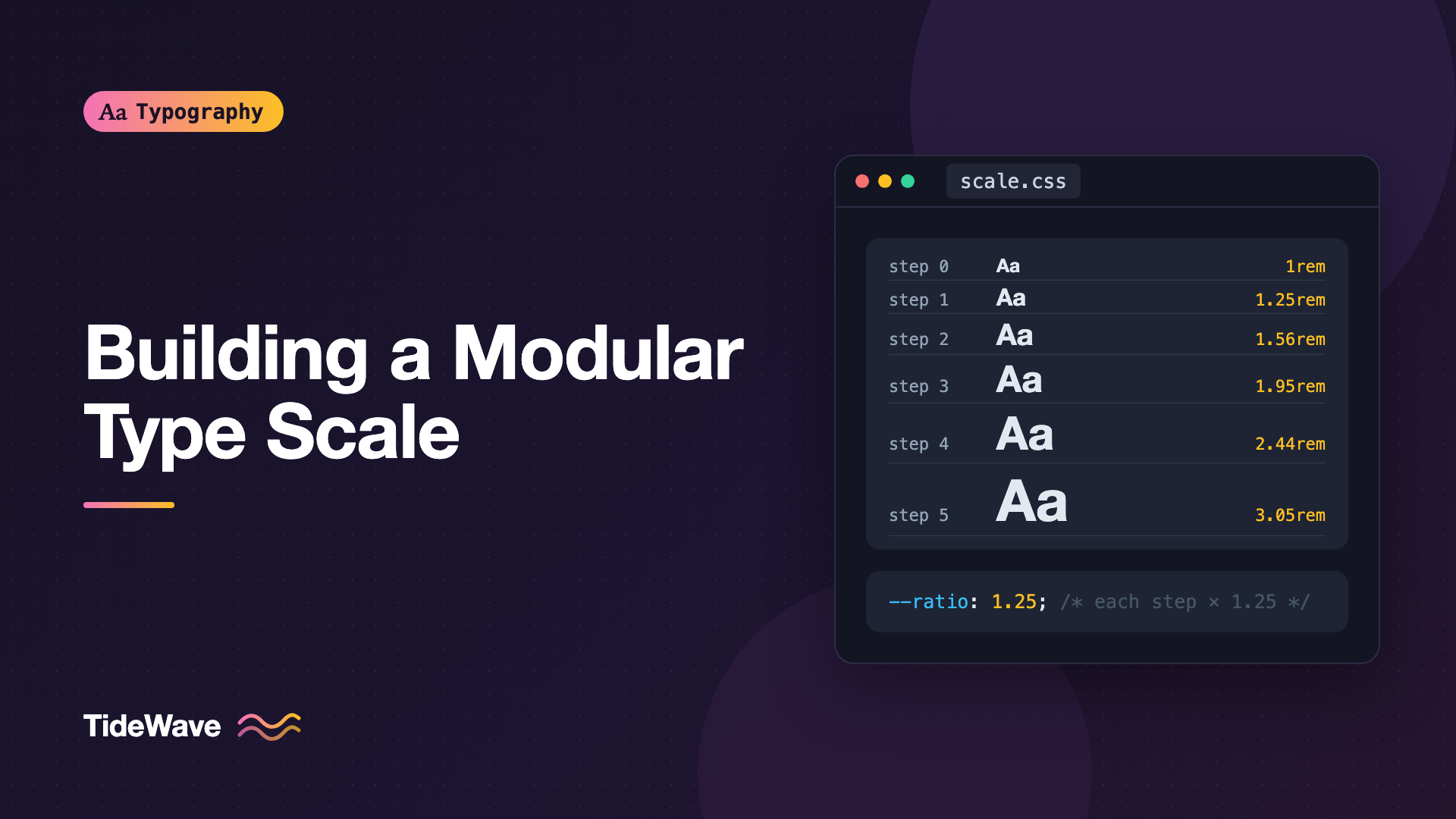
How to Build a Modular Type Scale for Consistent Hierarchy
- Maria
- Typography
- 23 Oct, 2026
Look through the CSS of a project that's been around for a few years and count the distinct font sizes. It's common to find a dozen or more: 13px, 14px, 15px, 17px, 22px, 23px, 28px, 30px. Each was chosen for a good reason in the moment, but together they produce a page where headings don't quite line up into a clear hierarchy and nothing feels related.
A modular type scale fixes this by generating every font size from two numbers: a base size and a ratio. Each step is the previous one multiplied by the ratio. The result is a small, consistent set of sizes that relate to each other in a predictable way, which makes hierarchy clearer and decisions faster.
This guide covers how modular scales work, how to choose a ratio, how to turn the scale into CSS custom properties, and how to make it fluid so it adapts from phones to wide screens.
What a Modular Scale Is
A modular scale is a geometric sequence. You start with a base, usually your body text size, and multiply by a fixed ratio to get the next step up. Divide by the ratio to go down.
With a base of 16px and a ratio of 1.25:
| Step | Calculation | Size (px) | Size (rem) |
|---|---|---|---|
| -2 | 16 ÷ 1.25² | 10.24 | 0.64 |
| -1 | 16 ÷ 1.25 | 12.8 | 0.8 |
| 0 | 16 | 16 | 1 |
| 1 | 16 × 1.25 | 20 | 1.25 |
| 2 | 16 × 1.25² | 25 | 1.563 |
| 3 | 16 × 1.25³ | 31.25 | 1.953 |
| 4 | 16 × 1.25⁴ | 39.06 | 2.441 |
| 5 | 16 × 1.25⁵ | 48.83 | 3.052 |
Each step is 25% bigger than the one before. Because the relationship is constant, the jumps feel even to the eye, even though the absolute differences grow as sizes get larger. That matches how we perceive size: the difference between 12px and 16px is obvious, while 60px and 64px look almost the same.
Why Use a Scale at All
A scale isn't magic, and the ratio itself has no special power over readers. Its value is practical:
- Fewer decisions. Instead of choosing between 22px and 23px, you choose between step 2 and step 3.
- Clear contrast between levels. Every step is a meaningful change in size, so adjacent heading levels never look accidentally similar.
- Consistency across a team. Designers and developers share a vocabulary. "Use step 3" is unambiguous.
- Easier global changes. Change the base or ratio, and the whole hierarchy updates in proportion.
The scale gives you a structure. You still choose which step goes where, and you can break the scale when a specific case needs it.
Choosing a Ratio
Many scale tools label their ratios with names borrowed from musical intervals. The names are just labels. What matters is how much contrast you want between steps.
| Ratio | Common name | Character | Good for |
|---|---|---|---|
| 1.125 | Major second | Very subtle steps | Dense UIs, dashboards, apps |
| 1.2 | Minor third | Gentle, versatile | Documentation, apps, mobile |
| 1.25 | Major third | Clear but restrained | Blogs, general-purpose sites |
| 1.333 | Perfect fourth | Strong contrast | Editorial, marketing on desktop |
| 1.5 | Perfect fifth | Dramatic, big headings fast | Landing pages, posters |
| 1.618 | Golden ratio | Very dramatic | Display-heavy layouts, rarely UI |
Here's how quickly different ratios grow from a 16px base:
| Step | 1.125 | 1.2 | 1.25 | 1.333 | 1.5 |
|---|---|---|---|---|---|
| 0 | 16 | 16 | 16 | 16 | 16 |
| 1 | 18 | 19.2 | 20 | 21.33 | 24 |
| 2 | 20.25 | 23.04 | 25 | 28.43 | 36 |
| 3 | 22.78 | 27.65 | 31.25 | 37.9 | 54 |
| 4 | 25.63 | 33.18 | 39.06 | 50.52 | 81 |
| 5 | 28.83 | 39.81 | 48.83 | 67.34 | 121.5 |
A few guidelines for choosing:
- How many levels do you need? If you need six distinct heading levels plus several small sizes, a large ratio runs out of room fast. A 1.5 ratio puts step 5 at 121.5px.
- How much screen do you have? Large ratios look great on a wide desktop and overwhelm a phone. This is the main reason to make the scale fluid, which is covered below.
- What kind of content is it? Dense interfaces need smaller steps so labels, buttons, and data can differ subtly. Editorial pages can afford big, dramatic headlines.
If you're unsure, start with 1.2 or 1.25. They work for most sites.
Choosing the Base Size
The base is step 0, and it's almost always your body text size. For most sites, that means 1rem, which is 16px in the default browser settings. Some long-form sites use 1.125rem (18px) or larger for more comfortable reading.
Define the base in rem so it respects the user's browser font size preference. If someone sets their default to 20px, your whole scale grows with it. The guide on respecting user font size preferences explains why that matters.
Turning the Scale into CSS
The cleanest approach is a set of custom properties, one per step, with rounded rem values:
:root {
  --step--2: 0.64rem;
  --step--1: 0.8rem;
  --step-0: 1rem;
  --step-1: 1.25rem;
  --step-2: 1.563rem;
  --step-3: 1.953rem;
  --step-4: 2.441rem;
  --step-5: 3.052rem;
}

body {
  font-size: var(--step-0);
}

h1 {
  font-size: var(--step-5);
}

h2 {
  font-size: var(--step-4);
}

h3 {
  font-size: var(--step-3);
}

h4 {
  font-size: var(--step-2);
}

small,
.caption {
  font-size: var(--step--1);
}
Naming the properties by step number rather than by element (--step-3 rather than --h3-size) keeps the scale independent of how you use it. A card title might use --step-2 without being an h4.
Calculating Steps in CSS
Recent browsers support the pow() function, so you can compute steps from a base and ratio directly:
:root {
  --ratio: 1.25;
  --base: 1rem;
  --step-1: calc(var(--base) * var(--ratio));
  --step-2: calc(var(--base) * pow(var(--ratio), 2));
  --step-3: calc(var(--base) * pow(var(--ratio), 3));
  --step-4: calc(var(--base) * pow(var(--ratio), 4));
  --step-5: calc(var(--base) * pow(var(--ratio), 5));
  --step--1: calc(var(--base) / var(--ratio));
}
This makes experimenting easy: change --ratio and the whole scale updates. Check the MDN page for pow() for current browser support before relying on it. If you need older browsers, use the precomputed values, or use repeated multiplication with calc(), which works everywhere.
Generating the Scale with JavaScript
If your design tokens live in JSON or a build script, generate the values once:
function modularScale({ base = 1, ratio = 1.25, min = -2, max = 5 }) {
  const steps = {};
  for (let i = min; i <= max; i++) {
    const value = base * Math.pow(ratio, i);
    steps[`step-${i}`] = `${Number(value.toFixed(3))}rem`;
  }
  return steps;
}

console.log(modularScale({ ratio: 1.2 }));
Rounding to three decimals keeps the output readable without introducing visible errors.
Making the Scale Fluid
A ratio that looks right on a 1440px screen is usually too dramatic on a 375px phone. The headline that spans a desktop hero at 50px wraps into four or five lines on mobile.
The fix is to use two scales: a smaller base and ratio for narrow screens, a larger base and ratio for wide ones, and interpolate between them with clamp(). For example:
- Mobile (320px): base 16px, ratio 1.2
- Desktop (1280px): base 18px, ratio 1.333
Each step gets a minimum from the mobile scale, a maximum from the desktop scale, and a preferred value that grows linearly with the viewport:
:root {
  --step--1: clamp(0.83rem, 0.83rem + 0.02vw, 0.84rem);
  --step-0: clamp(1rem, 0.958rem + 0.208vw, 1.125rem);
  --step-1: clamp(1.2rem, 1.1rem + 0.499vw, 1.5rem);
  --step-2: clamp(1.44rem, 1.254rem + 0.932vw, 2rem);
  --step-3: clamp(1.728rem, 1.416rem + 1.561vw, 2.665rem);
  --step-4: clamp(2.074rem, 1.581rem + 2.464vw, 3.552rem);
}
Small steps barely change, while large headings grow significantly. That's exactly what you want: body text stays comfortable everywhere, and headings get room to breathe on big screens.
Because each preferred value includes a rem component, the text still responds to browser zoom and font size preferences. A pure vw value would not. The full method for calculating these values is covered in how to build fluid typography.
Mapping the Scale to Elements
A scale gives you sizes, not a hierarchy. You still need to decide which step each element uses, and size is only one part of that. Weight, color, case, and spacing all contribute, as the guide on creating visual hierarchy with size, weight, and color explains.
A typical mapping for an article page:
| Element | Step | Notes |
|---|---|---|
Page title (h1) | 5 | Often the only use of the top step |
Section (h2) | 3 | Skipping a step makes sections stand out |
Subsection (h3) | 2 | Close to body size, so weight does more work |
| Lead paragraph | 1 | Slightly larger than body |
| Body | 0 | The base |
| Captions, meta | -1 | Never below about 12px equivalent |
You don't need to use every step, and you don't need to assign them in strict order. Skipping a step between h1 and h2 often produces a clearer hierarchy than using adjacent steps.
Line Height Across the Scale
Larger text needs proportionally less line height. A simple approach is to set line height per step range:
body {
  line-height: 1.6;
}

h1,
h2 {
  line-height: 1.1;
}

h3,
h4 {
  line-height: 1.25;
}
Another option is a calculated line height that tightens as size grows, such as line-height: calc(1em + 0.5rem). At a 16px body size it gives 1.5; at 48px it gives about 1.17.
When to Break the Scale
A scale is a tool, not a law. Common reasons to step outside it:
- A single hero headline that needs to be much larger than anything else on the site.
- Fonts with unusual proportions. A typeface with a small x-height may need body text slightly larger than your base.
- UI components with fixed constraints, like a tiny badge or a dense table cell.
When you break the scale, do it deliberately and document why. If you find yourself adding many exceptions, your ratio may be wrong for the content.
Common Mistakes
- Using a large ratio on mobile. A 1.5 or golden-ratio scale makes phone headlines enormous. Use a smaller ratio for narrow screens.
- Defining too many steps. Most sites need around six to eight sizes. More than that and you've rebuilt the random sizes you started with.
- Using
pxfor the scale. Pixel values ignore user font size settings. Userem. - Pure viewport units in fluid scales.
font-size: 4vwdoesn't respond to zoom properly. Always include aremcomponent insideclamp(). - Treating the scale as hierarchy. Size alone doesn't create hierarchy. Pair it with weight, color, and spacing.
- Over-precise values. Sizes like
1.953125remadd nothing. Round to two or three decimals.
Conclusion
A modular type scale replaces dozens of arbitrary font sizes with a handful of related ones, generated from a base size and a ratio. Smaller ratios like 1.2 suit dense interfaces and mobile; larger ones like 1.333 suit editorial and desktop layouts. Store the steps as custom properties named by step number, and they become a shared vocabulary across design and code.
To put it into practice, start with a 1rem base and a ratio of 1.2 or 1.25, map the steps to your elements, and test with real content. Then make it fluid with clamp() so small screens get a gentler scale and large screens get more contrast. Once it's in place, you'll rarely need to invent a new font size again.


