Creating Visual Hierarchy with Size, Weight, and Color
- Maria
- Typography
- 23 Oct, 2026
Picture a product card where the name, price, rating, description, and button label are all 16px, regular weight, and dark gray. Every piece of information is there, but nothing tells you where to look first. You end up reading the card top to bottom like a paragraph, which is exactly what nobody wants to do with a product card.
Visual hierarchy is the order in which a reader notices and processes elements on a page. In typography it's built mostly from three tools: size, weight, and color. Each one can push an element forward or back. Used together with some restraint, they let a reader understand the structure of a page before reading a single word.
This guide covers how each tool works, how to combine them, and how to build a hierarchy that holds up across components and pages.
Start with a Ranking
Before touching CSS, decide what matters most. For any screen or component, list the text elements and rank them by importance to the reader, not to the business or the designer.
For the product card above, a reasonable ranking might be:
- Product name
- Price
- Primary action ("Add to cart")
- Rating
- Short description
- Shipping note, SKU, other metadata
Most layouts only need three or four distinct levels. If you try to give six elements six different treatments, the differences become too small to notice, and the hierarchy flattens again. Group your ranked list into tiers: primary, secondary, tertiary, and sometimes a fourth for fine print.
Size: The Loudest Signal
Size is the most obvious way to show importance. Larger text gets noticed first, almost regardless of anything else on the page.
The challenge is making size differences large enough to register. A heading at 18px above body text at 16px looks like a mistake rather than a deliberate choice. As a rough guide, adjacent levels usually need a difference of at least 20 to 25 percent to read as clearly distinct.
A type scale handles this for you by generating sizes with a consistent ratio. If you don't have one yet, see how to build a modular type scale.
:root {
  --step--1: 0.833rem;
  --step-0: 1rem;
  --step-1: 1.2rem;
  --step-2: 1.44rem;
  --step-3: 1.728rem;
}

.card__title {
  font-size: var(--step-2);
}

.card__price {
  font-size: var(--step-1);
}

.card__meta {
  font-size: var(--step--1);
}
Size Has Limits
Relying on size alone causes problems:
- Space runs out. In a compact component, you can't make the most important thing three times bigger.
- Too many sizes add noise. Five sizes inside one card make it look busy.
- Small text has a floor. Below about 12px, text becomes hard to read for many people. You can't keep shrinking lower-priority items.
That's why weight and color matter. They let you create distinct levels within a narrow size range.
Weight: Emphasis Without Extra Space
Font weight changes how dark and dense text looks without changing its size much. A bold label next to a regular one stands out clearly, even at the same size.
Weight works best with clear jumps. Regular (400) to semibold (600) or bold (700) is easy to see. Regular to medium (500) is often too subtle, especially on low-resolution screens.
.card__title {
  font-size: var(--step-2);
  font-weight: 700;
}

.card__price {
  font-size: var(--step-1);
  font-weight: 600;
}

.card__description {
  font-size: var(--step-0);
  font-weight: 400;
}
Weight Can Go Down Too
Hierarchy isn't only about making important things heavier. Large headings often look better at a lighter weight than you'd expect, because size already gives them prominence. A 48px heading at weight 700 can feel heavy-handed where 600 reads as confident.
Similarly, an all-bold interface loses contrast. If every label, button, and title is semibold, nothing stands out. Keep bold for the elements that actually need it.
The guide to font weights from hairline to black covers how each weight behaves at different sizes.
Color: Pushing Elements Back
Color works in two ways for hierarchy: value (how light or dark the text is against its background) and hue (which color it is).
Value Does Most of the Work
The most practical use of color for hierarchy is lowering contrast on secondary text. Primary text gets your darkest color; secondary text gets a mid-gray; tertiary text gets a lighter gray.
:root {
  --text-primary: #111827;
  --text-secondary: #4b5563;
  --text-tertiary: #6b7280;
}

.card__title {
  color: var(--text-primary);
}

.card__description {
  color: var(--text-secondary);
}

.card__meta {
  color: var(--text-tertiary);
}
De-emphasizing works better than emphasizing. Instead of making the important thing bigger and bolder, you can often make everything else quieter. This keeps the overall page calmer.
Accessibility Sets the Floor
There's a hard limit on how light text can go. WCAG Success Criterion 1.4.3, Contrast (Minimum), requires a contrast ratio of at least 4.5:1 for normal text and 3:1 for large text. WCAG defines large text as at least 18 point, or 14 point bold, which is roughly 24px regular or 18.66px bold in CSS pixels.
On a white background, #6b7280 passes 4.5:1, but many lighter grays don't. Always check your tertiary gray, because that's the one most likely to fail. Hierarchy through color must stay inside these limits; a level that nobody can read isn't a level.
Hue Signals Meaning
Hue is better for meaning than for rank. A red price signals a sale; a green status signals success; a blue underlined phrase signals a link. Using hue to rank ordinary text tends to confuse readers, because they look for a meaning that isn't there.
When you do use hue, don't rely on it alone. About 1 in 12 men and 1 in 200 women have some form of color vision deficiency, so pair color with another cue, such as weight, an icon, or an underline.
Combining the Three
The real skill is combining size, weight, and color so each level is distinct without every element shouting. A useful rule: change one or two properties between adjacent levels, not all three.
| Level | Size | Weight | Color | Example |
|---|---|---|---|---|
| Primary | Large | Bold | Primary | Page title, card title |
| Secondary | Medium | Semibold | Primary | Section heading, price |
| Body | Base | Regular | Primary | Paragraphs |
| Supporting | Base | Regular | Secondary | Descriptions, subtitles |
| Meta | Small | Regular | Tertiary | Dates, captions, notes |
Notice how each step changes only one or two things. Body and supporting text are the same size and weight and differ only in color. Meta text drops size and color but keeps the same weight.
Here's the product card put together:
<article class="product">
  <h3 class="product__name">Linen Overshirt</h3>
  <p class="product__price">$68.00</p>
  <p class="product__desc">
    Relaxed fit in washed European linen, with two chest pockets.
  </p>
  <p class="product__meta">Free returns · Ships in 2–3 days</p>
  <button class="product__action">Add to cart</button>
</article>
.product {
  display: grid;
  gap: 0.375rem;
  font-family: system-ui, sans-serif;
  color: var(--text-primary);
}

.product__name {
  font-size: var(--step-2);
  font-weight: 700;
  line-height: 1.2;
}

.product__price {
  font-size: var(--step-1);
  font-weight: 600;
}

.product__desc {
  color: var(--text-secondary);
  line-height: 1.5;
}

.product__meta {
  font-size: var(--step--1);
  color: var(--text-tertiary);
}

.product__action {
  margin-top: 0.75rem;
  font-weight: 600;
}
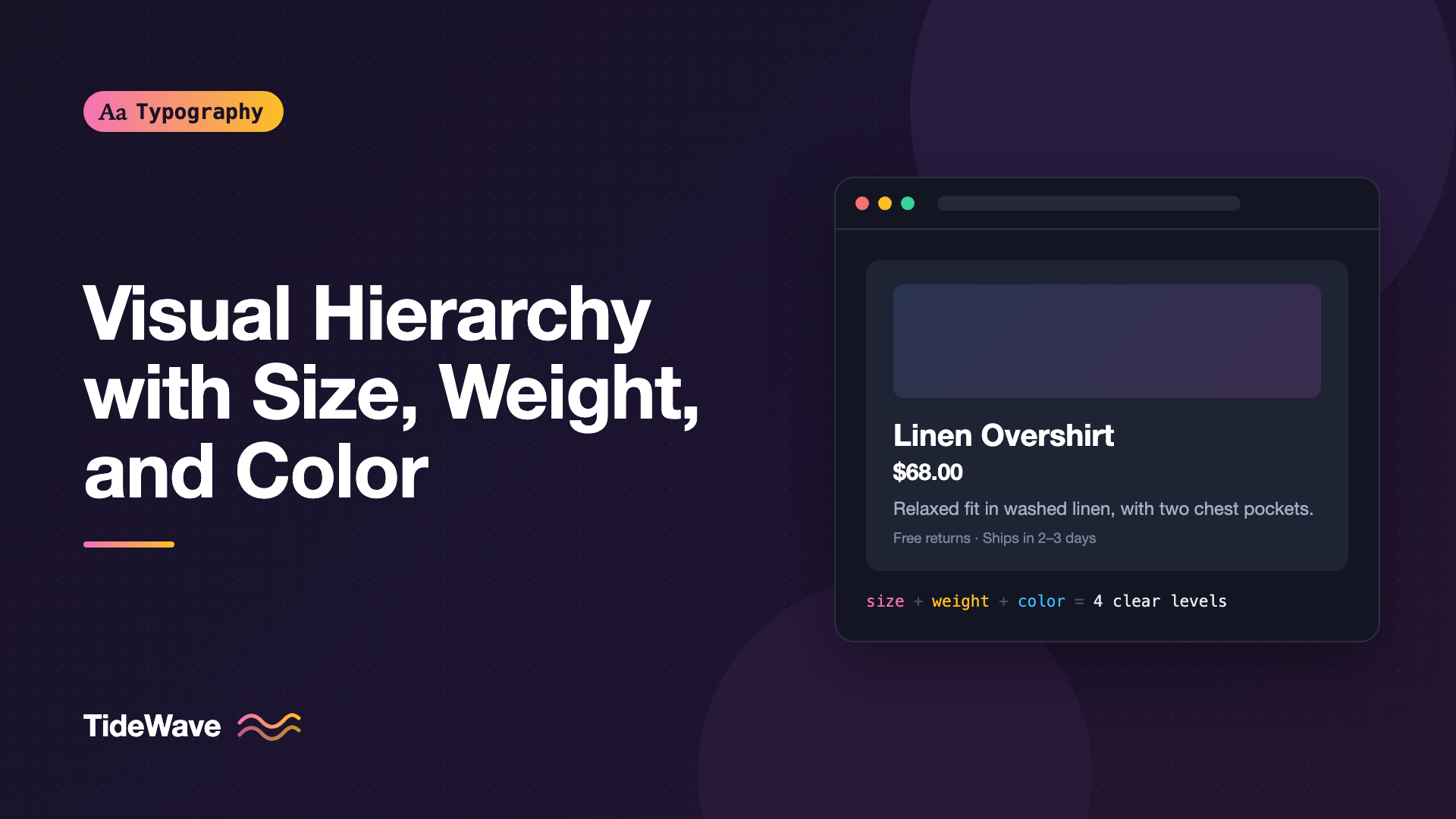
The name is the largest and boldest. The price is smaller but still heavy. The description drops to regular weight and secondary color. The meta drops in size and color. Four levels, clearly ranked, without anything feeling loud.
Supporting Tools
Size, weight, and color carry most of the load, but other properties help:
- Spacing: elements with more space around them feel more important. Grouping related items tightly also clarifies which supporting text belongs to which heading.
- Case and tracking: small uppercase labels with a little letter spacing make good category tags and eyebrows above headings.
- Position: readers in left-to-right languages tend to start at the top left. Placing the most important item there reinforces the hierarchy.
- Typeface: a contrasting display face for headings adds another layer of distinction.
The broader principle behind all of this is contrast. The post on typographic contrast covers the full set of contrast types and how they interact.
Testing Your Hierarchy
A few quick checks reveal whether your hierarchy is working:
- The squint test. Squint or blur your eyes until you can't read the words. The elements you still notice first should be the ones you ranked highest.
- The grayscale test. View the design in grayscale. If the hierarchy collapses, you're relying on hue too much.
- The five-second test. Show the page to someone for five seconds, then ask what it was about and what they could do. If they can't say, the primary level isn't strong enough.
- The real content test. Replace placeholder text with your longest real titles and descriptions. Hierarchies that work with "Lorem ipsum" often fail with a 70-character product name.
Tip
A simple way to blur a page for the squint test is to temporarily add filter: blur(4px) to the body in DevTools.
Common Mistakes
- Too many levels. If every element gets its own treatment, the differences are too small to see. Stick to three or four tiers.
- Size differences that are too small. An 18px heading over 16px body text looks accidental. Make adjacent levels clearly different.
- Bolding everything. When most text is bold, bold stops meaning anything.
- Changing size, weight, and color at every step. Adjacent levels usually need only one or two differences.
- Gray text that fails contrast. Tertiary text still needs to meet 4.5:1 for normal-size text.
- Using hue to rank ordinary text. Readers read color as meaning. Use value for rank and hue for status or links.
Conclusion
Visual hierarchy tells readers what to look at first, next, and last. Size is the loudest tool, weight creates emphasis in tight spaces, and color, especially lighter grays, pushes supporting text into the background. Rank your content first, group it into three or four tiers, then change only one or two properties between adjacent tiers.
Next time a layout feels flat, resist the urge to make the important element bigger. Try making the less important elements quieter instead, check every gray against the contrast minimum, and run a quick squint test. Most hierarchy problems become obvious the moment you blur the details away.


