Font Weights Explained: From Hairline to Black
- Maria
- Typography
- 23 Oct, 2026
You set a heading to font-weight: 600, and it renders exactly as bold as 700. Or you load a font from a CDN, set font-weight: 300, and get regular text. Or a designer asks for "Medium," and the font you're using calls its styles "Book," "Roman," and "Demi." Font weight seems like the simplest property in typography, but the naming is inconsistent and the browser's matching rules aren't obvious.
Font weight is the thickness of a typeface's strokes relative to its height. A typeface family usually includes several weights, from very thin hairline styles to very heavy black ones. CSS gives each weight a number, which smooths over the naming chaos, as long as you understand how those numbers map to the files you actually load.
This guide covers the standard weight scale, what the names mean, how browsers choose a weight when the exact one isn't available, how fake bold happens, and how to use weight well in a real interface.
What Weight Actually Measures
Weight is about the ratio of stroke thickness to the size of the letter. As a typeface gets heavier, its stems thicken, its counters (the enclosed spaces in letters like "o" and "e") get smaller, and letters usually get a little wider to make room for the extra ink.
A well-designed family doesn't just add an outline around the regular style. Each weight is drawn so that it holds together: the type designer adjusts the joins where strokes meet, the size of counters, the spacing, and sometimes the shapes themselves. That's why a real bold looks crisp while a computer-generated one looks smeared.
Weight is separate from two related ideas:
- Width is how wide or condensed the letters are. A family might have Condensed Bold and Extended Light.
- Grade is a subtler adjustment of stroke thickness that doesn't change the width of letters, so text doesn't reflow. Some variable fonts expose it as a
GRADaxis.
The Numeric Weight Scale
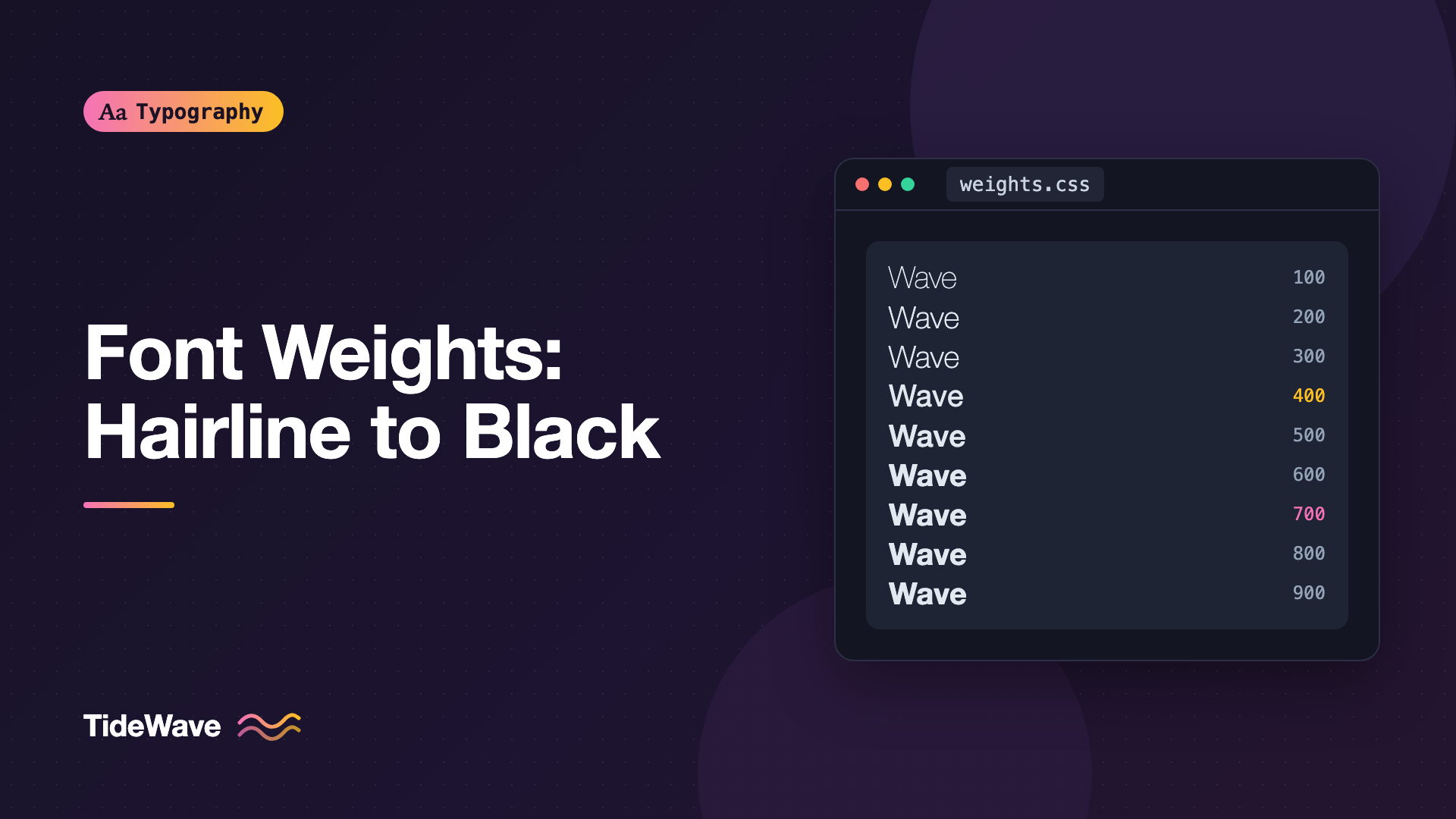
CSS uses a numeric scale where 400 is normal and 700 is bold. The other hundreds have conventional names that most foundries roughly follow:
| Value | Common name | Other names you'll see |
|---|---|---|
| 100 | Thin | Hairline |
| 200 | Extra Light | Ultra Light |
| 300 | Light | |
| 400 | Regular | Normal, Book, Roman |
| 500 | Medium | |
| 600 | Semibold | Demibold |
| 700 | Bold | |
| 800 | Extra Bold | Ultra Bold, Heavy |
| 900 | Black | Heavy |
The names are conventions, not a standard. One foundry's "Heavy" might be 800 and another's might be 900. Some families have a "Book" weight that sits a little lighter than Regular, which might be mapped to 350 or 400. Some add an "Extra Black" beyond 900. When you load a font, the numbers you assign in @font-face define how CSS sees it, regardless of the name on the file.
The keywords normal and bold are aliases for 400 and 700:
p {
  font-weight: normal; /* 400 */
}

strong {
  font-weight: bold; /* 700 */
}
Modern CSS also accepts any number from 1 to 1000, not just multiples of 100. That only makes a visible difference with variable fonts, which are covered below.
Declaring Weights in @font-face
When you self-host a static font family, each weight is a separate file, and you tell the browser which number each file represents:
@font-face {
  font-family: "Source Serif";
  src: url("/fonts/SourceSerif-Regular.woff2") format("woff2");
  font-weight: 400;
  font-style: normal;
  font-display: swap;
}

@font-face {
  font-family: "Source Serif";
  src: url("/fonts/SourceSerif-Semibold.woff2") format("woff2");
  font-weight: 600;
  font-style: normal;
  font-display: swap;
}

@font-face {
  font-family: "Source Serif";
  src: url("/fonts/SourceSerif-Bold.woff2") format("woff2");
  font-weight: 700;
  font-style: normal;
  font-display: swap;
}
All three rules use the same font-family name. That's important. If you name them "Source Serif Regular," "Source Serif Semibold," and so on, you lose the browser's ability to switch weights automatically when you set font-weight, and strong tags inside paragraphs won't pick up the bold file.
Only the files that are actually used get downloaded, so declaring a weight you rarely use costs nothing until a page needs it.
Loading Weights from Google Fonts
With Google Fonts, you choose weights in the URL. Request only what you use:
<link
  href="https://fonts.googleapis.com/css2?family=Source+Serif+4:wght@400;600;700&display=swap"
  rel="stylesheet"
/>
If you set font-weight: 300 in your CSS but didn't request 300, the browser will fall back to the closest available weight, which is the next section.
How Browsers Choose a Weight
When the exact weight you ask for isn't available, the CSS font matching algorithm picks the closest one using a specific set of rules:
- If the desired weight is between 400 and 500, the browser first looks for weights from the target up to 500, then weights below the target (going lighter), then weights above 500 (going heavier).
- If the desired weight is below 400, it looks for lighter weights first, closest first, then heavier ones.
- If the desired weight is above 500, it looks for heavier weights first, closest first, then lighter ones.
That explains several common surprises:
| You ask for | You've loaded | You get | Why |
|---|---|---|---|
| 600 | 400, 700 | 700 | Above 500, so heavier weights win |
| 300 | 400, 700 | 400 | Nothing lighter, so it goes up to 400 |
| 500 | 400, 700 | 400 | 400–500 range checks lighter before heavier |
| 800 | 400, 700 | 700 | Nothing heavier, so it falls back down |
So if your font-weight: 600 headings look identical to your bold ones, the font probably doesn't have a 600 file loaded. The browser rounded up.
Faux Bold and font-synthesis
If a family has no file heavy enough, and the requested weight is bold (600 or higher), browsers may synthesize a bold by thickening the outlines of the regular style. The result is usually smudgy: counters fill in, letters crowd each other, and details like serifs blur.
Faux bold happens most often with:
- Fonts loaded with only a regular weight
@font-facerules that use different family names for each weight- Headings in a display font that only ships one style
- Default browser styles, since
h1throughh6,th,b, andstrongare bold by default
You can turn synthesis off so mismatches are visible instead of hidden:
html {
  font-synthesis: none;
}

/* Or only for weight, while still allowing synthetic small caps */
html {
  font-synthesis-weight: none;
}
With synthesis off, a missing bold renders in the regular weight. That's a clear signal to either load the right file or remove the bold styling. For a single-weight display font, it's often best to explicitly set font-weight: 400 on the headings that use it.
Variable Fonts and Continuous Weight
A variable font with a weight axis (wght) contains the entire range in one file. You declare a range in @font-face, and every value inside it is available:
@font-face {
  font-family: "Inter";
  src: url("/fonts/InterVariable.woff2") format("woff2");
  font-weight: 100 900;
  font-display: swap;
}

h1 {
  font-weight: 750;
}

.lead {
  font-weight: 350;
}
This lets you tune weights precisely: a slightly lighter body for a font that feels heavy on screen, or a heading weight between semibold and bold. Don't let the freedom turn into dozens of one-off values, though. Pick a few weights and use them consistently. For a full walkthrough of axes and loading, read variable fonts in CSS.
Using Weight Well
Pick a Small Set
Most interfaces need three or four weights at most:
- Regular (400) for body text
- Medium (500) or Semibold (600) for UI labels, buttons, and emphasis in dense interfaces
- Bold (700) for headings and strong emphasis
- Optionally a Light (300) or Black (900) for large display text
Each additional static weight is another download, and too many weights make hierarchy muddy. If two weights are hard to tell apart at a glance, you probably only need one of them.
Match Weight to Size
Thin weights only work at large sizes. At 14px, a 200-weight font has strokes that may be less than a device pixel wide, which makes text faint and hard to read, especially on low-density screens. As a rule of thumb, keep body text at 400 or heavier, and save Thin and Extra Light for headlines set at large sizes.
The reverse also applies. Very heavy weights at small sizes close up their counters, so "e" and "a" start to look like blobs. Black weights belong in short display text, not paragraphs.
.hero-title {
  font-size: clamp(3rem, 8vw, 6rem);
  font-weight: 200; /* thin works at this size */
  letter-spacing: -0.02em;
}

.caption {
  font-size: 0.8125rem;
  font-weight: 500; /* slightly heavier helps small text */
}
Use Weight for Hierarchy
Weight is one of the strongest tools for hierarchy, often more effective than size alone. A bold label next to regular text reads as a heading even when both are the same size. The post on creating visual hierarchy with size, weight, and color shows how to combine these.
Be careful with contrast, though. A Light weight in a mid-gray color might technically pass a contrast ratio check while still being hard to read, because thin strokes cover fewer pixels. Contrast and weight work together.
Adjust for Dark Mode
Light text on a dark background tends to look heavier than dark text on a light background, because the bright strokes appear to bleed into the surrounding dark area. Many designers reduce the weight slightly in dark themes. With a variable font, that's one line:
@media (prefers-color-scheme: dark) {
  body {
    font-weight: 350;
  }
}
There's more on this in typography in dark mode.
Relative Weights: bolder and lighter
CSS also has two relative keywords, bolder and lighter. They compute a weight based on the parent's weight, using fixed thresholds rather than a simple step:
| Parent weight | bolder gives | lighter gives |
|---|---|---|
| 100–349 | 400 | 100 |
| 350–549 | 700 | 100 |
| 550–749 | 900 | 400 |
| 750–899 | 900 | 700 |
| 900+ | No change | 700 |
Browsers' default stylesheets use bolder for b and strong. That means strong inside a 600-weight heading becomes 900, which may not be what you want if you haven't loaded a 900 file. Setting an explicit numeric value avoids surprises:
strong,
b {
  font-weight: 700;
}
Common Mistakes
- Using different family names for each weight. Register every weight under one
font-familyname sofont-weightandstrongswitch files correctly. - Setting weights you didn't load. A
500with only 400 and 700 loaded renders as 400. Check the network panel to see which files actually download. - Living with faux bold. If headings look blurry or heavy, check whether the browser is synthesizing them.
font-synthesis: nonemakes the problem obvious. - Thin body text. Weights below 400 at body sizes hurt readability, especially on lower-density screens and for readers with low vision.
- Too many weights. Loading six static weights slows the page and blurs hierarchy. Three or four distinct steps are enough for most sites.
- Trusting the name over the number. "Heavy" and "Book" mean different things in different families. Check how the font is mapped before you write CSS against it.
Conclusion
Font weight measures stroke thickness, and CSS maps the inconsistent names foundries use onto a numeric scale where 400 is regular and 700 is bold. When the weight you ask for isn't loaded, browsers follow predictable rules to find the nearest one, and if nothing bold enough exists, they may fake it.
In practice, register every weight under a single family name, load only the weights your design uses, turn off synthesis if you want to catch mistakes, and match weight to size: light weights for big text, regular or heavier for body copy. A small, deliberate set of weights will do more for your hierarchy than a long menu of options.


