Typographic Contrast: Making Text Elements Stand Apart
- Maria
- Typography
- 23 Oct, 2026
You've probably seen a page where the designer clearly tried to make the subheadings stand out, but they don't. They're a little bigger, a little bolder, maybe a slightly different gray. Each change on its own is real, but together they're so timid that the eye glides straight past them. The page looks flat, even though nothing is technically the same.
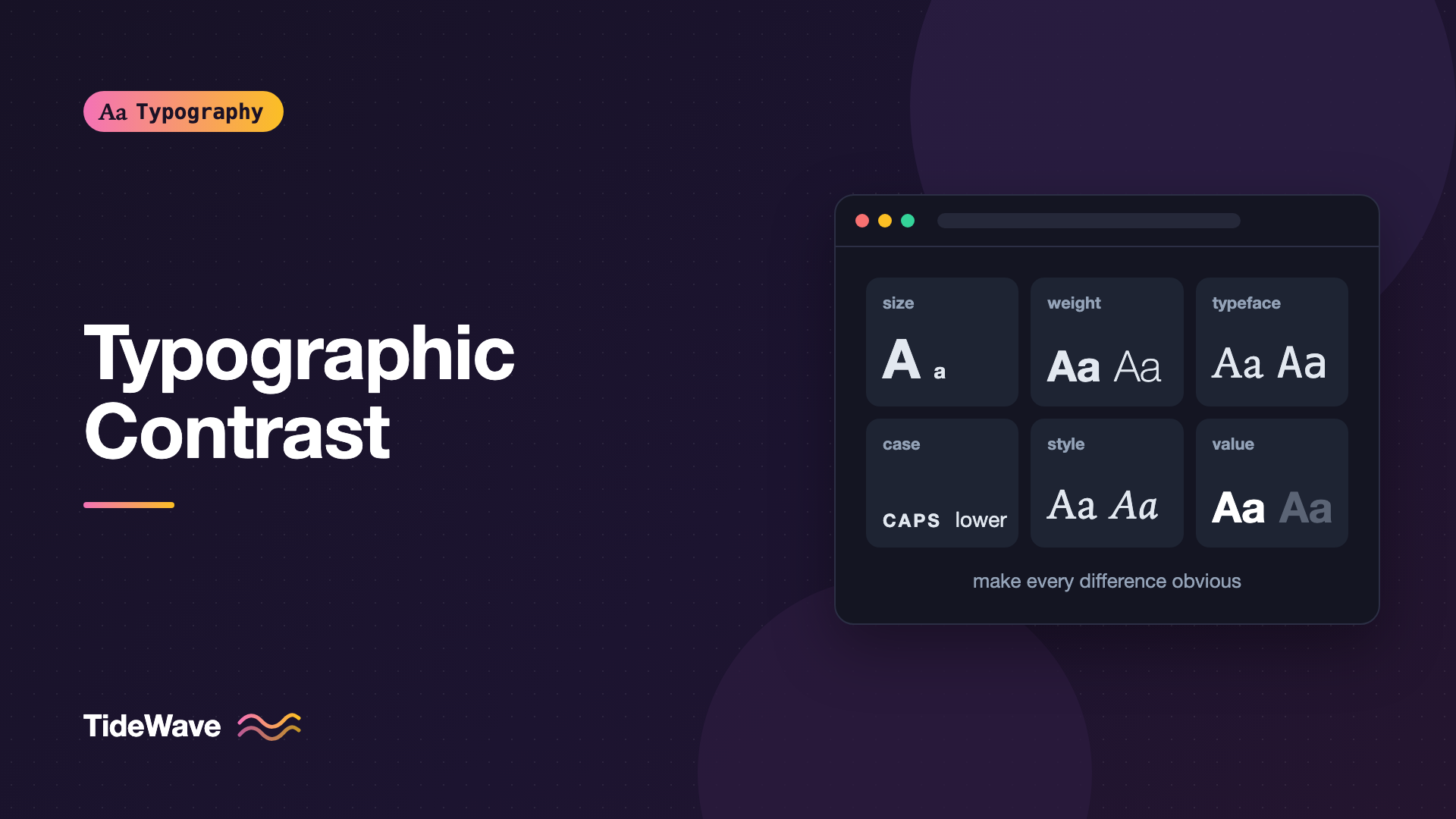
Typographic contrast is the visible difference between text elements. It's what lets a reader instantly separate a headline from body copy, a label from a value, or a quote from the text around it. Contrast isn't only about color. It can come from size, weight, typeface, case, width, style, spacing, and position, and the most effective designs combine a few of these deliberately.
This guide breaks down the kinds of typographic contrast, explains why weak contrast is often worse than none, and shows how to apply each kind in CSS.
Why Contrast Matters
Readers use contrast to answer questions before they've read anything:
- What is this page about?
- Where does each section start?
- Which text is the main content and which is supporting detail?
- What can I click?
When contrast is clear, these answers are immediate. When it isn't, readers have to read to find structure, which is slow and tiring. Contrast is the raw material of hierarchy: the order of importance on the page. The guide on creating visual hierarchy with size, weight, and color covers how to rank elements into levels; this post focuses on the differences themselves.
Strong Contrast, or None at All
The most important principle is simple: if two elements are different, make the difference obvious. A small difference reads as a mistake. A clear difference reads as intent.
Compare these:
| Pairing | Effect |
|---|---|
| 16px body, 17px subheading | Looks like an error |
| 16px body, 24px subheading | Clearly a different element |
| Weight 400 body, weight 500 label | Barely visible on many screens |
| Weight 400 body, weight 700 label | Clearly emphasized |
#333 body, #444 caption | Indistinguishable to most readers |
#1f2937 body, #6b7280 caption | Clearly secondary, still readable |
The same logic applies in reverse. If two elements are meant to be the same, make them exactly the same. Similar-but-not-identical styling creates noise.
The Kinds of Typographic Contrast
Size
Size is the most powerful and most familiar form of contrast. Large text demands attention. The key is making steps big enough. Using a type scale with a consistent ratio keeps size contrast proportional across the page:
.title {
  font-size: 2.5rem;
}

.body {
  font-size: 1rem;
}
A 2.5 times difference is unmistakable. Within a component, even a 1.25 times jump can be enough when combined with weight.
Weight
Weight contrast lets you separate elements without changing size, which is useful in compact spaces like table headers, labels, and navigation. Skip at least one step in the weight scale between contrasting elements, such as 400 and 600 or 400 and 700.
.stat__label {
  font-weight: 400;
}

.stat__value {
  font-weight: 700;
  font-variant-numeric: tabular-nums;
}
Light weights can create contrast too. A very large heading at weight 300 beside bold small labels contrasts in both size and weight, in opposite directions.
Color and Value
Value, meaning lightness or darkness, is the most common way to de-emphasize secondary text. Hue is better for signaling meaning, like links, errors, or success states.
Every color choice has to respect WCAG contrast minimums: 4.5:1 for normal text and 3:1 for large text (at least 18pt, or 14pt bold). This is luminance contrast between text and background, and it's a separate concept from typographic contrast between elements, but the two interact. Pushing secondary text lighter to increase typographic contrast eventually breaks the accessibility minimum, so find the lightest gray that still passes and stop there.
:root {
  --ink: #111827;
  --ink-muted: #4b5563;
  --accent: #0f62fe;
}
Typeface
Using two different typefaces is a strong form of contrast. The classic example is a serif for headings and a sans for body text, or the reverse. Contrast in classification is easy to see, but the two fonts still need to harmonize in proportions. The guide on how to pair fonts covers that balance.
h1,
h2 {
  font-family: "Fraunces", Georgia, serif;
}

body {
  font-family: "Inter", system-ui, sans-serif;
}
Case
Uppercase text stands out from mixed-case text, even at small sizes. It works well for short labels, eyebrows above headlines, and table headers. Uppercase needs extra letter spacing to stay readable and is hard to read in long runs, so keep it short.
.eyebrow {
  font-size: 0.75rem;
  font-weight: 600;
  text-transform: uppercase;
  letter-spacing: 0.1em;
}
Style
Italic contrasts with upright text in a softer way. It's ideal for emphasis within a sentence, captions, pull quotes, and bylines. Because italics are designed to work inside running text, they add contrast without breaking the flow.
Width
Condensed and extended widths create contrast without changing size or weight. A condensed headline can be large without taking much horizontal space; an extended label can look distinctive at a small size. Variable fonts with a width axis make this easy with font-stretch:
.headline {
  font-family: "Roboto Flex", sans-serif;
  font-stretch: 75%;
  font-weight: 800;
}
Spacing and Position
Space is a form of contrast too. An element surrounded by generous whitespace stands out from a dense block. Indentation, alignment changes, and a different measure all help, which is why a pull quote set wider or narrower than the body text is easy to spot.
.pull-quote {
  margin-block: 2.5rem;
  margin-inline: -2rem;
  padding-inline-start: 1.5rem;
  border-inline-start: 4px solid var(--accent);
  font-size: 1.5rem;
  font-style: italic;
  line-height: 1.35;
}
Combining Kinds of Contrast
Most effective designs use two or three kinds of contrast at once, not all of them. Too many simultaneous differences make an element shout, and when several elements shout, nothing stands out.
A useful approach is to assign each kind of contrast a job:
| Contrast | Job in the system |
|---|---|
| Size | Separates major levels (title, section, body) |
| Weight | Separates labels from values, headings from text |
| Value | Pushes supporting text back |
| Hue | Marks links and statuses only |
| Case | Short labels and eyebrows only |
| Typeface | Headings vs body |
| Italic | Emphasis and captions |
When each kind of contrast has a consistent meaning, readers learn the system quickly. If uppercase always means "category label" and accent color always means "interactive," they don't have to guess.
Example: An Article Header
<header class="post-header">
  <p class="post-header__eyebrow">Field Notes</p>
  <h1 class="post-header__title">Mapping the Tidal Flats After the Storm</h1>
  <p class="post-header__dek">
    What a week of surveys taught us about how quickly the coastline recovers.
  </p>
  <p class="post-header__meta">By Maria · 8 min read</p>
</header>
.post-header {
  display: grid;
  gap: 0.75rem;
  max-width: 40rem;
}

.post-header__eyebrow {
  font-size: 0.75rem;
  font-weight: 600;
  letter-spacing: 0.1em;
  text-transform: uppercase;
  color: var(--accent);
}

.post-header__title {
  font-family: "Fraunces", Georgia, serif;
  font-size: clamp(2.25rem, 5vw, 3.5rem);
  font-weight: 700;
  line-height: 1.1;
  text-wrap: balance;
}

.post-header__dek {
  font-size: 1.25rem;
  font-style: italic;
  color: var(--ink-muted);
}

.post-header__meta {
  font-size: 0.875rem;
  color: var(--ink-muted);
}
Each element uses a different combination: the eyebrow uses case and hue, the title uses size and typeface, the dek uses style and value, and the meta uses size and value. Four elements, each clearly distinct, none fighting for attention.
Contrast Across Contexts
Dark Mode
Contrast behaves differently on dark backgrounds. Light text appears heavier, so weight differences can look exaggerated, and muted grays need adjusting to keep both readability and hierarchy. Test each level separately in dark mode rather than inverting colors automatically. The guide on typography in dark mode covers the adjustments.
Small Screens
On phones, size contrast compresses: a heading that's three times the body size on desktop may be only twice the size on mobile. Lean more on weight, case, and spacing to keep levels distinct when size differences shrink.
Data-Dense Interfaces
Dashboards and tables can't use large size differences. Weight, value, and tabular figures do most of the work. Labels go lighter and smaller; values go heavier and darker.
Testing Contrast
- Squint or blur the page. Elements you can still distinguish have enough contrast. Elements that merge need more.
- View it in grayscale. If hierarchy disappears, you're relying on hue alone.
- Check WCAG contrast for every text color, especially muted grays and accent colors on tinted backgrounds.
- Compare adjacent levels directly. Put an
h3and anh4next to each other. If you have to look twice, increase the difference.
Tip
Browser DevTools can emulate color vision deficiencies and show contrast ratios for selected text. They're a quick way to check both kinds of contrast in one place.
Common Mistakes
- Timid differences. A 1px size change or a 100-unit weight change looks accidental. Make contrast obvious.
- Contrasting on every axis at once. Different size, weight, typeface, case, and color on one element makes it shout. Two or three kinds are usually enough.
- Using hue for rank. Readers interpret color as meaning. Use value to rank, hue to signal.
- Muted text that fails accessibility. Typographic contrast can't come at the cost of the 4.5:1 minimum for normal text.
- Inconsistent meanings. If uppercase means "label" in one place and "warning" in another, readers can't learn the system.
- Similar-but-different styles. If two elements should match, make them identical. Near-matches add noise.
Conclusion
Typographic contrast is the set of visible differences that let readers tell text elements apart at a glance. It comes from size, weight, color, typeface, case, style, width, and spacing, and it works best when the differences are clear and each kind of contrast has a consistent job.
When a design feels flat, don't add more differences at random. Pick the elements that need to separate, choose two kinds of contrast for each, and make those differences strong enough to see without squinting. Then check every color against the WCAG minimums, so the contrast that helps sighted scanning doesn't cost anyone the ability to read.


