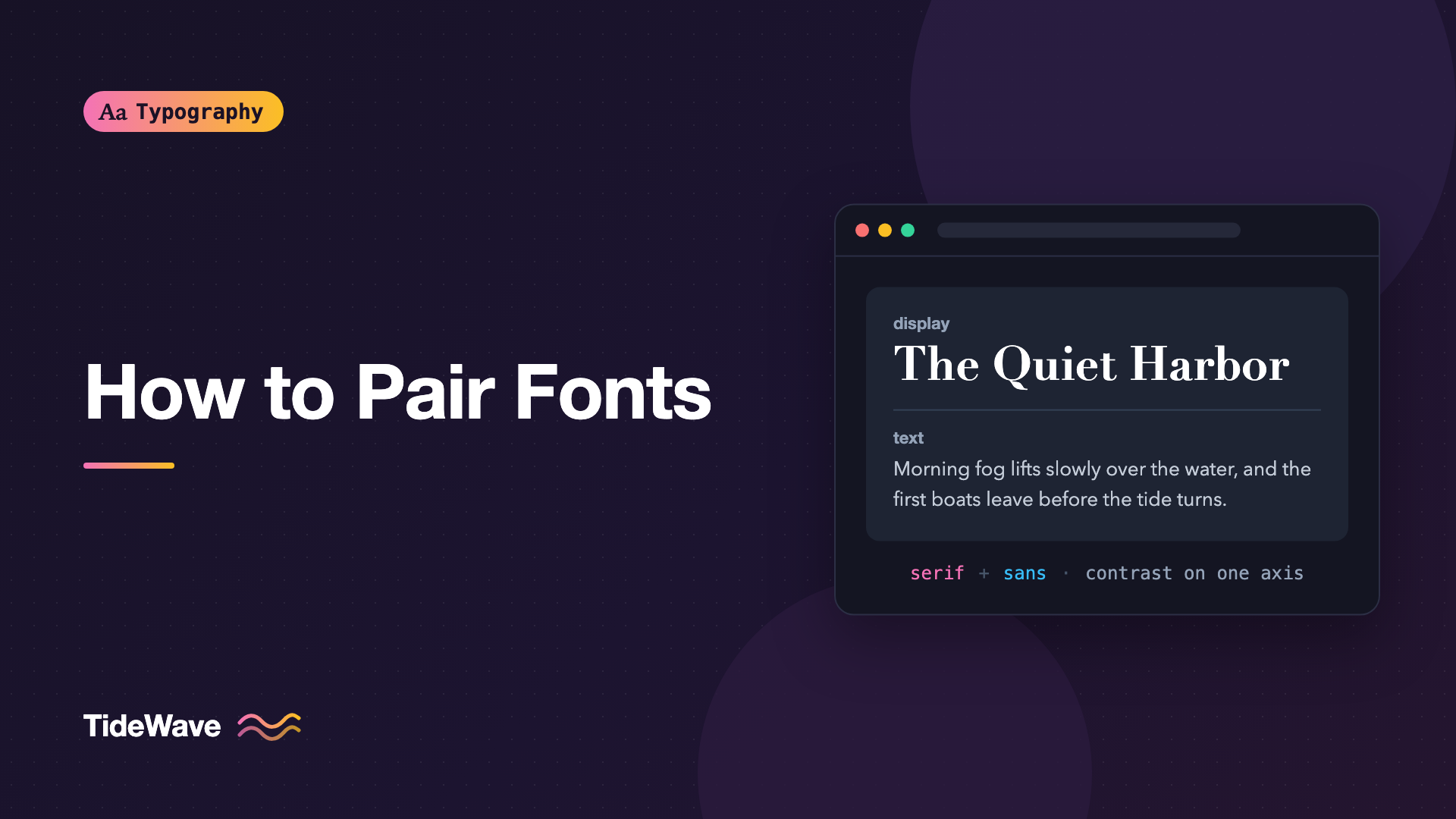
How to Pair Fonts: Rules for Combining Typefaces That Work
- Maria
- Typography
- 23 Oct, 2026
You've found a headline font you love. It has personality, it fits the brand, and it looks great at 64px. Then you try it for body text and it falls apart: too wide, too decorative, tiring after two paragraphs. So you need a second font. You scroll through hundreds of options, try a few, and every combination looks slightly wrong in a way that's hard to explain.
Font pairing is the practice of choosing typefaces that work together, usually one for headings and one for body text. There's no formula that guarantees a good pair, but there are reliable principles that rule out bad ones quickly and point you toward combinations that hold up.
This guide covers those principles, gives you a repeatable process for testing pairs, and shows how to set up a pairing in CSS so it renders consistently.
The Core Principle: Contrast in Role, Harmony in Structure
Good pairs have two qualities at once:
- They're clearly different. A reader should see immediately that the heading and the body are doing different jobs. Two fonts that are almost the same look like a mistake.
- They share something underneath. Similar proportions, x-heights, or construction make the page feel coherent rather than assembled from parts.
Too little contrast and the pair looks accidental. Too much contrast, without any shared structure, and the pair looks chaotic. Most failed pairings fall into one of those two traps.
Rule 1: Give Each Font a Clear Job
Before choosing, decide what each typeface is responsible for. The most common split is:
- Display font: headings, titles, pull quotes. It carries personality and is seen in short bursts at large sizes.
- Text font: body copy, lists, captions. It needs to be comfortable for long reading at small sizes.
Sometimes there's a third role, such as a monospace for code or a highly legible sans for UI labels. Each additional role should have a reason. The question of how many fonts a website should use deserves its own look, but two is the right starting point for most sites.
Once roles are fixed, pick the text font first. Body text makes up most of what people read, so it has the strictest requirements. Choose a display face to complement it, not the other way around.
Rule 2: Contrast on One Main Axis
The classic pairing is a serif with a sans-serif. It works because the difference is obvious at a glance. But classification is only one axis of contrast. Others include:
| Axis | Example |
|---|---|
| Classification | Serif heading, sans-serif body |
| Weight | Heavy display weight, light or regular body |
| Width | Condensed headings, normal-width body |
| Style | Expressive, high-contrast display; plain text face |
| Construction | Geometric heading, humanist body |
Pick one main axis of contrast and let the others stay close. A condensed, heavy, geometric, high-contrast display face paired with a light humanist serif is different on every axis at once, and it usually looks disjointed.
If you're not sure how fonts are categorized, the guide to type classification explains humanist, geometric, grotesque, and the rest.
Rule 3: Match Underlying Proportions
Even contrasting fonts look better together when they share structure. The most useful things to compare are:
x-Height
The x-height is the height of lowercase letters like x, relative to the capitals. When two fonts with very different x-heights sit side by side, one looks noticeably smaller than the other at the same font size. That's especially obvious when fonts are mixed inline, such as a sans-serif label next to serif body text.
Fonts with similar x-height ratios sit together comfortably. See what x-height is and why it affects readability for more detail.
Width and Letter Shapes
Compare the widths of round letters like o and e. A very wide geometric sans next to a narrow, upright serif can feel mismatched. Similarly, compare the shape of the lowercase a and g, and the angle of stress in round letters. Shared construction gives the pair a family resemblance.
Mood and Era
Fonts carry associations. A typeface based on 18th-century models and one designed for a futuristic tech brand may both be good fonts, but together they send mixed signals. Fonts from a similar period or design tradition tend to pair more naturally, though deliberate contrast of era can work well when the brand calls for it.
Rule 4: Avoid Near-Matches
The worst pairings are often two fonts from the same category that are almost, but not quite, the same: two geometric sans-serifs, two old-style serifs, two neo-grotesques. Readers notice something is off but can't say what. If both fonts look similar, use one of them in two weights instead.
Rule 5: When in Doubt, Use One Family
A single well-designed family with several weights can create all the hierarchy most sites need. Many families also come in matching serif, sans, and mono versions designed to work together, known as superfamilies. IBM Plex, Source (Source Serif, Source Sans, Source Code), and Roboto (with Roboto Serif and Roboto Mono) are well-known examples. The superfamilies guide covers how to build a full system from one of them.
Using one family isn't a cop-out. It's often the most professional choice, especially for product interfaces.
Pairings Worth Studying
These combinations use fonts available free on Google Fonts. They're starting points for understanding how pairs work, not prescriptions.
| Headings | Body | Why it works |
|---|---|---|
| Playfair Display | Source Sans 3 | High-contrast display serif against a clean, open humanist sans |
| Fraunces | Inter | Soft, expressive serif with a neutral, highly legible UI sans |
| Space Grotesk | IBM Plex Serif | Quirky grotesque headings over a sturdy, slightly technical serif |
| Inter | Source Serif 4 | Neutral sans headings over a readable text serif for long articles |
| IBM Plex Sans | IBM Plex Serif | Superfamily pairing with shared proportions and details |
Notice that each pair has one clear difference, usually serif versus sans, while sharing similar proportions and seriousness.
A Process for Testing Pairs
Comparing fonts in a specimen grid only tells you so much. Test pairs the way they'll actually be used.
- Set real content. Use an actual article or page, with a long headline, subheads, body paragraphs, a list, and a caption.
- Test the text font alone first. Read several paragraphs at your real body size. If it's tiring, change it before considering the display face.
- Try three or four display candidates against the chosen text font, keeping everything else identical.
- Check at multiple sizes and widths. A pair that works on desktop may feel unbalanced on a phone, where the display font is much smaller.
- Check inline mixing. If you'll use the display font for labels or buttons inside body text, look at them side by side at the same size.
- Sleep on it. Pairings that seem exciting at first sometimes feel tiresome the next day.
A quick test page is easy to build:
<link rel="preconnect" href="https://fonts.googleapis.com" />
<link rel="preconnect" href="https://fonts.gstatic.com" crossorigin />
<link
  href="https://fonts.googleapis.com/css2?family=Fraunces:opsz,[email protected],600&family=Inter:wght@400;600&display=swap"
  rel="stylesheet"
/>
:root {
  --font-display: "Fraunces", Georgia, serif;
  --font-text: "Inter", system-ui, sans-serif;
}

body {
  font-family: var(--font-text);
  font-size: 1.0625rem;
  line-height: 1.6;
}

h1,
h2,
h3 {
  font-family: var(--font-display);
  font-weight: 600;
  line-height: 1.15;
}
Swapping the custom properties lets you compare candidates quickly in DevTools.
Setting Up the Pair in CSS
Use Custom Properties for Roles
Name font variables by role, not by font name. --font-display and --font-text stay meaningful even if you change the actual fonts later. --font-fraunces doesn't.
Write Good Fallback Stacks
Each font in a pair needs a fallback that matches its category, so the page still feels right before the web fonts load:
:root {
  --font-display: "Playfair Display", "Iowan Old Style", Georgia, serif;
  --font-text:
    "Source Sans 3", system-ui, -apple-system, "Segoe UI", sans-serif;
}
Balance Mismatched x-Heights
If you love a pair but their x-heights differ, font-size-adjust can normalize them. It scales the font so its x-height is a fixed proportion of the font size:
.label {
  font-family: var(--font-display);
  font-size-adjust: 0.5;
}
This is most useful when mixing fonts inline. Check current browser support on MDN before relying on it. The same property also reduces layout shift when a fallback font is swapped for a web font.
Tune Each Font Separately
Two fonts at the same font-size rarely look the same size. It's normal to give the display font different letter spacing, line height, or weight than the text font would need:
h1 {
  font-family: var(--font-display);
  font-size: clamp(2.25rem, 5vw, 3.5rem);
  letter-spacing: -0.01em;
  line-height: 1.1;
}
Performance Considerations
Every font in a pair adds downloads. Two families with regular, italic, and bold each can easily mean six files. To keep it lean:
- Load only the weights and styles you use.
- Prefer variable fonts when you need several weights of the same family.
- Subset to the character ranges your content needs.
- Use
font-display: swaporoptionalso text appears immediately.
The guide to loading web fonts with font-display covers this in detail.
Common Mistakes
- Pairing two similar fonts. Two geometric sans-serifs or two old-style serifs look like an error. Use one family in two weights instead.
- Contrasting on every axis. Different classification, width, weight, and mood all at once looks chaotic. Contrast on one main axis.
- Choosing the display font first. Body text matters more. Pick it first and choose the heading font to suit it.
- Using the display font for body text. Expressive fonts are tiring at small sizes. Keep them for short, large text.
- Ignoring x-height differences. Mismatched x-heights make one font look too small when the two appear near each other.
- Adding a third or fourth family without a role. Every extra font should have a clear job and justify its download cost.
Conclusion
Good font pairs are clearly different in role and quietly similar in structure. Give each font a job, pick the text face first, contrast on one main axis, match x-height and proportions, and avoid near-matches. When nothing works, a single family or superfamily is a strong choice.
The fastest way to get better at pairing is to test with real content. Set up role-based custom properties, try three or four candidates against your body font, and check them on both phone and desktop. The pair that still feels right after a day is usually the one to keep.


