What Is x-Height and Why Does It Affect Readability?
- Maria
- Typography
- 23 Oct, 2026
You swap your body font from one sans-serif to another, keep font-size: 16px, and suddenly the whole page looks smaller. Nothing in the CSS changed except the family name. Or you notice that your fallback font looks noticeably bigger than the web font, and the page jumps when the real font loads.
Both problems come from the same measurement: x-height. It's the height of a font's lowercase letters, and it has more effect on how big text looks, and how easy it is to read at small sizes, than the font-size number does.
This guide explains what x-height is, why it varies so much between fonts, how it affects readability, and how to measure and compensate for it in CSS with units like ex and the font-size-adjust property.
What x-Height Measures
x-height is the distance from the baseline to the top of lowercase letters that have no ascenders, such as x, v, w, and z. The letter x is used as the reference because it has flat top and bottom edges. Round letters like o overshoot slightly above and below the line, so they're not reliable for measuring.
It's usually expressed as a ratio of the font size, sometimes called the aspect value: the x-height divided by the font-size. If a font set at 100px has lowercase letters 52px tall, its aspect value is 0.52.
x-height sits among the other vertical metrics of a typeface: cap height, ascender height, and descender depth. For the full set of terms, see The Anatomy of a Typeface.
Why font-size Doesn't Tell You How Big Text Looks
font-size sets the size of the em square, an invisible box each glyph is designed within. It doesn't set the size of the letters themselves. The type designer decides how much of the em square the letters fill.
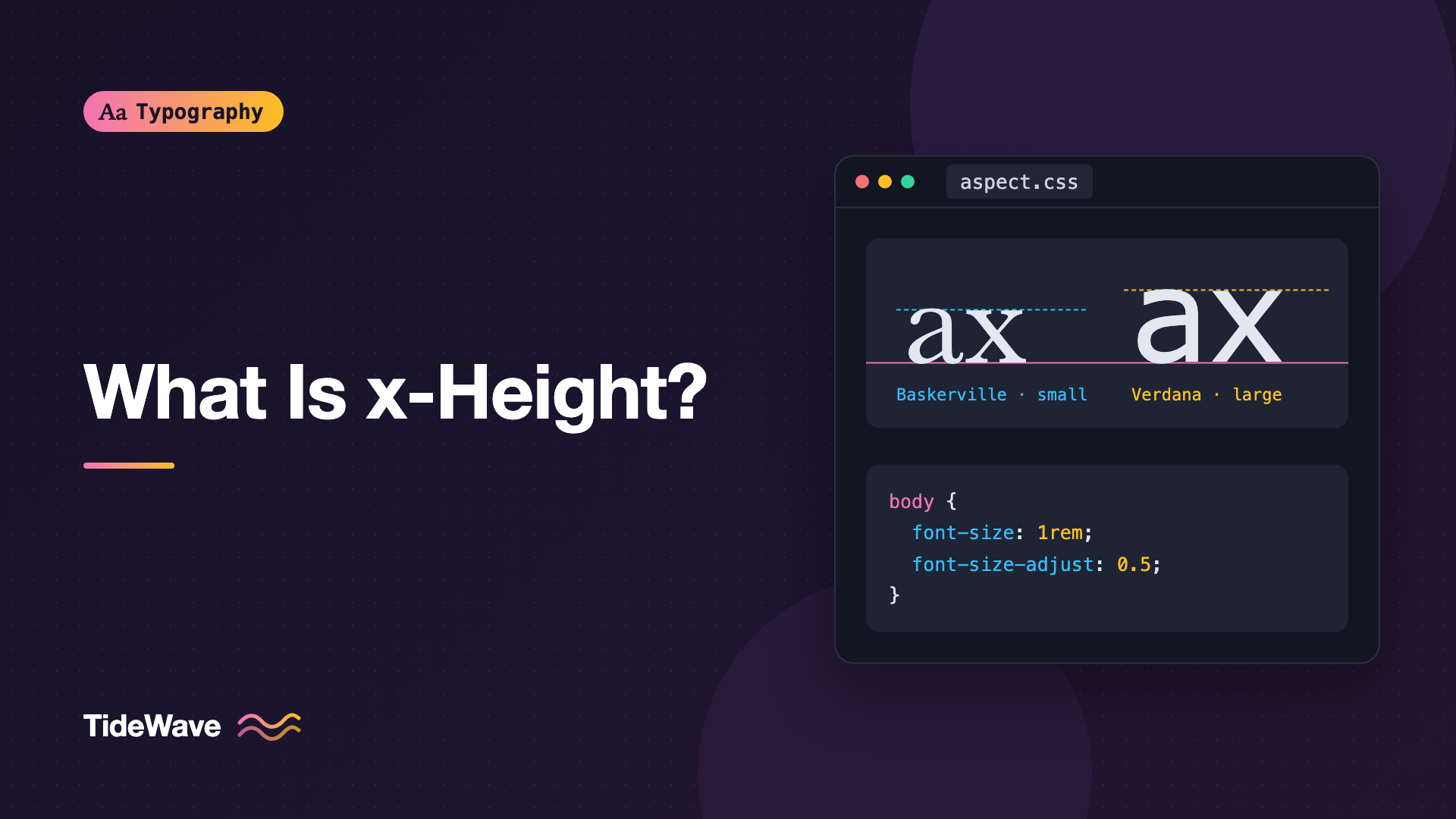
Most of what you read is lowercase, so the x-height defines the size you perceive. Two fonts at the same font-size but with different x-heights look like different sizes:
| Typeface type | Approximate aspect value | Apparent size at 16px |
|---|---|---|
| Old-style serifs (Garamond-style) | Low, often below 0.45 | Small |
| Classic grotesques (Helvetica-style) | Moderate to high | Medium |
| UI sans-serifs (Verdana-style) | High, often above 0.53 | Large |
Exact values vary by font and even by version, so treat these as broad tendencies. The easiest way to know a specific font's ratio is to measure it, which we'll do below.
How x-Height Affects Readability
Larger x-Heights Read Better at Small Sizes
A larger x-height gives lowercase letters more room for their internal shapes. Counters (the enclosed spaces inside a, e, o) get bigger, and apertures stay open. At small sizes and on lower-resolution screens, this keeps letters distinct. That's why fonts designed for user interfaces and small text, like Verdana, Tahoma, Inter, and many system UI fonts, tend to have generous x-heights.
But Bigger Isn't Always Better
There's a trade-off. As the x-height grows, ascenders and descenders get relatively shorter, because they share the same em square. Ascenders and descenders help distinguish letters like n and h, or a and d, and they give words recognizable outlines. Push the x-height too far and words start to look like uniform strips of similar shapes.
A large x-height also makes text feel denser, so it usually needs:
- More line height so lines don't crowd each other.
- Slightly looser letter spacing at small sizes.
- A shorter line length in characters, since each character is visually larger.
Tone and Personality
x-height also shapes tone. Small x-heights with long ascenders feel classical and elegant, the look of old-style book faces. Large x-heights feel modern, open, and friendly. This is one reason a font can look "bookish" or "techy" before you notice anything else.
Comparing at Apparent Size
When comparing fonts, set them to the same apparent size, not the same font-size. A low x-height font at 18px and a high x-height font at 16px might look the same size, and that's the comparison that matters for readability.
Measuring x-Height
From the Font File
Fonts store x-height as a metric in the OS/2 table (sxHeight), along with units per em. A tool like Wakamai Fondue or the Python fontTools library will show you both, and the ratio is sxHeight / unitsPerEm:
pip install fonttools
python3 -c "from fontTools.ttLib import TTFont; f=TTFont('Inter.ttf'); print(f['OS/2'].sxHeight / f['head'].unitsPerEm)"
Not every font fills in sxHeight correctly, so if the number looks odd, measure visually.
In the Browser
The CSS ex unit equals the x-height of the current font, so you can measure it with a quick script in DevTools:
function aspectValue(family) {
  const probe = document.createElement("div");
  probe.style.cssText = `font-family: ${family}; font-size: 100px; height: 1ex; position: absolute; visibility: hidden;`;
  document.body.append(probe);
  const ratio = probe.getBoundingClientRect().height / 100;
  probe.remove();
  return ratio.toFixed(3);
}

aspectValue('"Inter"');
aspectValue("Georgia");
aspectValue("Arial");
Make sure the web font has loaded before measuring, or you'll measure the fallback. You can wait with await document.fonts.ready.
Working with x-Height in CSS
The ex Unit
1ex equals the current font's x-height. It's handy for sizing things relative to lowercase letters, like inline icons or bullet markers:
.inline-icon {
  height: 1.2ex;
  width: auto;
  vertical-align: -0.1ex;
}
Because ex depends on the actual font, the icon stays proportional if the font changes.
font-size-adjust
The font-size-adjust property tells the browser to scale a font so its x-height equals a given fraction of the font-size. This normalizes apparent size across fonts in a stack:
body {
  font-family: "Literata", Georgia, serif;
  font-size: 1.125rem;
  font-size-adjust: 0.5;
}
With font-size-adjust: 0.5, whichever font renders will be scaled so its x-height is half of 1.125rem. If Literata isn't available and Georgia is used instead, Georgia gets resized to match, so the page looks similar either way.
You can also let the browser read the value from the first font in the list:
body {
  font-family: "Literata", Georgia, serif;
  font-size-adjust: from-font;
}
from-font uses the primary font's own x-height ratio as the target. Browser support for font-size-adjust has broadened in recent years, but check caniuse for the current state, especially for the from-font keyword and for the two-value syntax that targets other metrics like cap-height.
Matching Fallback Fonts to Reduce Layout Shift
When a web font loads late, the fallback renders first. If the fallback's x-height and widths differ a lot, the text reflows when the web font arrives. One fix is a metric-adjusted fallback using size-adjust in @font-face:
@font-face {
  font-family: "Literata Fallback";
  src: local("Georgia");
  size-adjust: 96%;
}

body {
  font-family: "Literata", "Literata Fallback", serif;
}
size-adjust scales the whole fallback font, which affects both x-height and widths. This technique is covered properly in Reducing Layout Shift with size-adjust and Font Metric Overrides.
Adjusting Size Per Font in a Pairing
When you pair two fonts, say a serif for body and a sans for UI, their x-heights often differ. Inline elements in the second font can look too big or too small next to the first. Give the second font its own size, or use font-size-adjust on both so they share an aspect value:
:root {
  --aspect: 0.52;
}

body {
  font-family: "Source Serif 4", Georgia, serif;
  font-size-adjust: var(--aspect);
}

code,
kbd {
  font-family: "JetBrains Mono", ui-monospace, monospace;
  font-size-adjust: var(--aspect);
}
Now inline code matches the surrounding text without manual tweaks like font-size: 0.9em. For more pairing guidance, see How to Pair Fonts.
x-Height in Interface Design
x-height matters even more in UI than in articles, because interface text is often small: labels at 12 to 14px, table cells, badges, and helper text. At those sizes, a few pixels of x-height make the difference between crisp and mushy.
Aligning Icons with Text
Icons placed next to lowercase labels usually look best when they relate to the x-height or cap height rather than the full font-size. A 1em icon next to a label is often too big, because the visible letters are only about half that tall:
.button {
  display: inline-flex;
  align-items: center;
  gap: 0.4em;
}

.button svg {
  width: 2.2ex;
  height: 2.2ex;
  flex-shrink: 0;
}
Because ex tracks the font in use, the icon stays in proportion if you change the UI font later.
Small Caps and Badges
Small caps are drawn to roughly the x-height, so a font with a tiny x-height produces tiny small caps. If you use font-variant-caps: all-small-caps for badges or labels, check that the result is still readable at your chosen size, and increase font-size slightly if not.
Mixing Lowercase and Numerals
Numerals are usually drawn near cap height, so in a font with a small x-height, numbers can look oversized next to lowercase text. Fonts with oldstyle figures, whose numerals sit around the x-height, blend better into running text. You can opt in with font-variant-numeric: oldstyle-nums if the font supports them.
Setting Body Text Around x-Height
Once you know a font's x-height, you can tune the rest of the typography:
| If x-height is... | font-size | line-height | Line length |
|---|---|---|---|
| Small | Go up a step (17-20px) | Can be tighter | Can be a bit longer |
| Medium | Typical (16-18px) | Around 1.5 | Around 60-70ch |
| Large | Can stay at 16px | Looser (1.6+) | Slightly shorter |
These are starting points, not rules. The companion post on choosing line height for body text goes deeper on vertical spacing.
Tip
When a designer says a font "runs small," they almost always mean it has a low x-height. Bumping font-size by one or two pixels is usually the right fix, not switching fonts.
Common Mistakes
- Choosing a body size before choosing the font. 16px means different things in different fonts. Pick the font, then set the size by eye.
- Comparing fonts at identical
font-size. You end up preferring whichever font has the bigger x-height. Match apparent size first. - Ignoring fallbacks. A fallback with a very different x-height causes layout shift and makes the page look different on slow connections.
- Using a large x-height font with tight line height. Dense lowercase needs more vertical breathing room.
- Measuring with the wrong font loaded.
exreflects whatever font is currently rendering, which might be the fallback.
Conclusion
x-height is the height of a font's lowercase letters, and because most text is lowercase, it decides how big text looks far more than font-size does. Larger x-heights help small text stay clear on screen, smaller ones give a classical tone, and every choice affects how much line height and line length the text needs.
In practice, compare fonts at matched apparent sizes, set body size after choosing the font, and use ex, font-size-adjust, and size-adjust when you need different fonts to look consistent. A few minutes spent measuring x-height saves you from text that looks mysteriously too small, or jumps when the web font finally loads.


