Mobile Typography: Designing Readable Text for Small Screens
- Maria
- Typography
- 23 Oct, 2026
You design a page on a 27-inch monitor, check it in the browser's device toolbar, and it looks fine. Then you open it on an actual phone on a sunny afternoon and the body text is tiny, the headline breaks into five lines with one word each, and the links in the footer are impossible to tap. Mobile typography is not desktop typography scaled down. The screen is narrower, the viewing distance is different, the lighting is unpredictable, and the reader is often holding the device in one hand while doing something else.
The good news is that most of the fixes are simple CSS, and many of them make the desktop version better too. This guide covers the viewport setup, base font size, line length and line height on narrow screens, headline sizing, touch targets, and the system settings you need to respect.
Start with the Viewport
Nothing else in this post works if the browser thinks your page is 980 pixels wide. Without a viewport meta tag, mobile browsers render the page at a desktop width and shrink it to fit, which makes all your text microscopic.
<meta name="viewport" content="width=device-width, initial-scale=1" />
Don't add maximum-scale=1 or user-scalable=no. They prevent people from pinch-zooming, which is an accessibility failure, and some browsers ignore them anyway.
Mobile Safari and some Android browsers also inflate text sizes on their own in certain layouts, particularly after rotating to landscape. If you've already set sensible sizes, turn that off without disabling user zoom:
html {
  -webkit-text-size-adjust: 100%;
  text-size-adjust: 100%;
}
Use 100%, not none. Setting it to none has historically prevented zooming in some browsers.
Body Text Size on Phones
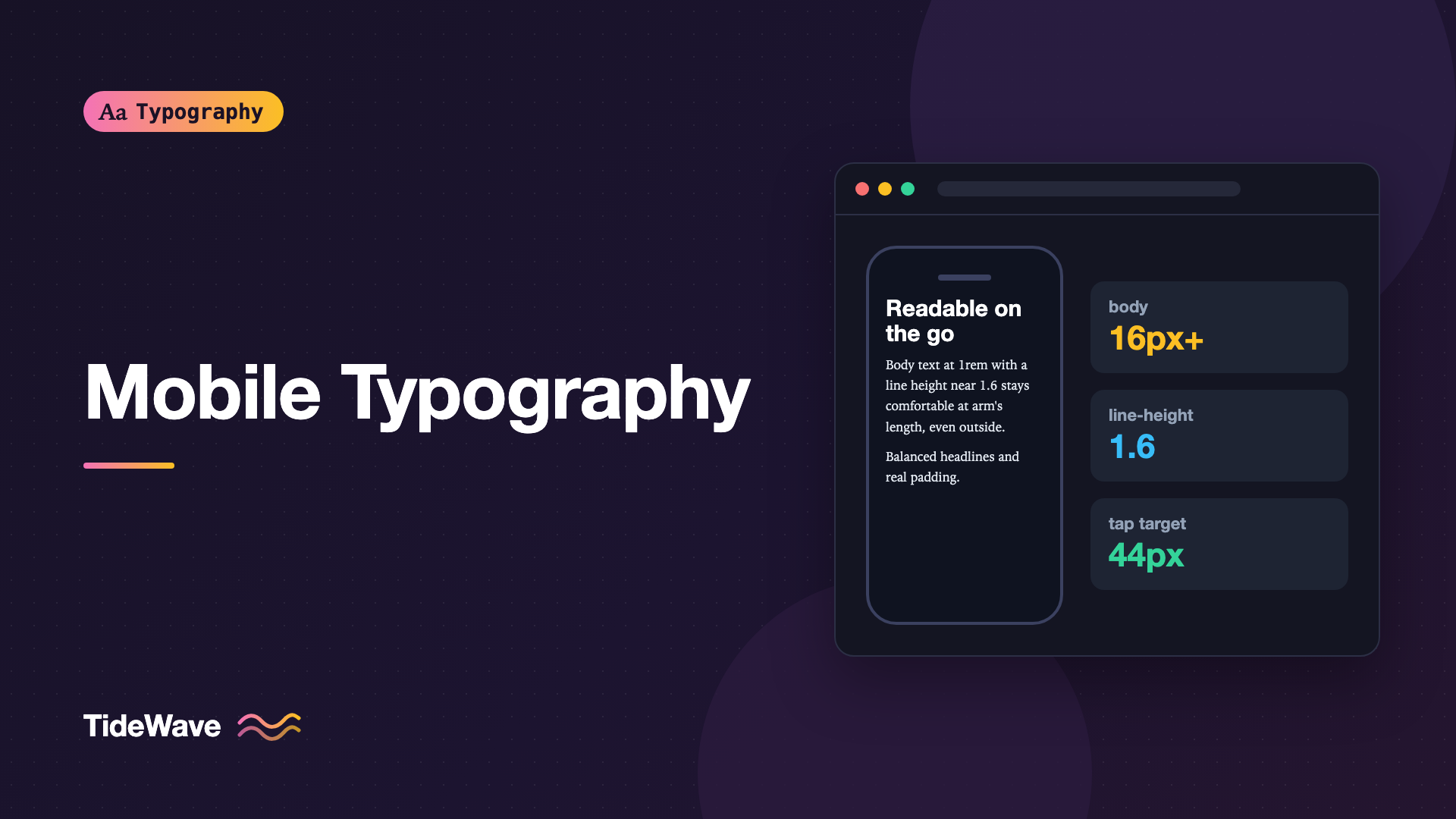
Phones are held closer to the eye than a desktop monitor, so the same CSS pixel size looks larger. That's why 16 pixels, the default root size in every major browser, works well as a body size on mobile. Going below it is rarely a good idea.
html {
  font-size: 100%; /* respects the user's browser setting, usually 16px */
}

body {
  font-size: 1rem;
  line-height: 1.6;
}
For long-form content, many reading-focused sites go a little larger, around 17 to 18 pixels on mobile. The right number depends on the typeface. A font with a large x-height like Inter or Verdana reads bigger than one with a small x-height like Garamond at the same font-size.
Always use rem rather than px for font sizes. Users who have set a larger default font size in their browser settings get that preference applied, and text set in pixels ignores it. The post on why px font sizes cause problems explains this in detail.
The 16 Pixel Input Rule
iOS Safari zooms in when the user focuses a form field with text smaller than 16 pixels. Set form controls to at least 1rem so the page stays put:
input,
select,
textarea {
  font: inherit;
  font-size: max(1rem, 16px);
}
Line Length on Narrow Screens
On desktop, the problem is lines that are too long. On mobile, it's the opposite. A 375-pixel-wide phone with 16-pixel body text and 16 pixels of padding on each side gives you roughly 35 to 45 characters per line, depending on the font. That's at the short end of what's comfortable, which is one reason not to shrink side padding to zero or bump the font size too high.
| Screen width | Side padding | Body size | Approx. characters per line |
|---|---|---|---|
| 320px | 16px | 16px | 32 to 38 |
| 375px | 16px | 16px | 38 to 45 |
| 375px | 24px | 18px | 32 to 38 |
| 414px | 20px | 17px | 42 to 48 |
These are rough estimates, since character width varies by typeface. If you want to measure, the ch unit is useful: 1ch is the width of the 0 glyph in the current font. For a full discussion of the ideal range, see the ideal line length.
A practical container that caps line length on wide screens and keeps reasonable padding on narrow ones:
.prose {
  max-width: 68ch;
  margin-inline: auto;
  padding-inline: clamp(1rem, 5vw, 2rem);
}
Line Height and Paragraph Spacing
Shorter lines need slightly less line height than long ones, because the eye has less distance to travel back to the start of the next line. On a phone, body line heights in the range of 1.5 to 1.65 usually work well. You don't need to change it between breakpoints unless your desktop measure is long.
Paragraph spacing matters more on mobile than on desktop, because a phone screen shows only a few paragraphs at a time. Clear gaps between paragraphs help readers keep their place while scrolling:
.prose p {
  margin-block: 0 1.25em;
}

.prose :is(h2, h3) {
  margin-block: 2em 0.5em;
  line-height: 1.2;
}
Using em for vertical spacing ties it to the text size, so if a reader increases their font size, the spacing grows in proportion.
Headlines That Fit
Desktop headlines at 48 or 64 pixels become a problem on a phone. A long word like "Internationalization" might not fit at all, and shorter headlines wrap into tall stacks that push the content below the fold.
Fluid Sizing with clamp()
Fluid type scales headlines smoothly with the viewport instead of jumping at breakpoints:
h1 {
  font-size: clamp(1.875rem, 1.2rem + 3.5vw, 3.5rem);
  line-height: 1.1;
  text-wrap: balance;
}

h2 {
  font-size: clamp(1.375rem, 1.1rem + 1.5vw, 2.25rem);
  line-height: 1.2;
  text-wrap: balance;
}
Including a rem value in the middle term keeps the size responsive to user font settings. A pure vw value doesn't respond to browser zoom in the same way. The full approach is covered in how to build fluid typography.
text-wrap: balance is especially helpful on mobile, where a headline wrapping to three lines often leaves a single word on the last one.
Long Words
Product names, URLs, and German compound nouns can overflow a narrow container. Two properties prevent horizontal scrolling:
h1,
h2,
.prose {
  overflow-wrap: break-word;
}

.prose {
  hyphens: auto;
}
hyphens: auto needs a correct lang attribute on the <html> element to work, since hyphenation dictionaries are language-specific.
Flatten the Scale
A type scale with a ratio of 1.333 or 1.5 looks great on desktop and enormous on a phone. A common approach is to use a smaller ratio on mobile, like 1.2, and a larger one on wide screens. That keeps headings distinct from body text without letting an h1 take over the screen.
Touch Targets and Link Text
Mobile typography includes the text people tap. A link in a paragraph is fine at body size because the line height gives it some vertical space. Standalone links, nav items, and footer links are another matter.
WCAG 2.2 Success Criterion 2.5.8 (Target Size, Minimum, level AA) asks for interactive targets of at least 24 by 24 CSS pixels, with some exceptions including inline links in a sentence. Platform guidelines from Apple and Google recommend larger targets, around 44 and 48 points respectively. Pad your text links rather than making the text bigger:
.footer-nav a {
  display: inline-block;
  padding-block: 0.75rem;
  min-height: 2.75rem;
}

.prose a {
  text-decoration-thickness: 0.08em;
  text-underline-offset: 0.18em;
}
Keep underlines on links in body text. On mobile there's no hover state, so the underline is often the only sign that text is tappable.
Weight, Contrast, and Outdoor Light
Phones are used in bright sunlight, in dark bedrooms, and everywhere in between. Thin weights and pale gray text that look elegant on a calibrated monitor become unreadable outdoors.
- Avoid hairline and thin weights for anything that must be read. Use 400 or heavier for body text.
- Meet contrast minimums with margin. WCAG requires 4.5:1 for normal text and 3:1 for large text at level AA. On mobile, aim higher than the minimum for body copy.
- Watch light text on images. Hero headlines over photos need an overlay or text shadow, or they disappear in glare.
In dark mode, light text on a dark background tends to look bolder. Some designers reduce weight slightly in dark mode. See typography in dark mode for the details.
Respecting System Text Size
Both iOS and Android let users choose a larger system text size. Native apps follow it automatically. On the web, the picture is more mixed. Chrome on Android has its own text scaling setting in its accessibility options, which scales text on web pages. On iOS, Safari applies Dynamic Type to web pages only if you opt in using the system font keywords:
html {
  font: -apple-system-body;
}

body {
  font-family: "Inter", system-ui, sans-serif;
}
The -apple-system-body keyword sets a base size that follows the user's Dynamic Type setting. Setting font-family separately afterward keeps your own typeface. It's a WebKit-only feature, so treat it as an enhancement. Whatever you do, test with large text settings turned on. Layouts built with fixed heights and pixel font sizes are the first to break.
Warning
Never disable pinch-zoom to "fix" a layout. If text is too small, readers need zoom to cope, and blocking it makes the page unusable for people with low vision.
Font Loading on Mobile Networks
Fonts are part of mobile typography too. A page that shows blank text for three seconds on a slow connection has failed, regardless of how nice the type looks once it arrives.
- Use
font-display: swaporoptionalso text is visible right away. - Load fewer weights. Two weights of one family often cover a whole site.
- Subset to the scripts you need and serve WOFF2.
- Consider the system stack for UI text and save web fonts for headings.
The font-display guide covers loading strategies in depth.
Testing on Real Devices
Browser device emulation is useful for layout, but it doesn't show you how text feels at arm's length or in daylight. Before shipping:
- Read a full article on an actual phone, ideally a small one.
- Turn on the largest system text size and check that nothing clips or overlaps.
- Rotate to landscape and make sure text doesn't suddenly inflate or shrink.
- Try it outside or with brightness turned down.
- Tap every standalone link and button with your thumb.
Common Mistakes
- Missing viewport meta tag. The whole page renders at desktop width and shrinks.
- Body text below 16 pixels. It may look fine on a retina monitor but strains readers on a phone.
- Disabling zoom.
user-scalable=noblocks people who need to enlarge text. - Desktop headline sizes on mobile. Use
clamp()and a flatter scale on narrow screens. - Zero side padding. Text touching the screen edge is hard to read and feels cramped.
- Pixel font sizes. They ignore the reader's browser font size setting.
- Tiny standalone links. Footer and nav links need padding to be tappable.
Conclusion
Readable mobile type comes from a handful of decisions: a proper viewport, a body size of at least 1rem, comfortable side padding, line heights around 1.5 to 1.65, fluid headline sizes with balanced wrapping, and tappable links. Respect user settings, avoid thin weights, and make sure fonts load quickly on slow networks.
Make the phone your primary test device for reading. If a long article is comfortable on a small screen held in one hand, it will almost certainly work everywhere else.


