Meeting WCAG Text Spacing Requirements
- Maria
- Typography
- 23 Oct, 2026
A user with low vision or dyslexia installs a browser extension that adds extra space between letters, words, and lines. On most sites, articles reflow and read more comfortably. On yours, the navigation labels overlap, a card's description gets cut off halfway through a sentence, and a button's label spills out of its box. Nothing in your CSS is technically wrong. It was just built for one exact set of spacing values.
WCAG Success Criterion 1.4.12 Text Spacing exists for exactly this situation. It doesn't tell you how to space your text. It requires that your content keeps working when users change the spacing themselves. This guide explains what the criterion requires, how to test for it in a few minutes, the CSS patterns that cause failures, and how to fix them.
What 1.4.12 Requires
Text Spacing was added in WCAG 2.1 at Level AA, and it's part of WCAG 2.2 as well. It says that for content implemented using markup languages that support these text style properties, no loss of content or functionality occurs when a user sets all of the following, and changes no other style property:
| Property | Minimum value the user may set |
|---|---|
| Line height | At least 1.5 times the font size |
| Paragraph spacing | At least 2 times the font size after paragraphs |
| Letter spacing | At least 0.12 times the font size |
| Word spacing | At least 0.16 times the font size |
The criterion has an exception: human languages and scripts that don't make use of one or more of these properties only need to conform using the properties that exist for that language and script. Letter spacing, for example, isn't meaningful in the same way for connected scripts like Arabic.
The official wording and supporting material are in the Understanding Text Spacing document from the W3C.
What It Doesn't Require
This is the most common misunderstanding: you don't have to use these values in your design. Your body text can have a line height of 1.4 and no extra letter spacing. The requirement is about resilience. When a user overrides your spacing with values at least this large, text must not be clipped, overlap other content, or become unusable.
It also doesn't require that the page looks as polished with the overrides as without them. Some extra wrapping, taller components, and a less balanced layout are acceptable. Lost content and broken functionality aren't.
Why It Matters
People increase text spacing for different reasons. Some readers with dyslexia find extra letter and word spacing makes words easier to decode. Readers with low vision may need more space between lines to track from one to the next. These users typically apply spacing with a browser extension, a user stylesheet, or reading tools built into their browser or operating system.
Those tools change spacing site-wide, so they expose every component that was built to fit an exact amount of text. For more on why spacing helps these readers, see designing text for users with dyslexia.
How to Test
The Test Stylesheet
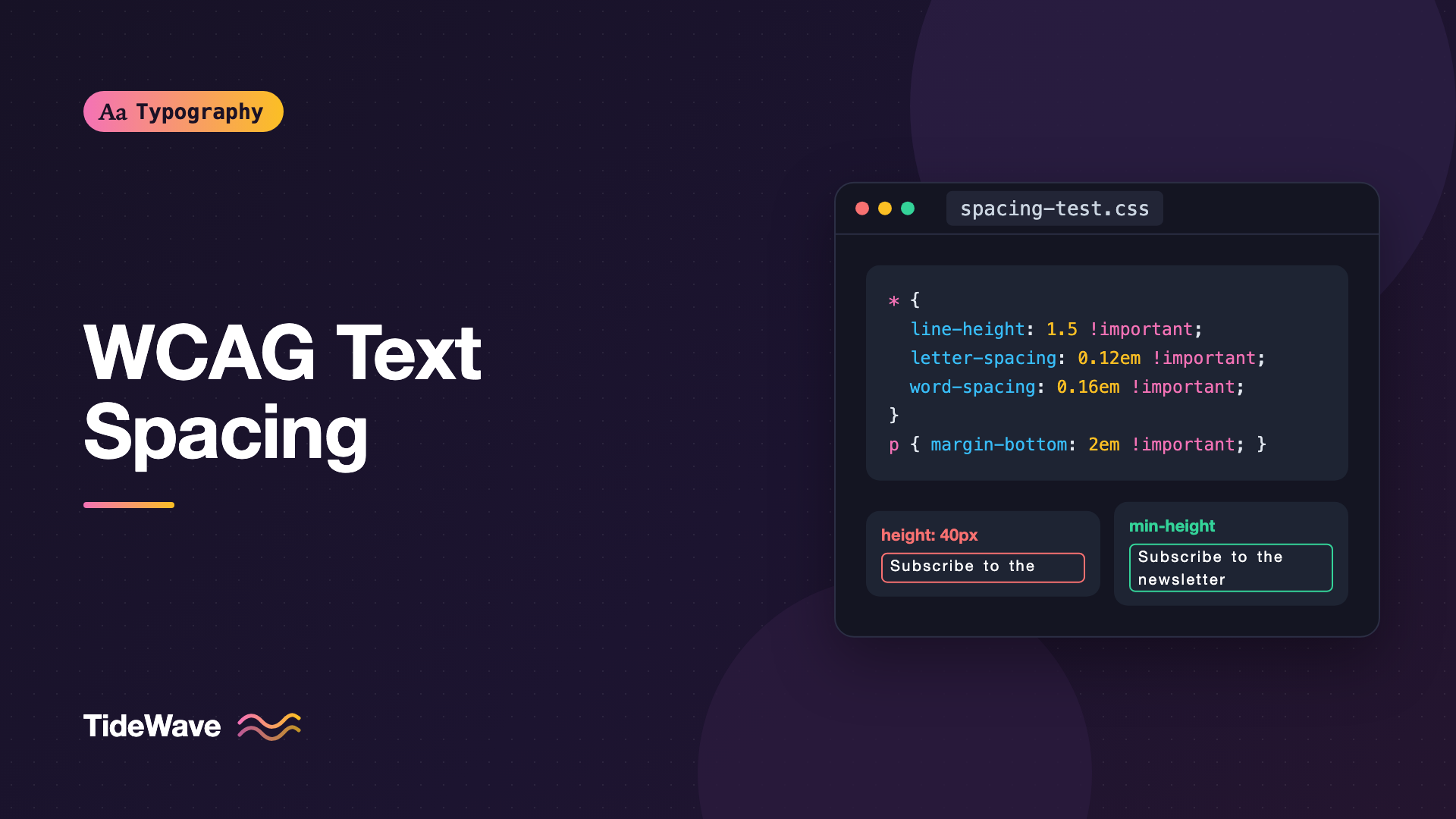
The standard test is to inject CSS that sets all four properties to the minimum values. Here's a version you can paste into DevTools or a user stylesheet:
* {
  line-height: 1.5 !important;
  letter-spacing: 0.12em !important;
  word-spacing: 0.16em !important;
}

p {
  margin-bottom: 2em !important;
}
The !important flags are deliberate. They simulate a user's override, which must win over your styles. Using em makes each value relative to the element's own font size, matching the wording of the criterion.
As a Bookmarklet
For quick, repeatable testing, wrap the same CSS in a bookmarklet. Create a bookmark and set its URL to this script:
javascript: (() => {
  const style = document.createElement("style");
  style.textContent =
    "*{line-height:1.5!important;letter-spacing:.12em!important;word-spacing:.16em!important}p{margin-bottom:2em!important}";
  document.head.appendChild(style);
})();
Click it on any page to apply the spacing. Well-known versions of this bookmarklet circulate in the accessibility community, and they do essentially the same thing.
What to Look For
With the spacing applied, go through the page and check:
- Clipped text. Is any text cut off, especially in cards, buttons, tabs, badges, and table cells?
- Overlapping text. Do labels run into each other or into icons?
- Hidden content. Did truncation with ellipsis or line clamping hide information that isn't available anywhere else?
- Broken controls. Can you still open menus, use form fields, read tooltips, and activate buttons?
- Text escaping containers. Does text spill outside a fixed-size background so it's unreadable?
Test at several viewport widths. A component that survives at desktop width may clip on mobile, where there's less room to absorb the extra width.
Common Causes of Failure
Nearly every text spacing failure comes from one of a handful of patterns. They all share a root cause: the component assumes text will be a particular size.
Fixed Heights
A fixed height on an element that contains text is the most common culprit:
/* Fails: text taller than 48px is clipped or overflows */
.card__title {
  height: 48px;
  overflow: hidden;
}
Use min-height instead, so the element can grow:
.card__title {
  min-height: 3rem;
}
If you need cards in a row to have matching heights, let the layout handle it with grid or flexbox rather than fixing heights:
.card-grid {
  display: grid;
  grid-template-columns: repeat(auto-fill, minmax(16rem, 1fr));
  gap: 1.5rem;
}

.card {
  display: flex;
  flex-direction: column;
}

.card__footer {
  margin-top: auto;
}
Grid rows stretch every card to the tallest one, and margin-top: auto pins footers to the bottom.
overflow: hidden on Text Containers
overflow: hidden is often added for a visual reason, like keeping a rounded corner clean, and it quietly clips text when the content grows. Check every overflow: hidden that sits on or around text. If it's there for an image or a decorative element, move it to that element instead.
Fixed Widths on Buttons, Tabs, and Badges
Letter and word spacing make text wider. A button with a fixed width in px will clip or overflow its label:
/* Fails */
.button {
  width: 120px;
  height: 40px;
  white-space: nowrap;
  overflow: hidden;
}

/* Passes */
.button {
  display: inline-flex;
  align-items: center;
  justify-content: center;
  min-width: 7.5rem;
  min-height: 2.5rem;
  padding: 0.5em 1.25em;
}
The passing version sets minimums and uses padding so the button grows to fit its label.
Truncation and Line Clamping
Truncation with an ellipsis is a tricky case. Text spacing makes text wider and taller, so more of it gets cut off. If the full text is available elsewhere, for example the full article title on the article page, or the full value in an accessible tooltip, truncation alone is generally not considered a failure. If the truncated text is the only place that information appears, it is.
.card__excerpt {
  display: -webkit-box;
  -webkit-box-orient: vertical;
  -webkit-line-clamp: 3;
  overflow: hidden;
}
Clamping an excerpt that links to the full article is fine. Clamping a product's only description, or an error message, isn't. Both techniques, and their trade-offs, are covered in how to truncate text with ellipsis in CSS.
Absolutely Positioned Text
Text placed with position: absolute doesn't push other content out of the way. When it grows, it overlaps whatever's next to it. Badges overlaid on images and labels positioned over form fields are common examples. Prefer flexbox or grid placement, which reserves space for the text.
Line Heights in Pixels on Containers
If a component sets height equal to its line-height in px to vertically center a single line of text, an increased line height or a wrapped line breaks it immediately:
/* Fragile */
.tag {
  height: 24px;
  line-height: 24px;
}

/* Resilient */
.tag {
  display: inline-flex;
  align-items: center;
  padding: 0.125em 0.625em;
  line-height: 1.4;
}
Building Resilient Components from the Start
A few habits prevent most text spacing failures before you ever test:
- Size with content, not around it. Use padding and
min-heightto give text room instead of fixed dimensions. - Use relative units for spacing around text, so padding scales with the font.
empadding on buttons is a good default. - Let text wrap. Avoid
white-space: nowrapon anything that could be long, unless you've also handled overflow gracefully. - Use layout, not math. Grid and flexbox absorb size changes. Hand-calculated positions don't.
- Avoid
overflow: hiddenon text containers unless you've confirmed nothing important can be hidden. - Allow navigation to wrap. A horizontal nav with
flex-wrap: wrapdegrades to two rows instead of overlapping.
.site-nav ul {
  display: flex;
  flex-wrap: wrap;
  gap: 0.5rem 1.5rem;
}
These are the same habits that make components work with larger text sizes and translated strings, which tend to be longer than English. If you also respect user font size preferences, your components get tested against both kinds of change at once.
Tip
Add the text spacing stylesheet to your component library's visual testing setup, such as a Storybook decorator or a toggle in your design system docs. Catching a fixed height while building a component is much cheaper than finding it in an audit.
Related Criteria
Text spacing overlaps with a few other WCAG criteria. If you're working on one, check the others too:
- 1.4.4 Resize Text (AA): text must be resizable up to 200% without loss of content or functionality.
- 1.4.10 Reflow (AA): content must be usable at a width equivalent to 320 CSS pixels without scrolling in two dimensions, with some exceptions.
- 1.4.8 Visual Presentation (AAA): recommends line spacing of at least space-and-a-half and paragraph spacing at least 1.5 times the line spacing, among other things.
For an overview of all the text-related criteria together, see accessible typography guidelines.
Common Mistakes
- Thinking you must use the 1.5, 2, 0.12, and 0.16 values in your design. The criterion only requires that your layout tolerates them.
- Testing only the line height. Letter and word spacing make text wider, which breaks different components than line height does.
- Testing at one viewport width. Narrow screens have the least room to absorb extra spacing.
- Fixing failures by adding
!importantresets to your own spacing, which only makes user overrides harder to apply. - Truncating unique information with ellipsis or line clamping, so it disappears entirely when spacing increases.
- Forgetting dynamic UI. Tooltips, dropdowns, modals, and toast notifications need testing too, not only static page content.
Conclusion
WCAG 1.4.12 Text Spacing asks one thing: when users increase line height to 1.5 times the font size, paragraph spacing to 2 times, letter spacing to 0.12 times, and word spacing to 0.16 times, nothing gets lost or broken. Most failures trace back to fixed heights, fixed widths, overflow: hidden, absolute positioning, and truncation of unique content.
Keep a bookmarklet with the test styles in your browser, run it on every new component, and replace fixed dimensions with minimums, padding, and flexible layout. Components built that way pass text spacing almost by accident, and they also hold up better with larger fonts, translations, and real-world content.


