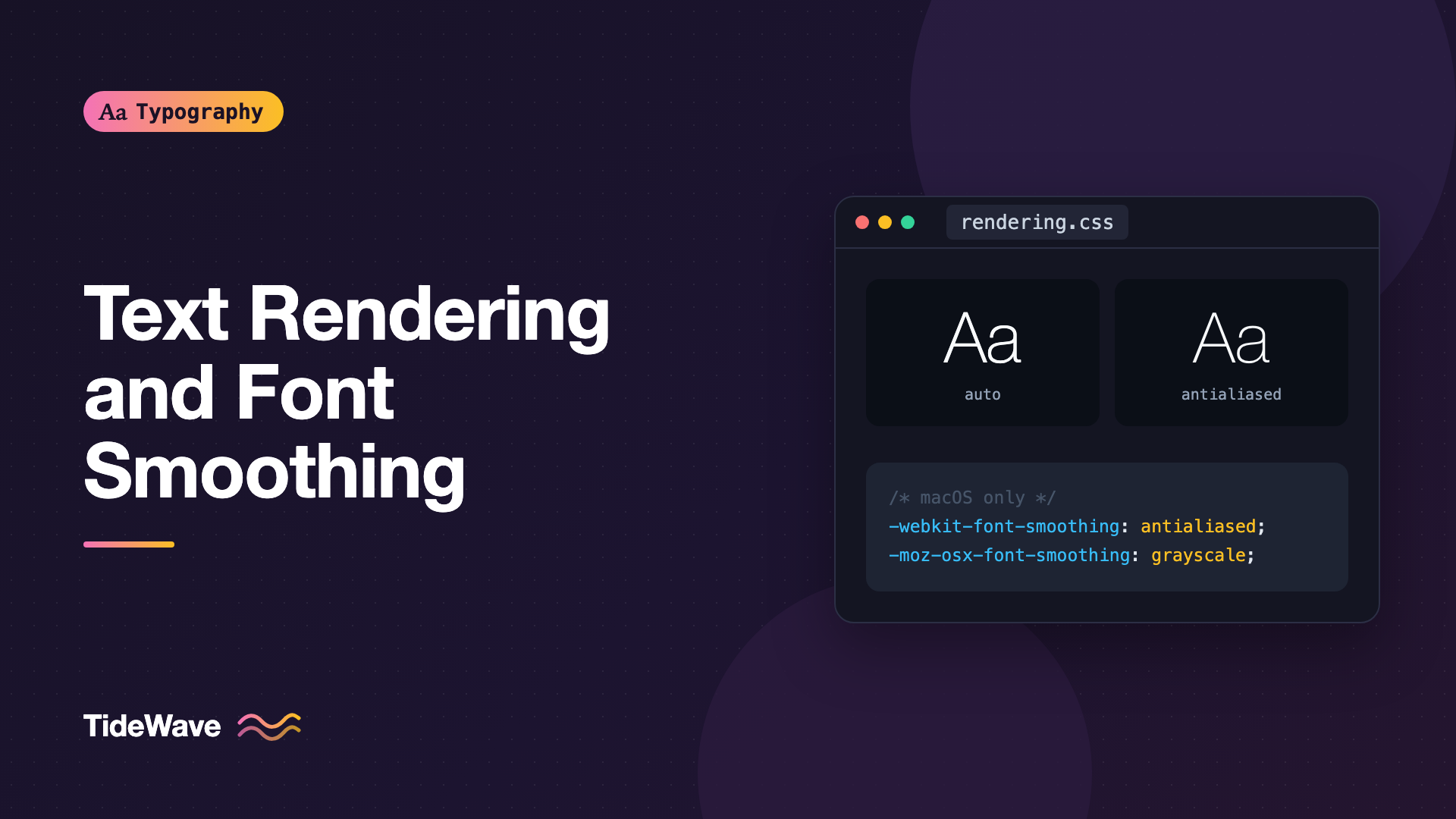
Text Rendering and Font Smoothing: What Actually Works Across Browsers
- Maria
- Typography
- 23 Oct, 2026
Open almost any CSS reset or starter template and you'll find something like this near the top: -webkit-font-smoothing: antialiased, -moz-osx-font-smoothing: grayscale, and text-rendering: optimizeLegibility. These lines get copied from project to project because someone once said they make text look better. Ask the team what they actually do, and most people aren't sure.
The honest answer is that font smoothing and text rendering controls do much less than their names suggest. Some only work on one operating system. Some were designed for SVG and behave differently in HTML. Some used to matter and mostly don't anymore. A few are still genuinely useful in specific cases.
This guide explains how browsers turn fonts into pixels, what each of these properties really changes, where it has an effect, and what's worth keeping in your stylesheet.
How Text Gets onto the Screen
Fonts are made of vector outlines. Screens are grids of pixels. Turning one into the other is called rasterization, and it involves a few steps:
- The browser picks a font size and position, sometimes snapping to whole pixels.
- The rasterizer fills in the outline. Pixels partly covered by the outline get partial coverage, which is anti-aliasing.
- Older or low-resolution setups may also apply hinting, adjusting the outline so stems line up with the pixel grid.
There are two main kinds of anti-aliasing:
- Grayscale anti-aliasing shades edge pixels in levels of gray (or of the text color against the background).
- Subpixel anti-aliasing uses the separate red, green, and blue parts of each pixel to triple the horizontal resolution. It looks sharper on low-resolution LCD screens but can produce colored fringes.
Crucially, most of this is controlled by the operating system's text renderer, not the browser. Windows uses DirectWrite with ClearType-style subpixel rendering in most configurations. macOS uses Core Text. Linux uses FreeType with whatever settings the desktop has chosen. Browsers inherit those choices, and CSS can influence only a small part of them.
-webkit-font-smoothing
This is the most widely copied of the properties, and the most misunderstood.
body {
  -webkit-font-smoothing: antialiased;
}
It accepts four values:
| Value | Intended effect |
|---|---|
auto | Let the browser decide (the default) |
none | Turn off anti-aliasing entirely (jagged text) |
antialiased | Use grayscale anti-aliasing |
subpixel-antialiased | Use subpixel anti-aliasing where available |
Where It Works
-webkit-font-smoothing only has an effect on macOS, in Safari and Chromium-based browsers. It does nothing on Windows, Linux, Android, or iOS.
What It Actually Changes on Modern macOS
Since macOS Mojave, Apple has turned off subpixel anti-aliasing at the system level. So on a current Mac, you won't see the classic subpixel versus grayscale difference.
What you will often see is a difference in apparent weight. By default, macOS renders text with a slight emboldening effect that makes it look heavier, especially light text on dark backgrounds. Setting antialiased turns that off, so text looks thinner and crisper.
That's why the property became popular: designers working on Macs noticed that white text on a dark header looked chunky, added antialiased, and liked the result. It's a real effect, but it only applies to Mac users, and it's mostly visible on light-on-dark text.
Should You Use It?
It depends on your design:
- On light text over dark backgrounds,
antialiasedoften looks better on macOS, because it counters the extra visual weight. - On dark text over light backgrounds, the difference is smaller. Some people prefer the default because thin fonts can start to look too light, especially at small sizes.
- With very thin weights,
antialiasedcan make text look faint and harder to read.
A targeted approach is more defensible than a global one:
.site-header,
.hero--dark,
.footer {
  -webkit-font-smoothing: antialiased;
  -moz-osx-font-smoothing: grayscale;
}
If your whole site is dark mode by default, applying it to body is reasonable. For a mostly light site, there's no strong case for applying it everywhere. The sibling post on typography in dark mode covers weight adjustments that work on every platform, not just macOS.
-moz-osx-font-smoothing
This is Firefox's equivalent, and it's even narrower:
body {
  -moz-osx-font-smoothing: grayscale;
}
It only works in Firefox on macOS, and it only accepts auto and grayscale. grayscale gives a result similar to -webkit-font-smoothing: antialiased in other Mac browsers. If you use one, use both, so Mac users see consistent rendering regardless of browser.
Is There a Standard Version?
No. A font-smooth property was drafted at one point but never made it into a specification that browsers implemented. MDN documents it as non-standard. The two prefixed properties above are all there is, and both are limited to macOS.
text-rendering
text-rendering is a different kind of property. It came from SVG, where it was meant as a hint about trade-offs between speed, legibility, and geometric accuracy. Browsers apply it to HTML text too, but each engine interprets it in its own way.
| Value | Original intent |
|---|---|
auto | Browser chooses (the default) |
optimizeSpeed | Favor rendering speed; may disable kerning and ligatures |
optimizeLegibility | Favor legibility; enables kerning and ligatures |
geometricPrecision | Favor accurate shapes over pixel-fitting |
optimizeLegibility
This is the value most people copy. Years ago, some browsers only applied kerning and standard ligatures above a certain font size, and optimizeLegibility forced them on at every size. That was genuinely useful.
Today, modern browsers apply kerning and standard ligatures by default at all sizes, so optimizeLegibility usually changes nothing visible. It also had a reputation for slowing down rendering of long pages on older mobile devices, which is one reason not to apply it to everything.
If you want kerning and ligatures, use the dedicated properties instead. They're explicit, standard, and don't depend on how a browser interprets a hint:
body {
  font-kerning: normal;
  font-variant-ligatures: common-ligatures;
}
Both of those are the defaults in current browsers anyway, so you only need them to undo an override somewhere else. To learn what those features do, see Kerning, Tracking, and Leading and Ligatures Explained.
optimizeSpeed
This one can make text worse: in some browsers it turns off kerning and ligatures to save processing time. Modern browsers render text fast enough that there's no practical reason to use it on normal content.
geometricPrecision
geometricPrecision asks the browser to render shapes as accurately as possible rather than fitting them to the pixel grid. In practice, its main visible effect in some browsers is on font scaling. Without it, a browser may round font sizes to whole pixels or step between sizes during animations and transforms. With it, scaling can be smoother.
.zooming-headline {
  text-rendering: geometricPrecision;
  transition: transform 300ms ease;
}
If you're animating text with transforms and see it jump between sizes, it's worth testing. Otherwise, leave it alone.
What CSS Can't Control
Some of the biggest differences in how text looks across platforms are out of your hands:
- Windows rendering. ClearType and DirectWrite settings are system-wide. There's no CSS property to change subpixel rendering or gamma on Windows.
- Hinting. Whether the rasterizer uses the font's hinting instructions depends on the operating system and the screen. You can influence it by choosing well-hinted fonts, but not by setting a property. How Font Hinting Works explains why this matters less on high-resolution screens.
- Screen density. On a high-DPI phone or laptop, there are enough pixels that anti-aliasing differences are hard to see at all. On a 1080p monitor at 100% scaling, they're much more visible.
- User settings. People can change font smoothing, contrast, and scaling at the system level, and should be able to.
This is why the same font can look thin and elegant on a MacBook, sharper and slightly darker on a Windows laptop, and different again on a Linux desktop. You can reduce the differences, but you can't eliminate them.
Hacks to Avoid
A few older tricks still circulate. They were workarounds for rendering problems that mostly don't exist anymore, and they often create new issues.
text-shadow for Smoothing
Adding a transparent shadow like text-shadow: 0 0 1px rgb(0 0 0 / 0.01) was once used to force certain browsers into a different rendering path. It makes text slightly blurrier, costs a little painting performance, and has no reliable effect in current browsers.
-webkit-text-stroke for Thickening
-webkit-text-stroke adds an outline to letters. Some developers used a hairline stroke to make thin fonts look heavier on Windows. It thickens text unevenly, changes the letter shapes, and looks different in every browser. If text looks too thin, choose a heavier weight instead.
Forcing GPU Layers
Adding transform: translateZ(0) or will-change: transform to text can change how it's anti-aliased, sometimes for the worse, because the text gets rendered into a separate layer. Use these only for real performance reasons, and check text quality when you do.
What Actually Improves Text Rendering
If you want text to look good on every platform, these choices have far more effect than any smoothing property:
- Choose fonts designed for screens. Typefaces built for UI, with generous x-heights, open counters, and sturdy strokes, hold up across rasterizers.
- Avoid very thin weights at small sizes. A weight of 300 or lighter in body text is fragile, especially on low-resolution Windows screens.
- Serve the right font files. A font with good hinting and proper metrics renders better on Windows. Avoid aggressive conversions that strip hinting from fonts meant for low-resolution use.
- Avoid faux bold and italics. If a weight isn't loaded, browsers synthesize it, and synthesized bold looks smeared. Load the weights you use, or prevent synthesis:
body {
  font-synthesis: none;
}
- Mind contrast. Low-contrast gray text looks even lighter when anti-aliased. Darker colors render more consistently.
- Test on real hardware. Check your type on a Windows laptop at 100% scaling and on a high-DPI Mac. The differences show up quickly.
A Sensible Baseline
Here's what's worth keeping, with comments explaining why:
body {
  /* Standard properties: these work everywhere and are already the defaults */
  font-kerning: normal;
  font-variant-ligatures: common-ligatures;
  font-synthesis: none;
}

/* macOS only: thins light-on-dark text that otherwise looks too heavy */
.theme-dark,
.on-dark {
  -webkit-font-smoothing: antialiased;
  -moz-osx-font-smoothing: grayscale;
}

/* Only where text is scaled with transforms */
.scale-on-hover {
  text-rendering: geometricPrecision;
}
Notice what's missing: a global text-rendering: optimizeLegibility and a global antialiased on light-background text. Neither is harmful in most cases, but neither does much, and it's better to know why each line is in your stylesheet.
Browser and Platform Summary
| Property | macOS | Windows | Linux | iOS | Android |
|---|---|---|---|---|---|
-webkit-font-smoothing | Safari, Chromium | No | No | No | No |
-moz-osx-font-smoothing | Firefox | No | No | No | No |
text-rendering | Varies by browser | Varies | Varies | Varies | Varies |
font-kerning, font-variant-ligatures | Yes | Yes | Yes | Yes | Yes |
font-synthesis | Yes | Yes | Yes | Yes | Yes |
text-rendering is accepted everywhere, but what each value does differs by engine, so treat its effects as browser-specific.
Common Mistakes
- Copying
antialiasedinto every project without checking how it looks on light backgrounds and thin weights. - Expecting smoothing properties to fix Windows rendering, where they have no effect at all.
- Using
optimizeLegibilityto enable kerning, when kerning is already on andfont-kerningis the explicit control. - Using
optimizeSpeed, which can disable kerning and ligatures for no real gain. - Thickening thin fonts with text-stroke or shadows, instead of loading a heavier weight.
- Judging type only on a high-DPI Mac, where everything looks good, and missing problems on low-resolution screens.
Conclusion
Font smoothing and text rendering properties are narrower than their names suggest. -webkit-font-smoothing and -moz-osx-font-smoothing only affect macOS, and their main modern use is thinning light text on dark backgrounds. text-rendering is an SVG-era hint whose effects vary by browser, and its most popular value, optimizeLegibility, mostly does what browsers now do by default.
Keep the smoothing properties where they help, such as dark sections and dark themes, and drop the rest unless you can see a difference. Then put your effort where it pays off everywhere: screen-friendly fonts, sensible weights, real bold and italic files, and testing on the screens your readers actually use.


