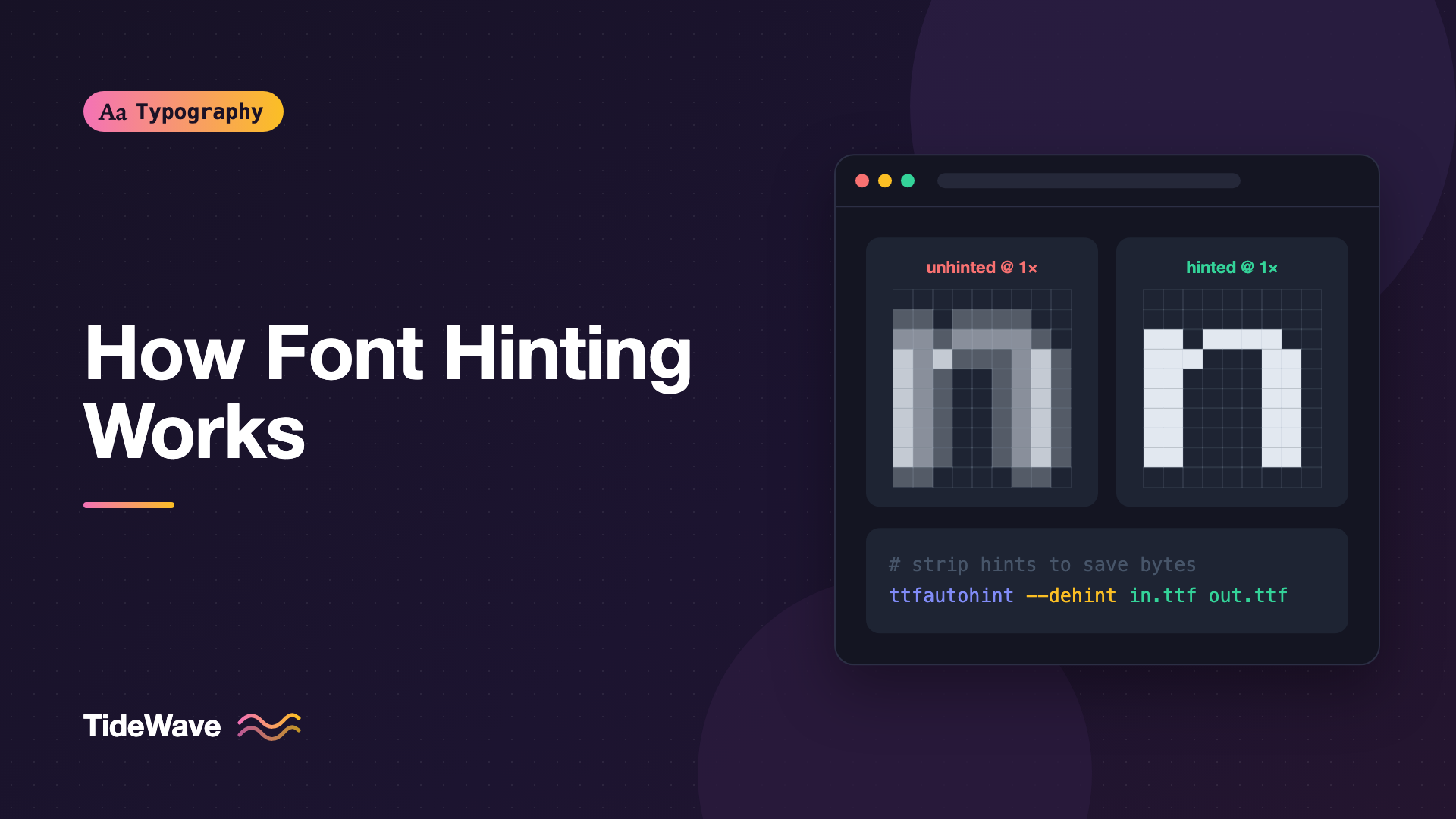
How Font Hinting Works and Why It Matters Less Than It Used To
- Maria
- Typography
- 23 Oct, 2026
Open the same web page on a modern laptop and on an older office monitor running Windows, and the text can look surprisingly different. On the laptop, letters are smooth and faithful to the design. On the old monitor, stems may look uneven, some letters appear blurry, and thin strokes might fade or jump in weight. A big part of that difference comes down to resolution, and to a technology that type engineers spent decades perfecting: font hinting.
Hinting is a set of instructions inside a font file that tells the rasterizer how to adjust outlines to fit the pixel grid. On low-resolution screens, it was the difference between legible and illegible text. Today, high-density displays and smarter rendering have reduced its importance a lot, but it hasn't disappeared.
This post explains the problem hinting solves, how TrueType and PostScript hinting work, why rendering changes made hinting less critical, and what you should still care about as a web developer.
The Problem: Outlines Meet Pixels
Fonts store letters as outlines, mathematical curves that describe each glyph's shape at any size. Screens display pixels in a fixed grid. Turning one into the other is called rasterization.
At large sizes, there are enough pixels that the outline converts cleanly. At small sizes, the outline has to fit a very coarse grid. Consider body text at 16px on a standard-density screen. The x-height might be only 8 or 9 pixels tall, and a vertical stem might be just over one pixel wide.
When an outline is scaled to that grid without any help, small problems add up:
- Uneven stems: A stem that's 1.4 pixels wide might render as one pixel in one letter and two in another, depending on where it falls on the grid.
- Inconsistent heights: The x-height of
nandomight round to different pixel rows, making text look bumpy. - Disappearing details: Thin strokes and serifs may fall between pixel centers and vanish.
- Blurry edges: Anti-aliasing smears an edge that sits halfway across a pixel into a gray column.
Hinting addresses these problems by adjusting the outline for a specific pixel size before rasterizing it. The process is often called grid-fitting.
How TrueType Hinting Works
TrueType, developed by Apple and adopted by Microsoft, uses a programmable approach. The font file contains bytecode instructions that run in a small virtual machine inside the rasterizer. Those instructions move outline points to positions that render well at a given size.
TrueType hinting involves several parts of the font:
| Table | Role |
|---|---|
cvt | The control value table, shared measurements like stem widths and heights |
fpgm | The font program, functions defined once and reused by glyphs |
prep | The control value program, which runs when the size or resolution changes |
glyf | Glyph outlines, each with its own instructions |
A typical set of instructions for a glyph might:
- Snap the baseline and x-height to whole pixel rows.
- Round stem widths to the nearest whole pixel, using shared values from the
cvttable so every stem in the font gets the same width. - Keep the counters, the spaces inside letters, open.
- Adjust specific points at specific sizes with delta hints, which are size-specific corrections for individual pixels.
Manual TrueType hinting gave expert engineers precise control. It was also enormously time-consuming. Fonts designed for low-resolution screens, like the Microsoft core web fonts from the 1990s, were hinted in painstaking detail, which is part of why fonts like Verdana and Georgia rendered so well on the screens of that era.
How PostScript and CFF Hinting Works
PostScript Type 1 fonts, and OpenType fonts with CFF outlines, take a different approach. Instead of programs that move points, they contain declarative hints that describe important features of the design:
- Stem hints: Where horizontal and vertical stems are and how wide they are.
- Alignment zones (blue zones): Key heights like the baseline, x-height, cap height, ascender, and descender, including the overshoot area for round letters.
The rasterizer reads those hints and decides how to fit the outline to the grid. That puts more of the intelligence in the rendering engine and less in the font file. It's easier to produce, but the designer has less control over the exact result at each size.
Autohinting
Because manual hinting is so expensive, most fonts today use autohinting, where software analyzes the outlines and generates hints automatically.
The most widely used open-source tool is ttfautohint, created by Werner Lemberg. It generates TrueType instructions focused mainly on vertical alignment: snapping x-height, baseline, and other heights to the pixel grid. Many open-source fonts are hinted this way.
# Autohint a TrueType font
ttfautohint Brand-Regular.ttf Brand-Regular-hinted.ttf

# Remove all hinting instructions from a font
ttfautohint --dehint Brand-Regular.ttf Brand-Regular-unhinted.ttf
Font editors like Glyphs and FontLab also include their own autohinting options. Rendering engines can also autohint fonts on the fly. FreeType, used on Linux, Android, and in many other environments, has its own autohinter.
Why Hinting Matters Less Today
Several changes reduced how much hinting affects what users actually see.
Higher Pixel Density
On a high-density display, like most phones, tablets, and modern laptops, every CSS pixel is drawn with multiple device pixels. A 16px font might use 32 or more device pixels for its em. With that many pixels, the outline renders accurately without grid-fitting, and stems and heights look consistent on their own.
| Display | Approximate device pixels per 16px em | Impact of hinting |
|---|---|---|
| Standard-density monitor (1×) | 16 | Noticeable |
| High-density laptop (2×) | 32 | Small |
| Modern phone (3×) | 48 | Negligible |
Better Anti-Aliasing
Modern rasterizers use anti-aliasing, and sometimes subpixel rendering, to represent partial pixel coverage with intermediate shades. That makes unhinted outlines look smoother and more accurate even at lower resolutions.
Rendering Engines That Ignore or Limit Hints
Different platforms handle hints differently:
- macOS and iOS largely ignore TrueType hinting instructions. Apple's renderer prioritizes the design's true shapes over pixel-perfect sharpness.
- Windows text rendering historically relied heavily on hinting. Modern Windows rendering, used by today's browsers, still uses hints but mainly in the vertical direction, with smoother horizontal positioning.
- FreeType on Linux and Android supports various modes, and its modern defaults emphasize vertical alignment rather than full grid-fitting.
The common direction is clear. Rendering engines favor the font's real outlines and use hinting mostly to align heights to the pixel grid.
Variable Fonts and Complex Designs
Manual hinting for variable fonts is especially complicated, because the hints have to work across the entire design space. That pushed the industry further toward autohinting and lighter approaches.
When Hinting Still Matters
Hinting hasn't become irrelevant. It still makes a visible difference when:
- Your audience uses standard-density Windows monitors. Many office and enterprise environments still have 1× displays. Hinted fonts look noticeably cleaner there at small sizes.
- You use small text. UI labels, captions, and table data at 11px to 14px benefit more than body text or headlines.
- You use thin weights. Light and thin weights are prone to fading or inconsistent stems at small sizes on low-resolution screens.
- You render text in embedded or low-resolution environments. Kiosks, older devices, and some embedded systems may have low-density screens.
Hinting and File Size
Hinting instructions take up space. In a heavily hinted TrueType font, they can be a meaningful share of the file. That's why some web font tools remove hinting by default when optimizing.
The fonttools subsetter, pyftsubset, can strip hinting while subsetting:
python3 -m pip install fonttools brotli

# Subset to Basic Latin and keep hinting
pyftsubset Brand-Regular.ttf \
  --unicodes="U+0000-00FF" \
  --flavor=woff2 \
  --output-file=Brand-Regular-latin-hinted.woff2

# Same subset with hinting removed
pyftsubset Brand-Regular.ttf \
  --unicodes="U+0000-00FF" \
  --no-hinting \
  --flavor=woff2 \
  --output-file=Brand-Regular-latin-unhinted.woff2
Compare the file sizes, then compare rendering on a standard-density Windows machine. If your audience is mostly on phones and high-density laptops, the unhinted version is often the better trade-off. If many of your users are on standard-density Windows screens, keep the hints. For more about shrinking font files, see font subsetting.
Hinting Isn't CSS Font Smoothing
Front-end developers sometimes confuse hinting with CSS properties like -webkit-font-smoothing. They're different things:
/* Affects how macOS anti-aliases text in WebKit and Blink browsers.
   It does not add or remove hinting. */
.dark-surface {
  -webkit-font-smoothing: antialiased;
  -moz-osx-font-smoothing: grayscale;
}

/* Hints to the browser about rendering priorities.
   Browsers treat it as a preference, not a hinting control. */
.headline {
  text-rendering: optimizeLegibility;
}
The hinting instructions are inside the font file. CSS can't add them, and on most platforms it can't turn them on or off. For a clear picture of what these properties actually do, see text rendering and font smoothing.
How to Check Your Fonts
If you want to know whether a font is hinted and how it renders:
- Inspect the font tables. With fonttools, you can list the tables in a font. The presence of
fpgm,prep, andcvtsuggests TrueType hinting. - Test on a standard-density Windows machine. Look at body and UI text sizes in Chrome, Edge, and Firefox.
- Compare hinted and unhinted versions. Render the same paragraph at 12px, 14px, and 16px.
- Check thin weights and small sizes. These show problems first.
# List the tables in a font file
python3 -c "from fontTools.ttLib import TTFont; print(sorted(TTFont('Brand-Regular.ttf').keys()))"
Testing fonts across environments before you commit is covered more broadly in testing typography.
Common Mistakes
- Assuming hinting is irrelevant everywhere: It matters less on high-density screens, but standard-density Windows users still see the difference.
- Stripping hints without testing: Removing hinting saves bytes, but check the result on the screens your audience uses.
- Using
-webkit-font-smoothingto fix hinting problems: It only affects macOS anti-aliasing and doesn't change hinting. - Using thin weights for small text: Thin weights are the hardest to render well at small sizes. Use regular or medium weights for UI text.
- Judging fonts only on a Retina screen: A font that looks perfect on a 2× display may look uneven on a 1× display.
Conclusion
Hinting adjusts font outlines to fit the pixel grid, using TrueType instructions or PostScript-style stem and zone hints. It was essential when most screens had low pixel density, and it shaped the design of classic screen fonts. Today, higher resolutions, better anti-aliasing, and rendering engines that rely mainly on vertical alignment have made it much less important.
For your projects, think about where your audience reads. If they're mostly on phones and high-density laptops, lightweight or unhinted fonts are usually fine and smaller. If a meaningful share of them use standard-density Windows monitors, keep well-hinted fonts for UI and body text, and test there before you ship.


