Testing Typography: How to Evaluate Fonts Before You Commit
- Maria
- Typography
- 23 Oct, 2026
Picking a typeface from a specimen page is easy. The specimen shows a beautiful headline, a perfect paragraph, and a carefully chosen word in a huge size. Then you put the font into your product and things start going wrong. Numbers in the pricing table wobble because the figures aren't tabular. A customer named Łukasz sees his name rendered in two different fonts. The bold weight is heavier than you expected. The font file adds 300 KB to every page. And legal asks whether the license covers the app.
These are all problems you can catch before you commit. Typography testing means evaluating a typeface against your real content, real interfaces, real devices, and real constraints instead of the font's marketing.
This post gives you a structured process: define requirements, build a test page, check readability and rendering, inspect character coverage and features, measure performance, confirm licensing, and make a decision you won't have to undo.
Step 1: Define What the Font Needs to Do
Before looking at candidates, write down what the typeface has to handle. A short list keeps the evaluation focused:
- Roles: Body text, headings, UI labels, data tables, code, or all of these?
- Sizes: What's the smallest size it will appear at? The largest?
- Languages: Which languages and scripts must it support, now and in the next year or two?
- Styles: Which weights and italics are required?
- Features: Do you need tabular figures, small caps, fractions, or slashed zero?
- Platforms: Web only, or also iOS, Android, desktop apps, email, or PDFs?
- Performance budget: How many kilobytes of fonts can you afford on initial load?
- Licensing: Which uses need to be covered, and what's the budget?
This becomes your scorecard. A font that fails a hard requirement, like missing Vietnamese characters when you need them, is eliminated no matter how good it looks.
Step 2: Build a Test Page with Real Content
Specimens are designed to make fonts look good. Your test page should make them prove themselves. Use real headlines, paragraphs, navigation labels, forms, and data from your product.
Here's a simple test page that lets you switch between candidate fonts:
<!doctype html>
<html lang="en">
  <head>
    <meta charset="utf-8" />
    <meta name="viewport" content="width=device-width, initial-scale=1" />
    <title>Typeface test</title>
    <link rel="stylesheet" href="fonts.css" />
    <link rel="stylesheet" href="test.css" />
  </head>
  <body>
    <label class="picker">
      Font
      <select id="font-picker">
        <option value="'Inter', sans-serif">Inter</option>
        <option value="'Source Sans 3', sans-serif">Source Sans 3</option>
        <option value="'IBM Plex Sans', sans-serif">IBM Plex Sans</option>
      </select>
    </label>

    <main class="sample">
      <h1>Quarterly revenue grew 18% across all regions</h1>
      <p class="lede">
        Our team shipped offline sync, invoice reminders, and a redesigned
        dashboard for café, hotel, and retail customers in Kraków, São Paulo,
        and Reykjavík.
      </p>
      <p>
        Long-form paragraphs belong here. Paste a real article or help page so
        you can judge rhythm, spacing, and texture over several lines, not just
        a single sentence.
      </p>

      <table>
        <thead>
          <tr><th>Plan</th><th>Seats</th><th>Price</th></tr>
        </thead>
        <tbody>
          <tr><td>Starter</td><td>5</td><td>$19.00</td></tr>
          <tr><td>Team</td><td>25</td><td>$111.50</td></tr>
          <tr><td>Business</td><td>100</td><td>$480.00</td></tr>
        </tbody>
      </table>

      <form>
        <label for="email">Email address</label>
        <input id="email" type="email" placeholder="[email protected]" />
        <button type="submit">Create account</button>
      </form>

      <p class="ambiguous">Il1| O0o rn m cl d 5S 2Z 8B</p>
    </main>

    <script>
      const picker = document.getElementById("font-picker");
      picker.addEventListener("change", () => {
        document.documentElement.style.setProperty("--test-font", picker.value);
      });
    </script>
  </body>
</html>
:root {
  --test-font: "Inter", sans-serif;
}

body {
  margin: 0;
  padding: clamp(1rem, 4vw, 3rem);
  font-family: var(--test-font);
  line-height: 1.55;
}

.sample {
  max-width: 40rem;
}

.lede {
  font-size: 1.25rem;
}

table {
  border-collapse: collapse;
  font-variant-numeric: tabular-nums;
}

td,
th {
  padding: 0.5rem 1rem;
  text-align: end;
}

.ambiguous {
  font-size: 2rem;
  letter-spacing: 0.05em;
}

input,
button {
  font: inherit;
  font-size: 0.875rem;
}
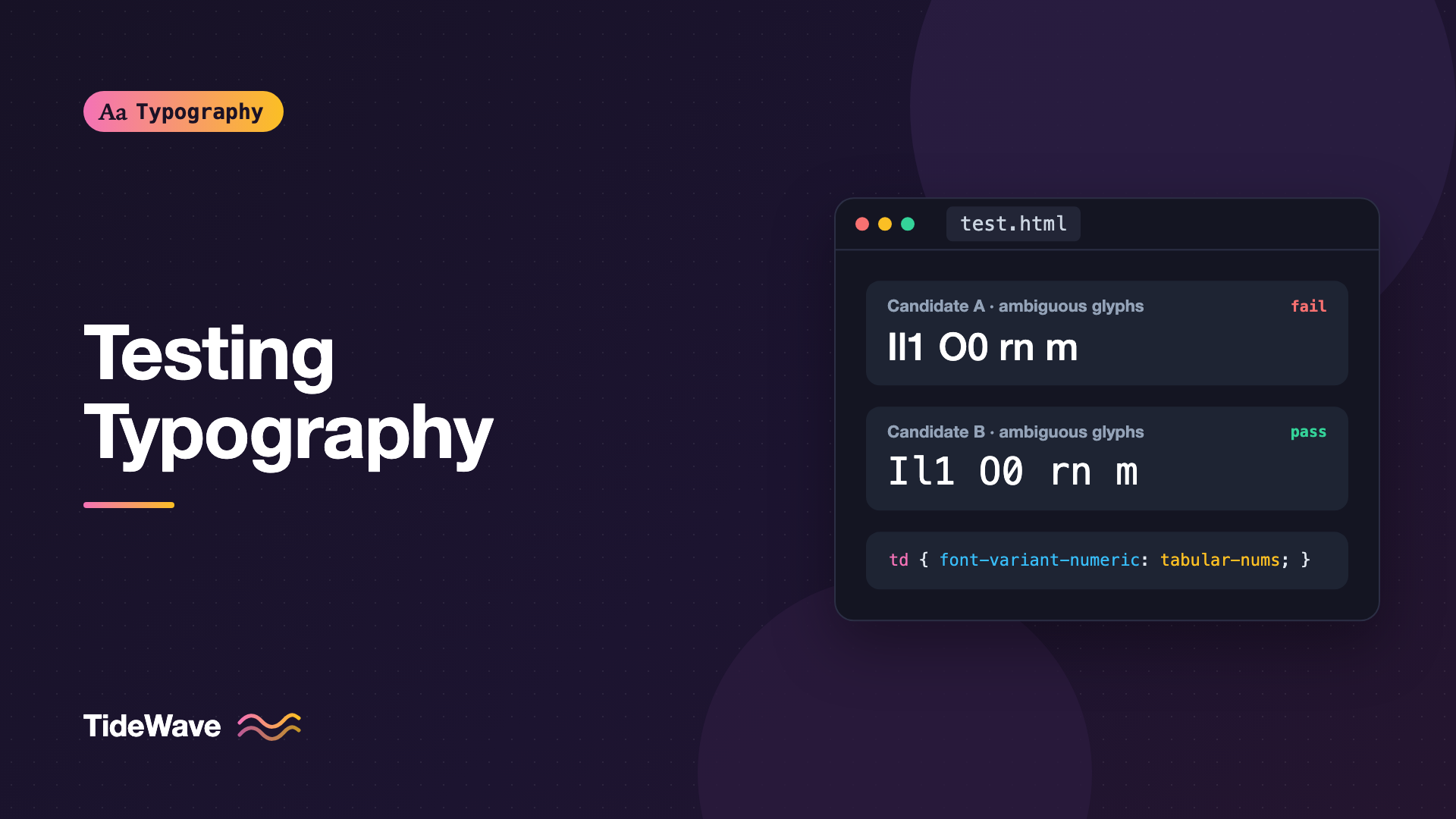
The .ambiguous line is a quick test for characters that are easy to confuse. The table checks figures, and the form checks small UI text. Swap in your own content wherever you can.
Step 3: Judge Readability at Every Size
Look at the font where it'll actually be used.
Body Text
Read several paragraphs, not a single sentence. Ask yourself:
- Does the text feel even, without letters that jump out?
- Is the x-height comfortable at your body size?
- Do italics and bold look like part of the same family?
- Does a long paragraph feel tiring?
Choosing a body text font for long-form reading goes deeper into what makes body text comfortable.
Small Text
Check captions, labels, timestamps, and help text at the smallest sizes you use. Small text reveals tight spacing, closed apertures, and ambiguous characters.
Headlines
Large sizes reveal spacing and kerning problems. Look for awkward gaps in pairs like AV, Ty, LT, and r.. Check how the font looks with tight negative tracking if your design uses it.
Weights
Compare each weight you plan to use. Some families have a big jump from regular to bold, others have useful intermediate weights. Check how the weights look on both light and dark backgrounds, because text on dark surfaces tends to look heavier.
Step 4: Check Rendering Across Devices
Fonts render differently on different operating systems, browsers, and screens. Test on:
- macOS and iOS on high-density displays
- Windows in Chrome, Edge, and Firefox, including a standard-density monitor if you can
- Android on a mid-range phone
- Light and dark mode
Pay special attention to Windows on standard-density screens. Thin weights and small sizes are most likely to look uneven there. How font hinting works explains why.
Take screenshots of the same content in each candidate font on each device and compare them side by side. Decisions made only on a single high-resolution laptop are the most common source of later surprises.
Step 5: Verify Character Coverage
Type real names, addresses, and content in every language you support. Don't rely on a coverage list alone; look at the result.
<p lang="pl">Zażółć gęślą jaźń. Łukasz Wójcik, Kraków.</p>
<p lang="de">Größe, Straße, Übermäßig.</p>
<p lang="vi">Tiếng Việt có dấu: Nguyễn, Hồ Chí Minh.</p>
<p lang="tr">İstanbul, Iğdır, şehir, ılık.</p>
<p>Symbols: € £ ¥ ₹ © ® ™ ° ± × ÷ → ← “quotes” ‘apostrophe’ — – …</p>
When a font is missing a character, the browser falls back to another font for that glyph. The result is a single letter in a different typeface, which looks broken. In DevTools, check the Rendered Fonts section in Chrome's Computed panel or the Fonts tab in Firefox to see whether any characters came from a fallback font.
You can also inspect a font file's coverage directly with fonttools:
python3 -m pip install fonttools brotli

# Print how many characters the font maps, and whether specific ones exist
python3 -c "
from fontTools.ttLib import TTFont
cmap = TTFont('Candidate-Regular.woff2').getBestCmap()
print(len(cmap), 'characters')
for ch in 'ŁłęĞğİıễ€₹':
    print(ch, 'yes' if ord(ch) in cmap else 'MISSING')
"
If you support many languages, see typography for multilingual websites.
Step 6: Test OpenType Features
Check that the features you need actually exist and work:
.test-tabular {
  font-variant-numeric: tabular-nums;
}

.test-oldstyle {
  font-variant-numeric: oldstyle-nums;
}

.test-small-caps {
  font-variant-caps: small-caps;
}

.test-fractions {
  font-variant-numeric: diagonal-fractions;
}

.test-slashed-zero {
  font-variant-numeric: slashed-zero;
}
<p class="test-tabular">1,111.11<br />8,888.88</p>
<p class="test-oldstyle">Founded in 1987 with 240 members</p>
<p class="test-small-caps">Published by NASA and the ESA</p>
<p class="test-fractions">Add 1/2 cup and 3/4 teaspoon</p>
<p class="test-slashed-zero">Order 0O0-1001</p>
If a feature isn't in the font, the CSS has no effect. Small caps are the exception: when the font lacks them, browsers synthesize fake small caps by scaling capitals, which look thin and spindly. Tools like Wakamai Fondue let you drop in a font file and see every feature it supports.
Step 7: Measure Performance
Fonts affect loading speed and layout stability. For each candidate, measure:
- File size of each WOFF2 file you'd load
- Total font weight for the styles you need on initial load
- Layout shift when the web font replaces the fallback
# Compare the sizes of candidate font files
ls -lh fonts/*.woff2
A variable font can replace several static files, but it's not always smaller. If you only need regular and bold, two static files might be lighter than one variable file with many axes.
Test with throttled network speeds in DevTools, and run a Lighthouse or WebPageTest report. Watch for a visible jump when the font loads. If the fallback font's metrics are very different, you'll see layout shift. Reducing layout shift with size-adjust shows how to tune fallback metrics so the swap is less noticeable.
Step 8: Confirm Licensing
A font isn't really a candidate until you know you can use it everywhere you need it:
- Web, desktop, app, email, PDFs, and server-generated images may each need different licenses.
- Page-view limits, user limits, and domain limits must fit your usage.
- Subsetting and format conversion may need permission.
- Subscriptions may end, and with them your right to use the font.
Ask these questions before the design is finalized. Licensing surprises are much more painful after launch.
Step 9: Score and Decide
A simple scorecard keeps the decision objective and easy to explain to your team:
| Criterion | Weight | Inter | Source Sans 3 | IBM Plex Sans |
|---|---|---|---|---|
| Body readability | 3 | 4 | 5 | 4 |
| Small UI text | 3 | 5 | 4 | 4 |
| Language coverage | 2 | 5 | 4 | 4 |
| Required features | 2 | 5 | 4 | 4 |
| Performance | 2 | 4 | 4 | 3 |
| Brand fit | 3 | 3 | 3 | 4 |
| Licensing | 3 | 5 | 5 | 5 |
The scores here are illustrative, not a ranking of these fonts. Fill in your own based on your tests and your project's priorities. Multiply each score by its weight and add them up. The result won't make the decision for you, but it makes trade-offs visible and keeps the discussion grounded in evidence.
Common Mistakes
- Judging fonts from specimens: Specimens are marketing. Test with your own content.
- Testing on one device: Fonts can look very different on Windows, Android, and standard-density screens.
- Ignoring numbers: Prices, tables, and dates need the right figure styles. Check tabular figures early.
- Skipping language tests: Missing characters cause fallback glyphs that look broken.
- Loading every style during evaluation and in production: Measure the real set of files you'll load.
- Leaving licensing until last: A font you can't license for every use isn't a viable choice.
- Deciding alone: Show test pages to colleagues and, if possible, real users. Different people notice different problems.
Conclusion
Evaluating a typeface properly means testing it against your requirements: real content, all the sizes you use, every platform your audience uses, every language you support, the features you need, your performance budget, and your licensing situation. A test page with a font switcher and a short scorecard turns that into a repeatable process.
A few hours of testing can save weeks of rework. Shortlist two or three candidates, test them with real content on real devices, measure their cost, confirm their licenses, and only then commit. The font you choose will be part of every screen you ship, so it deserves that attention.


