Ligatures Explained: Standard, Discretionary, and Contextual
- Maria
- Typography
- 23 Oct, 2026
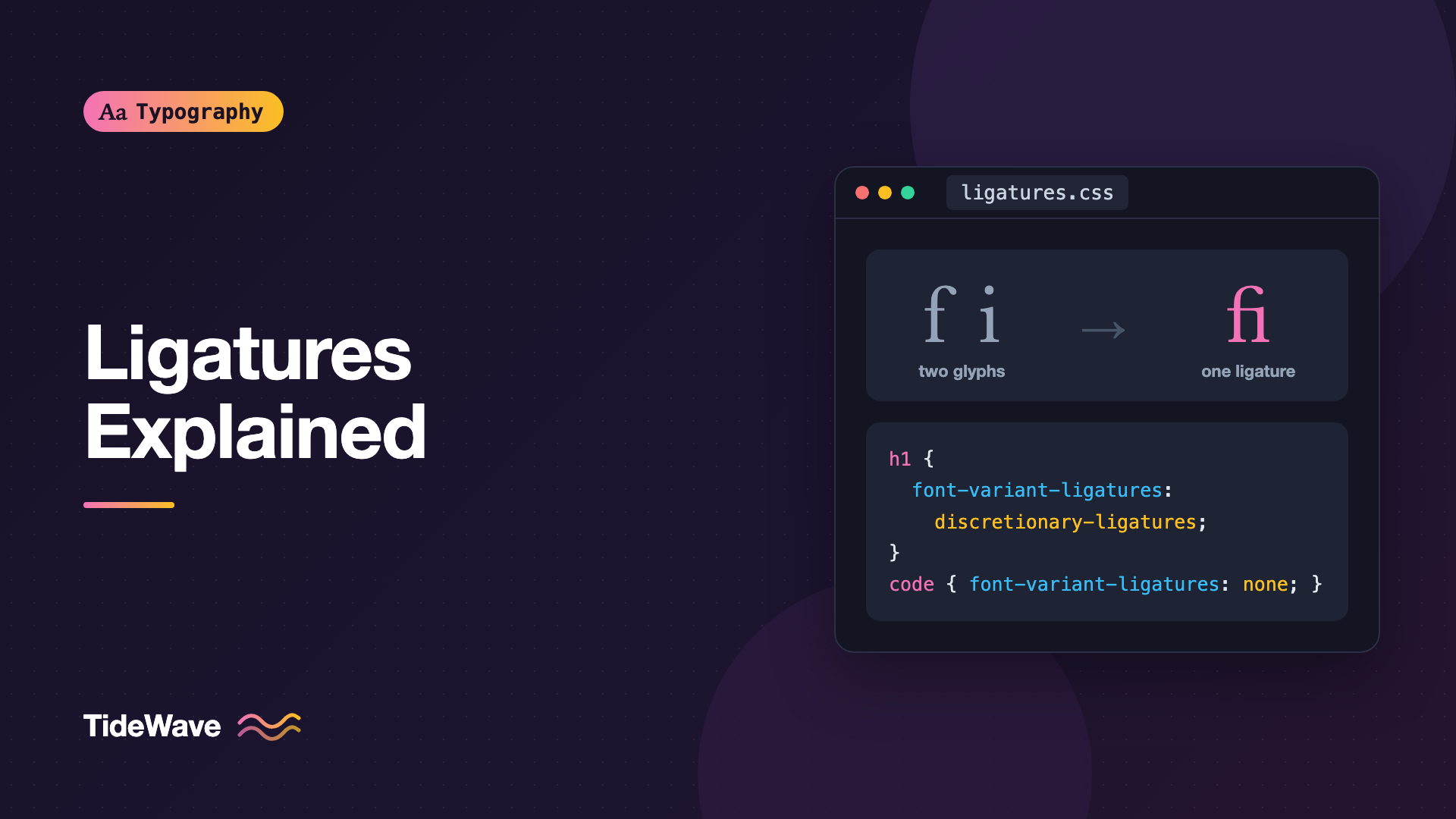
Look closely at the word "office" in a well-set serif font. The "f" and the "i" often aren't two separate letters. The hook of the "f" and the dot of the "i" would collide, so the font replaces both with a single combined shape where the dot is absorbed into the "f." You've read thousands of these without noticing, which is exactly the point.
That combined shape is a ligature: a single glyph that represents two or more characters. Some ligatures exist to fix collisions like this one. Others are decorative flourishes, and some change letter shapes depending on their neighbors so that script fonts look handwritten or code fonts turn => into an arrow.
This guide explains the main kinds of ligatures, which ones browsers use by default, how to control them with font-variant-ligatures and font-feature-settings, and when you should turn them off.
How Ligatures Work in a Font
A ligature is a substitution, not a change to your text. Your HTML still contains the characters "f" and "i." When the browser shapes the text, it asks the font whether it has any rules for that sequence. If the font's OpenType features include a ligature rule for "f" followed by "i," the renderer draws the ligature glyph instead.
Because the underlying text doesn't change:
- Copy and paste still gives you "fi"
- Find in page and search engines see normal text
- Screen readers read the word normally
- Hyphenation and line breaking work on the original characters
Each category of ligature lives in its own OpenType feature, identified by a four-letter tag. That's what lets you turn them on and off independently.
| Feature tag | Name | On by default in browsers | Purpose |
|---|---|---|---|
liga | Standard ligatures | Yes | Fix collisions like fi, fl, ff |
clig | Contextual ligatures | Yes | Ligatures that depend on surroundings |
calt | Contextual alternates | Yes | Swap letter shapes based on neighbors |
dlig | Discretionary ligatures | No | Decorative combinations like ct, st |
hlig | Historical ligatures | No | Archaic forms, such as long s pairs |
rlig | Required ligatures | Always | Forms needed for a script to be correct |
What each font contains is up to its designer. Many fonts have only a few standard ligatures. Some have none, especially sans serifs whose "f" doesn't overhang. A few, usually script and display faces, include hundreds of contextual forms.
Standard Ligatures
Standard ligatures (liga) solve a practical problem. In many typefaces, the top of the "f" reaches to the right far enough to touch the next letter. When that next letter has a dot, ascender, or a matching hook, the shapes collide and create a dark blob. The ligature redraws the pair so the strokes connect cleanly.
The common set:
- fi and fl, where the f's hook meets the dot of i or the ascender of l
- ff, ffi, and ffl, for double f combinations
- In some fonts, fj, ft, fb, fh, and fk
Standard ligatures are meant to be invisible. If you notice them, either the font is unusual or something is wrong. Browsers enable them by default, and in body text you should almost always leave them on.
Discretionary Ligatures
Discretionary ligatures (dlig) are decorative. They're there because the designer thought they looked nice, not to fix a problem. Classic examples are the swashy "ct" and "st" joined by a curved stroke, or a "Th" where the crossbar of the T reaches over the h.
Because they draw attention to themselves, browsers leave them off. Turn them on deliberately, and only where a decorative effect fits:
.invitation-heading {
  font-family: "Editorial Serif", Georgia, serif;
  font-variant-ligatures: discretionary-ligatures;
}
Good places for discretionary ligatures include wedding invitations, book covers, editorial headlines, and logos. Poor places include body text, UI labels, and anything users need to scan quickly. In a paragraph, a decorative "ct" stands out from its neighbors and slows the reader down.
Historical Ligatures
Historical ligatures (hlig) reproduce forms that were common in older printing but have fallen out of use, such as combinations with the long s ("ſ"). They're useful for period-accurate reproductions, historical documents, or a deliberately antique look. Few fonts include them, and you'll rarely need them.
.facsimile {
  font-variant-ligatures: historical-ligatures;
}
Contextual Ligatures and Alternates
The "contextual" features make letter shapes depend on what's around them.
Contextual alternates (calt) swap individual glyphs for alternate versions based on their neighbors. In a script font, a letter might have one form when it starts a word, another when it connects to a letter on its left, and another at the end of a word. That's how script fonts simulate the flow of handwriting. Without calt, connections can break or letters can repeat identically in a way that looks mechanical. The post on script and handwritten fonts covers that use in more depth.
Contextual ligatures (clig) are ligatures that apply only in particular contexts, for example joining two letters only when they're followed by a third.
Both are on by default in browsers, and you'll usually want them on. CSS groups them under one keyword, contextual.
Programming Ligatures
Coding fonts such as Fira Code, JetBrains Mono, and Cascadia Code use contextual features to draw multi-character operators as single symbols: => becomes an arrow, != becomes a single not-equal sign, and >= becomes a single "greater than or equal" symbol. Each symbol still takes up the same number of monospaced cells as the original characters, and the source text is unchanged.
Whether these help is a matter of taste. Some developers find them easier to scan. Others find that they hide the actual characters, which matters when you're teaching or when the difference between == and === is the bug. On a blog or documentation site, a reasonable default is to turn them off in code blocks so readers see exactly what to type:
pre,
code {
  font-family: "JetBrains Mono", ui-monospace, monospace;
  font-variant-ligatures: none;
}
If you want them in your own editor, that's an editor setting, not a CSS one. For more on choosing code fonts, see monospaced fonts.
Required Ligatures
Required ligatures (rlig) are part of how certain writing systems work. In Arabic, for example, the combination of lam and alef must be drawn as a specific joined form. These aren't stylistic, and turning them off would produce incorrect text, so browsers apply them regardless of your CSS. You don't need to manage them, but it's worth knowing they exist so you don't try to disable "all ligatures" in a multilingual site and expect it to affect them.
Controlling Ligatures in CSS
font-variant-ligatures
font-variant-ligatures is the high-level property for ligatures. It's readable, it inherits normally, and you can combine values:
| Value | Effect |
|---|---|
normal | Browser defaults: standard and contextual on |
none | Turns off all optional ligatures and contextual forms |
common-ligatures | Turns on liga and clig |
no-common-ligatures | Turns off liga and clig |
discretionary-ligatures | Turns on dlig |
no-discretionary-ligatures | Turns off dlig |
historical-ligatures | Turns on hlig |
no-historical-ligatures | Turns off hlig |
contextual | Turns on calt |
no-contextual | Turns off calt |
Values that don't conflict can be combined in one declaration:
.book-title {
  font-variant-ligatures: common-ligatures discretionary-ligatures contextual;
}

.data-label {
  font-variant-ligatures: no-common-ligatures no-contextual;
}
font-feature-settings
The low-level font-feature-settings property sets OpenType features directly by tag, with 1 for on and 0 for off:
.headline {
  font-feature-settings: "dlig" 1;
}

.no-fi {
  font-feature-settings:
    "liga" 0,
    "clig" 0;
}
It works, but it has a significant drawback: each declaration replaces the whole list. If a parent sets "dlig" 1 and a child sets "tnum" 1 for tabular numbers, the child loses discretionary ligatures. Prefer font-variant-ligatures and the other font-variant-* properties, and keep font-feature-settings for features that don't have a high-level property. The sibling post on using OpenType features with font-feature-settings covers that tradeoff in detail.
When to Turn Ligatures Off
There are a few cases where default ligatures can cause trouble.
Letter-Spaced Text
If you add tracking to text, a ligature would leave two letters glued together while everything else spreads apart. The CSS Text specification says browsers should not apply optional ligatures when letter-spacing is non-zero, and current browsers follow this. If you're working in a tool that doesn't, turn ligatures off yourself for letter-spaced text such as all-caps labels:
.eyebrow {
  text-transform: uppercase;
  letter-spacing: 0.08em;
  font-variant-ligatures: none;
}
How much tracking to use for capitals is covered in letter-spacing all-caps text.
Compound Words and Morphemes
Traditional typesetting avoids a ligature across the boundary of two parts of a compound word. In German, for instance, "Auflage" is "Auf" plus "lage," and a joined "fl" would bridge the two parts. Browsers don't know about word structure, so they'll apply the ligature anyway. If this matters for your content, you can break the ligature for a specific word with a zero-width non-joiner (U+200C), which prevents joining without adding visible space:
<p>Auf‌lage</p>
This is a fine detail. For most English content, you can ignore it.
Turkish and Language-Specific Forms
Turkish distinguishes dotted and dotless "i." A standard "fi" ligature that absorbs the dot could change meaning. Good fonts include language-specific rules that skip the ligature for Turkish text, but they only apply if the browser knows the language. Always set the lang attribute correctly:
<html lang="tr"></html>
Monospaced and Tabular Contexts
In data tables, code, and anything aligned by character, ligatures can make columns or character counts look wrong. Turn them off for those elements.
Ligatures Are Not Letters
A few characters look like ligatures but are actually distinct letters in some languages, such as "æ" in Danish and Norwegian or "œ" in French words like "cœur." These are encoded as separate characters, not produced by a font feature, so CSS ligature settings don't affect them. If your content needs them, type the actual character.
Similarly, the ampersand "&" began as a ligature of the Latin "et," but today it's simply its own character.
Common Mistakes
- Turning off all ligatures site-wide.
font-variant-ligatures: noneonbodyremoves the standard ligatures that prevent collisions, making body text look slightly worse. - Using discretionary ligatures in body text. Decorative joins draw attention away from reading. Save
dligfor display text. - Overwriting features with font-feature-settings. Setting one tag on a child replaces the parent's whole list. Use
font-variant-ligatureswhere possible. - Disabling contextual alternates in script fonts. Without
calt, many script fonts lose their connecting strokes and look broken. - Leaving coding ligatures on in tutorials. Readers can't copy what they can't see. Turn them off in documentation code blocks.
- Forgetting the lang attribute. Language-specific ligature rules only work when the browser knows the language of the text.
Conclusion
Ligatures replace sequences of characters with single glyphs without changing the underlying text. Standard ligatures quietly fix collisions like "fi" and "fl" and are on by default. Discretionary and historical ligatures are decorative and off by default. Contextual features change letter shapes based on their neighbors, which script fonts and some coding fonts depend on.
Leave the browser defaults alone for body text, turn on discretionary ligatures only for display type that suits them, and turn ligatures off for code, tabular data, and anything you've letter-spaced. Control them with font-variant-ligatures first, and reach for font-feature-settings only when you need a feature that doesn't have its own property.


