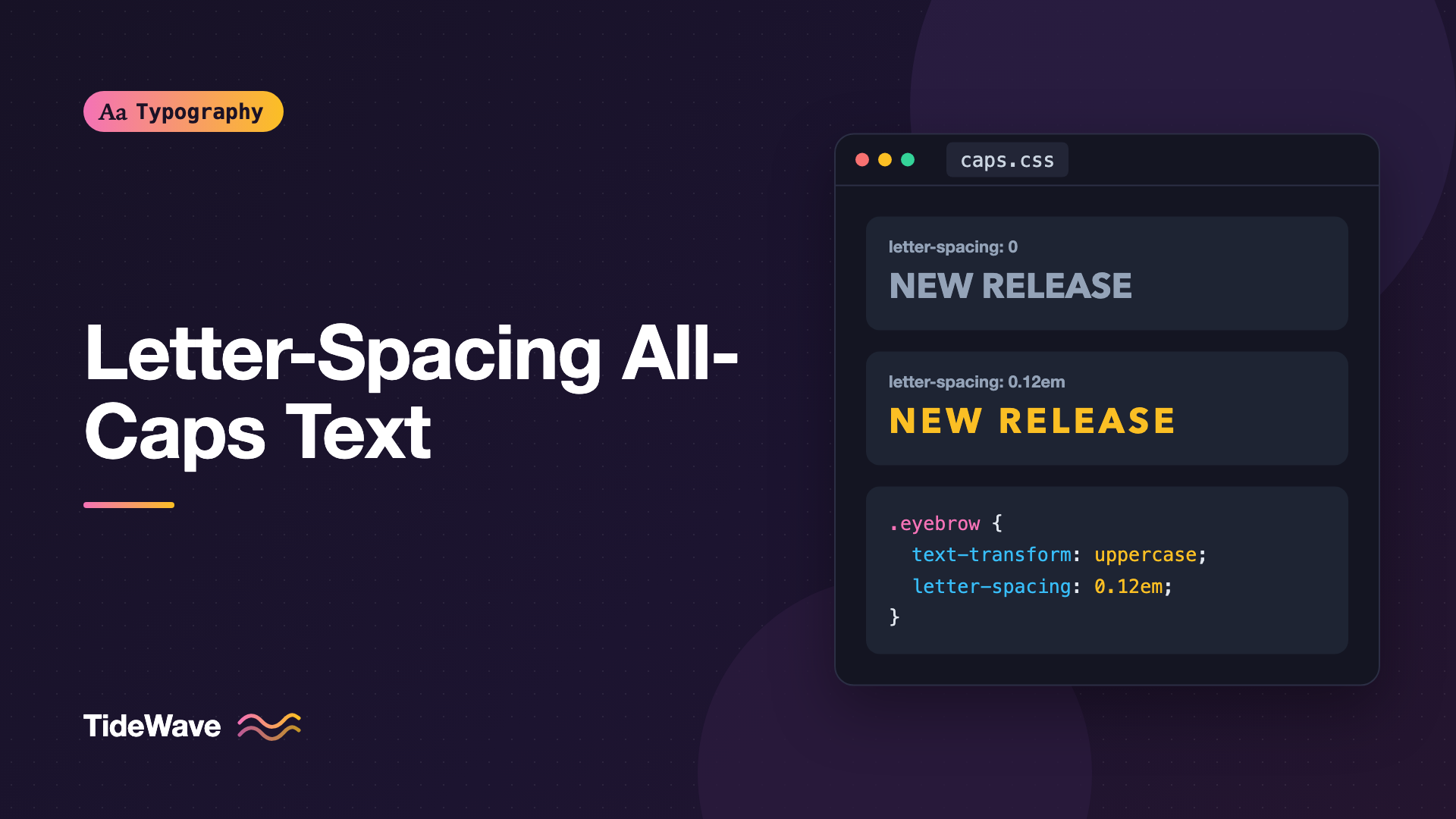
Letter-Spacing All-Caps Text: Why and How Much
- Maria
- Typography
- 23 Oct, 2026
Small uppercase labels are everywhere in interfaces: section eyebrows above headings, table headers, button text, navigation items, badges. Set them with text-transform: uppercase and nothing else, and they usually look a little off. The letters feel squeezed together, the words blur into solid blocks, and the label reads more slowly than it should. Add a touch of spacing, and the same text suddenly looks deliberate and polished.
That touch of spacing is tracking, set in CSS with letter-spacing. Capitals need it more than any other text, and it's one of the oldest rules in typography. This post explains why all-caps text needs extra space, how much to add at different sizes, how to apply it cleanly in CSS, and a few details that are easy to miss.
Why Capitals Need Extra Space
Fonts Are Spaced for Mixed Case
A typeface's spacing is built into each glyph as sidebearings, the space on either side of the letter. Type designers set those sidebearings so text looks even in the most common case: lowercase words with occasional capitals. A capital "H" is spaced to sit nicely next to an "e" or an "o," not next to another "H."
When you set a whole word in capitals, every letter is next to another capital. Capitals are larger, more uniform in height, and mostly made of vertical and straight strokes, so the gaps that looked fine between "H" and "e" look tight between "H" and "E." The word becomes a dense block.
Capitals Lose Word Shape
Lowercase text has a varied outline: ascenders rise, descenders drop, and short letters sit in between. Readers use those shapes to recognize words quickly. Capitals are all the same height and sit on the same baseline, so every word is a rectangle. That's part of why long passages of capitals are slow to read.
Extra space between capitals doesn't restore word shape, but it makes each letter easier to distinguish, which helps recognition at small sizes in particular.
The Uneven Rhythm of Capitals
Capitals also vary a lot in their internal space. "L," "T," "A," and "V" have big open areas, while "H," "N," and "M" are full. At default spacing, this unevenness is obvious: "LATTE" looks gappy in one place and cramped in another. Adding tracking evens out the overall rhythm, so the variation becomes less noticeable relative to the total space between letters.
How Much Tracking to Add
There's no single correct value. It depends on the size of the text, the typeface, and the weight. But the pattern is consistent: the smaller the caps, the more tracking they need.
| Use case | Typical size | Starting letter-spacing |
|---|---|---|
| Tiny labels, badges, table headers | 10 to 12px | 0.08em to 0.12em |
| Eyebrows, small navigation | 12 to 14px | 0.06em to 0.1em |
| Buttons | 14 to 16px | 0.04em to 0.08em |
| Subheadings in caps | 18 to 24px | 0.03em to 0.06em |
| Large display headlines in caps | 40px and up | 0 to 0.03em |
Some patterns that shift these numbers:
- Wide or extended typefaces already have generous spacing and need less.
- Condensed typefaces often need more, because narrow letters crowd together quickly.
- Bold and black weights have less space inside and between letters, so they usually need a bit more tracking than regular weights at the same size.
- Light weights at large sizes can take very little, or even slightly negative tracking in a large display setting.
- Decorative tracking, like a widely spaced logo or a luxury brand's wordmark, can go to
0.2emor more. That's a style choice, not a readability fix, and it works best for very short text.
Start in the middle of the range for your size, then adjust by eye in steps of 0.01em or 0.02em.
Setting It in CSS
Use em, Not px
Always set letter-spacing in em so it scales with the font size:
.eyebrow {
  font-size: 0.75rem;
  font-weight: 600;
  text-transform: uppercase;
  letter-spacing: 0.1em;
}
A pixel value like 1px might look right at 12px but would be far too little at 24px. With em, the proportion stays constant if the label is reused at a different size or if the user changes their default font size.
Pair the Transform with the Spacing
It's useful to bundle the uppercase transform and its tracking together so they never get separated:
.caps {
  text-transform: uppercase;
  letter-spacing: 0.08em;
}

.caps-sm {
  font-size: 0.75rem;
  text-transform: uppercase;
  letter-spacing: 0.12em;
}
In a design system, you might define the tracking as a token next to the size:
:root {
  --tracking-caps-sm: 0.12em;
  --tracking-caps-md: 0.08em;
  --tracking-caps-lg: 0.04em;
}

.table th {
  font-size: 0.75rem;
  text-transform: uppercase;
  letter-spacing: var(--tracking-caps-sm);
}
Use text-transform Instead of Typing Capitals
Write labels in normal sentence or title case in your HTML, and let CSS make them uppercase:
<p class="eyebrow">Product updates</p>
There are a few good reasons:
- Screen readers. Some screen readers may spell out short words typed in all capitals as if they were acronyms. Text transformed with CSS is generally read normally.
- Copy and paste. Depending on the browser, copied text may keep its original case, which is friendlier if users paste it elsewhere.
- Flexibility. If the design changes later, you only change CSS, not content.
The exception is real acronyms like "API," "NASA," or "PDF," which should be typed in capitals because that's their spelling.
Details That Make a Difference
The Trailing Space Problem
In most browsers, letter-spacing adds space after every character, including the last one. For left-aligned text, you won't notice. For centered text in a button or badge, the extra space at the end pushes the text slightly left of center. At 0.1em on a small label, it's subtle. With heavy tracking, it's obvious.
You can compensate by adding the same amount of padding on the start side, or by pulling the end in with a negative margin on an inner element:
.badge {
  display: inline-block;
  padding: 0.25em 0.75em;
  text-transform: uppercase;
  letter-spacing: 0.15em;
  text-align: center;
}

.badge-label {
  margin-inline-end: -0.15em; /* cancel the trailing space */
}
<span class="badge"><span class="badge-label">New</span></span>
Capital-Specific OpenType Features
Many fonts include features specifically for all-caps settings, which you can turn on with font-feature-settings:
case(case-sensitive forms): Shifts punctuation like parentheses, brackets, hyphens, and colons up so they align with capitals instead of lowercase letters. Without it, a hyphen in "PRE-ORDER" sits too low.cpsp(capital spacing): Adds the type designer's own extra spacing for all-caps text. Few fonts include it, but when they do, it's tuned to the design.
.caps {
  text-transform: uppercase;
  letter-spacing: 0.08em;
  font-feature-settings: "case" 1;
}
If a font supports cpsp, you may want to reduce your own letter-spacing to avoid doubling up. Remember that font-feature-settings replaces any other features set on the same element. For more, see using OpenType features in CSS.
Ligatures Turn Off Automatically
When letter-spacing is non-zero, browsers don't apply optional ligatures, so you won't get a tightly joined "fi" in the middle of a spaced-out word. That's the correct behavior. If you ever see joined letters in tracked text, set font-variant-ligatures: none explicitly. The post on ligatures explains which ones are affected.
Language-Aware Uppercasing
Uppercasing isn't always one letter for one letter. Some mappings apply everywhere: the German "ß" becomes "SS." Others depend on the language, and text-transform: uppercase only follows them when the lang attribute is set. In Turkish, "i" becomes the dotted capital "İ" rather than "I." In Greek, browsers may drop accents in uppercase text, following typical Greek conventions. Always set lang on the page or the element so the transform is correct.
<html lang="tr"></html>
Small Caps Need Tracking Too
Small caps are capital-shaped letters drawn at roughly lowercase height. They're used for acronyms in running text, for the first line of an article, or for a quieter version of an uppercase label. Like full capitals, they benefit from a little extra space, usually a bit less than full caps at the same size:
.lead-in {
  font-variant-caps: all-small-caps;
  letter-spacing: 0.05em;
}
Use real small caps from the font when possible. Synthesized small caps, made by shrinking full capitals, look too thin. The sibling post on small caps covers when to use them and how to load fonts that include them.
Keep All-Caps Text Short
Tracking makes capitals easier to read, but it doesn't make them suitable for long text. All-caps works well for:
- Labels, eyebrows, and kickers of a few words
- Table column headers
- Short buttons and navigation items
- Display headlines, where the size compensates for the lack of word shape
Avoid all caps for paragraphs, long headings, and anything users need to read carefully, like error messages or instructions. If you need emphasis in longer text, use weight or color instead.
Accessibility Considerations
WCAG 1.4.12 Text Spacing requires that content still works when users increase letter spacing to at least 0.12 times the font size, along with line height at 1.5 times, paragraph spacing at 2 times, and word spacing at 0.16 times. Your all-caps labels may already be close to 0.12em, which is fine. The risk is fixed-width containers: a nav item or badge sized exactly to its tracked label may overflow or clip when spacing increases. Let these elements size to their content, or allow wrapping. See meeting WCAG text spacing requirements for testing.
Common Mistakes
- No tracking on small caps labels. The most common one. Add at least
0.05emto any uppercase text under about 16px. - Tracking in pixels.
letter-spacing: 2pxis inconsistent across sizes. Useem. - The same tracking at every size. A large heading tracked like a tiny label looks scattered. Reduce tracking as size increases.
- Typing capitals in HTML. Use
text-transform: uppercasefor styling, and type capitals only for real acronyms. - Forgetting case-sensitive forms. Hyphens and parentheses sit low in all-caps text unless the
casefeature is enabled. - Tracking lowercase text the same way. Lowercase body text should almost never be letter-spaced. The rule is specific to capitals.
- Centered labels that sit off-center. Compensate for the trailing space in buttons and badges.
Conclusion
Fonts are spaced for mixed-case text, so when every letter is a capital, the result looks cramped and reads slowly. A modest amount of letter-spacing, set in em, opens up capitals so each letter is easier to distinguish and the rhythm evens out. Small labels need the most, typically 0.08em to 0.12em, while large display caps need very little.
Make tracking part of every uppercase style in your system rather than an afterthought. Pair text-transform: uppercase with a size-appropriate letter-spacing, turn on case-sensitive forms if your font has them, keep all-caps text short, and your labels and headings will look clean and intentional.


