Widows and Orphans: How to Fix Awkward Line Breaks
- Maria
- Typography
- 23 Oct, 2026
You've just finished a landing page. The hero paragraph looks great on your monitor, but on a phone it ends with a single word sitting alone on the last line. In the three-column feature section, one column starts with the last line of a paragraph that began in the column before it. Neither is an error, but both make the layout look accidental.
Typographers have names for these problems: widows and orphans. They've been fixing them by hand in print for centuries, adjusting spacing, rewriting sentences, and nudging line breaks until every page looks deliberate. On the web, you can't hand-tune every line, because the text reflows at every screen width. But modern CSS gives you real tools for the job.
This guide explains what widows and orphans are, why they appear, and which techniques fix them in paragraphs, headings, multi-column layouts, and print.
What Widows and Orphans Are
The terms come from print, and different sources define them differently. Here are the definitions you'll see most often.
In traditional book typography:
- An orphan is the first line of a paragraph left alone at the bottom of a page or column, with the rest of the paragraph on the next.
- A widow is the last line of a paragraph stranded alone at the top of the next page or column.
A common memory aid: an orphan is left behind at the start, a widow is left alone at the end.
On the web and in everyday design talk, people usually mean something else:
- A single word, or a very short fragment, alone on the last line of a paragraph or heading.
Some typographers call that a runt, and some call it an orphan or a widow. The terminology is genuinely inconsistent, and the CSS spec uses the book definitions. In this guide, I'll use "widow" and "orphan" for the page and column sense, matching CSS, and "runt" for the short last line.
| Problem | What it looks like | Where it happens |
|---|---|---|
| Runt | One short word alone on the last line | Any paragraph or heading |
| Orphan | First line of a paragraph alone at the end of a column | Multi-column layouts, print |
| Widow | Last line of a paragraph alone at the start of a column | Multi-column layouts, print |
Why They Appear
Browsers wrap text with a greedy algorithm. They fit as many words as possible on the first line, then the next, without looking ahead. When the last line happens to have room for only one word, you get a runt. No line was decided with the whole paragraph in mind.
Fragmentation into columns and pages is similar. The browser fills a column until it runs out of space, and wherever the content happens to break is where the split falls.
Because both depend on the available width, a page that looks perfect at one viewport width can be full of runts at another. That's why manual fixes, like rewording a sentence, rarely hold up on responsive sites.
Fixing Runts with text-wrap: pretty
The best modern fix for short last lines is a single declaration:
p,
li,
figcaption {
  text-wrap: pretty;
}
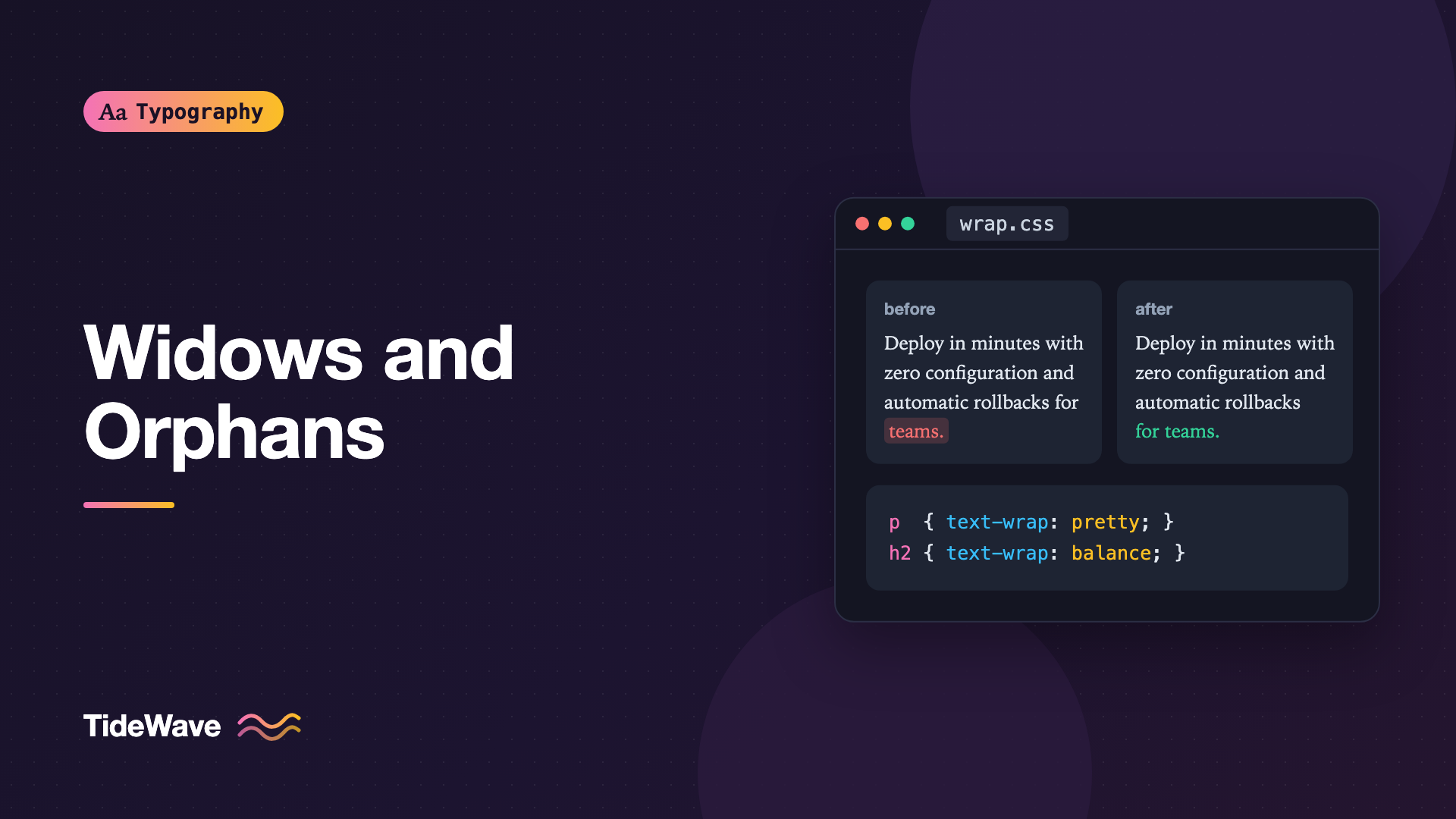
text-wrap: pretty tells the browser to use a slower, smarter line-breaking algorithm. In Chromium, it focuses on the end of the paragraph and adjusts earlier breaks so the last line isn't a single short word. Safari's implementation considers more of the paragraph and also reduces raggedness. Either way, runts mostly disappear.
It's a progressive enhancement. Browsers that don't support it ignore it and wrap normally, so there's no risk in adding it. The text-wrap guide covers how it works across browsers and what it costs.
Headings Need balance Instead
For headings and other short text, text-wrap: balance is usually better:
h1,
h2,
h3,
.card-title {
  text-wrap: balance;
}
balance evens out all lines in a short block, so a two-line heading becomes two lines of similar length rather than one full line and one word. Browsers limit it to a few lines, so it's meant for headings, captions, and short intros, not body paragraphs.
The Non-Breaking Space Fallback
Before text-wrap: pretty, the classic fix was a non-breaking space between the last two words of a paragraph. The browser can't break at that space, so the final two words always wrap together.
<h2>Faster builds for every team</h2>
<p>Deploy in minutes with zero configuration and automatic rollbacks.</p>
This still works, and it's useful where you want a guarantee rather than a best effort, for example in a fixed headline you control. But it has limitations:
- It only prevents one-word last lines. Two short words alone can still look like a runt.
- It's baked into content, so editors need to remember it, and it can fight with
text-wrap: balanceby limiting where the browser can break. - Glued words can cause overflow in very narrow containers if the last two words are long.
The invisible characters guide explains non-breaking spaces and related characters in more detail.
Automating It for CMS Content
If your content comes from a CMS and you need the fix in browsers without text-wrap: pretty, you can add the non-breaking space at build time rather than asking editors to do it:
function preventRunt(text, minLastWords = 2) {
  const words = text.trim().split(" ");
  if (words.length <= minLastWords + 1) return text;

  const head = words.slice(0, -minLastWords).join(" ");
  const tail = words.slice(-minLastWords).join(" ");
  return `${head} ${tail}`;
}

preventRunt("Ship faster with previews for every pull request");
// "Ship faster with previews for every pull request"
Apply this only to short plain-text fields like headings, card titles, and button labels. Running it over rich HTML risks inserting non-breaking spaces inside tags or URLs.
Avoid Fixed Line Breaks
A tempting fix is to add a br tag where you want the line to break. It works at exactly one width and breaks everywhere else:
<!-- Looks right on desktop, wrong on mobile -->
<h1>Build better products<br />with less effort</h1>
On a narrow screen, the heading wraps before the br, then breaks again at it, leaving a short fragment in the middle. If you truly need a break at a specific width, hide it at other widths:
.break-desktop {
  display: none;
}

@media (min-width: 64rem) {
  .break-desktop {
    display: inline;
  }
}
In most cases, text-wrap: balance and a sensible max-width give a better result with no markup at all:
.hero-title {
  max-width: 18ch;
  text-wrap: balance;
}
Widows and Orphans in Multi-Column Layouts
In CSS multi-column layouts, the browser splits a paragraph across columns. The widows and orphans properties set the minimum number of lines that must stay together at the end and start of a column:
.article-columns {
  columns: 3 18rem;
  column-gap: 2.5rem;
}

.article-columns p {
  orphans: 3;
  widows: 3;
}
With orphans: 3, a paragraph can't leave fewer than three lines at the bottom of a column. With widows: 3, it can't carry fewer than three lines to the top of the next. The default for both is 2.
Browser support is uneven. Chromium-based browsers honor widows and orphans in multi-column layouts, Firefox hasn't supported them, and behavior elsewhere varies. Check caniuse before you depend on them, and treat them as an enhancement.
Keeping Headings with Their Content
The worst column break of all is a heading at the bottom of a column with its content in the next. break-after: avoid asks the browser not to break right after an element:
.article-columns h2,
.article-columns h3 {
  break-after: avoid;
}

.article-columns figure,
.article-columns blockquote {
  break-inside: avoid;
}
break-inside: avoid keeps figures, quotes, and cards whole instead of splitting them across columns. Support for break-inside: avoid in columns is good. Support for break-after: avoid is weaker, so test in each browser.
If headings keep stranding, consider whether multi-column layout is right for the content. Columns work well for short items like lists of links and cards, and less well for long articles with many headings, especially when readers have to scroll up and down between columns.
Widows and Orphans in Print
Print stylesheets are where widows, orphans, and the break-* properties are most useful, because every browser paginates content when you print.
@media print {
  p {
    orphans: 3;
    widows: 3;
  }

  h1,
  h2,
  h3 {
    break-after: avoid;
  }

  table,
  figure,
  pre {
    break-inside: avoid;
  }
}
For invoices, reports, and documentation people print or save as PDF, these few lines prevent the most visible problems. Test by printing to PDF from each browser, since implementations differ in how strictly they honor these hints.
Checking for Runts at Every Width
Because line breaks change with width, the only way to find runts is to look at real widths:
- Open the page in a browser with responsive design mode.
- Slowly drag the viewport width from narrow to wide.
- Watch headings, card titles, and short paragraphs as they reflow.
- Toggle
text-wrapin DevTools to compare.
Pay special attention to text in fixed-width components like cards, where the container size doesn't track the viewport, and to translated content, where word lengths differ.
Common Mistakes
- Hardcoding
brtags in headings, which fixes one width and breaks the others. - Using
text-wrap: balanceon body paragraphs, which makes them oddly narrow and has no effect past a few lines. - Adding non-breaking spaces everywhere, which can cause overflow and prevent
balancefrom finding good breaks. - Relying on
widowsandorphansfor normal paragraphs, where they do nothing. They only apply when content breaks across columns or pages. - Rewriting copy to fix a runt at one width, only to create a new one at another.
- Forgetting print styles on content people actually print, like receipts and documentation.
Conclusion
Widows, orphans, and runts all come from line and column breaks that the browser chose without looking at the whole block. For short last lines, text-wrap: pretty on paragraphs and text-wrap: balance on headings handle most cases with no markup changes. Non-breaking spaces are a reliable fallback for key headlines. For columns and print, widows, orphans, and break-* properties keep lines and headings together where support allows.
Start by adding the two text-wrap rules to your base stylesheet, then drag your viewport across a few key pages. Any runts that remain are the places worth a targeted non-breaking space or a rethink of the container width.


