Client-Side Form Validation Patterns in React
Most form bugs aren't about sending data. They're about telling the user what's wrong at the right time. Show an error the moment someone types the first letter of their email and the form feels hostile. Wait until submit and they scroll around looking for the one red field. Forget to re-check a field after the user fixes it and the error sticks around even though the value is fine.
Client-side validation is a user experience feature, not a security feature. The server must always validate again. What the client gives you is fast feedback, fewer wasted requests, and a form that guides people instead of scolding them.
In this post you'll build up a set of validation patterns in plain React with TypeScript: native HTML constraints, a reusable validation hook, the "touched" pattern for validating on blur, schema validation with Zod, cross-field rules, async checks like "is this username taken", and accessible error messages. Each pattern works on its own, so you can pick the ones your form needs.
Start With Native HTML Constraints
The browser already knows how to validate a lot. Attributes like required, type="email", minLength, maxLength, min, max, and pattern give you validation for free, and the Constraint Validation API lets you read the results from JavaScript.
import { useState, type FormEvent } from "react";

export function NewsletterForm() {
  const [message, setMessage] = useState("");

  function handleSubmit(event: FormEvent<HTMLFormElement>) {
    event.preventDefault();
    const form = event.currentTarget;

    if (!form.checkValidity()) {
      form.reportValidity();
      return;
    }

    const data = new FormData(form);
    setMessage(`Subscribed ${data.get("email")}`);
  }

  return (
    <form onSubmit={handleSubmit} noValidate>
      <label htmlFor="email">Email</label>
      <input id="email" name="email" type="email" required />
      <button type="submit">Subscribe</button>
      {message && <p role="status">{message}</p>}
    </form>
  );
}
noValidate turns off the browser's automatic popup on submit, so you control when errors show. checkValidity() returns a boolean, and reportValidity() shows the native bubbles if you want them.
Each input also exposes a validity object with flags like valueMissing, typeMismatch, tooShort, and patternMismatch, plus a validationMessage string. You can use those to render your own messages:
function getNativeError(input: HTMLInputElement): string | undefined {
  const { validity } = input;
  if (validity.valid) return undefined;
  if (validity.valueMissing) return "This field is required";
  if (validity.typeMismatch) return "Enter a valid value";
  if (validity.tooShort) return `Use at least ${input.minLength} characters`;
  if (validity.patternMismatch) return input.title || "Invalid format";
  return input.validationMessage;
}
Native constraints are a good baseline, especially for simple forms. They fall short when you need custom messages everywhere, rules that depend on other fields, or async checks. That's where JavaScript validation takes over.
A Validation Function Per Form
The simplest JavaScript pattern is one pure function that takes all the values and returns an object of errors. It's easy to test, easy to read, and has no dependencies.
// validate-signup.ts
export type SignupValues = {
  username: string;
  email: string;
  password: string;
  confirmPassword: string;
};

export type Errors<T> = Partial<Record<keyof T, string>>;

export function validateSignup(values: SignupValues): Errors<SignupValues> {
  const errors: Errors<SignupValues> = {};

  if (!values.username.trim()) {
    errors.username = "Choose a username";
  } else if (!/^[a-z0-9_]{3,20}$/i.test(values.username)) {
    errors.username = "3-20 letters, numbers, or underscores";
  }

  if (!/^[^\s@]+@[^\s@]+\.[^\s@]+$/.test(values.email)) {
    errors.email = "Enter a valid email address";
  }

  if (values.password.length < 8) {
    errors.password = "Use at least 8 characters";
  }

  if (values.confirmPassword !== values.password) {
    errors.confirmPassword = "Passwords don't match";
  }

  return errors;
}
Notice the cross-field rule at the end. Because the function sees every value, comparing two fields is just an if statement. That's a big advantage of whole-form validation over per-field rules.
The Touched Pattern: Validate on Blur, Re-Validate on Change
The timing question is where most forms go wrong. A pattern that works well for most forms:
- Don't show a field's error until the user has left it (blur) at least once.
- After that, re-validate on every change, so the error disappears as soon as the value is fixed.
- On submit, mark every field as touched so all errors show.
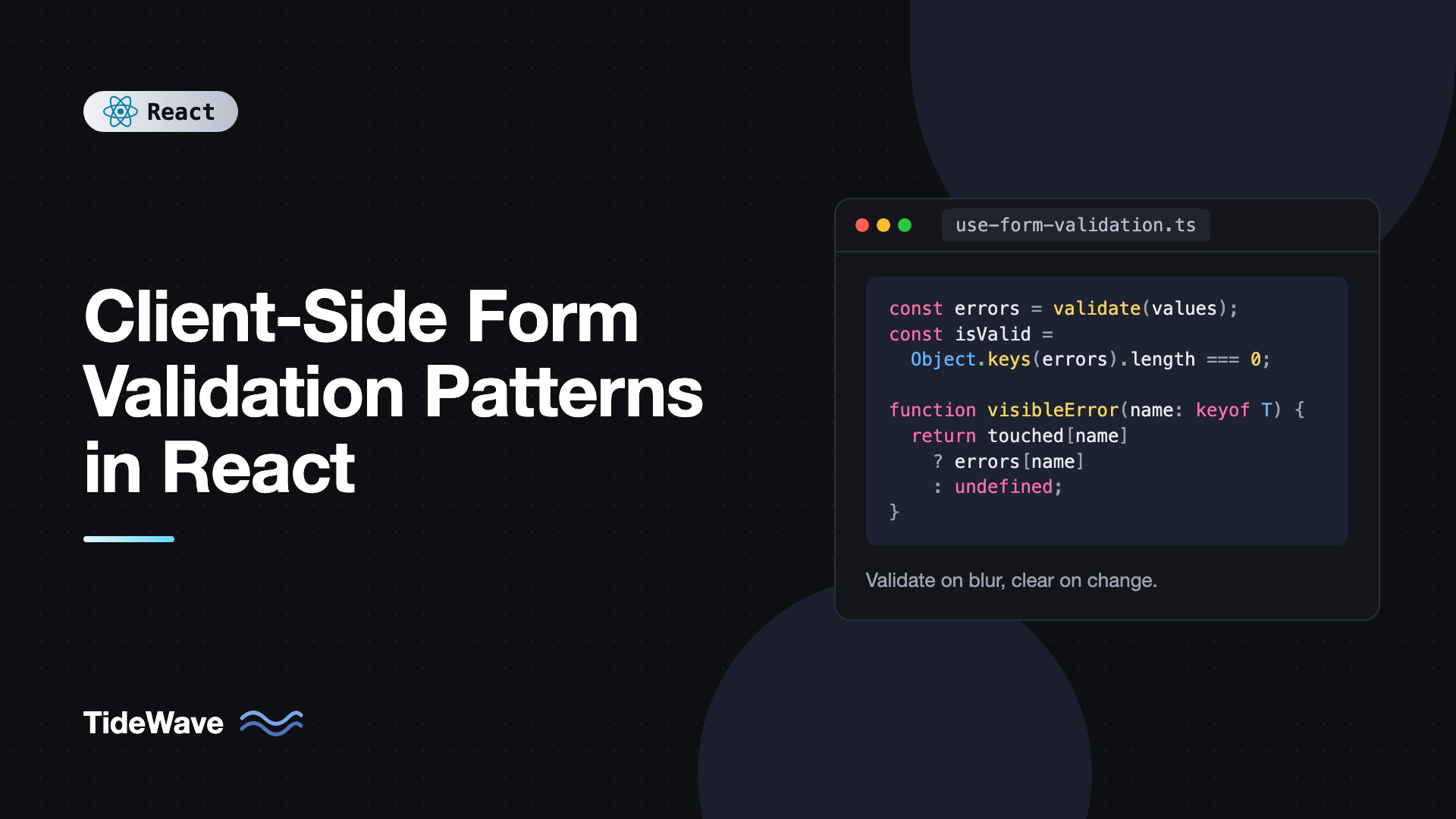
This is sometimes called "reward early, punish late." You punish late by waiting for blur, and reward early by clearing errors immediately.
Here's a small hook that implements it:
// use-form-validation.ts
import { useState, type ChangeEvent, type FormEvent } from "react";

type Errors<T> = Partial<Record<keyof T, string>>;

export function useFormValidation<T extends Record<string, string>>(
  initialValues: T,
  validate: (values: T) => Errors<T>,
) {
  const [values, setValues] = useState<T>(initialValues);
  const [touched, setTouched] = useState<Partial<Record<keyof T, boolean>>>({});

  const errors = validate(values);
  const isValid = Object.keys(errors).length === 0;

  function handleChange(event: ChangeEvent<HTMLInputElement>) {
    const { name, value } = event.target;
    setValues((prev) => ({ ...prev, [name]: value }));
  }

  function handleBlur(event: ChangeEvent<HTMLInputElement>) {
    const { name } = event.target;
    setTouched((prev) => ({ ...prev, [name]: true }));
  }

  function handleSubmit(onValid: (values: T) => void) {
    return (event: FormEvent<HTMLFormElement>) => {
      event.preventDefault();
      const allTouched = Object.fromEntries(
        Object.keys(values).map((key) => [key, true]),
      ) as Record<keyof T, boolean>;
      setTouched(allTouched);
      if (isValid) onValid(values);
    };
  }

  function visibleError(name: keyof T) {
    return touched[name] ? errors[name] : undefined;
  }

  return { values, errors, isValid, handleChange, handleBlur, handleSubmit, visibleError };
}
There's a deliberate choice here: errors is derived from values on every render instead of being stored in state. Storing errors separately means you have to remember to update them in every handler, and they drift out of sync. Validation functions are cheap, so computing them each render is fine for typical forms. If you want more on this idea, see derived state in React and the mistakes around it.
Using the hook:
// signup-form.tsx
import { useFormValidation } from "./use-form-validation";
import { validateSignup } from "./validate-signup";

export function SignupForm() {
  const { values, handleChange, handleBlur, handleSubmit, visibleError } =
    useFormValidation(
      { username: "", email: "", password: "", confirmPassword: "" },
      validateSignup,
    );

  return (
    <form onSubmit={handleSubmit((v) => console.log("submit", v))} noValidate>
      <Field
        label="Username"
        name="username"
        value={values.username}
        error={visibleError("username")}
        onChange={handleChange}
        onBlur={handleBlur}
      />
      <Field
        label="Email"
        name="email"
        type="email"
        value={values.email}
        error={visibleError("email")}
        onChange={handleChange}
        onBlur={handleBlur}
      />
      <Field
        label="Password"
        name="password"
        type="password"
        value={values.password}
        error={visibleError("password")}
        onChange={handleChange}
        onBlur={handleBlur}
      />
      <Field
        label="Confirm password"
        name="confirmPassword"
        type="password"
        value={values.confirmPassword}
        error={visibleError("confirmPassword")}
        onChange={handleChange}
        onBlur={handleBlur}
      />
      <button type="submit">Create account</button>
    </form>
  );
}
Accessible Error Messages
An error that only shows up as red text isn't an error for screen reader users. Every field with an error needs three things:
aria-invalid="true"on the input, so assistive tech announces it as invalid.- An error element with an
id, linked from the input witharia-describedby. - A visible text message, not just a color change.
Here's the Field component used above:
// field.tsx
import { useId, type ComponentProps } from "react";

type FieldProps = ComponentProps<"input"> & {
  label: string;
  name: string;
  error?: string;
};

export function Field({ label, name, error, type = "text", ...inputProps }: FieldProps) {
  const id = useId();
  const errorId = `${id}-error`;

  return (
    <div className="field">
      <label htmlFor={id}>{label}</label>
      <input
        id={id}
        name={name}
        type={type}
        aria-invalid={error ? true : undefined}
        aria-describedby={error ? errorId : undefined}
        {...inputProps}
      />
      {error && (
        <p id={errorId} className="field-error">
          {error}
        </p>
      )}
    </div>
  );
}
useId generates a stable, unique id so labels and error messages are connected even when the component is rendered many times. There's a full write-up of useId for accessible components if you want the details.
Focus the First Invalid Field on Submit
When a submit fails, move focus to the first invalid field. Keyboard and screen reader users then land right where they need to fix something. Because the inputs have aria-invalid, you can query for them after React commits the touched state:
import { useRef } from "react";

export function useFocusFirstError() {
  const formRef = useRef<HTMLFormElement>(null);

  function focusFirstError() {
    requestAnimationFrame(() => {
      const firstInvalid = formRef.current?.querySelector<HTMLElement>(
        '[aria-invalid="true"]',
      );
      firstInvalid?.focus();
    });
  }

  return { formRef, focusFirstError };
}
Attach formRef to the <form> and call focusFirstError() in your submit handler when the form is invalid. The requestAnimationFrame waits until the re-render with all fields marked touched has been painted.
Schema Validation With Zod
Hand-written validation functions get repetitive once you have many forms. A schema library like Zod lets you declare the rules once and get both validation and TypeScript types out of it.
npm install zod
// signup-schema.ts
import { z } from "zod";

export const signupSchema = z
  .object({
    username: z
      .string()
      .trim()
      .regex(/^[a-z0-9_]{3,20}$/i, "3-20 letters, numbers, or underscores"),
    email: z.email("Enter a valid email address"),
    password: z.string().min(8, "Use at least 8 characters"),
    confirmPassword: z.string(),
  })
  .refine((data) => data.password === data.confirmPassword, {
    message: "Passwords don't match",
    path: ["confirmPassword"],
  });

export type SignupValues = z.infer<typeof signupSchema>;
This uses Zod 4, where z.email() is a top-level validator. On Zod 3, use z.string().email().
To plug a schema into the hook from earlier, write a small adapter that turns Zod's issues into the same errors object:
// zod-validator.ts
import type { z } from "zod";

export function zodValidator<S extends z.ZodType>(schema: S) {
  return (values: z.input<S>) => {
    const result = schema.safeParse(values);
    if (result.success) return {};

    const errors: Record<string, string> = {};
    for (const issue of result.error.issues) {
      const key = String(issue.path[0]);
      if (!(key in errors)) errors[key] = issue.message;
    }
    return errors as Partial<Record<keyof z.input<S>, string>>;
  };
}
Now useFormValidation(initialValues, zodValidator(signupSchema)) works the same way as the hand-written version. Only the first issue per field is kept, which is usually what you want to show.
The big win is that the same schema can run on the server. If you use React Hook Form, the @hookform/resolvers/zod package does this adapter work for you. The post on accessible forms with React Hook Form and Zod covers that setup.
Async Validation: Checking a Username
Some rules can only be checked by the server, like whether a username or email is already taken. Async validation has three traps: firing a request on every keystroke, showing stale results when responses arrive out of order, and blocking submit while a check is still pending.
This hook handles all three with a debounce and an AbortController:
// use-username-availability.ts
import { useEffect, useState } from "react";

type Status = "idle" | "checking" | "available" | "taken" | "error";

export function useUsernameAvailability(username: string, enabled: boolean) {
  const [status, setStatus] = useState<Status>("idle");

  useEffect(() => {
    if (!enabled || !username) {
      setStatus("idle");
      return;
    }

    const controller = new AbortController();
    setStatus("checking");

    const timer = setTimeout(async () => {
      try {
        const res = await fetch(
          `/api/usernames/${encodeURIComponent(username)}`,
          { signal: controller.signal },
        );
        if (!res.ok) throw new Error(`HTTP ${res.status}`);
        const data: { available: boolean } = await res.json();
        setStatus(data.available ? "available" : "taken");
      } catch (error) {
        if ((error as Error).name !== "AbortError") setStatus("error");
      }
    }, 400);

    return () => {
      clearTimeout(timer);
      controller.abort();
    };
  }, [username, enabled]);

  return status;
}
Each new value clears the pending timer and aborts the in-flight request, so only the latest username can ever set the status. Pass enabled as "the synchronous rules passed", so you don't hit the server with values that are obviously invalid.
Combine it in the form:
const syncError = visibleError("username");
const status = useUsernameAvailability(values.username, !errors.username);

const usernameError =
  syncError ?? (status === "taken" ? "That username is taken" : undefined);

const canSubmit = isValid && status === "available";
Disable submit or show a "Checking..." hint while status is "checking". Remember that a username available at validation time can be taken a second later, so the server must enforce uniqueness on submit too.
Validating With Form Actions in React 19
If your form submits through a React 19 form action, validation fits into useActionState. The action receives FormData, validates it, and returns errors as state:
import { useActionState } from "react";
import { signupSchema } from "./signup-schema";

type State = { errors: Record<string, string[] | undefined>; ok: boolean };

async function signupAction(_prev: State, formData: FormData): Promise<State> {
  const result = signupSchema.safeParse(Object.fromEntries(formData));
  if (!result.success) {
    const fieldErrors: Record<string, string[]> = {};
    for (const issue of result.error.issues) {
      const key = String(issue.path[0]);
      (fieldErrors[key] ??= []).push(issue.message);
    }
    return { errors: fieldErrors, ok: false };
  }
  await fetch("/api/signup", { method: "POST", body: JSON.stringify(result.data) });
  return { errors: {}, ok: true };
}

export function ActionSignupForm() {
  const [state, formAction, isPending] = useActionState(signupAction, {
    errors: {},
    ok: false,
  });

  return (
    <form action={formAction} noValidate>
      <input name="email" type="email" aria-invalid={!!state.errors.email} />
      {state.errors.email && <p>{state.errors.email[0]}</p>}
      {/* other fields */}
      <button disabled={isPending}>Sign up</button>
    </form>
  );
}
This validates only on submit, which is fine for short forms. Note that React resets uncontrolled form fields once the action finishes, even when it returns errors. To keep what the user typed, return the submitted values in the state and pass them back to each input as defaultValue. For a deeper look, read useActionState and form actions.
Common Mistakes With Client-Side Validation
- Treating client validation as security. Anyone can bypass it with dev tools or
curl. Always validate again on the server. - Showing errors on the first keystroke. Typing "j" into an email field shouldn't trigger "Invalid email". Wait for blur or submit.
- Storing errors in separate state. Errors drift out of sync with values. Derive them from values instead.
- Color-only errors. Red borders without text and without
aria-invalidare invisible to many users. - Disabling the submit button until the form is valid. Users can't discover what's wrong. Let them submit, then show every error and focus the first one.
- Overly strict regexes. Rejecting valid names with apostrophes or emails with plus signs costs you real users. Keep patterns permissive and let the server confirm.
- Race conditions in async checks. Without aborting or ignoring stale responses, an old "available" result can overwrite a newer "taken" one.
Frequently Asked Questions (FAQ) About Client-Side Form Validation in React
For most forms, validate on blur first and then on change after a field has been touched. Always validate everything on submit. Validating on every keystroke from the start feels aggressive, while validating only on submit makes long forms frustrating to fix.
Yes, always. Client-side validation only improves the experience for honest users. Requests can be sent without your UI at all, so the server must check every rule again and return errors that the form can display.
Yes, and it's a good starting point. Attributes like required, minLength, and type="email" work without JavaScript and expose results through the validity object. Add noValidate to the form if you want to render your own messages instead of the browser popups.
Once you have several forms, nested fields, field arrays, or performance issues from re-rendering large forms on every keystroke. A hand-rolled hook is fine for a few simple forms, but a library handles registration, touched state, and resolvers for you.
Validate the whole form at once instead of each field in isolation. With a plain function, compare the values directly. With Zod, use refine or superRefine on the object schema and set path so the error attaches to the right field.
Render the message as text, set aria-invalid on the input, and link the message with aria-describedby. On a failed submit, move focus to the first invalid field so keyboard and screen reader users know where to go.
Conclusion
Good client-side validation is mostly about timing and clarity. Start with native constraints, derive errors from values with a single validation function or a Zod schema, show errors after blur and clear them on change, and mark everything as touched on submit. Wire up aria-invalid and aria-describedby so errors work for everyone, and handle async checks with debouncing and aborting so stale responses can't win.
Pick the patterns that fit the form in front of you. A newsletter box may only need required and type="email", while a signup flow benefits from schemas, async checks, and focus management. Whatever you choose, keep the same rules running on the server, and treat the client as the friendly first line of feedback rather than the last line of defense.