Designing Headings That Guide the Reader Through a Page
- Maria
- Typography
- 23 Oct, 2026
Most people don't read a long web page from top to bottom. They land, scroll quickly, and look for the part that answers their question. If the page has clear headings, that scan takes seconds. If the headings are vague, too similar to the body text, or floating in the wrong place, the reader gives up or reads everything slowly to find one paragraph.
Headings do more work than any other text on a page. They show structure, help readers navigate, give screen reader users a way to jump between sections, and make the page easier to scan. Designing them well means getting three things right: the structure in the HTML, the visual design in CSS, and the words themselves.
This guide covers all three, with practical CSS for sizing, spacing, and wrapping headings so they guide readers instead of just decorating the page.
Structure First: The Heading Outline
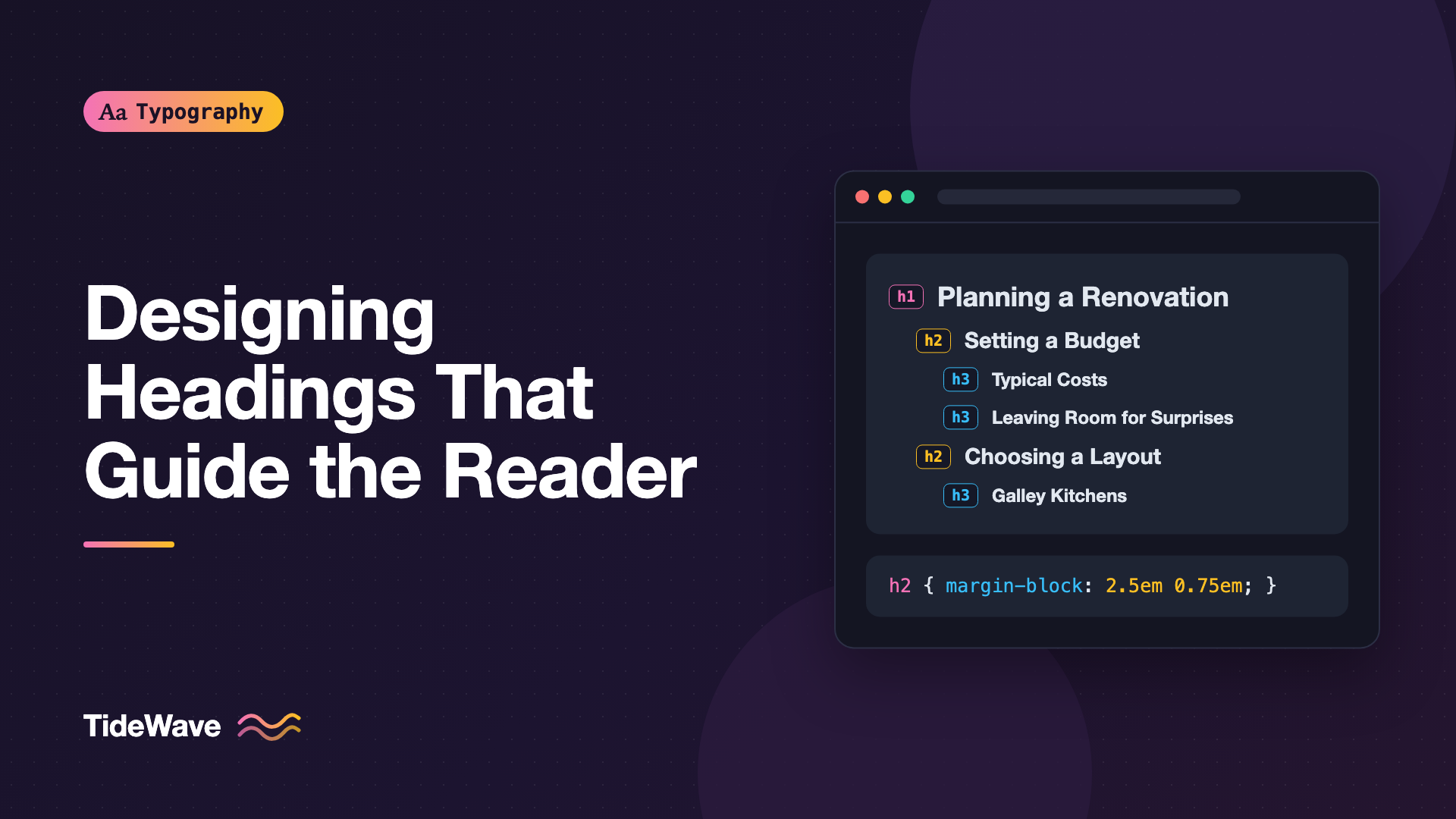
Before any styling, headings need a logical structure. HTML has six levels, <h1> through <h6>, and they should describe the outline of the content:
<article>
  <h1>Planning a Kitchen Renovation</h1>

  <h2>Setting a Budget</h2>
  <h3>Typical Cost Breakdown</h3>
  <h3>Leaving Room for Surprises</h3>

  <h2>Choosing a Layout</h2>
  <h3>Galley Kitchens</h3>
  <h3>L-Shaped and U-Shaped Kitchens</h3>

  <h2>Hiring Contractors</h2>
</article>
A few rules make this outline useful:
- One
<h1>per page, describing the page's main topic. - Don't skip levels going down. An
<h2>should be followed by<h3>, not<h4>. You can jump back up any number of levels when a new section starts. - Choose levels by structure, not by appearance. If you want an
<h3>to look smaller, style it. Don't use<h5>because it happens to be the right size.
Screen reader users rely heavily on this structure. Most screen readers let users list all headings or jump from one to the next, which turns your outline into a table of contents. A broken outline is like a book with a scrambled table of contents.
Decouple Level from Style
Components get reused in different contexts. A card title might be an <h2> on one page and an <h3> on another. Utility classes let you keep the semantic level correct while choosing the visual style separately:
.heading-xl {
  font-size: var(--step-5);
}

.heading-l {
  font-size: var(--step-4);
}

.heading-m {
  font-size: var(--step-3);
}

.heading-s {
  font-size: var(--step-2);
}
<h2 class="heading-s">Related Articles</h2>
Visual Design: Making Each Level Distinct
Each heading level should be visibly different from the next and from body text. If an <h3> and an <h4> look almost the same, readers can't tell which section contains which.
Size
Use a consistent type scale so the jumps between levels are proportional. With a ratio of 1.25 and a 1rem base, you get clear steps without anything becoming oversized. The guide to building a modular type scale covers how to choose a ratio.
.prose h1 {
  font-size: clamp(2.25rem, 1.8rem + 2.2vw, 3.25rem);
}

.prose h2 {
  font-size: clamp(1.6rem, 1.4rem + 1vw, 2.1rem);
}

.prose h3 {
  font-size: clamp(1.3rem, 1.2rem + 0.5vw, 1.5rem);
}

.prose h4 {
  font-size: 1.125rem;
}
Most articles only use three levels. If you need five or six, the structure of the content may be too deep for readers to follow anyway.
Weight
Headings are usually bolder than body text, but you don't need the heaviest weight. A semibold (600) or bold (700) is enough for most fonts. Very large headings can often go lighter, because their size already provides emphasis.
Lower levels, which are close to body size, depend more on weight. An <h4> at 18px over 17px body text needs a clear weight difference to read as a heading at all.
Other Distinctions
When size and weight aren't enough, add one more cue:
- Case: small uppercase with letter spacing works for low-level headings and section labels.
- Color: a slightly different color or an accent can mark a level, as long as it still meets contrast requirements.
- Typeface: a contrasting font for headings, such as a serif heading over sans body text.
For the full set of tools, see creating visual hierarchy with size, weight, and color.
Spacing: Headings Belong to What Follows
The most common heading problem isn't size or weight. It's spacing. A heading introduces the content below it, so it should sit closer to the following text than to the preceding text.
When the space above and below a heading is equal, the heading floats between sections and the reader has to work out which content it belongs to. Making the top margin noticeably larger than the bottom fixes this immediately.
.prose h2 {
  margin-block: 2.5em 0.75em;
}

.prose h3 {
  margin-block: 2em 0.5em;
}

.prose h4 {
  margin-block: 1.75em 0.5em;
}
Because these margins use em, they scale with each heading's font size. An h2 gets more space than an h3 automatically.
Remove Space at the Top
The first heading in a container usually shouldn't have a top margin, because the container already provides spacing:
.prose > :first-child {
  margin-block-start: 0;
}
Heading Line Height
Large text needs tighter line height than body text. Body text at 1.6 looks loose and disconnected when a heading wraps to two lines. Headings usually look best between 1.1 and 1.3, with larger headings toward the tighter end:
.prose :is(h1, h2, h3, h4) {
  line-height: 1.2;
}

.prose h1 {
  line-height: 1.1;
}
Wrapping: Avoiding Awkward Breaks
Long headings wrap, and the default wrapping often leaves one word alone on the last line. The CSS text-wrap: balance value distributes words evenly across lines, which suits headings well:
.prose :is(h1, h2, h3) {
  text-wrap: balance;
  max-width: 30ch;
}
Limiting the heading measure to around 25 to 35 characters also helps. Headings that span a very wide container are harder to scan. The guide to text-wrap: balance and pretty covers how this works and its limits.
Writing Headings That Help
Good typography can't rescue vague words. The text of a heading matters as much as its styling.
Be Specific
Readers scanning a page read the first few words of each heading. Make those words carry meaning:
| Vague | Specific |
|---|---|
| Overview | How Pricing Works |
| Details | What's Included in Each Plan |
| More Info | Changing or Cancelling Your Subscription |
| Step 2 | Step 2: Connect Your Domain |
| Considerations | When to Avoid Server-Side Rendering |
Front-Load Keywords
Put the most important words at the start. "Setting Up Two-Factor Authentication" scans better than "How You Can Go About Setting Up Two-Factor Authentication."
Keep Them Parallel
Headings at the same level should follow a similar grammatical pattern. If one <h2> is "Choosing a Layout," the next shouldn't be "Contractors." Use "Hiring Contractors" instead. Parallel structure makes the outline easier to scan.
Choose a Case Convention
Title Case and sentence case both work. Pick one for each heading level and apply it everywhere. Mixing them looks careless.
Helping Navigation
Anchor Links
On long pages, give headings IDs so readers can link to sections and you can build a table of contents:
<h2 id="hiring-contractors">Hiring Contractors</h2>
When the page has a sticky header, jumping to an anchor can hide the heading underneath it. scroll-margin-top fixes this:
.prose :is(h2, h3) {
  scroll-margin-top: 5rem;
}
Visible Self-Links
Documentation sites often show a small link icon next to each heading on hover, so readers can copy a link to that section. If you add one, make sure it's keyboard accessible and has an accessible name, not just an icon.
Testing Your Headings
- Read only the headings. Do they tell the story of the page on their own? If someone read only the headings, would they know what the page covers?
- Check the outline. Browser extensions and accessibility tools can list the heading structure. Look for skipped levels and multiple
<h1>elements. - Scroll fast. On a phone, flick through the page. Can you see where each section starts?
- Try a screen reader. Use the heading navigation shortcut and listen to the list of headings.
Info
The <hgroup> element can group a heading with a subtitle or tagline, so the subtitle isn't mistaken for a separate heading in the outline.
Common Mistakes
- Choosing heading levels for their default size. Use the level that matches the structure, then style it.
- Equal space above and below. The heading floats. Put more space above it than below.
- Levels that look too similar. If
h3andh4are hard to tell apart, readers lose track of nesting. - Body-text line height on headings. A two-line heading at
line-height: 1.6looks like two separate lines. Use around1.1to1.3. - Vague heading text. "Overview" and "Details" don't help anyone scan. Be specific.
- Using bold paragraphs as headings. They look like headings but don't appear in the outline, so screen reader users can't navigate to them.
Conclusion
Headings guide readers when they work on three levels at once: a logical HTML outline, a clear visual hierarchy, and specific, scannable words. Keep levels sequential, separate semantic level from visual style, make each level distinct, and give headings more space above than below so they attach to their own section.
Next time you review a page, read only its headings and scroll through it quickly on a phone. If you can understand the structure and find any section in seconds, your headings are doing their job. If not, start with the spacing and the wording. Those two fixes solve most heading problems.


