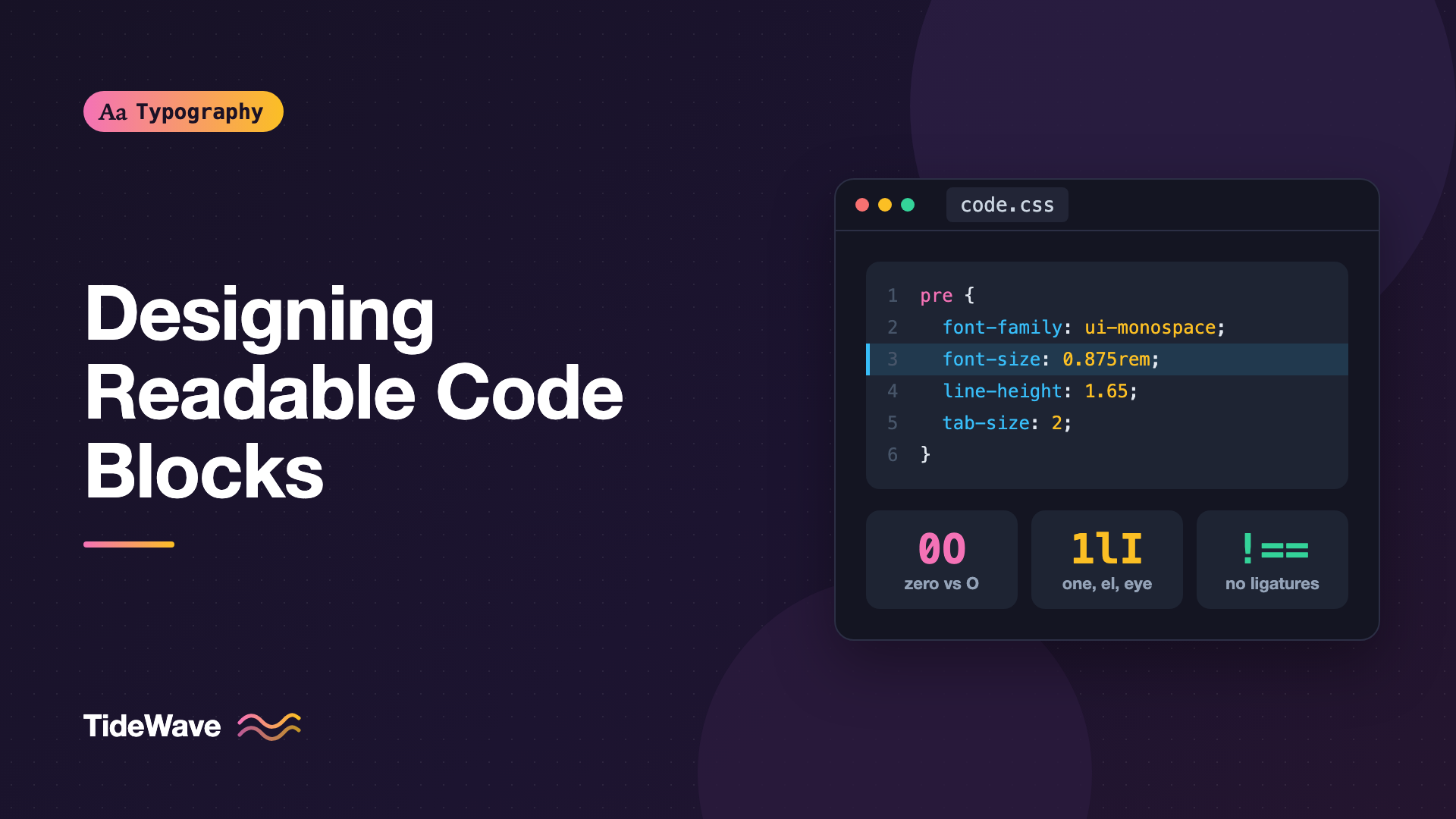
Designing Readable Code Blocks: Fonts, Sizes, and Spacing for Developers
- Maria
- Typography
- 23 Oct, 2026
Developers spend hours tuning the font, size, and theme in their editor, then publish documentation with code blocks set in 12-pixel Courier, cramped line height, and a horizontal scrollbar on every snippet. Code on the web is read differently from code in an editor. It's shorter, it sits next to prose, and readers often copy it, scan it on a phone, or follow along line by line. Code block typography is about making that reading experience as comfortable as the one in your editor.
This guide covers choosing a monospaced font, sizing code relative to body text, line height and padding, tab width, handling long lines, inline code, and the details like ligatures and line numbers that people tend to argue about.
Choosing a Monospaced Font
Code needs a monospaced font, where every character takes the same horizontal space. That keeps indentation aligned and makes columns in code and ASCII diagrams line up. For when else fixed-width type is the right choice, see monospaced fonts.
Not every monospaced font is good for reading code. Look for these qualities:
- Distinct confusables.
0andO,1,l, andI, and`and'must be easy to tell apart. A slashed or dotted zero helps. - A generous x-height. Code is often set smaller than body text, so lowercase needs to hold up.
- Clear punctuation. Braces, brackets, semicolons, and periods carry a lot of meaning in code. They should be large enough to see.
- Multiple weights and an italic, if you want to use them in syntax highlighting.
Popular, well-tested options include JetBrains Mono, Fira Code, Source Code Pro, IBM Plex Mono, Cascadia Code, and SF Mono on Apple platforms. Several are open source and available on Google Fonts.
The Monospace Font Stack
If you don't want to load a web font, the system monospace fonts are good:
:root {
  --font-mono:
    ui-monospace, "SF Mono", SFMono-Regular, Menlo, Consolas, "Liberation Mono",
    "Cascadia Mono", monospace;
}

pre,
code,
kbd,
samp {
  font-family: var(--font-mono);
}
ui-monospace maps to SF Mono in Safari. Menlo covers older macOS, Consolas covers Windows, and Liberation Mono covers many Linux systems.
The monospace Font Size Quirk
There's a long-standing browser quirk worth knowing. When an element's font-family is exactly the generic monospace keyword, browsers shrink its default font size, from 16 pixels to 13 pixels. If you see code mysteriously smaller than you set it, this is often why. The common fix is to list monospace twice:
code {
  font-family: monospace, monospace;
}
Using a stack that starts with a named font, like the one above, also avoids the quirk in current browsers.
Sizing Code Relative to Body Text
Monospaced fonts look larger than proportional fonts at the same font-size, because each character is as wide as the widest letter. Code set at the same size as body text usually looks too big and heavy.
A common approach is to set code blocks a little smaller than body text:
| Body text | Code block | Inline code |
|---|---|---|
| 16px | 14px (0.875em) | 0.875em to 0.9em |
| 18px | 15px to 16px | 0.85em to 0.9em |
| 20px | 16px to 17px | 0.85em |
Use em or rem units so code scales when readers change their font size. For inline code, em is the better choice because it scales with whatever text it sits inside, including headings.
pre {
  font-size: 0.875rem;
}

:not(pre) > code {
  font-size: 0.875em;
}
Some fonts have a noticeably different x-height from your body font, so inline code looks too big or too small even at matching sizes. If your browsers support it, font-size-adjust can match x-heights automatically:
:not(pre) > code {
  font-size-adjust: ex-height 0.53;
}
Treat it as an enhancement and check it visually. The number depends on your body font.
Line Height and Padding
Code needs more line height than you might expect from a monospaced font, but less than prose. A range of 1.5 to 1.7 is comfortable for most fonts. Very tight line height makes it hard to follow a line across, and very loose line height breaks up blocks of related code.
pre {
  font-size: 0.875rem;
  line-height: 1.65;
  padding: 1.25rem 1.5rem;
  border-radius: 0.5rem;
  background: #0f172a;
  color: #e2e8f0;
}
Padding gives the code room to breathe and separates it from the surrounding prose. On narrow screens, reduce horizontal padding to leave more space for the code itself:
@media (max-width: 40rem) {
  pre {
    padding-inline: 1rem;
    border-radius: 0;
    margin-inline: -1rem;
  }
}
Letting code blocks bleed to the screen edge on mobile buys back precious horizontal space.
Tab Width
Browsers render a tab character as eight spaces by default. That's far too wide for most code on the web and pushes nested code off the right edge. Set tab-size to match the convention of the language you're showing:
pre {
  tab-size: 2;
}
If your code blocks use spaces for indentation, tab-size has no effect, which is fine. It only matters when the source contains real tab characters, as Go code and many Makefiles do.
Handling Long Lines
Long lines are the biggest code block problem on the web, especially on phones. You have two options, and both have trade-offs.
Horizontal Scrolling
The default for pre is to preserve whitespace and never wrap. That keeps code exactly as written, which matters for languages where line breaks are meaningful, but it means readers must scroll sideways:
pre {
  overflow-x: auto;
  white-space: pre;
}
Make the scroll container keyboard-accessible so people who don't use a mouse can scroll it. Adding tabindex="0" to the pre element lets keyboard users focus and scroll it with arrow keys.
Soft Wrapping
Wrapping avoids horizontal scroll but can make code harder to read, because it looks like a new line when it isn't:
pre.wrap {
  white-space: pre-wrap;
  overflow-wrap: anywhere;
}
A middle ground is to scroll by default and keep your example code short. If you write the snippets yourself, break long lines manually at around 80 characters. That's a common style-guide limit, and it fits most code blocks on a desktop layout without scrolling.
Tip
Keep code examples narrow on purpose. Wrap long function arguments and chain calls onto separate lines in your source. It helps readers on every screen, not just phones.
Inline Code
Inline code marks property names, values, and short identifiers in running text. It needs to stand out from prose without interrupting reading.
:not(pre) > code {
  font-size: 0.875em;
  padding: 0.125em 0.375em;
  border-radius: 0.25em;
  background: rgb(15 23 42 / 0.06);
  color: inherit;
  overflow-wrap: break-word;
  white-space: break-spaces;
}
A subtle background tint is usually enough. Avoid heavy borders or bright colors, which make paragraphs full of inline code look noisy. overflow-wrap: break-word keeps long identifiers like font-optical-sizing or file paths from overflowing on mobile.
Don't put inline code inside links if you can avoid it, since it's hard to style the link underline and the code background together cleanly. If you do, make sure the link is still clearly a link.
Syntax Highlighting and Color
Syntax highlighting helps readers parse code faster, but it adds color that has to be readable. Every token color needs enough contrast against the code block background. WCAG requires 4.5:1 for normal text at level AA, and comments are the usual offender. Many themes set comments in a dim gray that falls well below that.
- Check every token color, including comments, against the background.
- Don't rely on color alone for meaning. Bold or italic for keywords can help.
- Match the site's theme. A dark code block on a light page is common and works well, but test it in dark mode too.
For a light page with a dark code block, a background around #0f172a with body code text around #e2e8f0 gives strong contrast, and you can pick token colors from there.
Ligatures
Fonts like Fira Code, JetBrains Mono, and Cascadia Code include programming ligatures that turn sequences like =>, !==, and >= into single symbols. Some developers love them. Others find them confusing, especially in teaching material where readers need to know what to type.
For documentation and tutorials, it's often safer to turn them off, so !== appears as three characters that match what the reader types:
pre,
code {
  font-variant-ligatures: none;
}
In your own editor, use whatever you like. On the web, you're writing for readers who need to copy the code exactly. The ligatures guide explains the different kinds.
Line Numbers and Highlighted Lines
Line numbers help when the prose refers to specific lines, like "on line 12, we add the handler." Otherwise they add clutter. If you use them:
- Render them with CSS counters or a separate element so they aren't copied with the code.
- Set them in a muted color with
user-select: none. - Use
font-variant-numeric: tabular-numsso they align.
.line::before {
  counter-increment: line;
  content: counter(line);
  display: inline-block;
  inline-size: 2ch;
  margin-inline-end: 1.5ch;
  text-align: end;
  color: #64748b;
  user-select: none;
}
Highlighted lines, a background tint on lines that changed or matter, are often more useful than numbers. A subtle full-width background band works best.
Copy Buttons and Labels
A copy button is one of the most appreciated features on a docs site. Place it in the top right corner, label it clearly ("Copy"), and confirm the action with a short "Copied" message. A filename or language label in the top left gives context, especially when a post has several snippets for different files.
Common Mistakes
- Code at the same size as body text. Monospaced fonts look larger, so step down slightly.
- A bare
monospacefont family.font-family: monospacealone shrinks text to 13 pixels by default. - Default eight-space tabs. Set
tab-sizeto 2 or 4. - Low-contrast comments. Dim gray comments often fail 4.5:1.
- Programming ligatures in tutorials. Readers can't tell what to type.
- Line numbers that get copied. Generate them with CSS or exclude them from selection.
- Long lines with no plan. Decide between scrolling and wrapping, and keep examples narrow.
Conclusion
Readable code blocks start with a monospaced font that separates confusable characters, set slightly smaller than body text with a line height around 1.5 to 1.7. Add comfortable padding, set tab-size, choose deliberately between scrolling and wrapping, and style inline code with a light tint that doesn't overpower prose. Check every syntax color for contrast and think twice about ligatures in teaching material.
The quickest improvement on most sites is to open a long article on a phone and read the code. If you have to scroll sideways on every snippet or squint at the comments, start there: shorter lines, better contrast, and a proper font stack will fix most of it.


