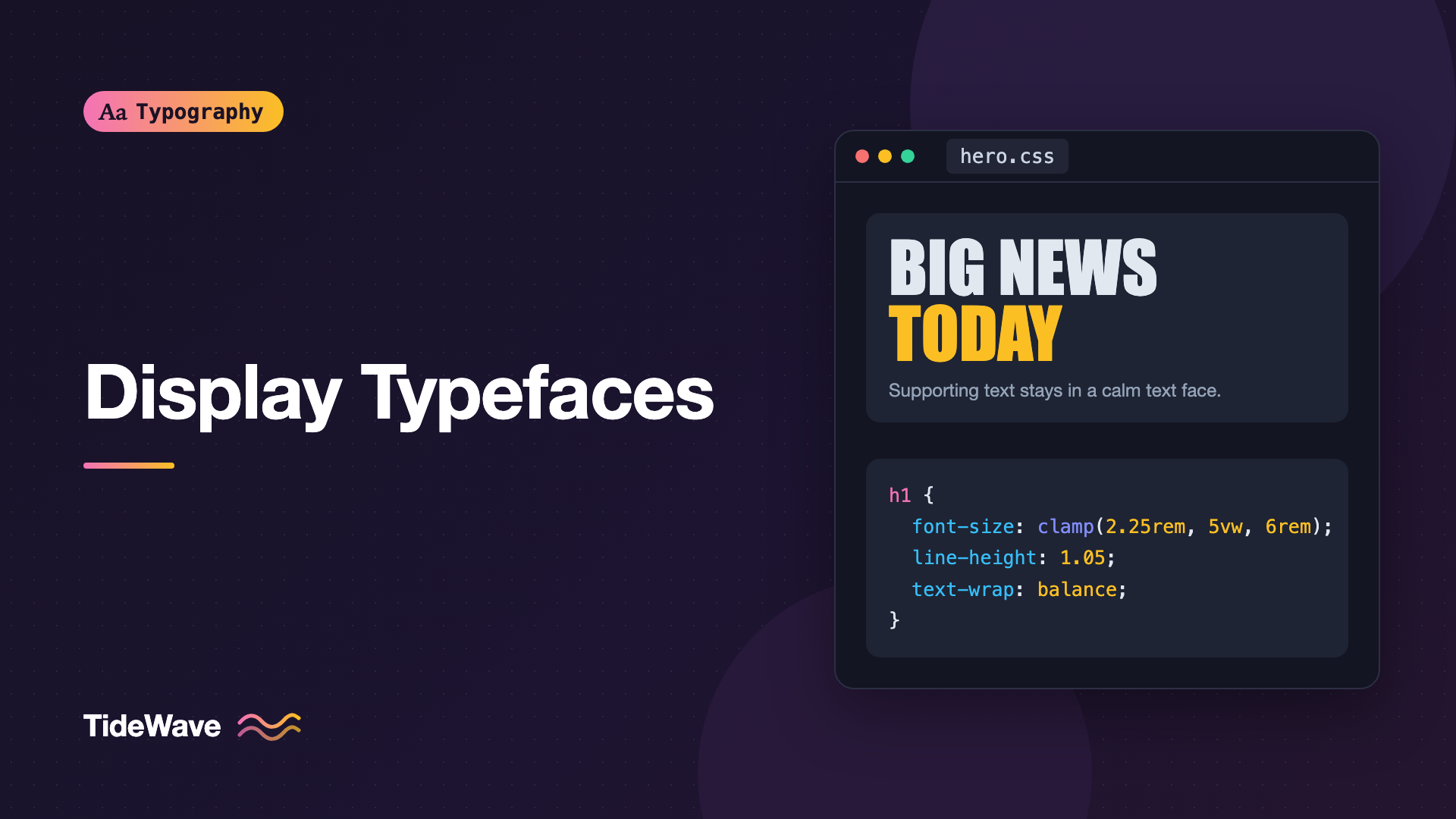
Display Typefaces: Making Headlines Without Sacrificing Clarity
- Maria
- Typography
- 23 Oct, 2026
The landing page mockup looks fantastic: a towering condensed headline, tightly spaced, in a typeface with real attitude. Then you build it. On a phone, the headline wraps into five lines of narrow letters. The subtitle, set in the same font at 18px, looks spindly and cramped. And the font file is 180KB for one weight.
Display typefaces are designed for large sizes and short bursts of text: headlines, hero titles, posters, logos, and pull quotes. They can carry a page's personality on their own. But they're built under different assumptions than text faces, and using them outside those assumptions causes problems with legibility, layout, and performance.
This guide explains what makes a typeface "display," how to choose one, and how to size, space, wrap, and load display type on the web so headlines stay bold without becoming hard to read.
What Makes a Typeface "Display"
Every typeface is designed for a range of sizes. Text faces are built for reading at body sizes, roughly 9 to 14 points in print or 14 to 20 pixels on screen. Display faces are built for sizes well above that.
The differences come from how letterforms behave at scale:
| Trait | Text typefaces | Display typefaces |
|---|---|---|
| Spacing | Generous, so small letters don't touch | Tight, because large gaps look loose |
| Contrast | Moderate, so thin strokes survive | Can be extreme, with hairline strokes |
| Details | Simplified and sturdy | Fine details, ink traps removed or refined |
| x-height | Often larger for legibility | Varies widely |
| Personality | Quiet, to stay out of the reader's way | Loud and distinctive by design |
| Width | Normal | Often condensed or extended |
Some families include both. A typeface may ship as "Text" and "Display" versions, or include an optical size axis that adjusts automatically. For how optical sizing works, see What Are Optical Sizes.
Kinds of Display Type
"Display" covers many styles:
- High-contrast serifs (Didone-style) for fashion and editorial.
- Condensed and compressed sans-serifs for news and sports headlines, posters, and anything that needs many words in a narrow space.
- Heavy weights, like Black or Ultra, of otherwise normal families.
- Decorative and novelty faces: art deco, stencil, outlined, inline, retro, grunge.
- Scripts and lettering, covered in Script and Handwritten Fonts.
- Experimental or variable display faces that animate or change shape.
Choosing a Display Typeface
Start with the Message
A display face sets tone instantly. Before you browse, decide what the headline should feel like: authoritative, playful, luxurious, urgent, technical. Then look in the categories that carry that tone. A condensed grotesque reads as urgent and newsy; a high-contrast serif as refined; a rounded geometric as friendly.
Check Legibility at Real Sizes
Even display type has to be read. Check:
- Letter distinction. Can you tell
I,l, and1apart?Oand0? Decorative faces often fail here. - Word recognition. Set your actual headlines, not the specimen phrase. Long or unusual words reveal problems.
- Small breakpoints. Your headline might be 96px on desktop and 36px on mobile. Does the font still work at 36px?
Check the Character Set
Display fonts, especially free ones, often have limited character sets. Look for:
- Punctuation, including curly quotes, apostrophes, and dashes.
- Numerals, if your headlines include prices, years, or stats.
- Accented characters for every language your site supports.
A missing glyph falls back to another font, and the mismatch is especially obvious at display sizes.
Plan the Pairing
A display face almost always needs a quieter partner for body text, labels, and UI. Pick the display face first, then a text face that complements it. Typical combinations: a condensed sans headline with a humanist sans or a serif body, or a high-contrast serif headline with a neutral sans body.
Sizing Display Type Responsively
Display type is meant to be big, but screens vary enormously. Fluid sizing with clamp() lets headlines scale smoothly between a minimum and maximum:
.display-title {
  font-family: "Playfair Display", "Didot", Georgia, serif;
  font-size: clamp(2.25rem, 1.25rem + 5vw, 5.5rem);
  font-weight: 700;
  line-height: 1.05;
}
The minimum keeps the headline from shrinking below a readable size on phones, and the maximum keeps it from becoming absurd on wide monitors. The full technique is in How to Build Fluid Typography That Scales Across Every Screen.
Use rem-Based Minimums
Include a rem component in your clamp() so the headline still responds to the user's browser font size setting. Pure vw sizes ignore it, which can fail zoom and text-resize expectations.
Consider the Text Length
Display faces work best with short text. If a headline can be long, because it's CMS-driven or translated, plan for it:
- Set a lower maximum size for long-headline templates.
- Use a slightly wider fallback layout for article titles than for hero slogans.
- Test with the longest realistic headline, not the shortest.
Spacing and Line Height
Tighter Line Height
Body text needs around 1.4 to 1.7 line height, but at display sizes that much space looks like separate lines rather than one headline. Display type usually wants line-height between about 0.95 and 1.2, depending on the font's ascenders, descenders, and accents:
h1 {
  line-height: 1.05;
}

h2 {
  line-height: 1.15;
}
Go too tight and descenders on one line collide with ascenders or accents on the next. Test with words like "Typography" over "Ålesund" to catch collisions.
Slightly Tighter Tracking
Large text often looks loosely spaced because the gaps between letters scale up with the font. Many display faces are already spaced tightly, but text or UI fonts used at display sizes may benefit from a little negative tracking:
.hero-title {
  font-family: "Inter", system-ui, sans-serif;
  font-size: clamp(2.5rem, 1.5rem + 5vw, 6rem);
  font-weight: 800;
  letter-spacing: -0.02em;
}
Use em units for letter spacing so it scales with the font size. Don't apply the same negative tracking to body text, and be more conservative with fonts that are already tight. All-caps display text is the exception: it usually needs positive tracking.
Balance the Lines
Multi-line headlines often break with one long line and one short orphan. text-wrap: balance fixes that with one declaration:
h1,
h2,
.display-title {
  text-wrap: balance;
}
It's covered in text-wrap: balance and pretty.
Measure
Even big headlines benefit from a limited width. A max-width in ch units keeps headlines from spanning the full width of wide screens:
.display-title {
  max-width: 18ch;
}
Never Use Display Faces for Body Text
The most common mistake with display type is letting it leak into small text. A display font at 16px usually has spacing that's too tight, hairlines too thin, and details too fine. The result is cramped, hard-to-read paragraphs.
Keep display faces for headings above a minimum size, and switch to a text face below it:
:root {
  --font-display: "Bebas Neue", "Impact", "Arial Narrow", sans-serif;
  --font-text: "Source Sans 3", system-ui, sans-serif;
}

h1,
h2 {
  font-family: var(--font-display);
}

h3,
h4,
h5,
h6,
body {
  font-family: var(--font-text);
}
Notice that h3 and below use the text face. Smaller headings often look better in a bold weight of the body font than in a display face scaled down.
If your font has an opsz axis, CSS can choose the right optical size automatically with font-optical-sizing: auto, which is the default.
Loading Display Fonts Efficiently
Display fonts are usually only used for a few headlines, but they can be large files. A few strategies:
- Load only the weights you use. Display faces often need just one.
- Subset to the characters you need, especially for a hero headline that rarely changes.
- Choose the right
font-displayvalue. A late swap of a huge headline causes noticeable layout shift.font-display: optionalavoids the swap entirely on slow connections, whileswapshows the fallback first. - Match the fallback. Use metric overrides so the fallback takes up the same space.
@font-face {
  font-family: "Bebas Neue";
  src: url("/fonts/bebas-neue.woff2") format("woff2");
  font-weight: 400;
  font-display: swap;
}
Preloading the hero font can help when it's the Largest Contentful Paint element, but it competes with other critical resources. See How to Load Web Fonts Efficiently with font-display for the trade-offs.
Tip
A condensed display face falling back to a normal-width system font can double the headline's width while loading. Choose a fallback with similar width, like "Arial Narrow" or Impact for condensed faces, or use size-adjust to compensate.
Accessibility for Display Type
- Don't bake headlines into images. Live text scales, translates, and is readable by assistive technology.
- Keep contrast high. Thin, high-contrast display faces lose visibility on busy backgrounds. WCAG's large-text contrast threshold is 3:1, but large text is defined as at least 18pt, or 14pt bold, and thin display weights may need more contrast to be comfortably readable.
- Respect motion preferences if your headline animates, using
prefers-reduced-motion. - Avoid all caps for long headlines. Short ones are fine with added tracking.
Common Mistakes
- Using the display face at body sizes. Tight spacing and thin details fall apart at 16px.
- Setting body-text line height on headlines. 1.5 or more makes a headline look like disconnected lines.
- Ignoring mobile. A headline sized for desktop can wrap into a narrow tower on a phone. Use
clamp()with sensible bounds. - Not checking glyph coverage. Missing punctuation or accented letters fall back to another font, which stands out at large sizes.
- Forgetting the fallback width. A narrow display font and a wide fallback cause big layout shifts.
- Loading many weights of a display face. You rarely need more than one or two.
Conclusion
Display typefaces are designed for large sizes, with tighter spacing, more contrast, and more personality than text faces. That makes them perfect for headlines and terrible for paragraphs. Choose one based on the tone you want, check legibility and character coverage with real content, and pair it with a calm text face.
On the web, size display type fluidly with clamp(), tighten line height and sometimes tracking, balance multi-line headlines, and keep the display face out of small text. Load only what you need and choose a fallback with similar proportions, and your headlines can make a strong statement without anyone struggling to read them.


