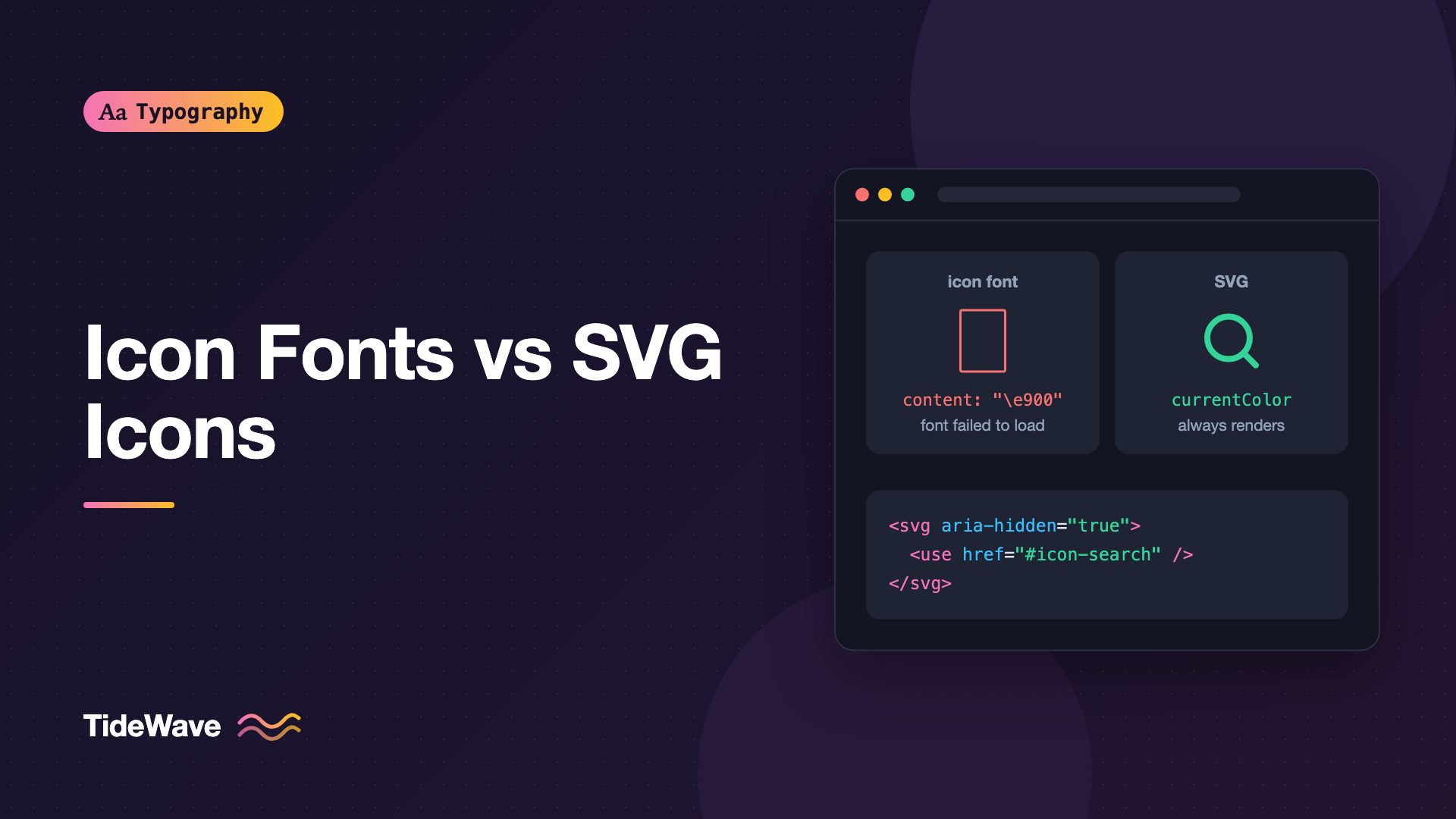
Icon Fonts vs SVG Icons: Why Most Teams Moved On
- Maria
- Typography
- 23 Oct, 2026
If you built websites in the early 2010s, you probably shipped an icon font. One file, one CSS class per icon, and suddenly you had hundreds of crisp, scalable symbols that you could color with color and size with font-size. Compared to the image sprites that came before, it felt like magic, and libraries like Font Awesome and Bootstrap's Glyphicons made it the default approach.
Then the problems started showing up. Icons rendered as empty boxes when the font failed to load. Screen readers announced strange characters. Icons looked slightly blurry or sat a pixel off center. Teams spent time fighting the font format instead of designing icons. Over the following years, most of the industry moved to SVG icons, and today they're the default in nearly every design system and component library.
This post explains how both approaches work, the specific problems that drove the switch, how to implement SVG icons well, and the few cases where an icon font is still a reasonable choice.
How Icon Fonts Work
An icon font is a regular font file where the glyphs are pictures instead of letters. Each icon is assigned to a code point, usually in Unicode's Private Use Area, a range of code points with no standard meaning.
You load the font with @font-face, then insert the character with CSS:
@font-face {
  font-family: "SiteIcons";
  src: url("/fonts/site-icons.woff2") format("woff2");
  font-display: block;
}

.icon {
  font-family: "SiteIcons";
  font-style: normal;
  font-weight: normal;
  line-height: 1;
  -webkit-font-smoothing: antialiased;
}

.icon-search::before {
  content: "\e900";
}

.icon-cart::before {
  content: "\e901";
}
<button class="search-button">
  <i class="icon icon-search" aria-hidden="true"></i>
  Search
</button>
Some icon fonts use ligatures instead of code points, so typing the word "search" inside an element with the icon font renders a magnifying glass. Google's Material Icons popularized that approach.
The advantages were real: one HTTP request, icons that scale cleanly, color that follows text color, and simple class-based markup.
How SVG Icons Work
SVG icons are vector graphics described in markup. There are several ways to use them.
Inline SVG
The SVG markup goes directly into the HTML:
<button class="search-button">
  <svg
    class="icon"
    viewBox="0 0 24 24"
    width="20"
    height="20"
    aria-hidden="true"
    focusable="false"
  >
    <circle
      cx="11"
      cy="11"
      r="7"
      fill="none"
      stroke="currentColor"
      stroke-width="2"
    />
    <path
      d="m20 20-4-4"
      stroke="currentColor"
      stroke-width="2"
      stroke-linecap="round"
    />
  </svg>
  Search
</button>
Using currentColor means the icon takes the text color of its parent, just like an icon font. You can also style individual paths separately, which fonts can't do.
SVG Sprite with use
To avoid repeating markup, put every icon in one sprite file as a <symbol>, then reference them:
<!-- icons.svg -->
<svg xmlns="http://www.w3.org/2000/svg">
  <symbol id="icon-search" viewBox="0 0 24 24">
    <circle
      cx="11"
      cy="11"
      r="7"
      fill="none"
      stroke="currentColor"
      stroke-width="2"
    />
    <path
      d="m20 20-4-4"
      stroke="currentColor"
      stroke-width="2"
      stroke-linecap="round"
    />
  </symbol>
  <symbol id="icon-cart" viewBox="0 0 24 24">
    <path
      d="M3 4h2l2.4 11h11.2L21 8H7"
      fill="none"
      stroke="currentColor"
      stroke-width="2"
    />
  </symbol>
</svg>
<svg class="icon" aria-hidden="true" focusable="false">
  <use href="/icons.svg#icon-search"></use>
</svg>
The sprite file is cached like any other asset, and each icon reference is tiny. External sprite references must be on the same origin as the page.
Component Libraries
In frameworks like React, Vue, or Svelte, icons are usually components that output inline SVG. Libraries such as Lucide, Heroicons, and Phosphor work this way:
import { Search } from "lucide-react";

export function SearchButton() {
  return (
    <button className="search-button">
      <Search size={20} aria-hidden="true" />
      Search
    </button>
  );
}
With a bundler that supports tree-shaking, only the icons you import end up in your bundle.
CSS Masks
For purely decorative icons controlled entirely by CSS, you can use an SVG file as a mask and color it with background-color:
.icon-external {
  display: inline-block;
  width: 1em;
  height: 1em;
  background-color: currentColor;
  mask: url("/icons/external.svg") no-repeat center / contain;
}
Why Teams Moved Away from Icon Fonts
The switch wasn't driven by fashion. Icon fonts have specific, recurring problems that are hard to fix because they come from treating pictures as text.
Accessibility Problems
Icon glyphs live in the text layer. Screen readers may try to read them, and what gets announced depends on the screen reader and the character. A Private Use Area character might be skipped, read as an unknown symbol, or read as a code. With ligature-based fonts, the screen reader reads the underlying word, so a button might be announced as "shopping cart Checkout".
You can mitigate this with aria-hidden="true" on every decorative icon, but it's easy to forget, and then meaningful icons need separate hidden text for their label anyway.
A bigger issue is that some users override fonts. People who use a dyslexia-friendly font, a high-contrast mode, or a browser setting that forces their preferred typeface may find that icon fonts are replaced too, turning every icon into a random letter or an empty box.
Loading Failures and Fallback Boxes
Icon fonts depend on a font download. If it fails, is blocked by a network policy or a content blocker, or simply hasn't arrived yet, the browser shows either nothing or a fallback character. For Private Use Area code points, that's usually an empty rectangle, sometimes called a "tofu" box. With ligature fonts, the user sees the raw word ("search", "menu") in the body font, which can break layouts.
Using font-display: block hides text while the font loads, but only for a short period, and it doesn't help if the font never arrives. The sibling post on fallback fonts and missing glyphs explains what browsers do when no font can draw a character.
Rendering and Alignment
Because icons are rendered as text, they go through the same anti-aliasing and hinting as letters. Depending on the platform, they can look slightly blurry or heavier than intended. Positioning is also tied to font metrics: icons sit on the baseline, inherit line-height, and are notoriously hard to center vertically within buttons. Teams accumulated small vertical-align and top adjustments to compensate.
SVGs are positioned like images. They have a viewBox, explicit dimensions, and predictable alignment in flexbox and grid.
Single Color and Limited Styling
A traditional icon font glyph has one color. Two-tone icons required stacking two glyphs on top of each other. SVG can have any number of colors, gradients, strokes, and per-path styling, and you can animate individual parts.
Color font technologies now exist, and you can read about them in Color Fonts on the Web, but they add complexity without solving the other problems on this list.
Everything in One File
An icon font contains every icon, whether you use five or five hundred. Subsetting can shrink it, but it's an extra build step. With SVG components or sprites, you ship only what's used. For tips on trimming font files in general, see Font Subsetting.
Side-by-Side Comparison
| Concern | Icon font | SVG icons |
|---|---|---|
| Loading failure | Empty boxes or raw words | Inline SVG can't fail separately |
| Screen readers | May announce odd characters | Hidden or labeled explicitly |
| User font overrides | Icons can be replaced | Unaffected |
| Colors | Single color | Any number |
| Alignment | Tied to font metrics and line height | Box-based and predictable |
| Rendering | Text anti-aliasing and hinting | Vector graphics rendering |
| File size | Whole set unless subset | Only icons you use |
| Styling with CSS | color, font-size | color via currentColor, stroke, fill, and more |
| Setup | One CSS file and font | Sprite, inline markup, or components |
Making SVG Icons Accessible
SVG doesn't make icons accessible automatically, but it makes it straightforward. There are two cases.
Decorative Icons
If the icon sits next to visible text that already says what it means, hide it from assistive technology:
<a href="/cart" class="nav-link">
  <svg class="icon" aria-hidden="true" focusable="false">
    <use href="/icons.svg#icon-cart"></use>
  </svg>
  Cart
</a>
focusable="false" prevents an old Internet Explorer behavior where SVGs could receive keyboard focus. It's harmless in modern browsers and still common in libraries.
Meaningful Icons
If the icon is the only content, like an icon-only button, the button needs an accessible name. Put the label on the button, not the icon:
<button class="icon-button" aria-label="Search">
  <svg class="icon" aria-hidden="true" focusable="false">
    <use href="/icons.svg#icon-search"></use>
  </svg>
</button>
For standalone icons that convey information without being interactive, such as a status indicator, give the SVG role="img" and a label:
<svg class="icon" role="img" aria-label="Warning">
  <use href="/icons.svg#icon-warning"></use>
</svg>
Sizing SVG Icons with Text
One thing people liked about icon fonts was that icons sized themselves with font-size. SVG can do the same with em units:
.icon {
  width: 1em;
  height: 1em;
  flex-shrink: 0;
  vertical-align: -0.125em;
}

.button {
  display: inline-flex;
  align-items: center;
  gap: 0.5em;
}
Now the icon matches the size of the surrounding text, and in a flex container it centers cleanly with no metric hacks.
When an Icon Font Still Makes Sense
Icon fonts aren't wrong in every situation. A few cases where they remain reasonable:
- Legacy projects where hundreds of templates use icon classes and a migration isn't worth the risk right now.
- Platforms where you can only add CSS, such as some CMS themes or hosted tools, and can't change the markup to include SVG.
- Variable icon fonts like Google's Material Symbols, which offer axes for fill, weight, grade, and optical size. Those axes let icons match the weight of surrounding text, which is genuinely hard to replicate with static SVGs.
If you do use an icon font, reduce the risks: self-host it, subset it to the icons you use, mark every decorative icon with aria-hidden="true", provide text labels for meaningful icons, and test what happens when the font fails to load.
Migrating from an Icon Font to SVG
A gradual migration usually works best:
- Inventory the icons. Search the codebase for icon class names and list the ones actually in use. You'll often find the font contains far more than you need.
- Find SVG equivalents. Most popular icon fonts offer SVG versions of the same set, which keeps the visual style consistent.
- Build one icon component or sprite. Centralize sizing,
currentColor, and accessibility attributes in one place. - Replace icons by area, starting with the most visible ones, like navigation and buttons.
- Remove the font once nothing references it, along with its
@font-facerule and any preload.
A simple template helper or component keeps the markup consistent:
export function Icon({ name, label, size = "1em" }) {
  return (
    <svg
      width={size}
      height={size}
      role={label ? "img" : undefined}
      aria-label={label}
      aria-hidden={label ? undefined : "true"}
      focusable="false"
    >
      <use href={`/icons.svg#icon-${name}`} />
    </svg>
  );
}
Common Mistakes
- Leaving decorative icons visible to screen readers, whether they're font glyphs or SVGs.
- Putting the accessible label on the icon instead of the button, so the button itself has no name.
- Using ligature icon fonts without a loading strategy, so users see raw words while the font loads.
- Shipping an entire icon font for a handful of icons, without subsetting.
- Hard-coding fill colors in SVGs, which prevents icons from following the text color. Use
currentColor. - Sizing SVGs in pixels only, so they don't scale with the text next to them.
Conclusion
Icon fonts solved a real problem when they appeared, but they treat pictures as text, and that causes a set of recurring issues: accessibility confusion, empty boxes when fonts fail or are overridden, awkward alignment, and single-color limits. SVG icons avoid those problems, support richer styling, and fit naturally into component-based workflows.
For new projects, use SVG icons, either as components or a sprite, with currentColor, em-based sizing, and clear accessibility attributes. For existing icon fonts, migrate gradually, and in the meantime make sure every icon is hidden or labeled properly.


