Kinetic Typography: Animating Text Without Hurting Usability
- Maria
- Typography
- 23 Oct, 2026
You've probably landed on a page where the headline types itself out one letter at a time, then deletes itself, then types a different word. It's charming once. By the third cycle you've stopped reading, and if you were trying to copy that text, you couldn't. That's the tension with kinetic typography: motion is the strongest attention signal there is, and attention is exactly what text needs to give back to the reader once they start reading.
Kinetic typography means text that moves, changes, or transforms over time. It came from film title sequences and motion graphics, and it's now common on landing pages, product launches, and portfolio sites. Done well, it adds emphasis and personality. Done badly, it delays content, breaks screen readers, and makes some people physically unwell.
This post covers where text animation helps, the CSS techniques for building it, how to keep it accessible, and how to avoid the performance problems that come with animating type.
When Animated Text Helps
Animation should do a job. Good reasons to move text include:
- Directing attention once. A headline that settles into place on first load tells the reader where to start.
- Showing a change. A number counting up to a new value, or a word swapping to show alternatives, explains something a static layout can't.
- Feedback. A label that shifts when an input gets focus confirms the interaction.
- Expressive moments. A campaign page or a title card where the motion is the content, much like the rule-breaking work described in Experimental Typography: Breaking the Rules on Purpose.
Bad reasons are just as recognizable: animating every heading on scroll because the library makes it easy, looping text indefinitely, or delaying content until an animation finishes.
A useful rule is that text should be readable in its final state as soon as possible, and the reader should never have to wait for motion to end before they can read.
Entrance Animations
The simplest and most common kinetic effect is a heading that fades and slides into place. Keep it short and only animate opacity and transform, which browsers can run on the compositor without recalculating layout:
@keyframes rise-in {
  from {
    opacity: 0;
    transform: translateY(0.4em);
  }
  to {
    opacity: 1;
    transform: translateY(0);
  }
}

.hero-title {
  animation: rise-in 600ms cubic-bezier(0.2, 0.7, 0.2, 1) both;
}
Using em for the offset ties the distance to the font size, so the motion feels proportional on both a 32px heading and a 96px one.
Staggering Words or Lines
Splitting a heading into words and staggering them looks polished. Do the split in a way that keeps the text intact for assistive technology:
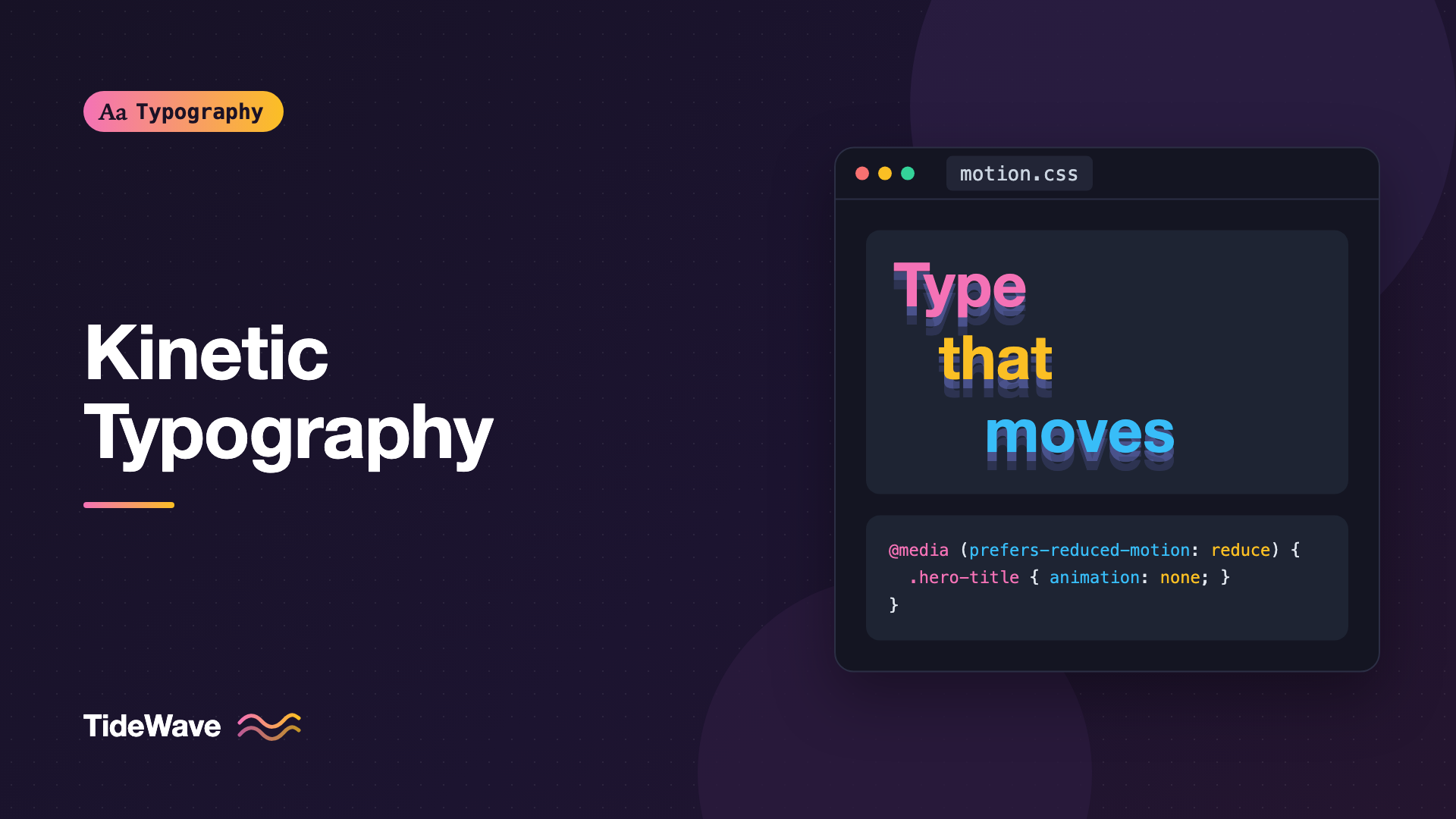
<h1 class="stagger" aria-label="Type that moves with purpose">
  <span aria-hidden="true">
    <span style="--i: 0">Type</span>
    <span style="--i: 1">that</span>
    <span style="--i: 2">moves</span>
    <span style="--i: 3">with</span>
    <span style="--i: 4">purpose</span>
  </span>
</h1>
.stagger span[style] {
  display: inline-block;
  animation: rise-in 500ms cubic-bezier(0.2, 0.7, 0.2, 1) both;
  animation-delay: calc(var(--i) * 70ms);
}
Splitting into individual letters is riskier. Some screen readers announce each wrapped letter separately, which is why the aria-label on the heading and aria-hidden on the split copy matter. Support for aria-label on headings is good in major screen readers, but test with the ones your audience uses. Keep the total stagger short: if the last word arrives more than about a second after the first, the reader is waiting.
Scroll-Driven Text Effects
CSS scroll-driven animations let you tie an animation's progress to scroll position without JavaScript. Text that reveals as it enters the viewport is a natural fit:
.reveal {
  animation: rise-in linear both;
  animation-timeline: view();
  animation-range: entry 0% entry 60%;
}
Support is good in Chromium-based browsers and has been arriving in others, so check caniuse for current status. Where it isn't supported, the animation-timeline declaration is ignored and the animation runs on the normal document timeline. Because the shorthand sets no duration, it completes instantly and the text simply appears in its final state. Wrapping the rule in a feature query still makes the intent explicit and keeps unsupported browsers from running it at all:
@supports (animation-timeline: view()) {
  .reveal {
    animation: rise-in linear both;
    animation-timeline: view();
    animation-range: entry 0% entry 60%;
  }
}
Be careful with scroll-linked effects on body text. Paragraphs that are faded or offset while the reader scrolls through them are harder to read, not easier.
Animating Font Properties
Variable fonts open up a different kind of motion: changing weight, width, or a custom axis over time. It's striking for a single headline:
@keyframes weight-pulse {
  0%,
  100% {
    font-variation-settings: "wght" 300;
  }
  50% {
    font-variation-settings: "wght" 800;
  }
}

.logo-word {
  font-family: "Inter", sans-serif;
  animation: weight-pulse 2.4s ease-in-out 2;
}
Note the iteration count of 2 rather than infinite. Unlike transforms, weight and width changes alter glyph widths, which forces layout on every frame. That's acceptable for one short word and expensive for a paragraph. Variable Fonts in CSS: One File, Endless Styles covers how the axes work and how grade can change appearance without changing width.
Hover and Focus Effects
Small, interactive text motion is usually the most useful kind. An underline that grows on hover, or a link arrow that nudges sideways, gives feedback without demanding attention:
.link {
  text-decoration: underline;
  text-decoration-thickness: 1px;
  text-underline-offset: 0.2em;
  transition:
    text-decoration-thickness 150ms ease,
    text-underline-offset 150ms ease;
}

.link:hover,
.link:focus-visible {
  text-decoration-thickness: 2px;
  text-underline-offset: 0.3em;
}
Apply the same effect on :focus-visible as on :hover so keyboard users get the same feedback.
Typewriter and Rotating Word Effects
The typewriter effect and the rotating word ("We build websites / apps / brands") are the most overused kinetic patterns, especially in hero sections. A hero headline has to communicate in a few seconds, as Typography on Landing Pages: How Type Drives Conversions explains, and a word that is only half typed communicates nothing. If you use them:
- Keep the full meaning in the static text. The rotating word should be an addition, not the only place the key message lives.
- Stop after one cycle, or provide a pause button. Endless loops are a distraction and can fail WCAG.
- Hide the animation from screen readers and expose a static version, so the announced content doesn't change under the user.
<p class="tagline">
  We design
  <span class="sr-only">websites, apps, and brands</span>
  <span class="rotator" aria-hidden="true">websites</span>
</p>
The sr-only class is the standard visually hidden pattern; the rotating span is updated by script and ignored by assistive technology.
Accessibility Requirements
Several WCAG 2.2 success criteria apply directly to moving text:
| Criterion | Level | What it means for animated text |
|---|---|---|
| 2.2.2 Pause, Stop, Hide | A | Motion that starts automatically, lasts more than 5 seconds, and runs alongside other content needs a way to pause, stop, or hide it |
| 2.3.1 Three Flashes or Below | A | Nothing flashes more than three times in any one second, unless it stays under the flash thresholds |
| 2.3.3 Animation from Interactions | AAA | Motion triggered by interaction can be disabled, unless it's essential |
Even when a criterion is AAA, respecting the user's motion preference is cheap and expected. The prefers-reduced-motion media query reflects the operating system setting:
@media (prefers-reduced-motion: reduce) {
  .hero-title,
  .stagger span[style],
  .logo-word {
    animation: none;
  }

  .reveal {
    animation: none;
    opacity: 1;
    transform: none;
  }
}
A better pattern for larger sites is to make motion opt-in: write the static styles first, and add animation inside @media (prefers-reduced-motion: no-preference). Then a browser or user that never reports a preference still gets the full experience, and anyone who asks for less motion never sees it.
Warning
Reduced motion doesn't have to mean no change at all. Replacing a slide with a short opacity fade is usually fine. Large movement, zooming, parallax, and spinning are what tend to trigger vestibular symptoms.
Performance
Text animation has a few specific costs:
- Layout-triggering properties. Animating
font-size,letter-spacing,font-weight, or width-changing variation axes forces layout every frame. Prefertransform: scale()for size changes when you can, and keep font-property animations to short, single elements. - Too many animated elements. Splitting a long paragraph into hundreds of spans and animating each one creates a lot of work for the browser. Split by word or line, not by letter, for anything longer than a headline.
- Delayed content. If text starts at
opacity: 0and waits for JavaScript to animate it in, a slow script means invisible content. Run entrance animations in CSS, or make sure the text is visible if the script fails. - Largest Contentful Paint. If your hero heading is the largest element, a long entrance animation can delay when it's considered painted. Keep hero animations brief.
Timing and Easing for Text
Text has to be read, so its motion should finish quickly and settle gently. Durations and easing that work for a sliding panel can feel sluggish or jittery on type.
| Animation | Typical duration | Easing |
|---|---|---|
| Hover or focus feedback | 100–200ms | ease-out |
| Heading entrance | 400–700ms | Strong ease-out, such as cubic-bezier(0.2, 0.7, 0.2, 1) |
| Word stagger step | 50–100ms | Same as the entrance |
| Number counting up | 600–1200ms | ease-out, so it slows near the final value |
| Text swap or crossfade | 150–300ms | ease-in-out |
These are starting points, not rules. The pattern behind them is consistent: ease-out curves start fast and slow down at the end, so the text arrives quickly and is still and readable sooner. Linear motion looks mechanical on text, and ease-in curves make the reader wait for the part where the text speeds into place.
Keep travel distances short too. Text that slides in from far off-screen takes longer to become readable and is more likely to bother people sensitive to motion. Offsets of a fraction of an em are usually enough to suggest movement.
For counting numbers, set the final value in the HTML so it's correct without JavaScript, and use tabular figures so the width doesn't jitter while the digits change:
.stat {
  font-variant-numeric: tabular-nums;
}
const el = document.querySelector(".stat");
const target = Number(el.textContent);
const reduce = window.matchMedia("(prefers-reduced-motion: reduce)").matches;

if (!reduce) {
  const start = performance.now();
  const duration = 900;

  const tick = (now) => {
    const t = Math.min((now - start) / duration, 1);
    const eased = 1 - Math.pow(1 - t, 3);
    el.textContent = Math.round(target * eased).toLocaleString();
    if (t < 1) requestAnimationFrame(tick);
  };

  requestAnimationFrame(tick);
}
If the number is announced by a screen reader, avoid putting the counting element in a live region, or the reader will hear every intermediate value.
Common Mistakes
- Infinite loops. Text that never stops moving competes with everything else on the page. Run it once or twice, then rest.
- Hiding content until animation ends. The reader should be able to start reading almost immediately.
- Splitting text without accessibility handling. Letter-by-letter spans can be read out one character at a time. Provide an accessible label and hide the split copy.
- Ignoring
prefers-reduced-motion. It's one media query and it matters a lot to the people who set it. - Animating body text. Motion belongs on short display text. Paragraphs should hold still.
- Animating layout properties on many elements. Stick to
opacityandtransformwhere possible.
Conclusion
Kinetic typography works when motion has a job: introducing a headline, showing a change, or giving feedback. Build it with short CSS animations on opacity and transform, use variable font axes sparingly, and keep loops, letter splitting, and scroll effects away from text people need to read.
Treat accessibility as part of the design rather than a fallback. Respect prefers-reduced-motion, give long animations a pause control, and make sure the final, static text is available immediately to everyone. Animated type that respects the reader feels like craft; animated type that ignores them feels like an obstacle.


