Optical Kerning vs Metric Kerning: Which Should You Use?
- Maria
- Typography
- 23 Oct, 2026
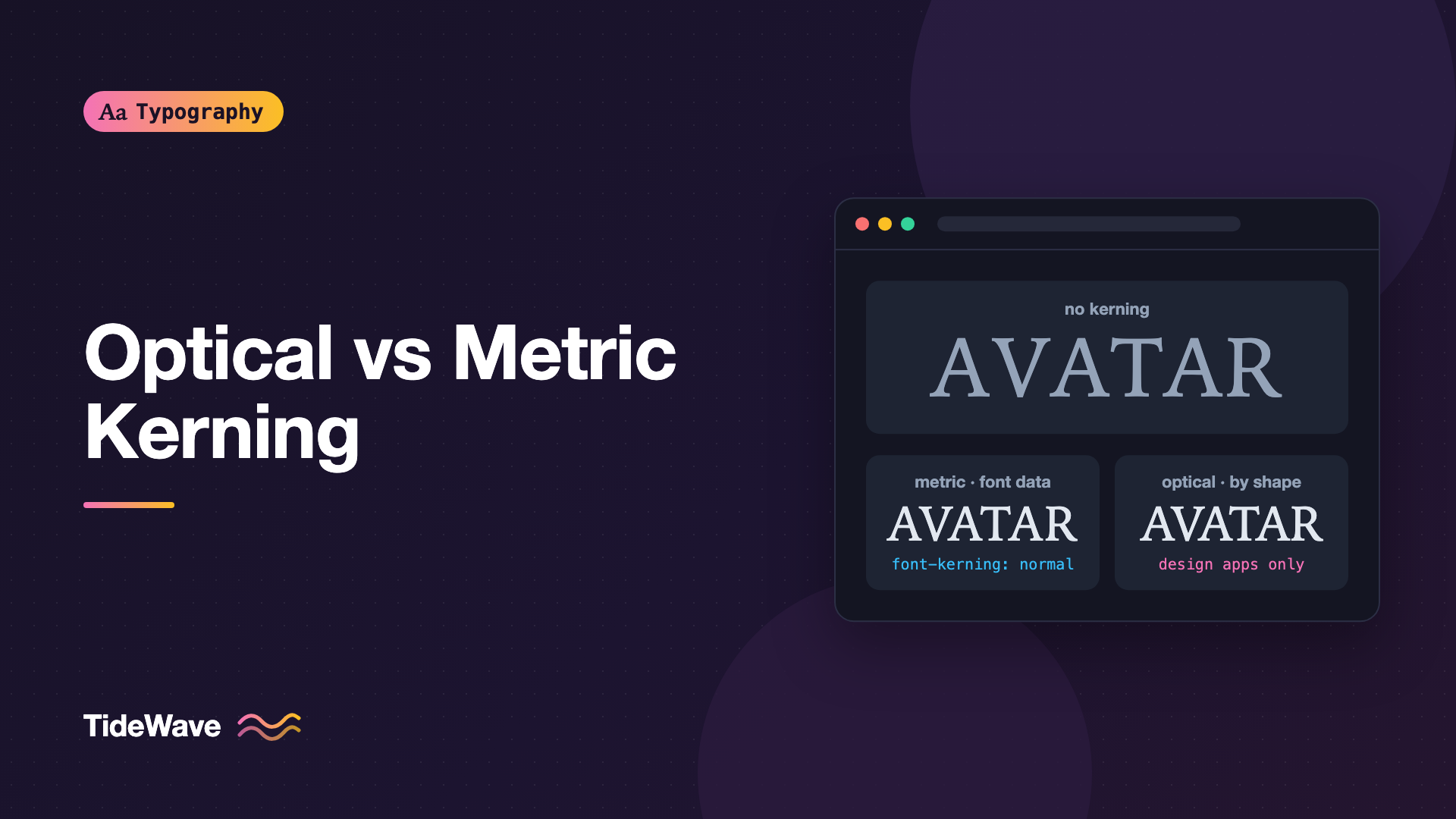
Set the word "AVATAR" in a large headline and look at the gaps. Between the A and the V, the diagonals lean toward each other and leave a wide wedge of space unless something pulls them closer. That something is kerning: adjusting the space between specific pairs of letters so the spacing looks even, even though the shapes aren't.
If you work in design tools like InDesign, Illustrator, or Photoshop, you've seen a kerning menu with at least two automatic options: Metrics and Optical. They sound similar but work in completely different ways. And if you build for the web, you've probably wondered which one the browser uses, and whether you can switch.
This guide explains how metric and optical kerning work, when each gives better results, how kerning behaves in CSS, and what to do when the automatic options aren't enough.
A Quick Refresher on Kerning
Every glyph in a font has sidebearings: a bit of built-in space on its left and right. When letters are set next to each other, their sidebearings combine to make the default gap. For most pairs that's fine. For awkward combinations like AV, To, Ty, LT, or r., the default gap looks too wide or too tight, because the shapes leave uneven space between them.
Kerning fixes those specific pairs. It's different from tracking (letter-spacing in CSS), which adds or removes the same amount of space between every character in a run of text. Kerning is per pair; tracking is uniform. For a fuller comparison of kerning, tracking, and leading, see the three spacing controls guide.
Metric Kerning: The Font's Own Data
Metric kerning uses the kerning information stored inside the font file. A type designer, or the tools they use, defines adjustments for specific pairs, and the font ships with that table. When you choose Metrics in a design app, the software looks up each pair and applies the stored value.
Modern OpenType fonts usually store this data in the GPOS table, under the kern feature. Older fonts may use a legacy kern table. Either way, the values were decided by someone who designed the letters and knew how they should sit together.
Strengths
- Designer intent. The spacing reflects decisions made by the person who drew the font, often refined over many test settings.
- Consistency. The same pair always gets the same adjustment, across every document and app that respects the data.
- Predictability. It's what browsers and most apps use, so your design comp matches what ships.
Weaknesses
- Only as good as the font. Free or hastily made fonts may have few kerning pairs or none at all.
- Missing pairs. Even good fonts may not kern unusual combinations, such as a letter next to a symbol, a number next to a punctuation mark, or characters from different scripts.
- No help across fonts. If two adjacent letters come from different fonts or sizes, there's no pair in either font's data that covers them.
Optical Kerning: Software Judges the Shapes
Optical kerning ignores the font's kerning table. Instead, the application analyzes the outlines of each adjacent pair of glyphs and calculates spacing that should look even, based on the shapes themselves.
Adobe introduced optical kerning in its layout and design apps, and it's available today in InDesign, Illustrator, and Photoshop. Each app's algorithm is its own, so the results aren't identical to metric kerning and aren't standardized across tools.
Strength
- Works on poorly kerned fonts. If a font has weak or missing kerning data, optical kerning often gives a noticeably more even result.
- Handles mixed settings. When you combine fonts, sizes, or styles within a single word or line, optical kerning can still space the junctions sensibly.
- Covers unusual pairs. Numbers, symbols, and punctuation combinations that the designer didn't kern get some treatment.
Weaknesse
- Overrides the designer. On a well-made font, optical kerning replaces carefully tuned values with an algorithm's guess. The result can look subtly off, often slightly tighter or looser than intended.
- Not portable. Optical kerning only exists in the app that applies it. A browser can't reproduce it, so text set with optical kerning in a comp won't match the live site.
- Can affect overall color. Because it recalculates every pair, optical kerning can change the overall density of a paragraph, not just the awkward pairs.
Side-by-Side Comparison
| Aspect | Metric kerning | Optical kerning |
|---|---|---|
| Source of spacing | Kerning pairs stored in the font | Algorithm analyzing glyph outlines |
| Best with | Well-made professional fonts | Fonts with poor or no kerning data |
| Mixed fonts or sizes | Can't handle junctions between them | Handles them reasonably |
| Available on the web | Yes, it's what browsers use | No |
| Consistency across apps | High | Varies by app |
| Respects designer | Yes | Replaces the designer's values |
Which Should You Use?
For most work, the answer is simple: use metric kerning with good fonts. Professional typefaces, including most of the popular families on Google Fonts and from established foundries, have thorough kerning tables. Optical kerning on those fonts mostly swaps good decisions for different ones.
Reach for optical kerning in these situations:
- The font has poor kerning. Set a test string like "AVATAR To Ty LT r. y, F." If the gaps look obviously uneven at metric settings, try optical.
- You're mixing fonts in one word or line, such as a logo lockup that combines two typefaces.
- You're setting characters the font wasn't kerned for, like unusual symbol and letter combinations.
- You're working on large display type in print, where you'll check every pair by eye anyway and optical gives a useful starting point.
For headlines, logos, and other large display settings, neither option is the end of the job. Use automatic kerning as a base, then kern manually where pairs still look off. At large sizes, small spacing errors become very visible.
Tip
Turn your text upside down or blur your eyes slightly when judging kerning. It stops you reading the words and lets you see the spaces as shapes, which makes uneven gaps easier to spot.
Kerning on the Web
Browsers only do metric kerning. They read the font's kerning data and apply it. There is no optical kerning mode in CSS.
The font-kerning Property
CSS controls whether the font's kerning data is used with font-kerning:
body {
  font-kerning: auto;
}

h1 {
  font-kerning: normal;
}

code {
  font-kerning: none;
}
| Value | Behavior |
|---|---|
auto | The browser decides. This is the default, and some browsers may skip kerning at small sizes. |
normal | Always apply the font's kerning data. |
none | Never apply kerning. |
In current browsers, kerning is generally on by default for most text. Setting font-kerning: normal on headings and body text makes your intent explicit and avoids any platform heuristics at small sizes.
You may also see older snippets using font-feature-settings: "kern" 1 or text-rendering: optimizeLegibility to turn kerning on. Prefer font-kerning. It's the dedicated property, and font-feature-settings overrides other inherited features if you're not careful. The guide to OpenType features in CSS explains that cascading problem.
Kerning and letter-spacing
Kerning and tracking work together. When you add letter-spacing, the browser still applies the font's kerning pairs and then adds the tracking on top. That's why tightly tracked headlines still keep their pair adjustments:
.hero-title {
  font-size: clamp(3rem, 8vw, 6rem);
  font-kerning: normal;
  letter-spacing: -0.025em;
}
Manual Kerning in HTML
For a logo or a single hero word where one pair looks off, you can adjust individual letters by wrapping them in a <span>. Use this sparingly: the adjustment is tied to one font at one size, and it won't adapt if the font fails to load.
<h1 class="wordmark">T<span class="kern-tight">o</span>morrow</h1>
.kern-tight {
  margin-inline-start: -0.04em;
}
For a logo, an SVG is usually the better choice. The spacing is fixed by the designer, and nothing depends on the user's font rendering.
Fixing a Badly Kerned Web Font
If a web font has poor kerning, you can't switch on optical kerning in the browser. Your options are:
- Choose a better font. This is usually the right answer for body text.
- Fix the font file, if its license allows modification, by adding or editing kerning pairs in a font editor.
- Apply manual spacing to specific large headings or logos, as shown above.
Check the license before editing a font. Many commercial licenses don't allow modification. This isn't legal advice, so read the specific license or ask the foundry.
Matching Design Comps to the Browser
A common source of "the site doesn't look like the design" is a comp set with optical kerning. The headline in the mockup has slightly different spacing from the live version, and nobody can work out why.
If the final output is a website, set your design tool to metric kerning for all text that will be live HTML. That way the comp shows what the browser will actually render. Keep optical kerning for artwork that ships as an image or SVG, where the design tool's output is the final result. The handoff guide on moving typography from Figma to code covers other places where comps and code drift apart.
Common Mistakes
- Using optical kerning on well-made fonts by habit. It often makes good spacing slightly worse. Start with metric.
- Designing web text with optical kerning. Browsers can't reproduce it, so comps won't match production.
- Confusing kerning with tracking. If every gap is too wide, adjust
letter-spacing. If one pair is wrong, that's a kerning problem. - Turning kerning off globally. Setting
font-kerning: noneon body text removes spacing the font designer built in. Reserve it for monospace and special cases. - Manually kerning body text. Hand-kerning is for display sizes. In body text, pick a font with good metrics.
- Not checking large text by eye. Automatic kerning is a starting point. At headline sizes, look at every pair.
Conclusion
Metric kerning uses the spacing pairs a type designer built into the font. Optical kerning ignores them and has software calculate spacing from glyph shapes. Metric is the right default for good fonts and the only option browsers support. Optical is a useful fix for poorly kerned fonts, mixed settings, and print display work.
For web projects, set your design tool to metric kerning, choose fonts with solid kerning data, and use font-kerning: normal to make your intent clear. Save manual adjustments for logos and large headlines, and check those by eye at the size they'll actually appear.


