Handing Off Typography from Figma to Code Without Losing Detail
- Maria
- Typography
- 23 Oct, 2026
A designer shares a Figma file. The headings look tight and confident, the body text breathes, the labels have just the right amount of tracking. Two weeks later the feature ships and something is off. The headings feel loose, the labels are cramped, and a card title wraps to three lines instead of two. Nobody made an obvious mistake. The detail leaked out somewhere between the design tool and the stylesheet.
Most of that loss comes from a few predictable places: letter spacing units, line height models, text boxes that are sized differently from CSS boxes, and styles that exist in Figma but never become named styles in code. This post goes through each one, shows how to convert Figma values into correct CSS, and suggests a handoff process that keeps designers and developers looking at the same numbers.
Start with Text Styles, Not Loose Values
The biggest single improvement is making sure every piece of text in the design uses a Figma text style, and that each text style has a matching style in code with the same name. When a developer inspects a layer and sees Heading/H2, they reach for .text-heading-2. When they see "Inter, 27px, 600, 120%", they type those numbers into a component, and now you have one more one-off style.
Ask for this before handoff:
- Every text layer uses a published text style from the team library.
- Detached or overridden styles are flagged or fixed.
- Style names follow the same convention as the CSS classes or tokens.
If your team doesn't have that shared vocabulary yet, Building a Typography Style Guide for Your Team covers how to define it. Figma's variables can also store font sizes, weights, and families, which makes it easier to export them as tokens later.
Font Size: Pixels to rem
Figma works in pixels. Your CSS should set font sizes in rem so that text scales with the user's browser font size setting. The conversion is straightforward when the root size is the browser default of 16px:
/* Figma: 28px */
h2 {
  font-size: 1.75rem; /* 28 / 16 */
}

/* Figma: 14px */
.caption {
  font-size: 0.875rem; /* 14 / 16 */
}
Don't change the root font size to 62.5% to make the math easier. It works, but it changes the meaning of every rem in third-party components too, and it makes the default for unstyled text 10px. Just divide by 16, or let your token pipeline do it. The reasons to avoid pixel font sizes in the first place are covered in Respecting User Font Size Preferences.
Line Height: Same Number, Different Model
Figma lets you set line height as Auto, a pixel value, or a percentage. CSS takes a unitless number, a length, or a percentage. These line up, with a few traps.
| Figma value | CSS equivalent | Notes |
|---|---|---|
120% | line-height: 1.2 | Use unitless so it scales with font size |
32px | line-height: 2rem | Or divide by font size for a unitless ratio |
Auto | Depends on the font | Usually close to normal, but check it |
Always prefer unitless values in CSS. A percentage or length on a parent is computed once and inherited as a fixed value, so a child with a larger font size ends up with cramped lines. A unitless number is inherited as a ratio:
/* Figma: 18px text, 28px line height */
.lead {
  font-size: 1.125rem;
  line-height: 1.5556; /* 28 / 18 */
}
You don't need four decimal places for most text. Rounding to 1.55 changes the line box by a fraction of a pixel. But keep enough precision on large headings, where a rounding error of 0.05 at 64px is three pixels per line.
Auto Line Height
Figma's Auto uses the font's own metrics, which is similar to CSS line-height: normal. The trouble is that normal varies between fonts and even between browsers, so it's a poor value to ship. When you see Auto in a design, ask the designer to pick an explicit value, or measure the text box height in Figma for a single line and divide by the font size.
Leading Trim and Text Box Height
Figma places text inside a box whose height is the line height. Space above and below the glyphs is split evenly, which matches how CSS distributes half-leading. So far so good. The difference shows up when designers align the cap height of a heading to something else, like an icon or a grid line, using Figma's vertical trim setting. That setting trims the box to the cap height and baseline.
CSS has an equivalent in newer browsers:
h1 {
  text-box: trim-both cap alphabetic;
}
text-box (the shorthand for text-box-trim and text-box-edge) is supported in recent Chromium and Safari releases. Check caniuse before relying on it. In browsers without support, the text keeps its normal half-leading, so treat the trim as progressive enhancement and make sure the layout still works without it.
Letter Spacing: The Most Common Leak
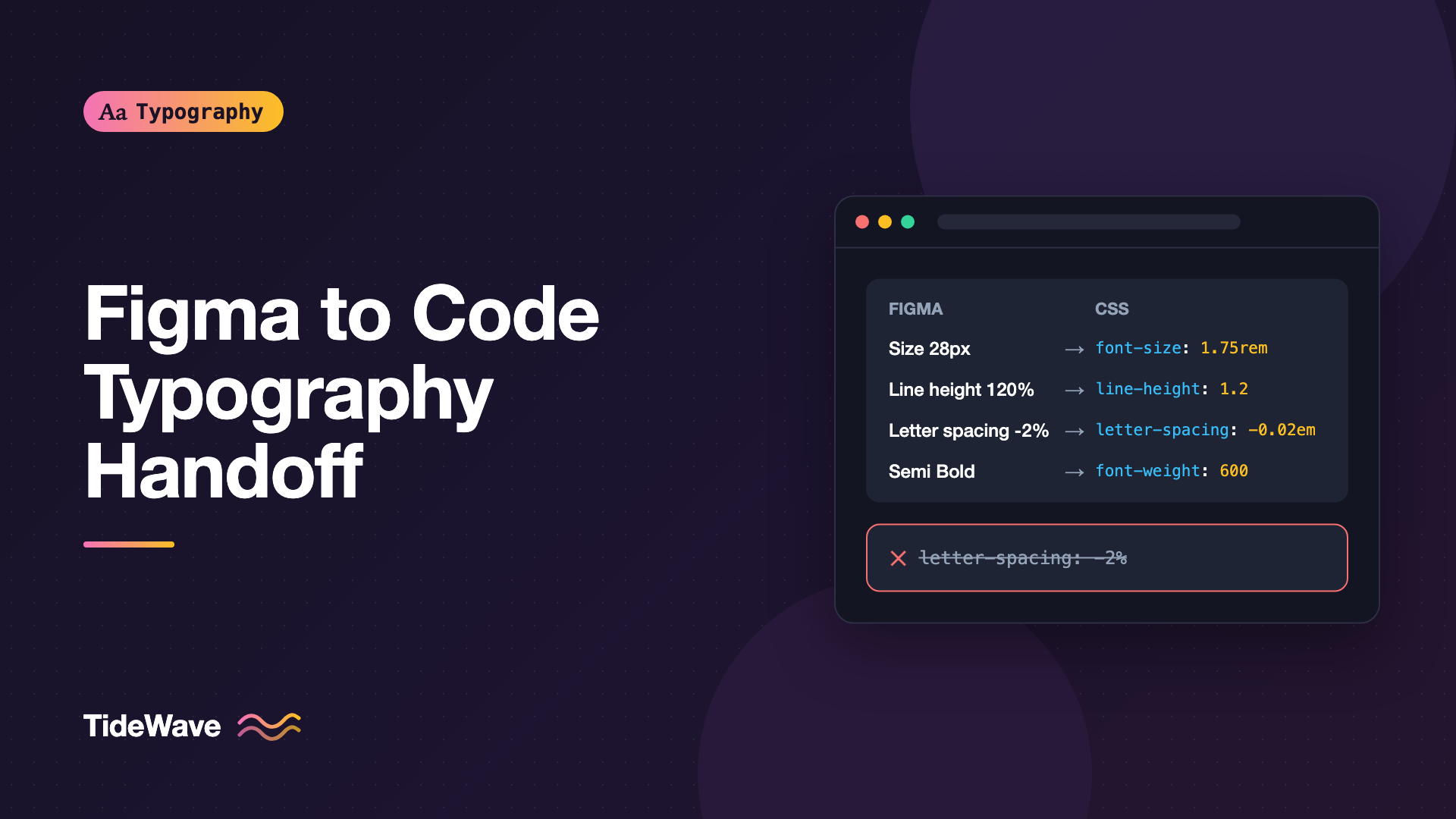
Figma shows letter spacing as a percentage by default, or as pixels. A percentage in Figma means percent of the font size. Percentage values for letter-spacing are a recent addition to the CSS specification and aren't reliably supported across browsers, and that's where many handoffs go wrong. The dependable unit in CSS is em:
/* Figma: letter spacing -2% */
h1 {
  letter-spacing: -0.02em;
}

/* Figma: letter spacing 8% on an uppercase label */
.overline {
  letter-spacing: 0.08em;
  text-transform: uppercase;
}

/* Figma: letter spacing 0.5px on 14px text */
.button {
  letter-spacing: 0.0357em; /* 0.5 / 14 */
}
Divide the percentage by 100 and use em. If the design uses pixels, divide by the font size. Avoid shipping pixel letter spacing, because it doesn't scale when the text size changes.
Warning
Some inspect panels and plugins show Figma's percentage directly as a CSS value, for example letter-spacing: -2%. A browser that doesn't support percentage letter spacing drops that declaration, so the tight tracking silently disappears. Check the computed style in DevTools after implementing.
Font Weight and Family Names
Figma lists styles by name: "Inter Semi Bold", "Söhne Kräftig", "Graphik Medium". CSS needs a numeric weight and a family name that matches your @font-face rules.
| Style name in Figma | CSS font-weight |
|---|---|
| Thin / Hairline | 100 |
| Extra Light | 200 |
| Light | 300 |
| Regular / Book | 400 |
| Medium | 500 |
| Semi Bold / Demi Bold | 600 |
| Bold | 700 |
| Extra Bold | 800 |
| Black / Heavy | 900 |
Names like "Book" and "Kräftig" aren't standardized, so confirm the number with the font's documentation. Also check that the weight you're using is actually loaded. If the design uses 500 and your @font-face rules only declare 400 and 700, the browser falls back to the nearest available weight, and the text ships visibly lighter or heavier than intended. A variable font with a declared range avoids this.
Watch out for local fonts as well. A designer with a font installed on their machine sees it in Figma whether or not it's licensed or loaded on the web. Confirm every family in the file against the fonts your site actually serves.
OpenType Features
Designers often turn on OpenType features in Figma's type details panel: tabular figures, slashed zero, alternate glyphs, case-sensitive forms. These don't show up in a basic inspect panel. Ask for them explicitly, then map them to CSS:
.price-table td {
  font-variant-numeric: tabular-nums;
}

.code-id {
  font-variant-numeric: slashed-zero;
}

.heading-alt {
  font-feature-settings: "ss01" 1;
}
Prefer the font-variant-* properties where they exist and fall back to font-feature-settings for stylistic sets. For the full list, see Using OpenType Features in CSS with font-feature-settings.
Text Box Sizing and Wrapping
Figma text layers can be fixed width, auto width, or auto height. Auto width layers never wrap, which hides problems that appear as soon as real content goes in. Before handoff, check:
- Headings and buttons with long content. Replace placeholder text with the longest realistic string, or a translation that runs 30% longer.
- Truncation rules. If a card title should clamp at two lines, say so in the design, and the developer can implement it with
line-clamp. - Wrapping style. If the design shows balanced headings, note that in the spec so the developer adds
text-wrap: balance.
A designer can't see browser line breaking in Figma, and a developer can't guess intent from a single screenshot. A short note on each component saves rework.
A Handoff Checklist
Before a design is marked ready for development, run through this:
- Every text layer uses a library text style.
- No line height is set to Auto.
- Letter spacing is specified in percent of font size, and the CSS uses
em. - Every family and weight in the file is available on the web.
- OpenType features are listed for the components that use them.
- Long-content and wrapping behavior is annotated.
- Responsive sizes are shown for at least a small and a large breakpoint, or a fluid rule is described.
For the responsive part, a fluid type scale using clamp() is easier to hand off than a stack of breakpoints. The approach is described in How to Build Fluid Typography That Scales Across Every Screen.
Verify After Implementation
Once the code is written, compare it with the design side by side. A few quick checks catch most issues:
- Open DevTools, select the text, and compare computed
font-size,line-height,letter-spacing, andfont-weightwith the Figma values. - Check the Rendered Fonts section of Chrome's Computed panel, or the Fonts panel in Firefox, to confirm the right font file is in use, not a fallback.
- Overlay a screenshot of the design at 50% opacity using a browser extension, and look for drift in baselines.
Small differences in rendering between Figma and browsers are normal. Anti-aliasing, hinting, and subpixel positioning vary. Differences in line count, wrap points, or visible weight are not normal and point to a conversion error.
Common Mistakes
- Copying percentage letter spacing straight into CSS. Browsers without support ignore it. Convert to
em. - Shipping pixel line heights. They don't scale with font size and break when a child changes size. Use unitless ratios.
- Leaving Auto line height in the design. It maps to
normal, which varies by font and browser. - Assuming a weight is loaded. A missing 500 or 600 file means the browser substitutes another weight.
- Ignoring hidden OpenType settings. Tabular figures and stylistic sets don't appear in basic inspect output.
- One-off values instead of styles. Every detached text style becomes another inconsistency in code.
Conclusion
Typography leaks out of a handoff in a handful of places: letter spacing percentages that become invalid CSS, line heights in the wrong unit, weights that aren't loaded, and OpenType features nobody mentioned. Convert sizes to rem, line heights to unitless ratios, and tracking to em, and confirm fonts and features explicitly.
The process fix matters as much as the unit fix. Use named text styles on both sides, annotate wrapping and long-content behavior, and check computed styles after implementation. When designers and developers share the same style names and the same numbers, the thing that ships looks like the thing that was designed.


