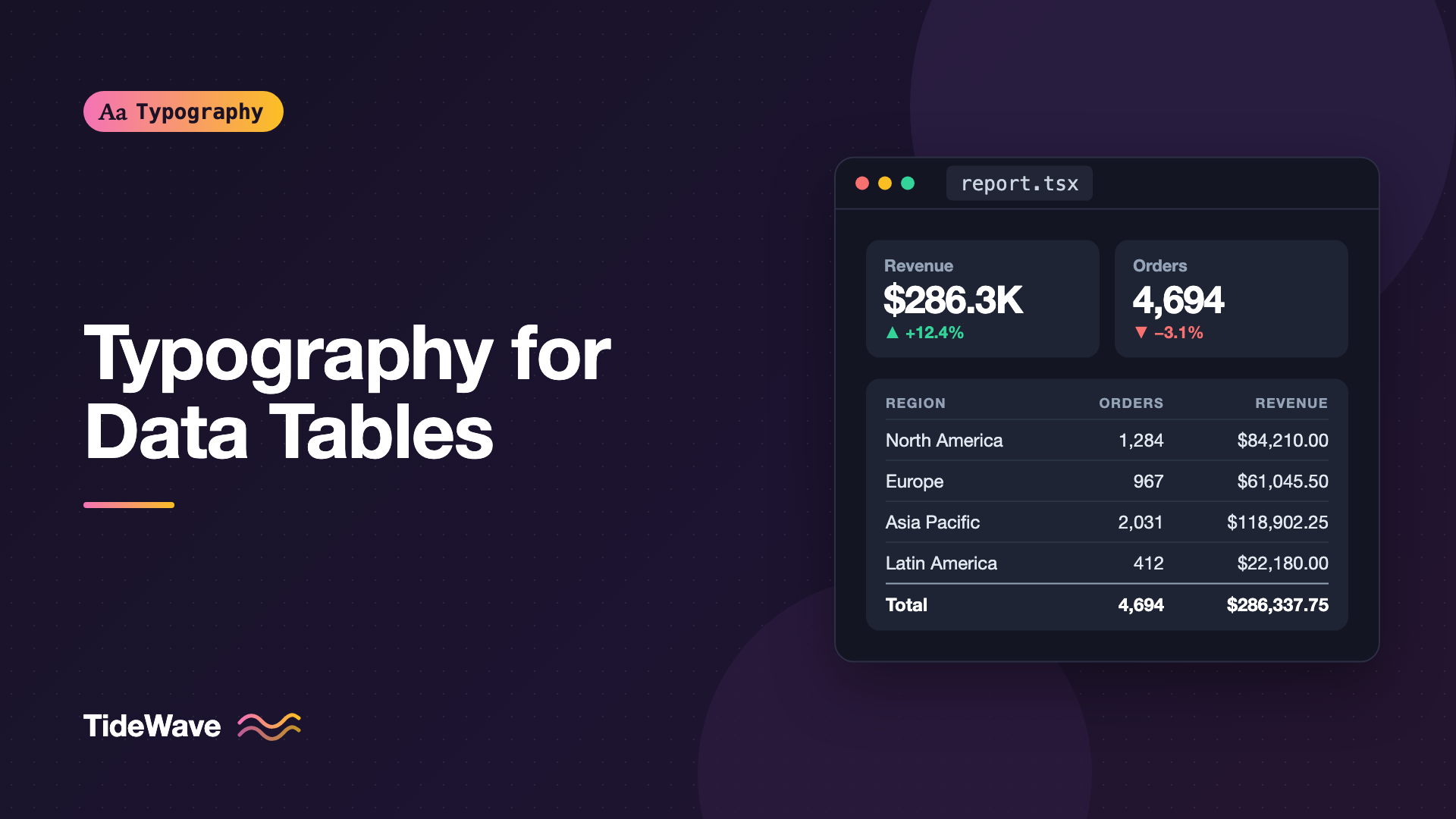
Typography for Data Tables and Dashboards
- Maria
- Typography
- 23 Oct, 2026
Open almost any admin panel and you'll find the same problems: numbers in a column that don't line up, a revenue figure that jitters every time it updates, headers in shouting capitals, and a dozen shades of gray that all look the same. The data is right, but reading it takes effort. Data typography is about making numbers and short labels easy to scan, compare, and trust.
Tables and dashboards are not read top to bottom like an article. People look for a specific row, compare values down a column, or glance at a metric to see if it changed. Every typographic choice should support those tasks. This guide covers choosing a font for data, figure styles, alignment, sizing and density, KPI cards, and the CSS that ties it together.
Choosing a Font for Data
The font that works for your marketing headlines may not be the best choice for a table with 2,000 rows. For data, look for:
- Tabular figures. Every digit has the same width so columns align. This is the most important feature.
- Clear digit shapes.
1and7,3and8,6and0should be easy to tell apart at 13 pixels. - A slashed or dotted zero option for IDs and codes where
0andOboth appear. - Several weights, so you can emphasize totals without changing size.
- A condensed or narrow width, if your tables are wide. A variable font with a
wdthaxis is ideal.
Fonts that do this well include Inter, IBM Plex Sans, Roboto, Source Sans 3, and the system UI fonts on macOS and Windows. Some teams use a monospaced font for numeric columns, which guarantees alignment, but monospaced letters make text columns wide and uneven. Tabular figures in a proportional font give you aligned numbers with normal-looking text. If you're curious when fixed-width type is the better call, see monospaced fonts.
Tabular Figures
Most fonts default to proportional figures, where 1 is narrower than 8. That's good in a sentence and bad in a column. Switch to tabular figures anywhere numbers are compared vertically or update in place:
table,
.metric-value,
.timer {
  font-variant-numeric: tabular-nums;
}
You can combine values. Lining figures (all the same height as capitals) are the default in most UI fonts, but some fonts default to oldstyle figures, which rise and fall like lowercase letters. For data, you want lining and tabular together:
.data {
  font-variant-numeric: lining-nums tabular-nums slashed-zero;
}
If a font doesn't support a feature, the browser silently ignores it, so check your font actually includes tnum. The font-variant-numeric guide explains every value.
Why It Matters for Live Data
Dashboards update. With proportional figures, a counter changing from 1,111 to 1,888 gets wider, which shifts everything after it on the line and makes the whole number look like it's vibrating. Tabular figures keep the width constant, so only the digits change.
Alignment Rules
Alignment is where tables are won or lost. The basic rules are simple:
| Content type | Alignment | Reason |
|---|---|---|
| Text (names, labels) | Left | Matches reading direction, easy to scan |
| Numbers you compare | Right | Places, tens, and hundreds line up |
| Dates in a fixed format | Left or right | Consistent width either way |
| Status badges, icons | Center or left | Short, fixed-width items |
| Column headers | Same as their data | Headers sit over what they describe |
Right-aligned numbers only line up properly if they have the same number of decimal places. Format 12.5 as 12.50 in a currency column. Formatting is a data problem, but it shows up as a typography problem.
th,
td {
  text-align: start;
  padding: 0.5rem 0.75rem;
}

.num {
  text-align: end;
  font-variant-numeric: tabular-nums;
}
<table>
  <thead>
    <tr>
      <th scope="col">Region</th>
      <th scope="col" class="num">Orders</th>
      <th scope="col" class="num">Revenue</th>
    </tr>
  </thead>
  <tbody>
    <tr>
      <td>North America</td>
      <td class="num">1,284</td>
      <td class="num">$84,210.00</td>
    </tr>
    <tr>
      <td>Europe</td>
      <td class="num">967</td>
      <td class="num">$61,045.50</td>
    </tr>
  </tbody>
</table>
Avoid centering numbers. It looks tidy for one column, but when values have different lengths, the decimal places drift and comparison gets harder.
Units and Symbols
Repeating $ or % on every row adds clutter. When a whole column shares a unit, put it in the header: "Revenue (USD)" or "Conversion (%)". When units do appear on every row, keep them visually quieter than the number, for example in the muted text color.
Header Styling
Column headers label data; they shouldn't compete with it. Common approaches that work:
- Small and medium weight in a muted color, at the same size as the data or one step smaller.
- Uppercase with tracking, if you use caps at all. Small uppercase headers can work well in dense tables, but they need extra letter spacing.
- Sticky headers for long tables, with a background so rows don't show through.
thead th {
  position: sticky;
  top: 0;
  background: var(--surface);
  font-size: 0.75rem;
  font-weight: 600;
  letter-spacing: 0.04em;
  text-transform: uppercase;
  color: var(--text-muted);
  border-block-end: 1px solid var(--border);
  white-space: nowrap;
}
Headers often need to wrap or truncate when columns are narrow. Prefer short header text over truncation, and add a tooltip or abbr element if you must shorten.
Size, Density, and Line Height
Data interfaces are dense by nature. You'll usually set table text slightly smaller than body text, around 13 to 14 pixels, and tighten line height so more rows fit on screen.
.table {
  font-size: 0.875rem;
  line-height: 1.35;
}

.table--compact td {
  padding-block: 0.25rem;
}

.table--comfortable td {
  padding-block: 0.75rem;
}
Offering a density toggle is common in data-heavy products. Change the padding, not the font size. Shrinking text to fit more rows makes the data harder to read, and that defeats the purpose.
There's a floor. Text below about 12 pixels gets hard to read for many people, and it'll be hard for anyone with low vision. Use rem units so users who increase their default font size get bigger tables too.
Row Separation
You can separate rows with borders, zebra striping, or whitespace. Typography is part of this choice: with generous line height and padding, subtle borders are enough. In compact tables, light zebra striping helps the eye track across wide rows.
.table tbody tr:nth-child(even) {
  background: var(--surface-subtle);
}
Hierarchy Without Clutter
Tables have few hierarchy tools: weight, color, and occasionally size. Use them sparingly.
- Totals and summary rows: semibold, with a heavier top border.
- Primary identifier column: medium weight, or a link color if it opens a detail view.
- Secondary info: muted color, like a timestamp or email under a name.
- Negative values: a minus sign is required. Color is optional and shouldn't be the only signal.
.row-total td {
  font-weight: 600;
  border-block-start: 2px solid var(--border-strong);
}

.cell-secondary {
  display: block;
  font-size: 0.8125rem;
  color: var(--text-muted);
}
Use a real minus sign (U+2212) or the hyphen-minus consistently. The true minus is the same width as a plus sign and aligns better with tabular figures, but some fonts and number formatters use the hyphen-minus by default. Intl.NumberFormat handles signs, separators, and currency for you:
const currency = new Intl.NumberFormat("en-US", {
  style: "currency",
  currency: "USD",
  minimumFractionDigits: 2,
  signDisplay: "exceptZero",
});

currency.format(-1250.5); // "-$1,250.50"
currency.format(842); // "+$842.00"
KPI Cards and Big Numbers
Dashboards often lead with a row of key metrics: revenue, active users, error rate. These cards follow different rules from tables.
The number is the hero. Make it large and bold, use tabular figures so it doesn't jump on update, and keep the label small and quiet:
.kpi {
  display: grid;
  gap: 0.25rem;
}

.kpi-label {
  font-size: 0.8125rem;
  font-weight: 500;
  color: var(--text-muted);
}

.kpi-value {
  font-size: clamp(1.75rem, 1.2rem + 2vw, 2.5rem);
  font-weight: 650;
  line-height: 1.05;
  letter-spacing: -0.02em;
  font-variant-numeric: tabular-nums;
}

.kpi-delta {
  font-size: 0.8125rem;
  font-weight: 600;
  font-variant-numeric: tabular-nums;
}
Negative letter spacing helps large numbers look tight and intentional. Large text set at default tracking tends to look loose.
Abbreviate big values for KPIs, like $1.2M instead of $1,203,488, and show the exact value in a tooltip or detail view. Intl.NumberFormat supports this with notation: "compact".
For the change indicator, pair color with an arrow or sign. "Up 12%" in green and "Down 4%" in red is clear to everyone; a green 12% and a red 4% with no other signal is not.
Charts and Axis Labels
Typography inside charts follows the same principles at a smaller scale. Axis labels and tick values should be small, muted, and use tabular figures. Data labels on bars or points should be readable but secondary to the shape of the data. Use the same font as the rest of the interface. Charting libraries often default to their own font stack, so set it explicitly.
Common Mistakes
- Proportional figures in columns. Digits don't line up and live values jitter.
- Centered numbers. Decimal places drift and comparison gets harder.
- Inconsistent decimal places. Right alignment can't fix
12.5above8.25. - Shrinking text to increase density. Reduce padding instead.
- Color as the only signal for negative values or changes. Add a sign or arrow.
- Bold everywhere. If every cell is emphasized, nothing is.
- Headers louder than the data. Headers are labels, not content.
Conclusion
Good data typography comes down to a few rules: use tabular, lining figures for anything compared or updated; left-align text and right-align numbers; keep headers quiet; and use weight and color sparingly for totals, identifiers, and secondary details. For KPI cards, make the number large and stable and the label small.
Start with one table in your product. Turn on tabular-nums, fix the alignment, format the decimals consistently, and compare the before and after. The difference is usually obvious, and the same handful of rules will carry over to every other table and dashboard you build.


