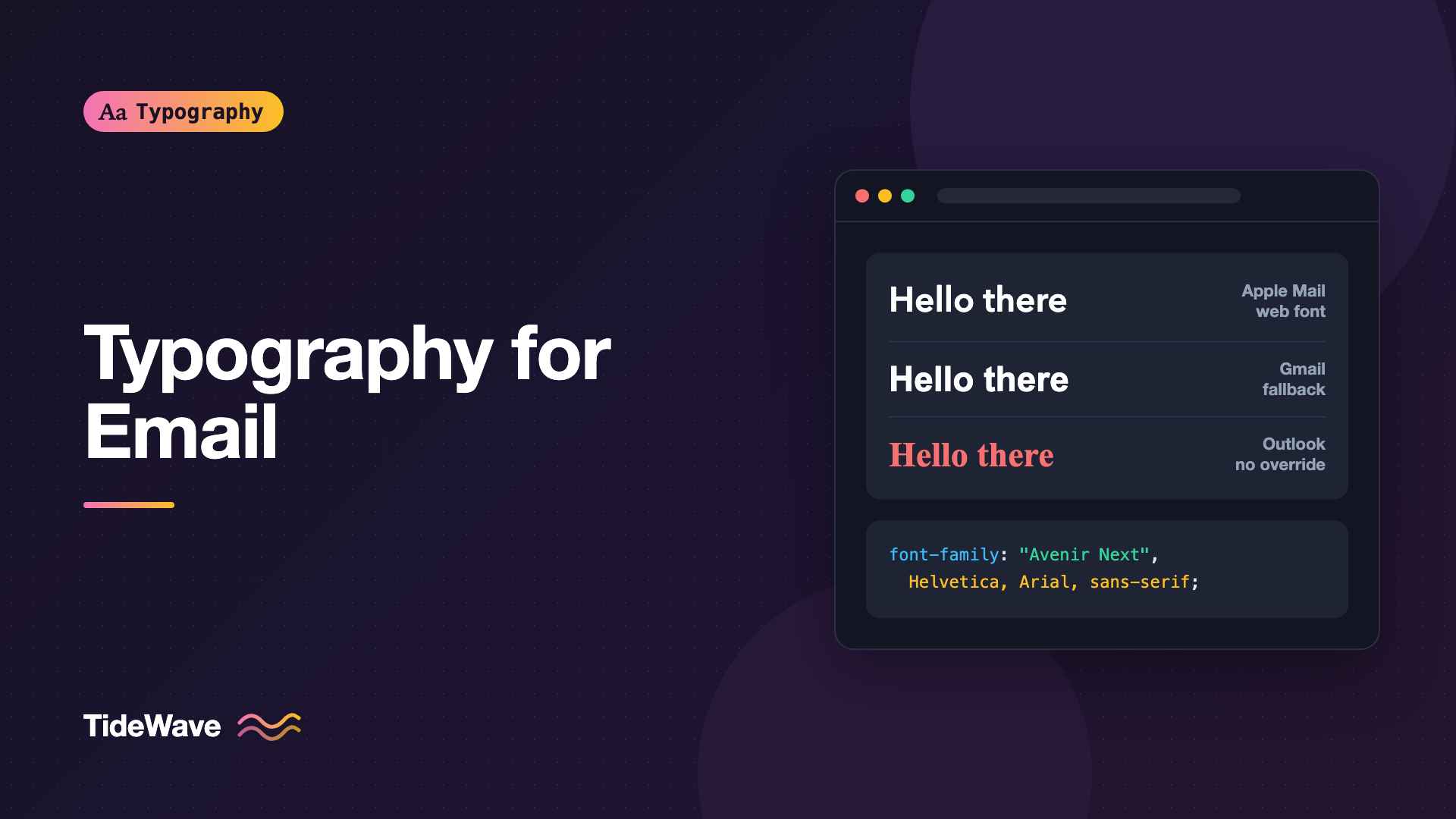
Typography for Email: Fonts That Survive Every Inbox
- Maria
- Typography
- 23 Oct, 2026
You design a newsletter with a lovely custom typeface, send a test to yourself, and it looks perfect in Apple Mail. Then a colleague forwards a screenshot from Outlook on Windows: your headline is in Times New Roman, the line spacing has collapsed, and the body text is a different size than you set. Email typography works under constraints that web developers left behind years ago. Each email client has its own rendering engine, its own CSS support, and its own idea of which fonts are allowed.
The goal isn't to make every inbox look identical. It's to make sure every inbox gets something readable and on-brand, with web fonts as an enhancement for the clients that support them. This guide covers which clients load web fonts, how to build fallback stacks that degrade well, how to set sizes and line heights that Outlook respects, and the small details that make email text look intentional.
Why Email Typography Is Different
On the web, you control the rendering environment fairly well. In email, your HTML is handed to dozens of different programs, each of which may:
- Strip
<style>blocks from the<head>or rewrite class names - Ignore
@font-faceand<link>tags entirely - Use Microsoft Word's rendering engine (classic Outlook for Windows)
- Apply their own dark mode color inversions
- Enforce a minimum font size on mobile
That's why email developers still use inline styles, tables for layout, and conservative CSS. Typography is no exception.
Which Clients Support Web Fonts
Web font support in email is partial. Support changes over time, so check a current reference like caniemail.com before relying on any specific client. As a general picture:
| Client | Web fonts | Notes |
|---|---|---|
| Apple Mail (macOS, iOS) | Yes | Supports @font-face and <link> |
| Outlook for Mac | Generally yes | Uses a WebKit-based engine |
| Gmail (web and apps) | No | Ignores @font-face; uses your fallback stack |
| Outlook for Windows (classic) | No | Word engine; may substitute Times New Roman |
| Yahoo Mail, AOL | Limited or no | Falls back to your stack |
The safe assumption is that a large share of your readers will never see your web font. Design the email so it looks right in the fallback, then let the web font refine it where it loads.
Building a Font Stack for Email
Because so many clients ignore web fonts, the fallback stack does most of the work. Pick system fonts that are close in width and x-height to your brand font, so the layout doesn't change much between clients.
Safe Fonts
These fonts are installed on almost every desktop and mobile platform, or have close equivalents:
- Sans serif: Arial, Helvetica, Verdana, Tahoma, Trebuchet MS, Segoe UI (Windows), and the system UI fonts on Apple devices
- Serif: Georgia, Times New Roman
- Monospace: Courier New
Georgia and Verdana were designed for screens and remain good choices for email body text. Arial and Helvetica are the most universal.
Example Stacks
/* Modern sans, close to Inter or similar */
font-family:
  "Inter",
  -apple-system,
  BlinkMacSystemFont,
  "Segoe UI",
  Roboto,
  Helvetica,
  Arial,
  sans-serif;

/* Editorial serif */
font-family: "Merriweather", Georgia, "Times New Roman", serif;
For background on how stacks work and why ordering matters, see building a reliable system font stack.
Loading a Web Font in Email
For clients that support them, you can load web fonts with either a <link> tag or @font-face in a <style> block. Wrapping the import in a media query is a common technique to keep it away from clients that handle it badly:
<head>
  <style>
    @media screen {
      @font-face {
        font-family: "Inter";
        font-style: normal;
        font-weight: 400;
        src:
          url("https://example.com/fonts/inter-400.woff2") format("woff2"),
          url("https://example.com/fonts/inter-400.woff") format("woff");
      }
      @font-face {
        font-family: "Inter";
        font-style: normal;
        font-weight: 700;
        src:
          url("https://example.com/fonts/inter-700.woff2") format("woff2"),
          url("https://example.com/fonts/inter-700.woff") format("woff");
      }
    }
  </style>
</head>
Host the files on a reliable server with HTTPS, and include a WOFF fallback since some email clients use older rendering engines. Keep the number of weights low, usually regular and bold. Check your font license too: many commercial licenses cover websites but not email, which is often treated as a separate use. Font licensing varies a lot, and this isn't legal advice, so read the license or ask the foundry.
The Outlook Problem
Classic Outlook for Windows renders HTML with Microsoft Word. When it encounters a font it doesn't have, it often ignores the rest of your stack and falls back to Times New Roman. That's why emails that look clean everywhere else sometimes appear in Times in Outlook.
The usual fix is to give Outlook a separate, explicit font declaration inside a conditional comment that only Outlook reads:
<!--[if mso]>
  <style type="text/css">
    body,
    table,
    td,
    p,
    a,
    h1,
    h2,
    h3 {
      font-family: Arial, Helvetica, sans-serif !important;
    }
  </style>
<![endif]-->
This conditional comment goes in the email's <head>, not in your web pages. It tells Outlook to use Arial and skip the web font entirely.
Line Height in Outlook
Outlook also handles line-height inconsistently. Unitless values like 1.5 may not behave as expected. Use pixel values for line height in email, and set them inline on the element that holds the text:
<td
  style="font-family: Arial, Helvetica, sans-serif; font-size: 16px; line-height: 24px; color: #1f2937;"
>
  Thanks for signing up. Here's what to expect in your first week.
</td>
Outlook also adds its own spacing around paragraphs. Many email developers set margin: 0 on paragraphs and control spacing with padding on table cells or explicit margins, so every client gets the same result.
Font Sizes for Email
Email is read on phones as often as on desktops, and sometimes more. Size accordingly.
| Element | Desktop | Mobile |
|---|---|---|
| Body text | 16px | 16px to 18px |
| Headlines (H1) | 28px to 36px | 24px to 28px |
| Subheads (H2) | 20px to 24px | 20px |
| Buttons | 16px | 16px |
| Footer, legal | 12px to 13px | 12px to 13px |
These are starting points, not rules. A few constraints drive them:
- iOS Mail enlarges small text. It enforces a minimum size and may scale text below about 13 pixels. If you want control, keep sizes at 14 pixels or above, or set
-webkit-text-size-adjust: 100%on the body. - Gmail on mobile may scale the whole email down if your layout is wider than the screen. A responsive or fluid layout avoids that.
- Pixels are normal in email. Unlike the web,
pxis the most reliable unit across clients.remandemsupport is inconsistent.
Headlines and Hierarchy
Without web fonts, your main tools for hierarchy are size, weight, and color. A system sans in bold at 28 pixels makes a perfectly good headline.
<h1
  style="margin: 0 0 16px; font-family: Georgia, 'Times New Roman', serif; font-size: 30px; line-height: 36px; font-weight: 700; color: #111827;"
>
  Your October reading list
</h1>
Always set margin explicitly on headings and paragraphs. Each client has different default margins, and some strip them.
Avoid Text in Images
It's tempting to render a headline as an image to guarantee the font. Don't do it for important text. Many clients block images by default, screen readers can't read them unless you add alt text, the text won't scale for readers who zoom, and it can't be selected or searched. If you do use a text image for a decorative masthead, include meaningful alt text and style it so the alt text itself looks reasonable when images are off.
Dark Mode
Several email clients apply dark mode to your email, either by fully inverting colors or by adjusting only light backgrounds. You can't control all of them, but you can help:
- Avoid pure black on pure white for body text. A dark gray like
#1f2937on white inverts more gracefully. - Don't rely on thin font weights. Light text on dark backgrounds looks thinner than you expect after inversion.
- Use
prefers-color-schemein clients that support it to set explicit dark colors:
@media (prefers-color-scheme: dark) {
  .email-body {
    background-color: #111827 !important;
  }
  .email-text {
    color: #e5e7eb !important;
  }
}
Add <meta name="color-scheme" content="light dark"> and <meta name="supported-color-schemes" content="light dark"> to the head so supporting clients know you've handled dark mode yourself. For type-specific dark mode adjustments, see typography in dark mode.
Links and Buttons
Links in email need to look like links, because there's no hover state on mobile. Keep underlines on inline links, and make buttons from table cells with padding, not images:
<table role="presentation" cellpadding="0" cellspacing="0" border="0">
  <tr>
    <td style="border-radius: 6px; background-color: #2563eb;">
      <a
        href="https://example.com/start"
        style="display: inline-block; padding: 12px 24px; font-family: Arial, Helvetica, sans-serif; font-size: 16px; line-height: 20px; font-weight: 700; color: #ffffff; text-decoration: none;"
      >
        Start your trial
      </a>
    </td>
  </tr>
</table>
Bulletproof buttons like this render in every client, including Outlook, and keep the label as live text.
Testing
Don't trust a single test send. Email rendering varies by client, version, and platform, so test across the clients your audience actually uses. Services like Litmus and Email on Acid render previews across many clients at once. At minimum, check Gmail on web and mobile, Apple Mail on iOS, and classic Outlook for Windows if your audience uses it. Turn images off for one test to see what your email looks like without them.
Common Mistakes
- Designing only for the web font. Most readers may see the fallback, so it has to look good.
- No Outlook override. Classic Outlook may fall back to Times New Roman.
- Unitless line height. Use pixel values for consistent spacing.
- Text in images. It disappears when images are blocked and isn't accessible.
- Relying on default margins. Set them explicitly on every heading and paragraph.
- Tiny footer text. Keep it at 12 pixels or larger and above 4.5:1 contrast.
- Ignoring font licenses. Email use isn't always covered by a web font license.
Conclusion
Email typography rewards caution. Start with a font stack of safe system fonts that matches the shape of your brand font, add a web font through @font-face for clients that support it, override fonts for Outlook with a conditional comment, and set sizes and line heights in pixels with inline styles. Keep real text instead of images and handle dark mode deliberately.
Think of the web font as a bonus, not the design. If your email reads well in Arial or Georgia, it will survive every inbox, and the clients that load your custom font will simply look a little nicer.


