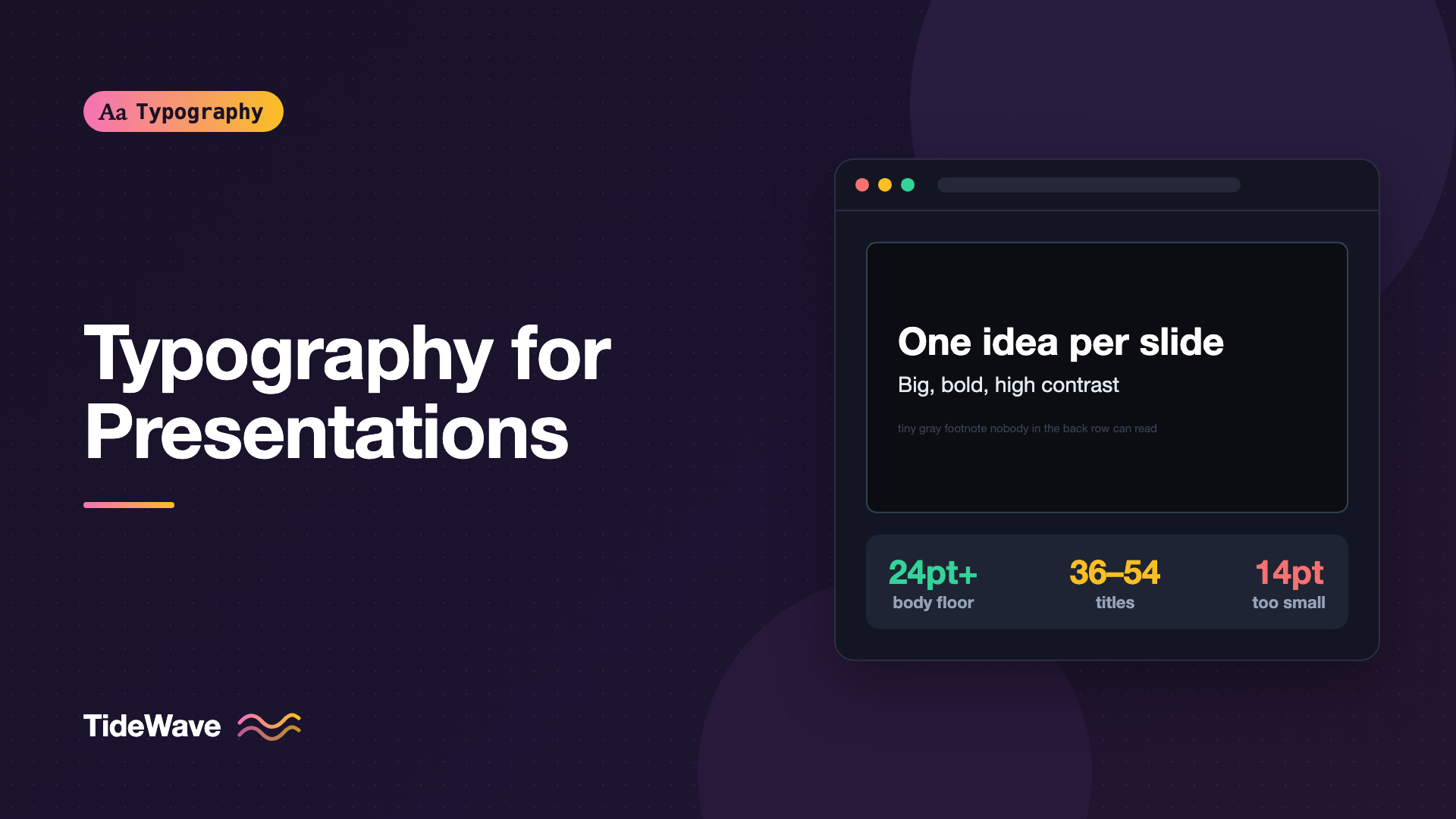
Typography for Presentations: Making Slides Readable from the Back of the Room
- Maria
- Typography
- 23 Oct, 2026
You've been in the audience for this: the speaker says "as you can see here," and the slide shows a 14-point bullet list in light gray on white, projected onto a screen 20 meters away through a projector that's seen better days. Nobody in the back half of the room can see anything. Half the audience squints, the other half checks their phones.
Presentation typography has different constraints from screen or print typography. Text is viewed from a distance, often through a projector that lowers contrast, by an audience that gets a few seconds per slide while also listening to a speaker. Rules that work for a web page, like 16px body text and subtle gray secondary text, fail badly at the back of a conference room.
This post covers how to size text for distance, which fonts hold up, how to handle contrast on projectors and screens, how much text a slide can carry, and how to set up all of this if you build slides in HTML and CSS.
How Viewing Distance Changes Everything
What matters on a slide isn't the font size in points. It's how large the letters appear at the viewer's eye, which depends on the size of the screen and the distance from it. A 24-point heading on a laptop screen at arm's length can look large; the same heading projected and viewed from 15 meters away may still be readable or may not, depending on the screen size.
That's why most presentation guidelines express sizes relative to the slide rather than as absolute values. A practical way to think about it: if the smallest text on your slide is readable when you view the slide at about a quarter of its full size on your monitor, from a normal seated distance, it will usually be readable on a reasonably sized projected screen from the back of a typical room.
Try it: shrink your slide preview to thumbnail size and see what you can still read. Anything you can't read there needs to be bigger or needs to go.
Font Sizes for Slides
On a standard 16:9 slide in Keynote, PowerPoint, or Google Slides, these sizes are a sensible starting point:
| Element | Suggested size | Notes |
|---|---|---|
| Slide title | 36–54 pt | Short, one line where possible |
| Key statement | 40–72 pt | One idea per slide, large and centered |
| Body or bullet text | 24–32 pt | Treat 24 pt as the floor in a large room |
| Labels and captions | 18–24 pt | Chart labels, sources, small annotations |
| Footnotes and sources | 14–18 pt | Only for reference, not for reading aloud |
These are rules of thumb, not standards. Larger rooms and smaller screens need bigger text. If you find yourself shrinking text to make it fit, the slide has too much on it.
Choosing Fonts That Survive Projection
Projectors and conference room screens are hard on type. Contrast is lower, blacks look gray, fine details blur, and you often don't know what equipment you'll get until you arrive.
Fonts that hold up well tend to have:
- A generous x-height, so lowercase letters stay large relative to the point size. What Is x-Height and Why Does It Affect Readability? explains why this matters so much.
- Open apertures, so letters like
c,e, andadon't close up when blurred. - Sturdy, even strokes, without hairlines that disappear on a washed-out projector.
- Clear distinction between similar characters, such as
I,l, and1, orOand0.
That usually points toward humanist or neo-grotesque sans serifs at regular to semibold weights. Robust serifs with low stroke contrast work too. High-contrast display serifs, light and thin weights, condensed faces, and script fonts tend to fail at a distance.
Weight is worth special attention. Light weights look elegant on a designer's retina display and vanish on a projector. Set body text in Regular or Medium, and titles in Semibold or Bold.
Embedding and Availability
A font that's installed on your laptop may not be on the venue's machine. If you might present from a different computer:
- Export to PDF as a backup, which embeds the fonts.
- Use fonts that the presentation tool can embed, or cloud-based tools that serve the font.
- Check the font's license for embedding. Some desktop licenses don't permit it. This isn't legal advice; read the license or ask the foundry.
Contrast and Color
Projected contrast is almost always worse than what you see on your laptop. Ambient light washes out dark backgrounds, and cheap projectors crush light colors together.
- Aim well above the minimums. WCAG's 4.5:1 for normal text is a floor for screens (see Accessible Typography: Font Size, Contrast, and Spacing Guidelines); for projection, go higher. Near-black on white or white on near-black is safest.
- Avoid mid-tones for text. Gray text on a slightly different gray background often disappears entirely.
- Choose light or dark backgrounds for the room. Dark backgrounds are comfortable in dim rooms and on large LED walls. Light backgrounds hold up better in bright rooms where the projector is fighting daylight.
- Never rely on color alone. Red and green highlights are indistinguishable to many people with color vision deficiencies, and projectors often shift hues.
Text over photographs needs a solid or heavily darkened overlay. A subtle gradient that works on your screen will not work on a projector.
How Much Text a Slide Can Carry
The audience is listening to you while reading your slide. If the slide has a paragraph on it, they'll read it instead of listening, and they'll finish before you do. Keep text to what supports the spoken point:
- One idea per slide. If a slide needs two headings, it's two slides.
- Short lines. Bullet points should be phrases, not sentences, and ideally fit on one line.
- Few bullets. Three to five at most. Reveal them one at a time if you need more.
- Big statements. A single sentence set very large is often more memorable than a list.
Slides meant to be read without a speaker, like a deck sent by email, are a different format. They can carry more text, but at that point you're designing a document in landscape. Treat it as one.
Hierarchy on a Slide
Slide hierarchy needs to work at a glance:
- Size contrast. The title should be clearly larger than the body. Ratios of 1.5 to 2 times work well.
- Weight contrast. Bold for the key phrase, regular for the rest.
- Position. Consistent title placement across slides lets the audience find it without searching.
- Space. Generous margins. Text crammed to the edges looks cluttered, and projectors sometimes crop the edges of the image.
Left-aligned text is easier to scan than centered text for anything longer than a single line. Centered text works for title slides and single statements.
Numbers and Data on Slides
Charts and tables on slides fail more often than text. A few typographic fixes help:
- Label lines directly instead of using a legend.
- Drop decimals and round numbers to what the point requires.
- Use tabular figures in tables so columns align.
- Remove gridlines and borders that aren't needed.
- Make the one number that matters much bigger than the rest.
Building Slides with HTML and CSS
If you build slides in HTML, with a framework like reveal.js or with your own setup, you can bake readable defaults into CSS. Size text relative to the slide, not the browser viewport, so it scales consistently. Container query units are ideal for this:
.slide {
  container-type: size;
  aspect-ratio: 16 / 9;
  width: min(100vw, calc(100vh * 16 / 9));
  padding: 6cqh 6cqw;
  background: #111418;
  color: #f5f5f2;
  font-family: "Source Sans 3", "Segoe UI", system-ui, sans-serif;
}

.slide h2 {
  font-size: 8.5cqh;
  font-weight: 700;
  line-height: 1.1;
  margin: 0 0 4cqh;
  text-wrap: balance;
}

.slide p,
.slide li {
  font-size: 5.2cqh;
  line-height: 1.35;
  max-width: 32ch;
}

.slide .source {
  font-size: 3.2cqh;
  color: #b8bcc2;
}
Using cqh (a percentage of the container's height) means a 1920 × 1080 slide and a 1280 × 720 preview scale identically. A standard 16:9 slide in PowerPoint or Keynote is 13.33 × 7.5 inches, or 540 points tall, so 5.2cqh works out to about 28 points, 8.5cqh to about 46 points, and 3.2cqh to about 17 points, matching the table above. Using CSS Container Query Units for Component-Level Typography explains the units.
Load fonts locally for HTML slides if you'll present offline. For slides, font-display: block is a reasonable choice: text stays briefly invisible while the font loads instead of showing a fallback that swaps mid-talk, and with local files the wait is negligible:
@font-face {
  font-family: "Source Sans 3";
  src: url("./fonts/SourceSans3-Variable.woff2") format("woff2");
  font-weight: 200 900;
  font-display: block;
}
Test in the Real Room
Nothing replaces checking the actual setup. If you can, arrive early, put your slides on the screen, and walk to the back row. Check:
- Can you read the smallest text on every slide?
- Do any colors look different from your laptop?
- Is anything cropped at the edges?
- Did your fonts load, or did the machine substitute something?
If you can't visit, ask the organizer for the screen size and room dimensions, and design for the worst case.
Common Mistakes
- Text set for a laptop, not a room. 14-point body text is invisible from the back. Treat 24 points as a minimum for anything people need to read.
- Light and thin weights. Elegant on your screen, gone on a projector.
- Low-contrast "subtle" text. Gray on gray disappears under projection. Use high contrast.
- Paragraphs on slides. The audience reads instead of listening. Cut to phrases.
- Fonts that aren't on the presenting machine. Export a PDF backup or embed fonts.
- Shrinking text to fit. If text needs to be smaller to fit, split the slide.
Conclusion
Presentation typography is designed for distance, low contrast, and short attention. Use large sizes with 24 points as a working floor for body text, sturdy fonts with large x-heights at regular weight or heavier, high contrast that survives a projector, and very little text per slide.
Check your slides at thumbnail size before the talk and from the back of the room on the day. If the person in the last row can read every word without leaning forward, your typography is doing its job, and the audience can spend their attention on what you're saying.


