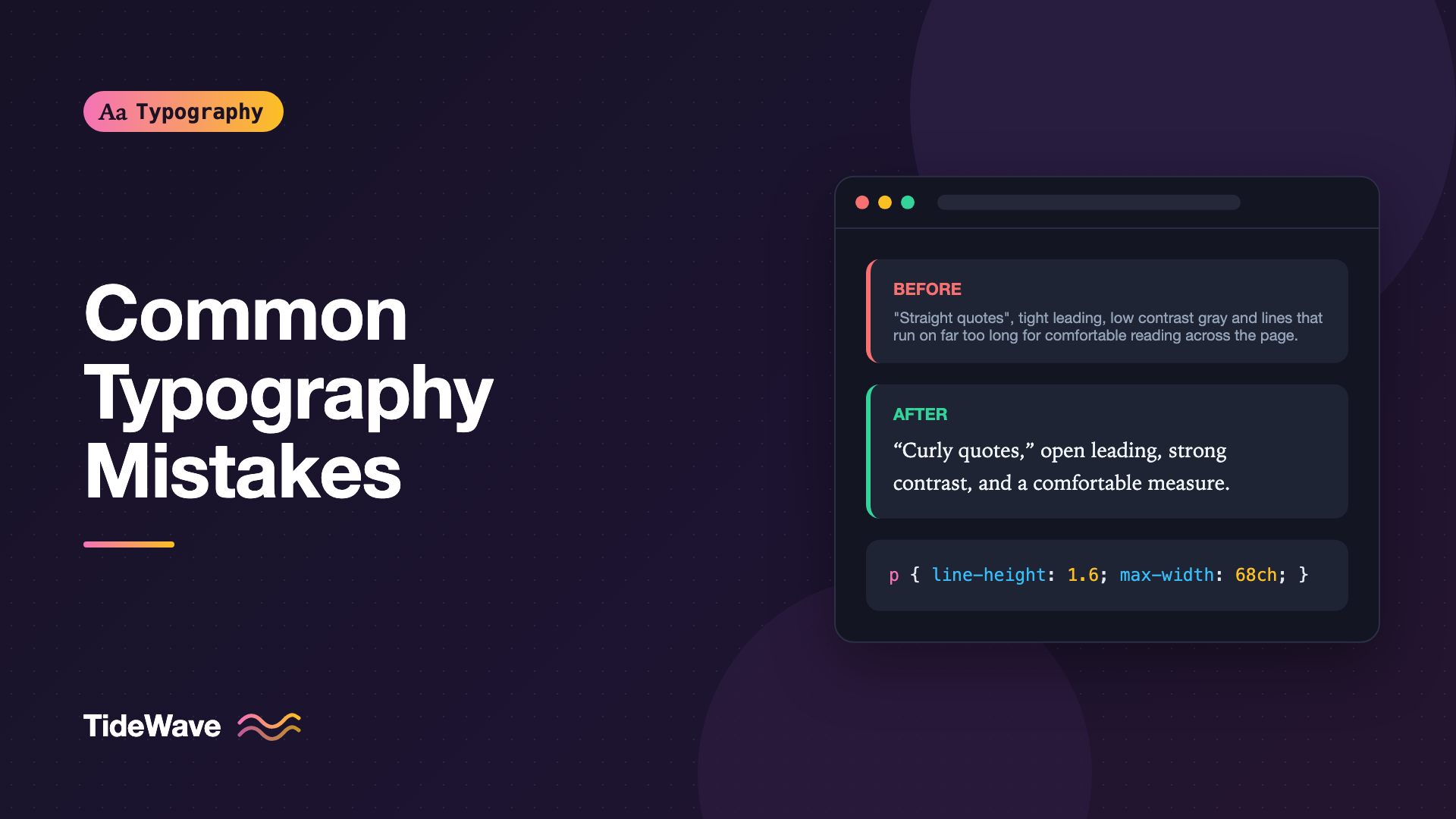
Common Typography Mistakes and How to Fix Them
- Maria
- Typography
- 23 Oct, 2026
Most typography problems on the web aren't dramatic. Nobody sets a whole site in a novelty script anymore. The problems are quieter: paragraphs that stretch across a 27-inch monitor, line spacing copied from a browser default, a heading that's only slightly bigger than the body text, a font file that loads a second after everything else. Each one costs a little readability, and together they make a site feel harder to use than it should.
The good news is that these typography mistakes are repetitive. The same dozen or so issues show up on project after project, and most can be fixed with a few lines of CSS. This post goes through them one at a time: what the mistake looks like, why it hurts, and what to change.
Lines That Are Too Long
A paragraph that runs the full width of a wide container is hard to read. Your eyes have to travel a long way to the end of each line and then find the start of the next one, and on long lines it's easy to land on the wrong line.
The usual target for body text is roughly 45 to 75 characters per line. The background is in The Ideal Line Length: Why 45 to 75 Characters Works. The fix is a max-width in ch units on the text container:
.article-body {
  max-width: 68ch;
  margin-inline: auto;
}
Put the limit on the text, not the page. Images, tables, and code blocks can still go wider if your layout allows it.
Line Height That Is Too Tight or Too Loose
Browser default line-height: normal is usually around 1.2, depending on the font. That's fine for headings and far too tight for paragraphs. The opposite mistake happens too: a global line-height: 2 that makes headings fall apart into separate lines.
Set body and headings separately:
body {
  line-height: 1.6;
}

h1,
h2,
h3 {
  line-height: 1.15;
}
Use unitless values so the ratio scales with each element's font size. Fonts with a large x-height usually need a bit more leading, and longer lines need more than shorter ones. How to Choose the Right Line Height for Body Text covers the details.
Body Text That Is Too Small
Twelve and thirteen pixel body text was common in the early web. On today's screens, 16px is a sensible floor for paragraph text, and many reading sites go larger. Small text also hurts people with low vision far more than it inconveniences everyone else.
A related mistake is setting font sizes in pixels, which overrides the reader's browser font size preference. Use rem:
body {
  font-size: 1.125rem; /* 18px when the default is 16px */
}

.caption {
  font-size: 0.875rem;
}
Don't go below about 0.75rem for anything a user needs to read, and keep tiny text for genuinely secondary information.
Weak Hierarchy
When headings are only a little larger than body text, or every heading level is the same weight, the page reads as one undifferentiated block. Readers who scan, which is most of them, can't find the section they want.
Hierarchy comes from contrast in size, weight, color, and space. A modular scale makes the size steps consistent:
:root {
  --step-0: 1rem;
  --step-1: 1.25rem;
  --step-2: 1.563rem;
  --step-3: 1.953rem;
  --step-4: 2.441rem;
}

h1 {
  font-size: var(--step-4);
}
h2 {
  font-size: var(--step-3);
}
h3 {
  font-size: var(--step-2);
}
The opposite problem also exists: too many competing levels of emphasis. If a paragraph has bold, italic, color, and underline all in use, nothing stands out. Use one or two signals per level.
Faux Bold and Faux Italic
If you set font-weight: 700 or font-style: italic and the matching font file isn't loaded, the browser synthesizes it. Faux bold smears the outlines, and faux italic just slants the upright letters, which looks noticeably worse than a designed italic.
Check that every weight and style you use has a matching @font-face rule. To catch mistakes, you can turn synthesis off:
body {
  font-synthesis: none;
}
With synthesis off, a missing bold renders at the regular weight, which makes the problem obvious during development instead of shipping a blurry approximation. The difference between a real italic and a slanted roman is explained in True Italics vs Obliques: Why the Difference Matters.
Too Many Fonts
Each family and each weight is another file to download and another voice on the page. Three or four families on one site rarely look intentional. A common, reliable setup is one family for everything, or one for headings and one for body text.
Ask whether every weight earns its place too. If the design uses 300, 400, 500, 600, and 700, the 300 and 500 are probably hard to distinguish from their neighbors at body size.
Slow or Jumpy Font Loading
A font that blocks text for a few seconds makes the page look empty. A font that swaps in late with very different metrics causes the layout to jump. Both are fixable:
@font-face {
  font-family: "Source Serif 4";
  src: url("/fonts/source-serif-4-var.woff2") format("woff2");
  font-weight: 200 900;
  font-display: swap;
}

@font-face {
  font-family: "Source Serif Fallback";
  src: local("Georgia");
  size-adjust: 104%;
  ascent-override: 92%;
}

body {
  font-family: "Source Serif 4", "Source Serif Fallback", Georgia, serif;
}
Use WOFF2, subset where you can, pick a sensible font-display value, and match the fallback's metrics to reduce shift. The full approach is in How to Load Web Fonts Efficiently with font-display. The override percentages above are only an example; measure them for your own font pair.
Low Contrast Text
Light gray text on white looks refined in a mockup and is hard to read on a laptop in daylight. WCAG 2.2 Level AA asks for a contrast ratio of at least 4.5:1 for normal text and 3:1 for large text. Large means at least 18pt, or 14pt bold, which is roughly 24px and 18.66px in CSS.
/* Too light on white: about 2.6:1 */
.meta {
  color: #a0a0a0;
}

/* Passes AA on white: about 4.7:1 */
.meta {
  color: #737373;
}
Check placeholder text, disabled-looking secondary text, and text over images. Those are the usual offenders.
All Caps Without Letter Spacing
Uppercase letters are designed to sit next to lowercase ones. Set a word in all caps at default spacing and the letters crowd together. Add a little tracking:
.eyebrow {
  text-transform: uppercase;
  letter-spacing: 0.08em;
  font-size: 0.75rem;
  font-weight: 600;
}
Use text-transform instead of typing capitals in the HTML. Screen readers may spell out typed capitals as letters, and it keeps the source text in normal case if the style changes later.
Straight Quotes and Wrong Dashes
Straight quotes (" and ') are typewriter leftovers. Typographic quotes (“ ” and ‘ ’) look finished. Likewise, a hyphen isn't a dash: ranges use an en dash (10–20), and breaks in a sentence use an em dash or a spaced en dash depending on your style.
Most CMSs and static site generators can convert quotes automatically. If yours doesn't, fix it at the source rather than in CSS. Treat punctuation as part of the content, and make sure editors know which characters to use.
Justified Text Without Hyphenation
Justified text on the web, without hyphenation, produces uneven word spacing and rivers of white running down the paragraph, especially in narrow columns. Left-aligned text is almost always the better default on screens. If you do justify, turn on hyphenation and set the lang attribute so the browser knows which dictionary to use:
.prose {
  text-align: justify;
  hyphens: auto;
}
<html lang="en"></html>
Centered Paragraphs
Centering works for a short headline or a two-line call to action. For anything longer, the ragged left edge makes every line start in a different place, and reading slows down. Left-align paragraphs and lists. Center only short, display-sized text.
Awkward Line Breaks in Headings
A heading that breaks with one word alone on the second line looks unbalanced. Modern CSS fixes this in one line:
h1,
h2,
h3 {
  text-wrap: balance;
}

p {
  text-wrap: pretty;
}
Browsers that don't support these values wrap normally, so there's no downside. See text-wrap: balance and pretty for how they work.
Underlines That Aren't Links
On the web, underlined text means "link". Using underlines for emphasis confuses people who try to click. Use italic or bold for emphasis, and keep underlines for links, where you can style them nicely with text-decoration-thickness and text-underline-offset.
Ignoring Numbers
Prices, tables, and dashboards often use proportional figures, so columns of numbers don't line up. Turn on tabular figures where numbers are compared vertically:
table,
.price {
  font-variant-numeric: tabular-nums;
}
Not every font includes tabular figures, so check yours. Many interface fonts like Inter and Roboto do.
A Quick Diagnostic Table
| Symptom | Likely cause | Fix |
|---|---|---|
| Eyes lose their place between lines | Lines too long | max-width: 65ch on the text container |
| Text feels like a dense wall | Line height too tight | line-height: 1.5 to 1.7 on body |
| Headings look blurry or smeared | Faux bold | Load the real weight, font-synthesis |
| Page jumps after load | Fallback metrics differ | size-adjust and metric overrides |
| Columns of numbers look ragged | Proportional figures | font-variant-numeric: tabular-nums |
| Uppercase labels look cramped | No tracking | letter-spacing: 0.05em to 0.1em |
| Gaps of white run down a paragraph | Justified without hyphenation | Left-align, or add hyphens: auto |
Common Mistakes
The whole post is a list of mistakes, but a few habits cause most of them:
- Designing with placeholder text. Lorem ipsum hides long words, real headline lengths, and numbers. Use real content as early as you can.
- Testing on one screen. Check a wide desktop, a laptop, and a phone. Line length and size problems only appear at the extremes.
- Fixing symptoms one page at a time. Most of these fixes belong in base styles, not in individual components.
- Skipping the computed style check. DevTools shows the actual font, size, and line height. Look before assuming the CSS did what you meant.
Conclusion
The common typography mistakes are long lines, poor line height, small text, weak hierarchy, synthesized styles, too many fonts, slow loading, low contrast, untracked caps, wrong punctuation, and awkward alignment. Each has a well-known fix, usually a line or two of CSS in your base styles.
Work through them in that order on your next project and you'll fix the problems readers notice most first. Then set the defaults once, globally, so every new page starts from good typography instead of repeating the same corrections.


