Grids and Typography: How Column Systems Shape Text Layout
- Maria
- Typography
- 23 Oct, 2026
Look at a well-designed magazine page and then at a cluttered web page with the same amount of content. The difference often isn't the fonts or the colors. It's that on the magazine page, everything lines up. The headline starts where the column starts, the caption aligns with the image above it, the pull quote spans exactly two columns. On the cluttered page, every element has its own left edge, and your eye keeps having to find where to start.
That order comes from a grid: a set of columns, gutters, and margins that every element on the page refers to. Grids and typography are tightly linked. The grid sets how wide your text can run, which affects line length. The type size and line height should influence the grid, so text and layout share proportions. And alignment to shared edges is what makes a page look composed.
This post covers how grids relate to type, how to choose column widths that suit your text, and how to build typographic grids with CSS Grid.
The Parts of a Grid
A typographic grid has a few components:
| Part | What it is | Typographic concern |
|---|---|---|
| Columns | Vertical divisions where content is placed | Text set across one or more columns sets the measure |
| Gutters | Space between columns | Must be wide enough to separate adjacent text |
| Margins | Space around the outside of the grid | Frames the text block and sets page density |
| Modules | Cells formed when rows cross columns | Hold images, captions, and short text blocks |
| Baseline | Horizontal lines that text sits on | Aligns text across columns |
Most web layouts use columns, gutters, and margins. Modular and baseline grids are used more selectively, but both come from print practice and both can be useful.
Common Grid Types
Single Column (Manuscript)
One text column in the middle of the page. It's the basis of most blog posts, documentation, and books. Its only real decision is width, and that should come from the measure: roughly 45 to 75 characters per line for body text.
Multi-Column
Two to four columns of equal width, with text spanning one or more. Common in newspapers, editorial sites, and dashboards. A three-column grid allows layouts of one, two, or three columns of content.
Twelve Column
The web's default grid, popularized by frameworks like Bootstrap. Twelve divides evenly by 2, 3, 4, and 6, so it supports many layouts. The risk is that it's so flexible it imposes very little order, and twelve narrow columns don't say anything about where text should go.
Modular
Columns crossed by rows to form modules, as in Swiss-style posters and many magazine layouts. Useful for galleries, card layouts, and pages that combine text with lots of images. Swiss Style Typography shows how designers used modular grids to bring order to complex material.
Asymmetric
Columns of unequal width, such as a narrow sidebar and a wide main column, or a 2:3 split. Asymmetric grids give a page a natural focus and suit layouts with marginal notes, metadata, or navigation beside the text.
Let the Text Set the Grid
A grid built around arbitrary pixel widths often produces text columns that are too wide or too narrow. A better approach is to start from the type.
- Choose the body font size and line height. Say 18px with a line height of 1.6, which is about 29px.
- Set the measure. A comfortable body column for this size is around
65ch, which for many fonts works out to somewhere around 550 to 650px. - Derive the gutter from the line height. A gutter of one line height, about 29px, separates columns clearly and keeps vertical and horizontal spacing related.
- Build columns around the measure. If the main text spans two columns of a four-column grid, each column plus gutter should add up to the measure you want.
When the gutter, margins, and spacing all derive from the body line height, the page has a consistent rhythm. That's the same idea behind baseline grids, covered in Vertical Rhythm in Web Design: Aligning Text to a Baseline Grid.
Building Typographic Grids with CSS Grid
CSS Grid is a direct expression of print-style grids. Here's a practical setup that builds around the text measure.
A Content Grid with Breakout Areas
:root {
  --measure: 65ch;
  --gutter: clamp(1rem, 3vw, 2rem);
}

.article {
  display: grid;
  grid-template-columns:
    [full-start] minmax(var(--gutter), 1fr)
    [content-start] min(var(--measure), 100% - var(--gutter) * 2) [content-end]
    minmax(var(--gutter), 1fr) [full-end];
}

.article > * {
  grid-column: content;
}

.article > .full-bleed {
  grid-column: full;
}
Paragraphs stay in the measure. Images, tables, and code can break out to the full width. This is the most useful single grid for long-form reading.
A Multi-Column Editorial Grid
For pages that combine headings, text, images, and sidebars, a fixed number of columns gives more options:
.editorial {
  display: grid;
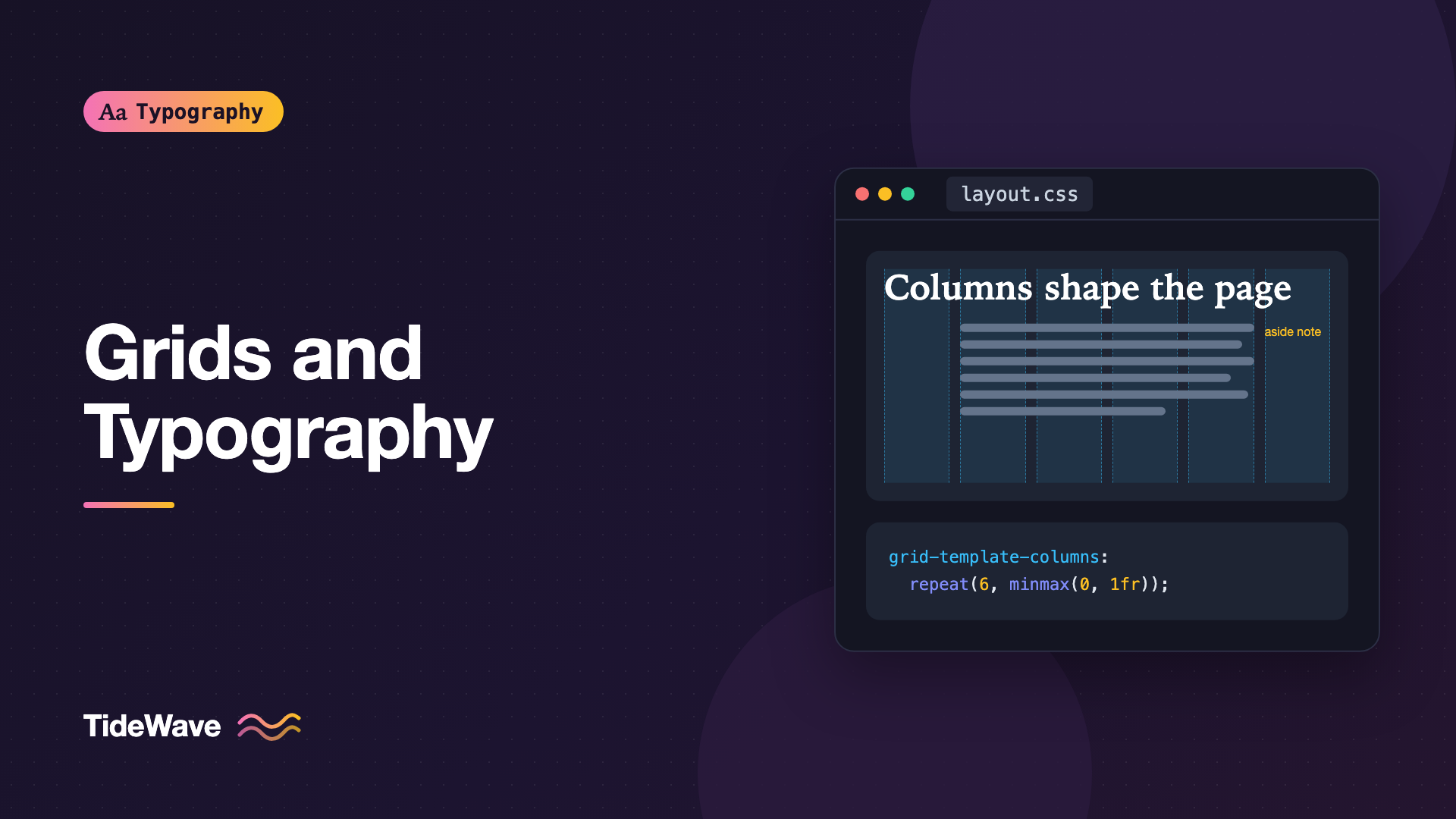
  grid-template-columns: repeat(6, minmax(0, 1fr));
  column-gap: 1.75rem;
  max-width: 72rem;
  margin-inline: auto;
  padding-inline: 1.5rem;
}

.editorial .headline {
  grid-column: 1 / -1;
}

.editorial .standfirst {
  grid-column: 1 / span 4;
}

.editorial .body {
  grid-column: 2 / span 4;
}

.editorial .aside {
  grid-column: 6 / span 1;
  font-size: 0.875rem;
}

@media (max-width: 50rem) {
  .editorial > * {
    grid-column: 1 / -1;
  }
}
Use minmax(0, 1fr) instead of plain 1fr so that long words or wide code inside a column can't force the column wider than its share. Check that the .body column, here four of six columns, lands near your target measure at common widths.
Subgrid for Aligned Text Blocks
When cards or list items sit side by side, their titles, text, and links often end up at different heights. subgrid lets children share the parent's rows so everything aligns:
.cards {
  display: grid;
  grid-template-columns: repeat(auto-fill, minmax(18rem, 1fr));
  gap: 1.5rem;
}

.card {
  display: grid;
  grid-row: span 3;
  grid-template-rows: subgrid;
  row-gap: 0.75rem;
}
Each card's title, excerpt, and footer now line up horizontally with its neighbors, regardless of how long each title is. subgrid is supported in all current major browsers.
Multi-Column Text
For running text that flows from one column to the next, use CSS multi-column layout instead of Grid:
.notes {
  columns: 2 20rem;
  column-gap: 2rem;
  column-rule: 1px solid #d4d4d4;
}

.notes h3 {
  break-after: avoid;
}

.notes figure {
  break-inside: avoid;
}
columns: 2 20rem means at most two columns, each at least 20rem wide, so it drops to one column on narrow screens. Use multi-column text for short content like footnotes, glossaries, or lists. For long articles it forces readers to scroll down and back up between columns, which works on paper and poorly on screens.
Aligning Type to the Grid
A grid only creates order if elements actually align to it. Some typographic details to watch:
- Optical edges. Large headings have side bearings that make them look indented compared to body text. A small negative margin, such as
margin-inline-start: -0.04em, can pull a display heading back into optical alignment. - Hanging punctuation. Opening quotes and bullets pushed into the margin keep the text edge clean. See Hanging Punctuation in CSS.
- Shared baselines across columns. In multi-column layouts, text in adjacent columns looks tidier when baselines line up. That requires consistent line heights and spacing in multiples of the base line height.
- Captions aligned to images. Start the caption on the same column line as the image above it, not centered under it.
Gutters and Text Separation
The gutter width matters more for text than for images. Two columns of text with a narrow gutter can read as one wide line, and the reader's eye may jump across the gap. As a rule of thumb, the gutter between text columns should be at least as wide as the body line height, and visibly wider than the word spacing. Wider gutters, or a thin rule, help when columns are narrow.
Responsive Grids
On small screens, most multi-column grids collapse to a single column. A few things to plan for:
- Keep the margins. A phone layout still needs side margins of at least 1rem so text doesn't touch the screen edge.
- Rethink asymmetric layouts. A sidebar that sat beside the text should move below it, or into a collapsible section, not squeeze the main column.
- Avoid tiny columns. A three-column card grid on a 375px screen makes each column too narrow for text. Use
auto-fillwith a sensible minimum, as in the card example above. - Let type scale with the grid. Fluid sizes with
clamp()keep headings proportional to the columns they sit in. For components inside grid areas, container query units can do the same at the component level.
Choosing a Column Count
How many columns a grid needs depends on the content, not on convention. A few guidelines:
| Content | Useful grid | Why |
|---|---|---|
| Articles, docs, blog posts | Single column with breakouts | Text needs one comfortable measure |
| Articles with notes or metadata | Asymmetric two column | Main text plus a narrow side column |
| Editorial home pages | Four or six columns | Mix of large and small stories, flexible spans |
| Card collections and galleries | Auto-fill with a minimum width | Number of columns follows the available space |
| Marketing pages with varied sections | Twelve columns | Many possible splits, but needs discipline |
Fewer columns usually means a clearer page. A six-column grid allows full, half, third, and two-thirds widths, which covers almost every editorial layout. Twelve columns add quarter and sixth widths, which are rarely right for text.
Whatever you choose, check the narrowest column against your type. If a single column of a six-column grid is 140px wide, it can hold a short label or a number, but not a sentence. Text that needs to wrap should span enough columns to hold at least 30 or so characters per line, and body text should span enough to reach the 45 to 75 character range.
Grids Inside Text
Grids aren't only for page layout. Typographic details inside a column benefit from alignment too:
.definition-list {
  display: grid;
  grid-template-columns: max-content 1fr;
  column-gap: 1.5rem;
  row-gap: 0.75rem;
}

.definition-list dt {
  font-weight: 600;
}

.definition-list dd {
  margin: 0;
}
Definition lists, form labels and inputs, metadata blocks, and footnotes all line up more cleanly on a small internal grid. Using max-content for the label column means it's exactly as wide as the longest label, so the values start on a single shared edge.
Common Mistakes
- Columns sized without regard to text. A column that's 900px wide holds lines far beyond a comfortable measure. Start from the measure.
- Gutters too narrow for text. Adjacent text columns blur together. Use at least one line height.
- Ignoring the grid inside components. Cards, forms, and sidebars that invent their own spacing break the alignment the grid created.
- Using multi-column layout for long articles. Readers have to scroll up and down between columns on screens.
- Forgetting
minmax(0, 1fr). A long URL or code line can blow out a1frcolumn and break the grid.
Conclusion
A grid gives text consistent edges, controlled widths, and relationships between elements. Build it from the type: let the body size and line height set the measure, the gutters, and the spacing, then use CSS Grid with named lines, subgrid, and breakout areas to place content precisely.
Start with a single content column that respects the measure, add a multi-column grid only where the page needs it, and check that headings, captions, and asides actually align to shared edges. When text and grid share proportions, the page looks ordered even before anyone reads a word.


