Hanging Punctuation in CSS: Aligning Quotes and Bullets Optically
- Maria
- Typography
- 23 Oct, 2026
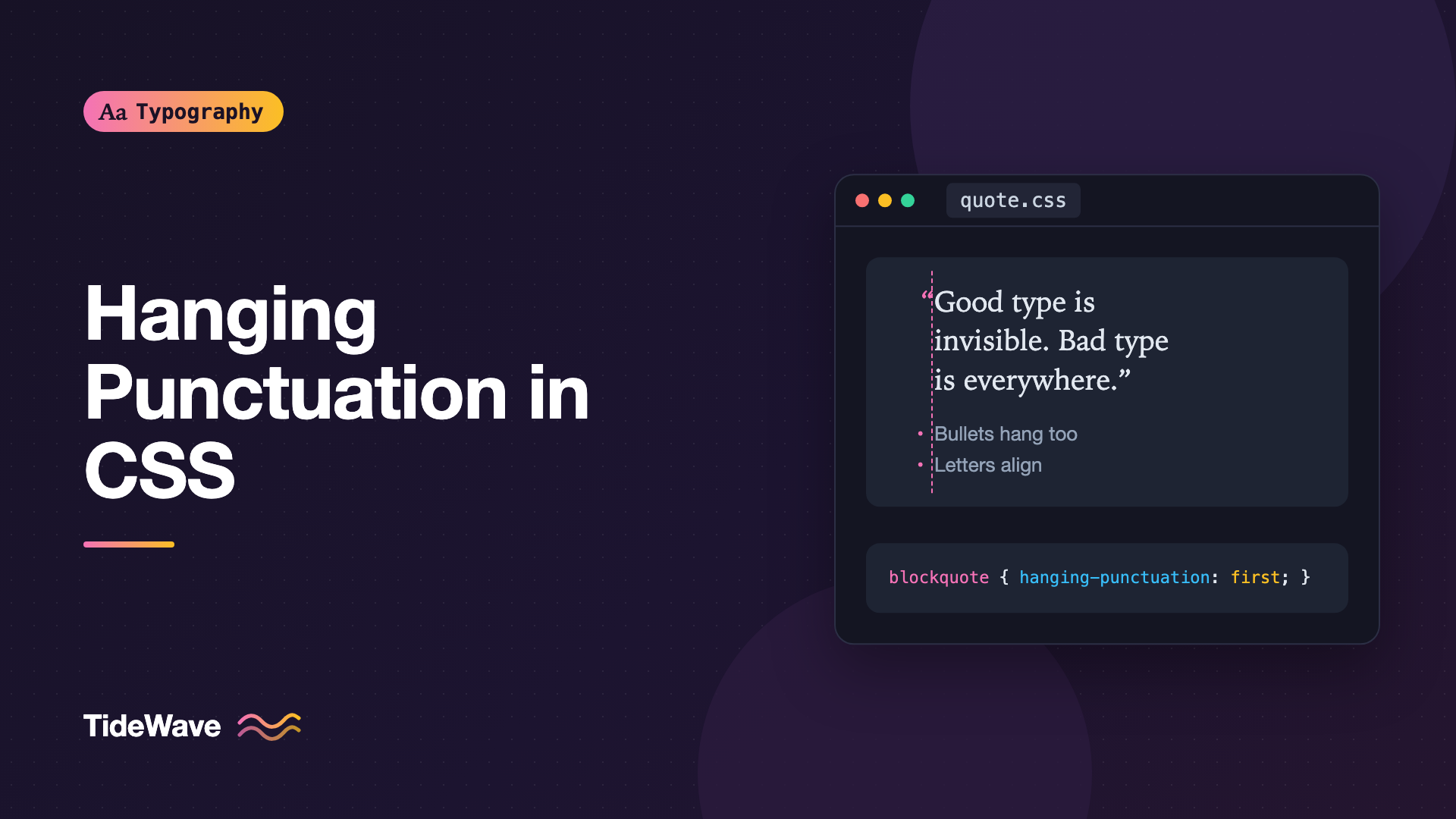
Look closely at a pull quote that starts with a quotation mark. The quote mark sits flush with the left edge, and the first letter of the text is pushed right by the width of that mark. The second line starts at the true edge. The result is a tiny but visible notch: the first line looks indented, even though it isn't. The same thing happens with bulleted lists when the bullets sit inside the text column, making the text of each item start further in than the paragraphs around it.
Typographers fix this with hanging punctuation: letting punctuation sit just outside the text block so the letters themselves form a clean vertical edge. It's a form of optical alignment. The edge isn't mathematically straight, but it looks straight to the eye, which is what matters.
This guide covers the CSS hanging-punctuation property, its very limited support, practical fallbacks for quotes, how to hang bullets in lists, and where optical alignment is worth the effort.
Why Punctuation Throws Off Alignment
Our eyes read the edge of a text block by its letters. Punctuation like quotation marks, hyphens, commas, and periods is small and light, so it barely registers as part of the edge. When a quote mark sits at the start of a line, the strong left edge you perceive is the first letter, which is now indented by the width of the mark.
Compare these two ideas:
- Mathematical alignment: every line's first character, punctuation included, starts at exactly the same x-coordinate.
- Optical alignment: the letters line up, and punctuation hangs a little into the margin.
Print designers have used optical alignment for a long time, and layout tools like InDesign include it as a setting. On the web it's less common, partly because the CSS support is thin, but the effect is easy to approximate in the places where it matters most.
The hanging-punctuation Property
CSS defines a property for exactly this:
blockquote p {
  hanging-punctuation: first;
}
It accepts none (the default) or a combination of these keywords:
| Value | What hangs |
|---|---|
first | An opening bracket or quote at the very start of the first line |
last | A closing bracket or quote at the very end of the last line |
force-end | A stop or comma at the end of every line, always |
allow-end | A stop or comma at the end of a line, only if it otherwise wouldn't fit |
You can combine them, though force-end and allow-end can't be used together:
.pull-quote {
  hanging-punctuation: first last;
}

.justified-column {
  hanging-punctuation: first allow-end last;
}
Hanging punctuation is placed outside the line box, so it doesn't take up space in the line and can overflow the container. Make sure there's room for it: padding on the container, or margin space around the element.
Browser Support
This is the catch. At the time of writing, only Safari supports hanging-punctuation. Chrome, Edge, and Firefox ignore it. Check caniuse for the current status before relying on it.
Because unsupported browsers just ignore it, there's no harm in adding it. Safari users get the refined version, and everyone else sees normal alignment. But if you want consistent results, you need a fallback.
Fallback: Hanging Quotes with Negative Indent
For a paragraph you know starts with a quotation mark, a negative text-indent pulls the first line left by roughly the width of the mark:
<blockquote class="pull-quote">
  <p>“Good typography is invisible. Bad typography is everywhere.”</p>
</blockquote>
.pull-quote p {
  text-indent: -0.42em;
}
text-indent only affects the first line, which is exactly where the opening quote sits. The value depends on the font, since quote marks vary in width. Start around -0.4em and adjust by eye until the first letter lines up with the letters on the second line.
To avoid doubling the effect in Safari, use @supports:
.pull-quote p {
  text-indent: -0.42em;
}

@supports (hanging-punctuation: first) {
  .pull-quote p {
    text-indent: 0;
    hanging-punctuation: first;
  }
}
The weakness of this approach is that it applies to every paragraph that matches the selector, whether or not it starts with a quote. If one doesn't, its first line will poke out into the margin. Apply it only to elements where you control the content, or add a class when the quote is present.
Fallback: Generated Quote Marks
A more robust pattern is to remove the quote marks from the content and add them with CSS. Since you place them yourself, you can position them precisely, and the text block keeps a clean edge.
<blockquote class="quote">
  <p>
    Typography exists to honor content. Every choice should help the reader, not
    the designer.
  </p>
</blockquote>
.quote {
  position: relative;
  margin-inline: 2rem 0;
  font-family: Georgia, serif;
  font-size: 1.375rem;
  line-height: 1.5;
}

.quote p::before {
  content: "“";
  position: absolute;
  inset-inline-start: -0.45em;
}

.quote p::after {
  content: "”";
}
The opening mark is absolutely positioned outside the paragraph, so it hangs into the margin, while every line of text starts at the same edge. The closing mark stays inline at the end.
For large decorative quote marks, which many pull quote designs use, the same approach works with a bigger font size and adjusted positioning:
.quote--large p::before {
  content: "“";
  position: absolute;
  inset-inline-start: -0.6em;
  inset-block-start: -0.15em;
  font-size: 3em;
  line-height: 1;
  color: #c2410c;
}
Generated content in ::before and ::after is generally read by screen readers, so the quotes still come through. Use the correct curly marks for the language. The sibling post on quotes, apostrophes, and primes explains which characters to use and why straight quotes look wrong in display type.
Using the quotes Property
CSS also has a quotes property and open-quote / close-quote values, which pick the right marks based on language:
q {
  quotes: "“" "”" "‘" "’";
}

.quote p::before {
  content: open-quote;
  position: absolute;
  inset-inline-start: -0.45em;
}

.quote p::after {
  content: close-quote;
}
Many browsers already set language-appropriate quotes defaults based on the lang attribute, so you may not need to declare them at all.
Hanging Bullets in Lists
Lists have the same problem. With default styles, browsers indent lists by adding padding-inline-start (usually 40px) and placing bullets in that padding. The text of each item ends up noticeably further right than the paragraphs above and below.
Hanging the bullets means letting the markers sit in the margin while the item text lines up with the body text:
.prose ul,
.prose ol {
  padding-inline-start: 0;
  list-style-position: outside;
}

.prose li {
  margin-inline-start: 0;
}
With list-style-position: outside (the default), markers are placed outside the list item's box. Removing the padding moves the item text to the content edge, and the markers hang into whatever space is to the left.
There must be space there, though. If the list sits flush against the edge of the viewport or inside a container with overflow: hidden, the bullets get clipped or disappear. On narrow screens, it's common to keep a small indent:
.prose ul,
.prose ol {
  padding-inline-start: 1.25em;
}

@media (min-width: 48rem) {
  .prose ul,
  .prose ol {
    padding-inline-start: 0;
  }
}
On wide layouts, the content column usually has margin around it, so hanging bullets look clean. On mobile, a modest indent is safer.
Styling the Markers
The ::marker pseudo-element lets you adjust bullet color and size without changing the alignment:
.prose li::marker {
  color: #64748b;
  font-size: 0.9em;
}

.prose ol li::marker {
  font-variant-numeric: tabular-nums;
}
Using tabular figures for numbered lists keeps "9." and "10." aligned on their right edge in fonts whose digits otherwise have different widths.
Optical Alignment Beyond Punctuation
Punctuation isn't the only thing that throws off an edge. At large sizes, some letters create the same effect:
- Round letters like "O" and "C" look slightly indented next to straight-sided letters like "H" or "E".
- Diagonal letters like "T", "V", "W", and "Y" leave space at the top or bottom of the edge.
- Display headings magnify these differences, so a large headline can appear to start a few pixels in from the body text below it.
For headlines, a small negative margin can bring the text into visual alignment with the content beneath it:
.hero__title {
  font-size: clamp(3rem, 8vw, 6rem);
  margin-inline-start: -0.04em;
}
The exact value depends on the font and the starting letter. This is a manual, case-by-case adjustment, not something to apply globally. But on a big, deliberate headline, it's often the difference between "almost right" and "right". For more on how headings relate to the content below them, see Designing Headings That Guide the Reader Through a Page.
Where Hanging Punctuation Is Worth It
Hanging punctuation is a refinement. It's worth applying in places where the edge of the text is prominent:
- Pull quotes and blockquotes, which nearly always start with a quote mark and are set large.
- Hero headlines and display text, where small misalignments are magnified.
- Long-form articles with lists, where hanging bullets keep the text column clean.
- Justified text, where a hanging comma or period at the end of a line improves the right edge too.
It's usually not worth the effort in:
- UI components, like buttons, menus, and form labels.
- Short body paragraphs that rarely start with punctuation.
- Layouts with no margin, where hanging marks would overflow into the viewport edge.
The common thread is visible edges. The sibling post on whitespace in typography explains why clean edges and the space around them matter for the overall structure of a page.
A Complete Example
Here's a pull quote that uses the native property in Safari and generated quotes elsewhere:
.pull-quote {
  margin-block: 3rem;
  margin-inline: 2.5rem 0;
  font-family: "Source Serif 4", Georgia, serif;
  font-size: clamp(1.375rem, 1rem + 1.2vw, 1.75rem);
  line-height: 1.4;
  text-wrap: balance;
}

.pull-quote p {
  position: relative;
}

.pull-quote p::before {
  content: "“";
  position: absolute;
  inset-inline-end: 100%;
}

.pull-quote p::after {
  content: "”";
}

.pull-quote cite {
  display: block;
  margin-block-start: 1rem;
  font-size: 0.6em;
  font-style: normal;
  color: #64748b;
}
Using inset-inline-end: 100% places the opening quote exactly against the left edge of the paragraph, regardless of its width. That's often more precise than a fixed negative offset.
Common Mistakes
- Relying on
hanging-punctuationalone, which only works in Safari. - Applying a negative
text-indentto every paragraph, so ones without an opening quote stick out into the margin. - Hanging bullets with no space for them, so markers get clipped on mobile or inside
overflow: hiddencontainers. - Using straight quotes in pull quotes, which look clumsy at display sizes.
- Applying optical margin tweaks globally, when they depend on the font and the specific letter.
- Doubling the effect in Safari by combining a negative indent with
hanging-punctuationwithout an@supportscheck.
Conclusion
Hanging punctuation moves quote marks, bullets, and other light characters slightly outside the text block so the letters form a clean edge. The hanging-punctuation property does this natively, but only Safari supports it, so practical solutions use a negative text-indent, absolutely positioned generated quotes, or list padding adjustments.
Start with the places readers notice: pull quotes, large headlines, and bulleted lists in long articles. Add the native property inside @supports for Safari, use generated quote marks for consistent results elsewhere, and leave space in the margin for anything you hang.


