Whitespace in Typography: How Empty Space Improves Reading
- Maria
- Typography
- 23 Oct, 2026
You've probably had this experience: a page uses a perfectly good font at a sensible size, yet it still feels hard to read. The lines seem to crowd each other, the paragraphs blur together, and the headings don't stand out. Nothing is technically wrong with the type. What's wrong is the space around it.
Whitespace, sometimes called negative space, is any part of a layout that isn't occupied by text or images. It doesn't have to be white. In typography it exists at every scale, from the gaps inside a letter to the margins around an entire page. Readers don't consciously notice it when it's right, but they feel it immediately when it's wrong.
This guide breaks typographic whitespace into levels, explains what each one does for reading, and shows how to control them in CSS without turning your layout into a sparse, scroll-heavy page.
Whitespace Is Structure, Not Decoration
It's tempting to treat empty space as leftover: whatever remains after you've placed the content. A better way to think of it is as part of the content's structure. Space groups related things together and separates unrelated things. That's the proximity principle from Gestalt psychology: elements that sit close together are perceived as belonging together.
In text, proximity does most of the work of telling readers how the content is organized:
- Letters close together form words.
- Words with consistent gaps form lines.
- Lines close together form paragraphs.
- Paragraphs with a gap between them form sections.
- Sections with larger gaps form the page.
Every level depends on the one below it being tighter than the one above. If the space between lines is bigger than the space between paragraphs, paragraphs stop reading as units. If the space above a heading is the same as the space below it, the heading floats instead of introducing the content that follows.
The Levels of Typographic Whitespace
It helps to name the levels separately, because each is controlled by different CSS.
| Level | What it is | CSS that controls it |
|---|---|---|
| Glyph | Counters and sidebearings in the font | Set by the type designer |
| Letter | Space between characters | letter-spacing, font-kerning |
| Word | Space between words | word-spacing, text-align |
| Line | Space between lines in a block | line-height |
| Block | Space between paragraphs and elements | margin, gap |
| Measure | Width of the text column | max-width, ch units |
| Page | Margins and gutters around content | padding, grid and layout properties |
You usually can't change the first level, but it influences everything else. A typeface with open counters and generous sidebearings needs less extra spacing than a tight, condensed one.
Letter Spacing
For body text, the font's built-in spacing is almost always correct. The designer has already balanced it for reading sizes, and adding letter-spacing to paragraphs usually makes them worse. Where letter spacing helps is at the extremes:
- Large display text often looks too loose at big sizes and benefits from slightly negative tracking.
- All-caps and small text usually needs a little extra space to stay legible.
h1 {
  font-size: clamp(2.5rem, 6vw, 4.5rem);
  letter-spacing: -0.02em;
}

.eyebrow {
  font-size: 0.8125rem;
  text-transform: uppercase;
  letter-spacing: 0.08em;
}
Using em keeps the spacing proportional to the font size. The all-caps letter-spacing guide goes deeper on choosing values.
Word Spacing
Word spacing is mostly controlled by alignment. Left-aligned text keeps word gaps consistent. Justified text stretches them to fill each line, which can open up distracting gaps on narrow columns. If you see uneven gaps in body copy, the fix is usually alignment or hyphenation, not word-spacing.
Line Spacing
Leading, or line-height in CSS, has the biggest effect on how comfortable a paragraph feels. Too tight, and the ascenders of one line crowd the descenders of the next, making it easy to lose your place. Too loose, and lines drift apart so the paragraph stops looking like a single block.
For body text, values between about 1.4 and 1.7 cover most fonts and measures. Headings need much less, often 1.05 to 1.25, because they're large and short.
body {
  line-height: 1.6;
}

h1,
h2,
h3 {
  line-height: 1.15;
}
Use unitless values so the line height scales with each element's font size. There's a full guide to choosing line height for body text if you want to tune this further.
Block Spacing
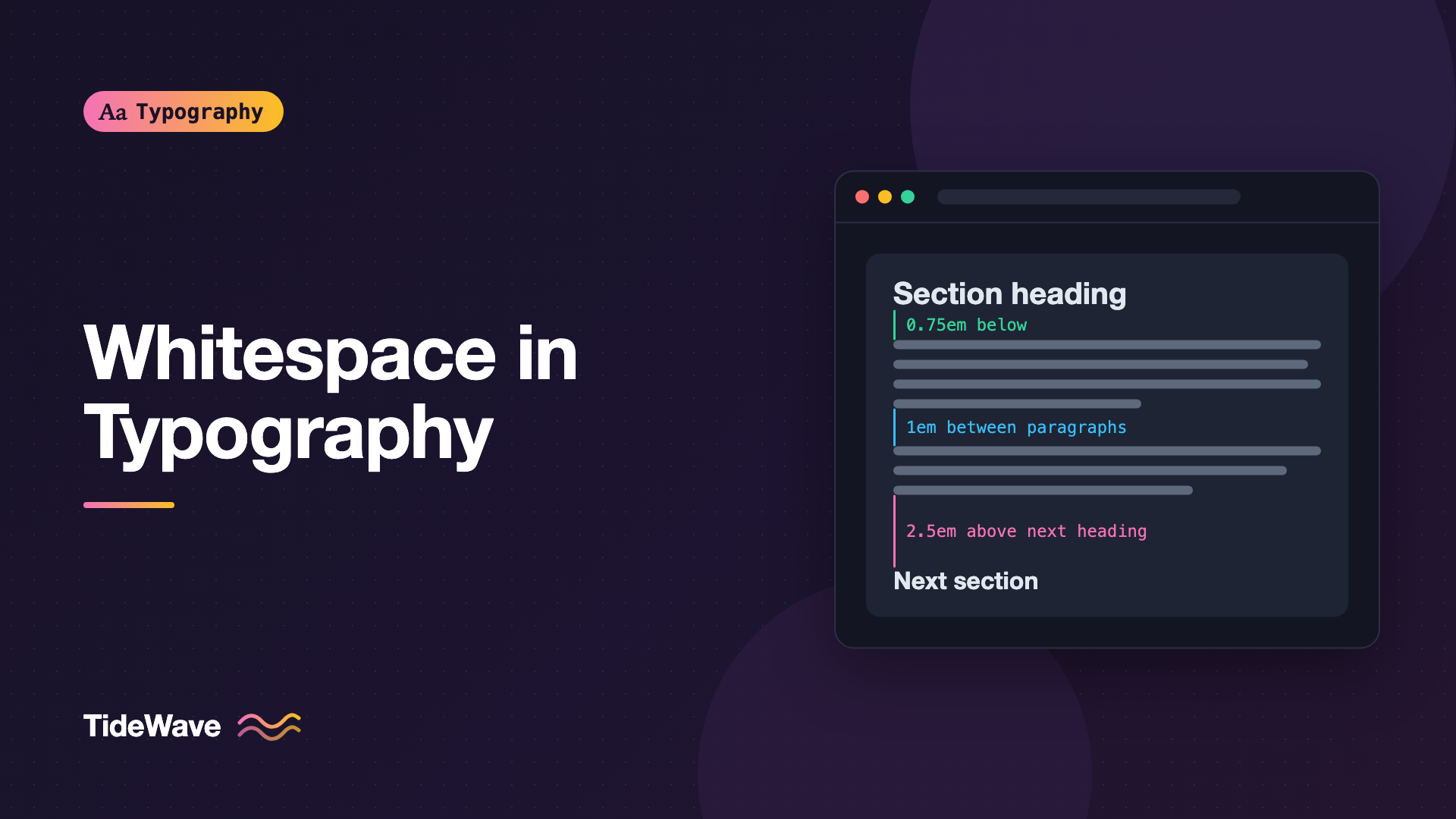
Space between paragraphs, headings, lists, and figures is where the hierarchy of a page becomes visible. The key rule is that space should reflect relationships. A heading belongs to the content below it, so it should sit closer to that content than to whatever came before.
.prose h2 {
  margin-block: 2.5em 0.75em;
}

.prose h3 {
  margin-block: 2em 0.5em;
}

.prose p {
  margin-block: 0 1em;
}
Here an h2 has a lot of space above and very little below, so it visually attaches to its section. That asymmetry is one of the simplest and most effective improvements you can make to long-form text.
The Measure
The width of a text column is a form of whitespace too. A column that's too wide leaves no room around the text and makes the eye travel too far on each line. Limiting the measure creates margins naturally:
.prose {
  max-width: 68ch;
  margin-inline: auto;
}
The ch unit is based on the width of the 0 character, so 68ch lands roughly in the comfortable range for body text. See the ideal line length guide for why that range works.
Page Margins
On small screens, page margins are often the first thing to get squeezed. Text that touches the edge of the viewport is uncomfortable to read and hard to tap around. Even on a 320px-wide screen, a gutter of about 16px on each side makes a real difference.
.page {
  padding-inline: clamp(1rem, 4vw, 3rem);
}
Micro and Macro Whitespace
Designers often split whitespace into two groups:
- Micro whitespace is the small space within and between text elements: letter spacing, line height, the gap between a label and its input.
- Macro whitespace is the large space between major sections and around the content as a whole.
Micro whitespace mostly affects legibility and reading comfort. Macro whitespace mostly affects comprehension and the overall impression of the page. A page can get one right and the other wrong. A common pattern is generous macro spacing, with big hero sections and wide margins, combined with cramped micro spacing inside components, which reads as stylish at a glance and frustrating up close.
Building a Spacing Scale
Consistent whitespace is much easier when you choose spacing values from a small set instead of picking numbers one at a time. Define them once as custom properties:
:root {
  --space-3xs: 0.25rem;
  --space-2xs: 0.5rem;
  --space-xs: 0.75rem;
  --space-s: 1rem;
  --space-m: 1.5rem;
  --space-l: 2rem;
  --space-xl: 3rem;
  --space-2xl: 4rem;
  --space-3xl: 6rem;
}

.card {
  padding: var(--space-m);
  display: grid;
  gap: var(--space-2xs);
}

.section {
  padding-block: var(--space-3xl);
}
The steps get larger as the values grow, which matches how we perceive space: the difference between 4px and 8px is obvious, but the difference between 96px and 100px is almost invisible. A scale also makes relationships explicit. If two items are related, use a smaller step; if they're separate, jump up a step or two.
Use gap for Component Spacing
Inside flex and grid containers, gap is cleaner than margins. It only adds space between children, never at the edges, so you don't need to remove a trailing margin from the last item.
.meta {
  display: flex;
  flex-wrap: wrap;
  gap: var(--space-2xs) var(--space-s);
}
How Much Whitespace Is Too Much?
Whitespace improves reading up to a point. Past that point, it starts to hurt in different ways:
- Lines drift apart. A line height of
2or more makes paragraphs read as lists of separate lines. - Related items separate. If a caption sits far from its image, readers may not connect them.
- Content gets pushed off screen. On mobile, oversized section padding means users scroll through empty space to find the next piece of content.
- Density suffers where it matters. Dashboards, tables, and reference material need more information per screen. Generous marketing-page spacing doesn't suit them.
The goal is not maximum space. It's space that communicates structure. A dense data table can have excellent whitespace if its rows and columns are clearly separated and its alignment is consistent.
Note
Whitespace and density aren't opposites. A tightly packed layout with consistent, purposeful spacing often reads better than a loose layout with random gaps.
Whitespace and Accessibility
Spacing has a direct effect on accessibility. WCAG Success Criterion 1.4.12, Text Spacing, requires that no content or functionality is lost when users set line height to 1.5 times the font size, spacing after paragraphs to 2 times, letter spacing to 0.12 times, and word spacing to 0.16 times. Users who need more space, including many people with dyslexia or low vision, rely on being able to apply those overrides.
To support that:
- Avoid fixed heights on text containers. Let them grow with their content.
- Avoid
overflow: hiddenon boxes that hold variable text, unless you've tested it with increased spacing. - Set spacing in relative units so it scales when users enlarge text.
The accessible typography guide covers these requirements alongside font size and contrast.
Common Mistakes
- Equal space above and below headings. The heading floats between sections instead of introducing its own. Put more space above than below.
- Adding letter spacing to body text. The font's default spacing is designed for reading. Only adjust it for display text, small text, or all caps.
- A paragraph gap that's smaller than the leading. If lines are spaced further apart than paragraphs, the paragraph breaks disappear.
- Random spacing values. A margin of 13px here and 22px there makes layouts feel uneven. Use a spacing scale.
- Text touching the screen edge on mobile. Always keep a side gutter, even on the narrowest screens.
- Treating whitespace as a style instead of structure. Large empty areas don't automatically make a page feel premium. Space should show which elements belong together.
Conclusion
Whitespace in typography works at every level: the gaps between letters, words, lines, paragraphs, and sections, plus the width of the column and the margins around it. Each level should be tighter than the one above it, so readers can see how the content is organized without thinking about it.
In practice, start with sensible defaults: unitless line height around 1.5 to 1.6 for body text, a measure near 65ch, asymmetric heading margins, and spacing values from a small scale. Then test with real content, on a narrow screen, and with user spacing overrides applied. Good whitespace is mostly invisible, and that's exactly what makes it work.


