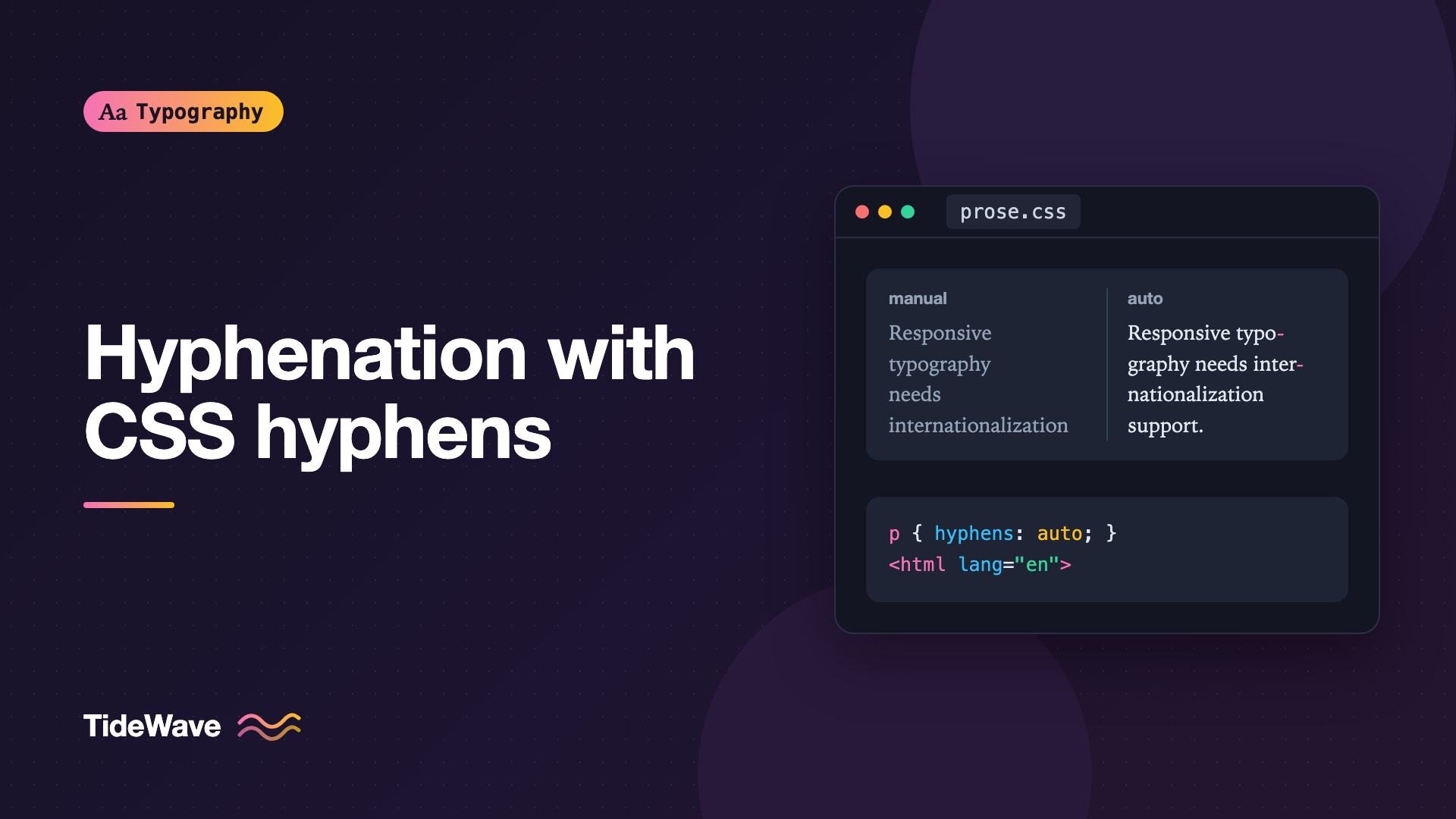
Hyphenation on the Web: Using the CSS hyphens Property
- Maria
- Typography
- 23 Oct, 2026
Open a news article on your phone and look at the right edge of the text. In a narrow column, a single long word like "internationalization" or "responsibilities" can leave a huge gap at the end of the previous line, because the browser has to push the whole word down. In justified text it's worse: the browser stretches the spaces on that line until the paragraph looks full of holes.
Print typesetters have solved this for centuries with hyphenation: breaking a word across two lines at a sensible point and marking the break with a hyphen. Browsers can do it too. The CSS hyphens property turns on automatic, dictionary-based hyphenation, and a couple of related properties let you fine-tune it.
This guide covers how hyphens works, why the lang attribute is required, how to control breaks manually, and where hyphenation helps or hurts.
How Browsers Break Lines Without Hyphenation
By default, browsers only break lines at break opportunities: spaces, existing hyphens in the text, and a few other characters. A word is treated as an unbreakable unit. If it doesn't fit on the current line, it moves to the next one in full.
That leads to two problems:
- Ragged edges in left-aligned text. A long word wrapping early leaves the previous line much shorter than its neighbors.
- Gappy spacing in justified text. With
text-align: justify, the browser fills the line by widening every space, sometimes dramatically.
In very narrow containers, there's a third problem: a word longer than the container itself, like a URL or a German compound noun, overflows the box entirely.
Hyphenation adds break opportunities inside words, which gives the line-breaking algorithm far more options.
The hyphens Property
hyphens takes three values:
| Value | What it does |
|---|---|
none | Never hyphenates, even where you've inserted soft hyphens |
manual | Hyphenates only at soft hyphens you've added yourself (the default) |
auto | Hyphenates automatically using the browser's dictionary for the language |
Turning on automatic hyphenation takes one declaration:
.article-body p {
  hyphens: auto;
}
The property inherits, so you can set it on a container and every paragraph inside will pick it up.
The lang Attribute Is Required
Automatic hyphenation needs a dictionary, and the browser picks the dictionary from the element's language. If there's no lang attribute in scope, hyphens: auto usually does nothing at all.
<html lang="en">
  <body>
    <article class="article-body">
      <p>
        Responsive typography requires careful consideration of measure,
        hierarchy, and accessibility across devices.
      </p>
    </article>
  </body>
</html>
Set lang on the <html> element for the page's main language, and add it to any element that contains a different language:
<blockquote lang="de">
  <p>Donaudampfschifffahrtsgesellschaftskapitän</p>
</blockquote>
Different languages hyphenate differently, so the correct lang value also produces better breaks. English dictionaries won't hyphenate German compounds sensibly, and vice versa. Use specific codes like en-GB or en-US if your content follows one spelling convention, since the two can hyphenate some words differently.
Which Languages Are Supported
Each browser ships its own hyphenation dictionaries, and coverage differs by browser and platform. English is supported everywhere that supports hyphens: auto. Major European languages are widely covered. Less common languages may only be supported in some browsers. If hyphenation matters for a specific language, test it in each browser you target, and check MDN's hyphens page for notes on language coverage.
When a browser has no dictionary for a language, it simply doesn't hyphenate. Nothing breaks, you just get normal line wrapping.
Manual Hyphenation with Soft Hyphens
Sometimes you want to control exactly where a word can break. A product name, a technical term, or a long word in a heading might hyphenate badly by default, or not at all if the dictionary doesn't know it.
The soft hyphen (Unicode U+00AD, written in HTML as ­) marks a spot where the word may break. If the word fits on the line, the soft hyphen is invisible. If the browser needs to break there, it shows a hyphen.
<h2 class="card__title">
Super­cali­fragilistic­expi­alidocious
</h2>
.card__title {
  hyphens: manual;
}
Because manual is the default, soft hyphens work even if you never write the hyphens property. Setting hyphens: none disables them.
Soft hyphens also work alongside auto. The browser respects your soft hyphens and uses its dictionary for everything else. In fact, if a word contains any soft hyphens, browsers generally use only those for that word, which lets you override bad automatic breaks one word at a time.
Line Breaks Without a Hyphen
For things that shouldn't get a hyphen, like URLs, file paths, or long strings of code, use the <wbr> element instead. It marks a break opportunity without adding any visible character:
<p>
  Download the file from https://<wbr />downloads.example.com/<wbr />releases/<wbr />2026/<wbr />tidewave-theme.zip
</p>
Adding a hyphen inside a URL is actively harmful, because readers may copy it as part of the address. <wbr> keeps the text exactly as written.
Controlling the Hyphen Character
The hyphenate-character property changes which character appears at the break. The default is auto, which lets the browser pick the right character for the language, usually a regular hyphen. You can set any string:
.poster-text {
  hyphens: auto;
  hyphenate-character: "=";
}
You'll rarely need this for English, but some typographic traditions use different marks, and it can be useful for design pieces. Support is good in current browsers, though Safari has historically needed the -webkit- prefix. Check caniuse before relying on it.
Limiting How Words Are Split
Unrestricted hyphenation can produce ugly breaks, like "a-" at the end of one line and "bout" on the next, or splitting a five-letter word. The hyphenate-limit-chars property sets minimums:
.article-body p {
  hyphens: auto;
  hyphenate-limit-chars: 6 3 2;
}
The three numbers mean:
- The minimum length of a word before it can be hyphenated (6 characters).
- The minimum number of characters before the hyphen (3).
- The minimum number of characters after the hyphen (2).
You can also write a single value, hyphenate-limit-chars: 8, which sets the word length and leaves the other two on auto. Values around 6 3 3 give conservative, book-like results.
At the time of writing, hyphenate-limit-chars is supported in Chromium-based browsers, while other engines either lack it or use different, prefixed properties. Treat it as a progressive enhancement: browsers that ignore it still hyphenate, just a bit more freely.
Hyphenation and Overflowing Words
hyphens: auto doesn't guarantee that every word will fit. If the dictionary doesn't know a word (a brand name, a long identifier, a URL), it won't be hyphenated, and it can still overflow a narrow container.
For those cases, combine hyphenation with overflow-wrap:
.comment-body {
  hyphens: auto;
  overflow-wrap: break-word;
}
Here's how the related properties compare:
| Property | Breaks where | Adds a hyphen |
|---|---|---|
hyphens: auto | At dictionary syllable breaks | Yes |
overflow-wrap: break-word | Anywhere, but only if the word would overflow | No |
overflow-wrap: anywhere | Anywhere if needed, and affects min-content size | No |
word-break: break-all | Between any two characters, always | No |
overflow-wrap: break-word is the safety net: it only kicks in when nothing else works. word-break: break-all is much more aggressive and breaks normal words mid-letter even when they'd fit on the next line, so avoid it for prose. It's mainly useful for CJK text or for strings like hashes where there are no natural breaks.
Hyphenation and Justified Text
Hyphenation and text-align: justify belong together. Justified text without hyphenation tends to produce wide gaps and rivers, channels of white space running down the paragraph. Hyphenation gives the browser more ways to fill each line, so the spaces stay closer to their natural width.
.book-layout p {
  text-align: justify;
  hyphens: auto;
  hyphenate-limit-chars: 6 3 3;
}
Even with hyphenation, browsers' justification is simpler than what desktop publishing tools do, and narrow columns can still look patchy. The sibling post on rivers in justified text covers when justified text is worth the trouble, and Left-Aligned, Centered, or Justified helps you decide which alignment to use in the first place.
Hyphenation and text-wrap: pretty
text-wrap: pretty asks the browser to consider several lines at once and avoid short last lines. Pairing it with hyphenation helps, because more break opportunities give the algorithm more good options. See text-wrap: balance and pretty for details.
.prose p {
  hyphens: auto;
  text-wrap: pretty;
}
Where to Use Hyphenation and Where Not To
Hyphenation is a tool for narrow measures and dense text. It isn't something to switch on everywhere.
Good Places for hyphens: auto
- Body text in narrow columns, like sidebars, cards, multi-column layouts, and mobile screens.
- Justified text, where it reduces uneven word spacing.
- Languages with long compound words, such as German, Dutch, or Finnish, where unhyphenated text can be very ragged.
Places to Avoid It
- Headings. A hyphenated headline looks careless and is harder to scan. If a heading is too long for its container, reduce the font size or rewrite it. You can still use soft hyphens for a specific long word.
- Navigation, buttons, and labels. Short UI text should never break mid-word.
- Code, URLs, and identifiers. A hyphen inside these changes their meaning.
- Wide desktop measures. At 65 or more characters per line, there's rarely enough benefit to justify the extra hyphens.
A practical setup applies hyphenation to body text only on small screens:
h1,
h2,
h3,
nav,
button,
code {
  hyphens: none;
}

@media (max-width: 40rem) {
  .prose p,
  .prose li {
    hyphens: auto;
    hyphenate-limit-chars: 6 3 3;
  }
}
Accessibility and Readability
Hyphenation is generally fine for readers, but a few points are worth keeping in mind. Too many consecutive hyphenated lines create a "ladder" down the right edge that makes reading harder. Limiting word length with hyphenate-limit-chars reduces the number of hyphens. Some readers, including some people with dyslexia, find broken words harder to read, so lean toward fewer hyphens in long-form content and avoid them entirely in headings and short text. For more on this, see Designing Text for Users with Dyslexia.
Soft hyphens are invisible to screen readers in most cases, and automatic hyphenation is purely visual, so the underlying text stays intact for copying, searching, and assistive technology.
Browser Support
hyphens: auto works in all major current browsers, with language coverage that varies by browser and operating system. Older Safari versions required -webkit-hyphens. If you support them, include both:
.prose p {
  -webkit-hyphens: auto;
  hyphens: auto;
}
Since unsupported browsers just wrap text normally, hyphenation is a safe progressive enhancement.
Common Mistakes
- Forgetting the
langattribute, sohyphens: autosilently does nothing. - Using the wrong
langvalue, which gives incorrect breaks for the actual language of the content. - Hyphenating headings and buttons, which looks sloppy and hurts scanning.
- Expecting hyphenation to fix URL overflow, when it only knows dictionary words. Add
overflow-wrap: break-wordas a safety net. - Reaching for
word-break: break-all, which splits ordinary words mid-letter without hyphens. - Putting hyphens in URLs or code, where
<wbr>is the right tool.
Conclusion
The hyphens property gives browsers permission to split words the way print typesetters do. Set hyphens: auto on body text, make sure every element has the correct lang, and use soft hyphens or <wbr> for the words the dictionary can't handle. Add hyphenate-limit-chars where supported to keep breaks tasteful, and use overflow-wrap: break-word as a fallback for strings that have no valid hyphenation points.
Turn hyphenation on where columns are narrow or text is justified, and leave it off for headings, UI, and code. That simple split gets you most of the benefit with none of the awkward breaks.


