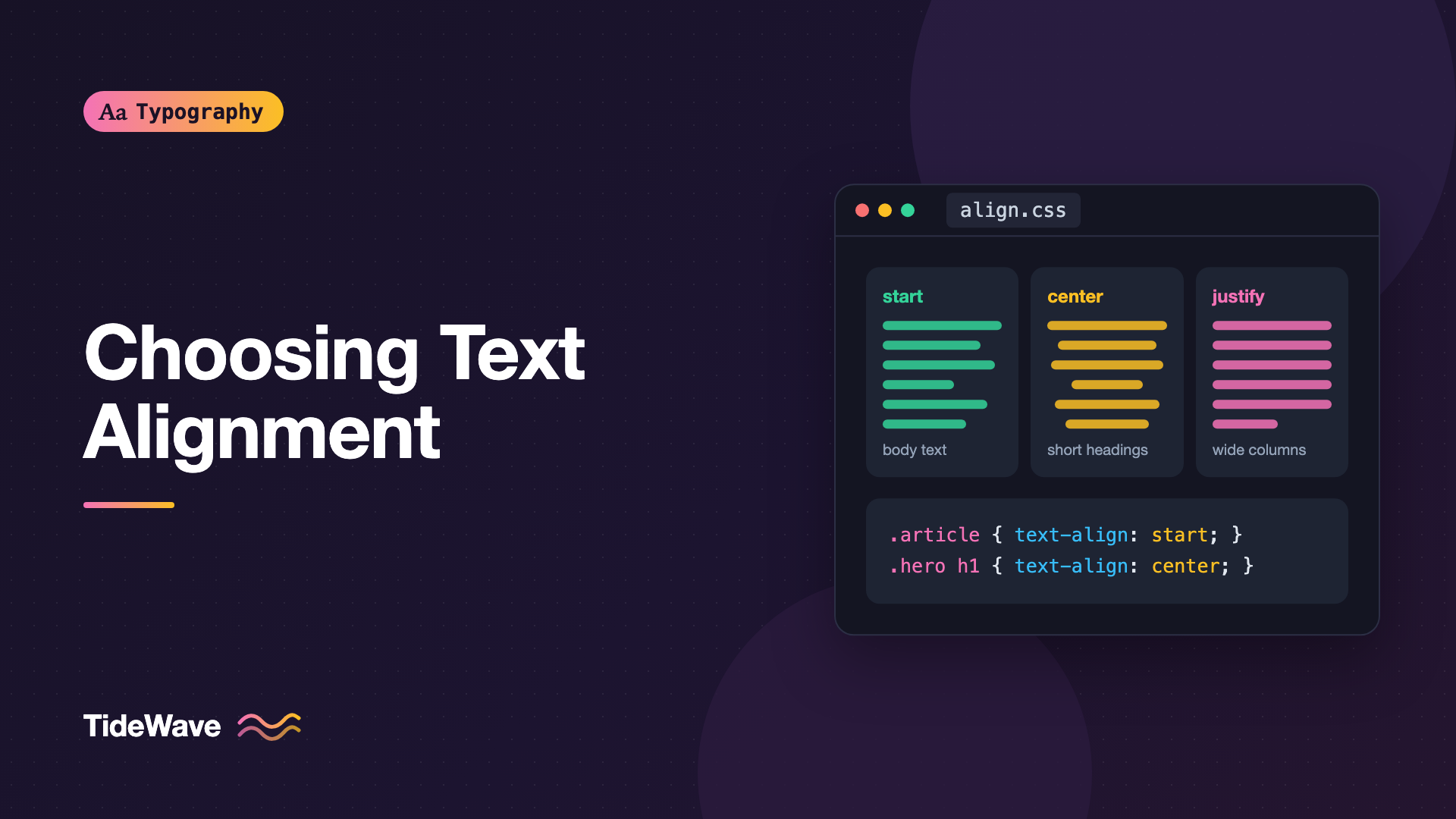
Left-Aligned, Centered, or Justified: Choosing Text Alignment
- Maria
- Typography
- 23 Oct, 2026
A designer centers everything on a landing page because it feels balanced: the headline, the intro, the feature descriptions, the list of benefits, even the footer links. In the mockup it looks tidy. In use, people skim the first two lines of each block and give up, because every line starts in a different place and their eyes have to hunt for it.
Text alignment is one of the first typographic decisions you make and one of the easiest to get wrong. It affects reading speed, perceived structure, and accessibility, and the right answer depends on how long the text is and what it's for.
This guide compares the four alignment options, explains when each one works, and shows how to set alignment in CSS so it holds up across languages and screen sizes.
The Four Alignments
| Alignment | Left edge | Right edge | Best for |
|---|---|---|---|
| Left (flush left) | Straight | Ragged | Body text, most interface text |
| Centered | Ragged | Ragged | Short headings, hero text, short labels |
| Right (flush right) | Ragged | Straight | Numbers in tables, captions next to images |
| Justified | Straight | Straight | Long-form text in wide columns, print-like layouts |
The table describes left-to-right languages like English. In right-to-left languages like Arabic and Hebrew, the roles of left and right reverse. That's one reason to use logical values in CSS, covered below.
Left-Aligned Text
Left-aligned text, also called flush left or ragged right, is the default for good reason. Every line starts at the same position, so after finishing a line, your eye returns to a predictable spot. Word spacing stays even, because the browser doesn't stretch anything to fill the line.
Left alignment is the right default for:
- Body copy in articles, documentation, and emails.
- Form labels, help text, and error messages.
- Lists of any length.
- Navigation menus and sidebars.
- Anything longer than about three lines.
body {
  text-align: start;
}
Managing the Ragged Edge
The ragged right edge is part of left alignment, but you can make it more pleasant. A ragged edge that alternates between very long and very short lines draws attention to itself. Two modern tools help:
.article-body p {
  text-wrap: pretty;
  hyphens: auto;
}
text-wrap: pretty reduces short last lines and, in some browsers, evens out the rag. hyphens: auto breaks long words so lines can fill more consistently. Keep hyphenation moderate in left-aligned text. A few hyphens are fine. Many consecutive hyphenated lines look busy. The text-wrap guide covers pretty and balance in detail.
Centered Text
Centered text has a ragged edge on both sides. That makes it look formal and symmetrical, but it also means each line starts at a different position. For a line or two, that's fine. For a paragraph, readers have to find the start of every line, which slows them down.
Centered text works for:
- Short headings and hero headlines, especially in symmetrical layouts.
- Short taglines and intros of one to three lines.
- Call-to-action blocks with a heading, one sentence, and a button.
- Cards with a short title and caption in a symmetrical grid.
- Invitations, quotes, and poetry, where a formal or decorative look is the point.
It works poorly for:
- Paragraphs longer than about three lines.
- Bulleted lists, where centered bullets float at different positions and are hard to scan.
- Form labels and inputs.
- Long blocks of mixed content, like a whole page of centered sections.
Centering Well
When you center text, give it a narrow max-width so lines stay short, and balance the lines so the shape looks deliberate:
.hero {
  text-align: center;
}

.hero h1 {
  max-width: 20ch;
  margin-inline: auto;
  text-wrap: balance;
}

.hero p {
  max-width: 45ch;
  margin-inline: auto;
  text-wrap: balance;
}
margin-inline: auto centers the block itself, and text-align: center centers the lines within it. You usually want both. text-wrap: balance keeps centered headings from ending with one short word, which is especially noticeable when the text is symmetrical.
Mixing Centered and Left-Aligned Content
A common pattern is a centered section heading above left-aligned content. That works well when the heading and content are visually distinct, like a centered title above a grid of cards. It works less well when a centered heading sits directly above a left-aligned paragraph of the same width, because the two edges don't relate to each other. Pick one alignment per content block where you can.
Right-Aligned Text
Right-aligned text in a left-to-right language is rare in body content, since every line starts in a different place. But it has specific, useful jobs:
- Numbers in tables, so digits line up by place value.
- Captions or labels next to an element on the right, like a caption placed to the left of an image.
- Metadata at the end of a row, like dates or prices in a list.
- Pull quotes and attributions in some editorial layouts.
.data-table td.number,
.data-table th.number {
  text-align: end;
  font-variant-numeric: tabular-nums;
}
Pair right-aligned numbers with tabular figures so every digit has the same width and columns line up exactly. The data tables guide covers number alignment in more depth.
Justified Text
Justified text aligns both edges by stretching the space between words. It gives a clean, rectangular block that looks like a printed book.
On the web, justification comes with trade-offs:
- Word spacing varies from line to line, sometimes dramatically.
- Narrow columns produce large gaps and rivers of white space running down the paragraph.
- It depends on good hyphenation, which depends on the
langattribute and browser support.
Justified text works best when:
- The column is wide, around 60 or more characters per line.
- Hyphenation is enabled and working for the language.
- The content is long-form and print-like, such as an essay or ebook.
- The language's convention favors it, as with Chinese and Japanese.
.essay p {
  text-align: justify;
  hyphens: auto;
}
When justification goes wrong, the result is rivers. The rivers guide explains why they form and how to reduce them, including switching to left alignment on narrow screens.
Alignment and Accessibility
Alignment affects how easily people can read, especially people with cognitive or reading disabilities.
WCAG 2.x Success Criterion 1.4.8 Visual Presentation is a Level AAA criterion. Among its requirements, it says blocks of text shouldn't be justified, or there should be a mechanism to avoid justification. The uneven word spacing in justified text makes it harder for some readers, including many people with dyslexia, to track lines. Level AAA isn't required by most legal standards, but it's a useful guide to what helps readers.
Centered body text has a related problem. Every line starts somewhere different, which makes tracking harder for everyone, and noticeably harder for people with low vision who use screen magnification. At high zoom, they see only part of each line, and a centered line may start completely outside their view.
The dyslexia guide covers alignment alongside other choices that help readers with dyslexia.
Setting Alignment in CSS
Use Logical Values
CSS has physical values, left and right, and logical values, start and end. Logical values follow the text direction:
p {
  text-align: start;
}

.price {
  text-align: end;
}
In a left-to-right language, start means left. In a right-to-left language like Arabic, start means right. If you ever localize into a right-to-left language, logical values let the same stylesheet work without overrides. Use left and right only when you mean a physical side regardless of language, which is rare.
Alignment Is Inherited
text-align is inherited, so setting it on a container affects all text inside, including nested components. If you center a hero section, a form or list placed inside it inherits centering too. Reset alignment on components that need their own:
.hero {
  text-align: center;
}

.hero form,
.hero ul {
  text-align: start;
}
Aligning Blocks vs Aligning Text
text-align aligns inline content, like text and inline images, inside a block. It doesn't move the block itself. To center a block with a max-width, use margin-inline: auto, or align it with flexbox or grid:
.intro {
  max-width: 60ch;
  margin-inline: auto;
  text-align: start;
}
This is a common pattern for article layouts: a centered column of left-aligned text. The column is visually balanced on the page, and the text inside is easy to read.
Responsive Alignment
Alignment that works on desktop may not work on mobile. A centered paragraph that runs two lines on desktop can become six lines on a phone. Consider switching:
.feature p {
  text-align: start;
}

@media (min-width: 64rem) {
  .feature p {
    text-align: center;
  }
}
Or the reverse for justified text, which needs wider columns: left-align on mobile and justify only when the column is wide enough.
A Quick Decision Guide
- More than three lines? Left-align it.
- A heading, tagline, or short card? Center it if the layout is symmetrical, otherwise left-align.
- A number in a table? Right-align it with tabular figures.
- Long-form, print-like text in a wide column, with hyphenation? Justify it if you want, and check for rivers.
- Localized into a right-to-left language? Use
startandendso alignment follows the direction. The right-to-left typography guide covers that in depth.
Common Mistakes
- Centering long paragraphs, making readers hunt for the start of each line.
- Centering bulleted lists, which scatters the bullets and makes scanning hard.
- Justifying narrow columns without hyphenation, leaving large gaps and rivers.
- Using
leftandrighteverywhere, which breaks alignment when content is translated to a right-to-left language. - Forgetting that
text-alignis inherited, so forms and lists inside a centered section become centered too. - Confusing text alignment with block alignment, using
text-align: centerwhen you mean to center a container. - Left-aligning numbers in tables, so values of different lengths don't line up by place value.
Conclusion
Left-aligned text is the right default for almost all reading content: it starts every line in the same place and keeps word spacing even. Centered text suits short, symmetrical elements like headings and hero blocks. Right alignment is for numbers and specific layout details. Justified text can look elegant in wide, hyphenated, print-like columns but needs care to avoid rivers and is worth avoiding where accessibility is a priority.
Set text-align: start as your base, center only short blocks with a narrow max-width and text-wrap: balance, and right-align table numbers with tabular figures. Those three rules cover nearly every alignment decision you'll make.


