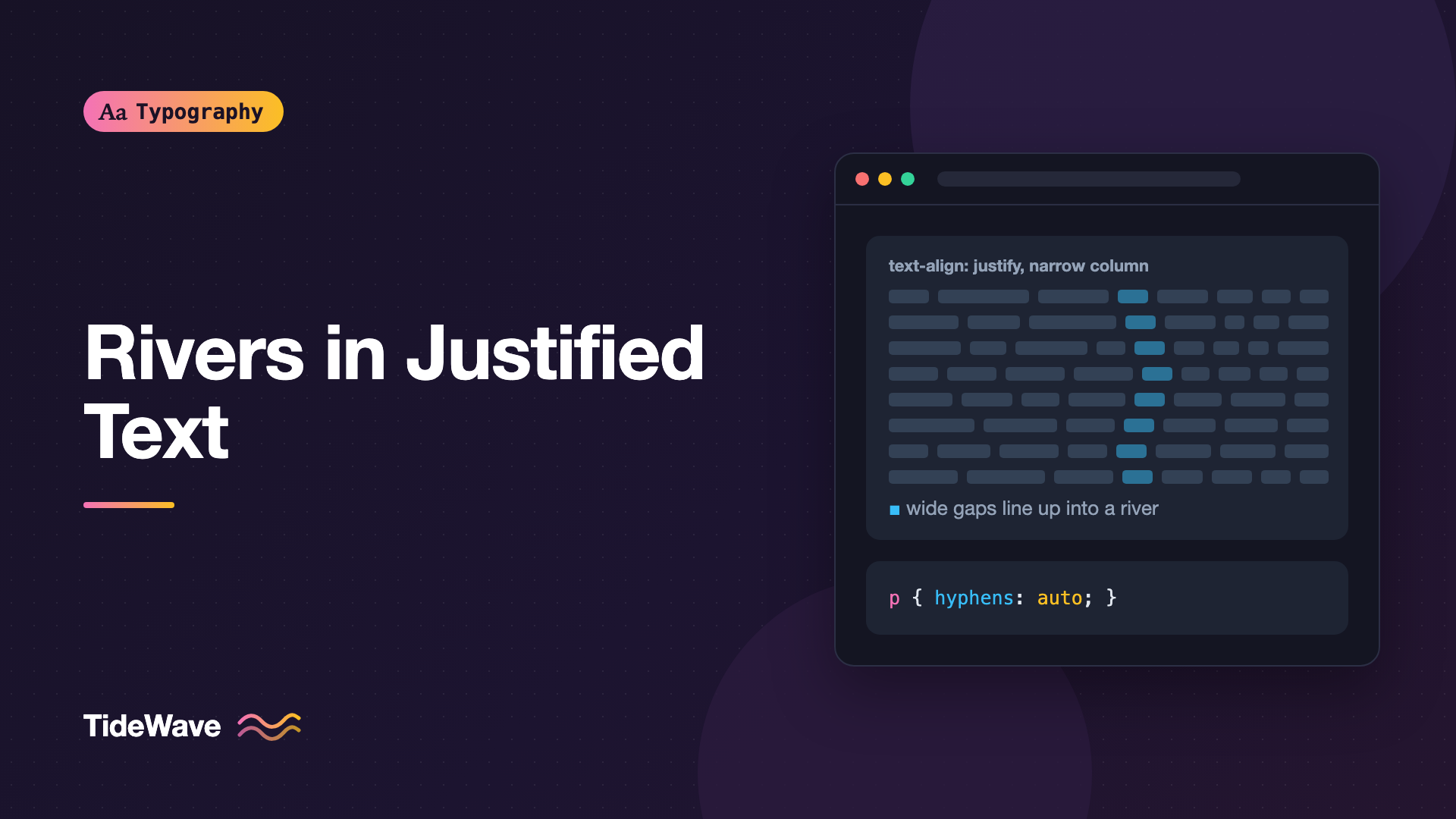
Rivers in Justified Text: Why They Appear and How to Prevent Them
- Maria
- Typography
- 23 Oct, 2026
You set an article to text-align: justify because you want the clean, bookish look of straight edges on both sides. On a wide desktop screen, it looks fine. On a phone, the paragraphs fill with gaps, and when you lean back and squint, those gaps line up into crooked white streams running down through the text.
Typographers call these streams rivers. They're one of the oldest problems in typesetting and one of the most visible on the web, where browsers justify text with simpler tools than print typesetting software. Rivers break up the even texture of a paragraph and pull the eye down instead of across, which makes text harder to read.
This guide explains why rivers form, how to spot them, and the CSS techniques that reduce them. It also covers the honest answer for many cases, which is that you might not want justified text at all.
What Causes Rivers
To justify a line, the browser has to make it exactly as wide as the container. After it decides which words fit on the line, it distributes the leftover space between them. If a line has a lot of leftover space and only a few gaps to spread it across, each gap grows much wider than a normal word space.
Rivers form when wide gaps on consecutive lines happen to fall in similar horizontal positions. Your eye connects them into a vertical or diagonal channel of white.
Several conditions make this more likely:
- Narrow columns. Fewer words per line means fewer spaces to absorb the leftover width, so each space stretches more.
- Long words. A long word that doesn't fit on a line gets pushed to the next, leaving a big gap to fill.
- No hyphenation. Without hyphenation, the browser can't split long words to fill lines more evenly.
- Large font sizes. Bigger text means fewer words per line, with the same effect as a narrow column.
- Greedy line breaking. Browsers decide line breaks one line at a time, rather than optimizing the whole paragraph.
That last point is the big difference between web and print. Print layout software, and typesetting systems like TeX, consider the whole paragraph when choosing line breaks, picking the combination that keeps word spacing most even. They can also adjust letter-spacing and glyph widths slightly on each line. Browsers by default do neither, so web justification is rougher.
How to Spot Rivers
Rivers are easier to see when you stop reading the words. A few tricks help:
- Squint or blur. Lean back from the screen or narrow your eyes until the text becomes gray texture. Rivers show up as lighter channels.
- Turn the text upside down. You can screenshot it and flip it, which stops your brain from reading.
- Use a blur filter in DevTools. Temporarily add a filter to the paragraph:
.article-body p {
  filter: blur(2px);
}
- Check narrow widths. Rivers get much worse on mobile. Drag your viewport from wide to narrow and watch the gaps grow.
The overall evenness of a text block is called its typographic color. Rivers are a failure of typographic color, and the typographic color guide covers how to judge it more generally.
Fix 1: Turn On Hyphenation
The most effective fix for rivers in justified text is hyphenation. When the browser can split long words across lines, it has many more options for filling each line, so it needs to stretch spaces far less.
<article lang="en" class="article-body">
  <p>Internationalization requirements shape every decision...</p>
</article>
.article-body p {
  text-align: justify;
  hyphens: auto;
}
Two things are required for hyphens: auto to work:
- A
langattribute on the element or an ancestor, so the browser knows which language's hyphenation dictionary to use. - Browser support for that language. Major browsers support hyphenation for English and many other languages, but coverage varies, especially on some platforms.
Justified text without hyphenation is almost always a mistake on the web. If you can't enable hyphenation for a language, consider left-aligned text instead.
Controlling How Words Break
By default, browsers might hyphenate short words or leave tiny fragments like "re-" at the end of a line. hyphenate-limit-chars sets the minimum word length and the minimum number of characters before and after the hyphen:
.article-body p {
  hyphens: auto;
  hyphenate-limit-chars: 7 3 3;
}
This means: only hyphenate words of at least 7 characters, with at least 3 characters before and after the break. Support is limited at the time of writing, so check caniuse. Browsers that don't support it fall back to their own defaults.
The hyphenation guide covers hyphens, soft hyphens, and language support in more depth.
Fix 2: Widen the Measure
The more words fit on a line, the more spaces there are to share the leftover width. A comfortable line length for body text is about 45 to 75 characters, and justified text works best toward the longer end of that range.
.article-body {
  max-width: 68ch;
}

.article-body p {
  text-align: justify;
  hyphens: auto;
}
On narrow screens, you often can't fit enough characters for good justification. A practical approach is to justify only when the column is wide enough, using a media query or a container query:
.article-body p {
  text-align: start;
  hyphens: auto;
}

@media (min-width: 48rem) {
  .article-body p {
    text-align: justify;
  }
}
With a container query, the decision follows the actual column width rather than the viewport, which is better for components that appear in sidebars and grids:
.article-body {
  container-type: inline-size;
}

@container (min-width: 36rem) {
  .article-body p {
    text-align: justify;
  }
}
The line length guide explains how to choose a measure.
Fix 3: Reduce Font Size Relative to the Column
Larger type means fewer words per line. If a design calls for a big, justified pull quote or intro paragraph, rivers become almost inevitable. Either reduce the size, widen the column, or set large text ragged.
This is a good reason to keep justification for body text only, and leave headings, captions, intros, and quotes left-aligned.
Fix 4: Let the Browser Choose Better Breaks
Browsers are slowly gaining smarter line breaking. text-wrap: pretty asks the browser to use a slower, higher-quality algorithm for paragraph text:
.article-body p {
  text-align: justify;
  hyphens: auto;
  text-wrap: pretty;
}
What it does depends on the browser. Chromium mainly prevents a short last line. Safari's implementation considers more of the paragraph to reduce raggedness and improve hyphenation decisions. Neither is a full whole-paragraph optimizer for justified text, but it doesn't hurt and may help. The text-wrap guide covers the details.
Fix 5: Adjust Spacing Carefully
CSS has a few properties that influence how space is distributed in justified text. Use them with caution.
text-justify
text-justify tells the browser how to distribute space:
.article-body p {
  text-align: justify;
  text-justify: inter-word;
}
| Value | Behavior |
|---|---|
auto | Browser chooses |
inter-word | Adds space only between words |
inter-character | Adds space between characters, suited to CJK text |
none | Turns off justification |
For Latin text, inter-word is the normal behavior. inter-character spreads space between letters, which suits Chinese and Japanese but looks odd in English. Browser support for text-justify is inconsistent, so check before relying on it.
word-spacing
Slightly reducing the default word space can make justified text look more even, because stretched spaces start from a smaller base:
.article-body p {
  text-align: justify;
  word-spacing: -0.02em;
}
Keep adjustments tiny. Negative word spacing on left-aligned text makes words run together, and on justified text it only shifts the problem around if the column is too narrow.
Avoid using letter-spacing to fight rivers. CSS applies it uniformly to the whole element, not line by line the way print software does, so it changes the overall texture without fixing individual loose lines.
Fix 6: Don't Justify the Last Line
By default, the last line of a justified paragraph is left-aligned, and that's what you want. Setting text-align-last: justify stretches the final line across the full width, which produces enormous gaps when the line is short:
/* Avoid this for body text */
.article-body p {
  text-align: justify;
  text-align-last: justify;
}
Leave text-align-last at its default unless you're setting a short block where every line is nearly full.
Should You Justify at All?
After all these fixes, justified text on the web is still a compromise. Left-aligned, ragged-right text has even word spacing on every line, never forms rivers, and works at every screen width with no special handling.
Justification is also an accessibility consideration. WCAG 2.x Success Criterion 1.4.8 Visual Presentation, at Level AAA, lists text not being justified among its requirements, because uneven spacing makes reading harder for some people, including many readers with dyslexia.
Justified text can still be the right choice for content that imitates print, like digital books, long-form editorial pieces with wide columns, or multi-language sites where justification is the convention, such as Chinese and Japanese. The text alignment guide compares the options and when each one fits.
Common Mistakes
- Justifying without hyphenation, which leaves huge gaps whenever a long word wraps.
- Forgetting the
langattribute, sohyphens: autosilently does nothing. - Justifying narrow columns on mobile, where there are too few words per line to share the space.
- Justifying large text like intros, quotes, and headings.
- Setting
text-align-last: justifyon body paragraphs, stretching short final lines. - Using letter-spacing to fix loose lines, which affects every line equally and doesn't solve the problem.
- Judging only at desktop width, where rivers are least visible.
Conclusion
Rivers form when justified lines have too few spaces to absorb the leftover width, and the gaps line up from one line to the next. Narrow columns, long words, large type, no hyphenation, and the browser's line-by-line algorithm all make them worse. Hyphenation with a correct lang, a wider measure, justification only at wide container sizes, and text-wrap: pretty reduce them considerably.
If you're justifying text today, add hyphens: auto, check that lang is set, and switch to left alignment below a sensible width. Then blur your paragraphs and look again. If the rivers are still there, ragged-right text is usually the better answer.


